SYSTEM C4
General User Guide
Task-oriented instructions derived from QA use-case documentation
|
Important: Menu visibility and exact labels depend on the installed C4 edition, service pack, license, plug-ins, user permissions, and device driver. Validate procedures against the production change process before operating live security equipment.
Document information
Item |
Value |
|---|---|
Purpose |
Convert the supplied QA use cases into a readable, task-oriented general user guide. |
Primary baseline |
Use Cases C4 Transformers v2026 SP3 with versions and the C4 2026 SP3 release-note use cases. |
Supporting scope |
Incidents, credentials, devices, regions, Enterprise, IS Connector, plug-ins, reports, and legacy procedures that remain useful. |
Not covered |
Product installation, database administration, operating-system hardening, device-specific commissioning, migrations, APIs, and site-specific emergency instructions. |
Status |
General guide for site validation. The installed system and approved local procedures remain authoritative. |
Source quality note: The supplied 2026 SP3 catalog contains version tables that sometimes stop at SP2, and the Enterprise document includes several headings without detailed procedures. This guide avoids unsupported version claims and marks deployment-specific gaps.
How procedures are presented
Element |
Meaning |
|---|---|
Role |
The typical role that performs the task. Actual permission assignments are site-specific. |
Prerequisites |
Required edition, plug-in, object, connection, credential type, or prior configuration. |
Numbered steps |
Actions in the order normally used in the C4 Client. |
Confirmation |
What to verify after the procedure. |
Warning or note |
Safety, availability, or source limitation that changes how the task should be used. |
1. Orientation and safe operation
This chapter explains the C4 Client patterns used throughout the guide and establishes the safeguards to apply before changing live data or issuing device commands.
Typical user roles
Role |
Typical responsibilities |
|---|---|
Operator |
Monitoring, incident response, event review, device status review, approved device commands, and visitor handling. |
System administrator |
People, credentials, groups, permissions, device trees, access, settings, schedulers, workflows, and plug-ins. |
Security administrator |
Access policy, credentials, uploads, monitoring behavior, event retention, package permissions, and audit settings. |
Enterprise administrator |
Enterprise-to-Advanced server connection, configuration loading, central data upload, scope, and escalation validation. |
Integration administrator |
IS Connector configuration, synchronization direction, root scope, scheduler, identifiers, and credential synchronization. |
How the interface is organized
Most tasks begin in one of four navigation groups: Professional for operational data, Tools for workflows and visualization, Settings for configuration, and Extensions for optional plug-ins and reports. The exact list depends on the installed edition and your permissions.
Trees organize people, devices, groups, access levels, regions, and connectors. Right-click a tree node to add children, run commands, archive, restore, delete, or Control-Right Click to export.
Tabs show properties and related data such as General, Credentials, Access, Events, Memory Info, Permissions, Profiles, and Region Presence.
Save commits a change. Refresh reloads the current view. For event views, Play enables real-time updates and Include children includes nested objects. Rollback button, rolls back ongoing changes.
The Recycle Bin contains archived tree objects. Restore returns an object to the active tree. Delete from the Recycle Bin is permanent.
Ctrl is used for multi-selection, continuous placement in Visualization, and Ctrl Right-Click in the SP3 for CSV export context menu.
Signing in
Sign in with a local C4 account
Role: Operator, User or administrator
Prerequisites: A person with a configured client account and permission to use the required panels.
Start the C4 Client.
Enter the account name and password configured on the person record.
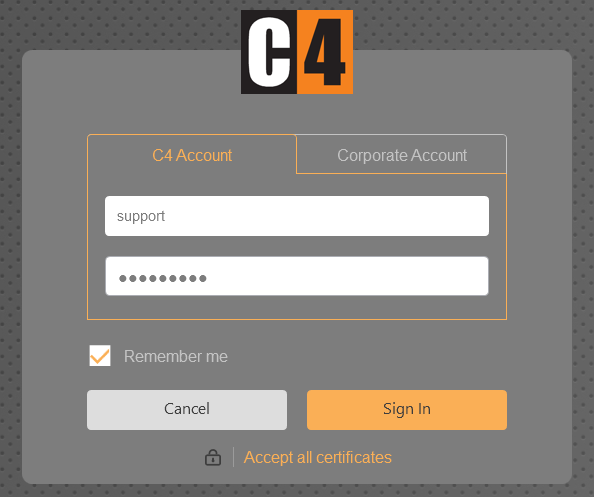
Select Sign In.
After login, verify that the expected panels are visible and that the server connection is healthy.
Confirmation: The client opens with the permissions assigned to the signed-in person.
Sign in with a corporate account
Role: Operator, User or administrator
Prerequisites: C4 Standard, a configured WinAuth service, and a person linked to a valid domain account.
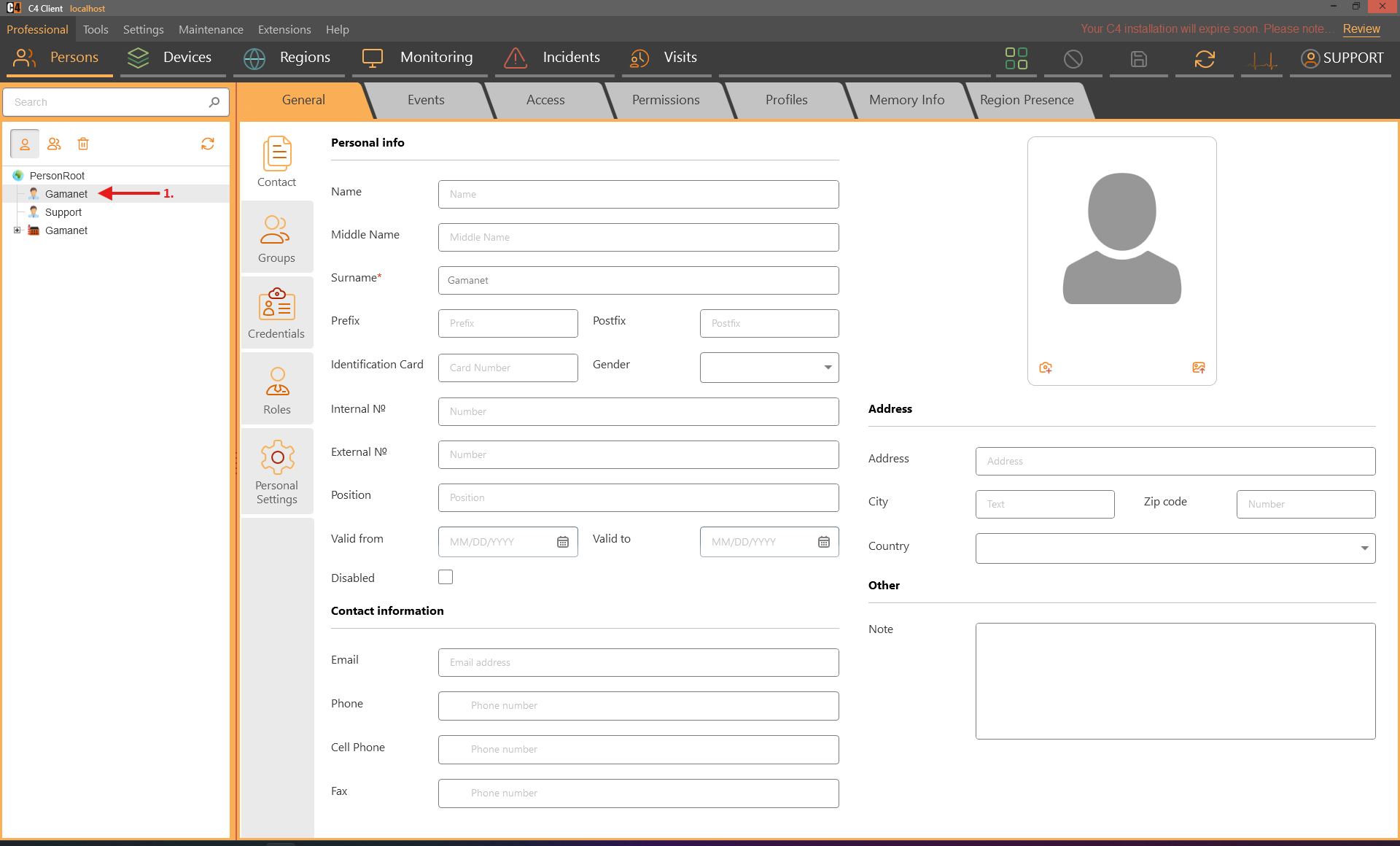
Open Professional > Persons and select the person.
Open Personal Settings, select Corporate Account, and enter the domain and user name in the form Domain\User.
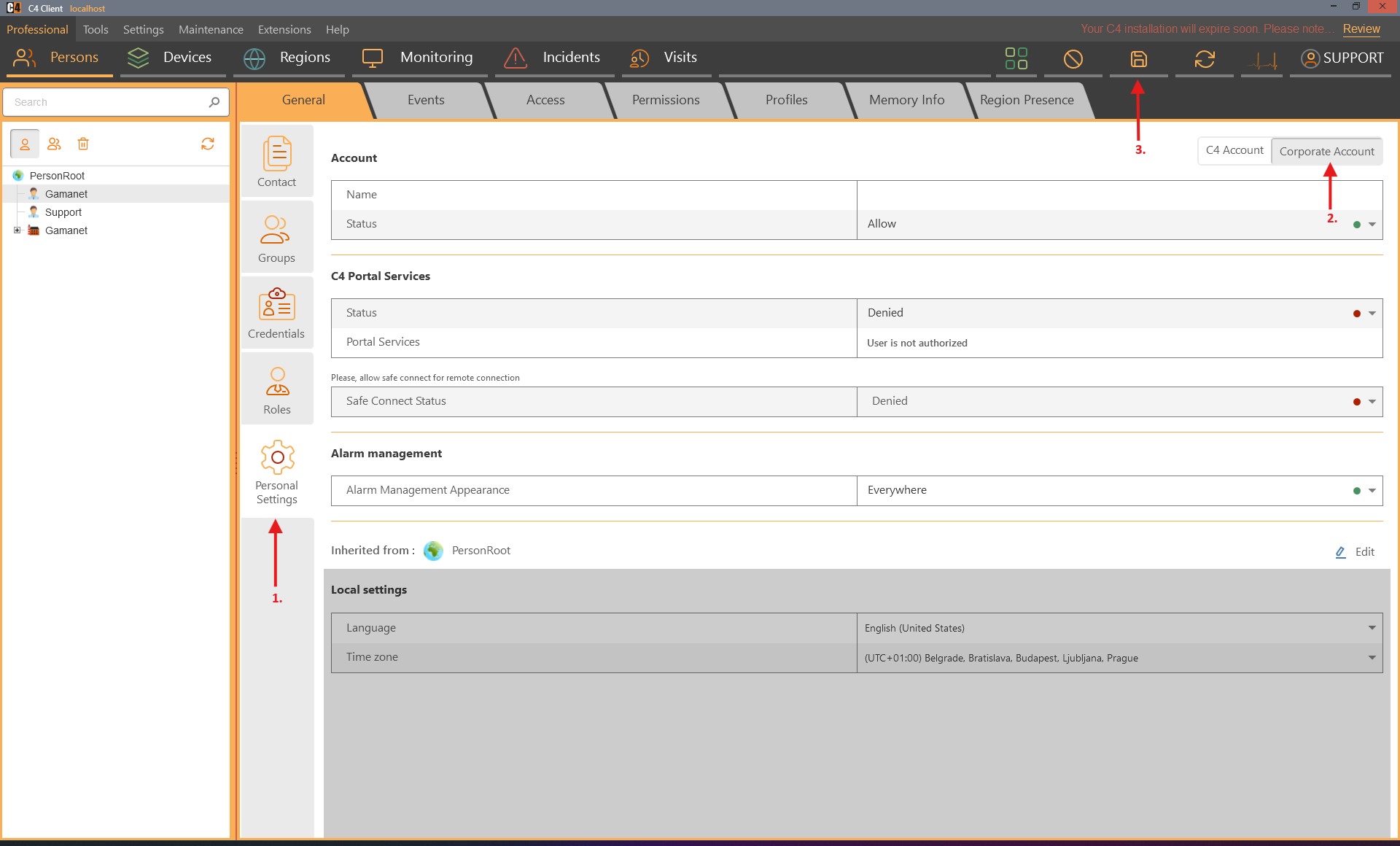
Save the person.
At the login screen, select Corporate Account and choose Sign In.
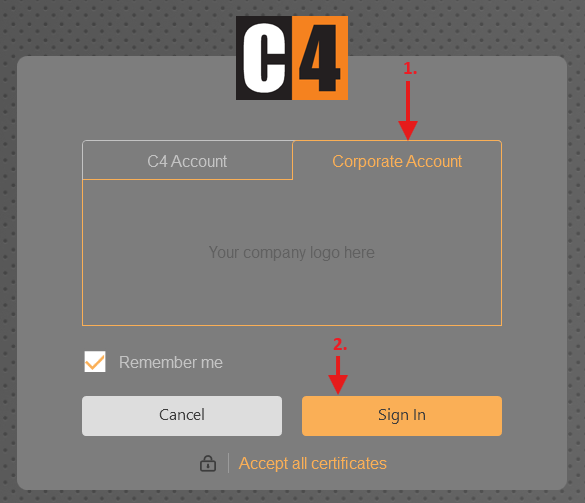
Complete the domain authentication prompt.
Confirmation: The person signs in through the corporate domain account.
Note: Corporate authentication availability depends on the WinAuth service and local domain configuration.
Use trusted-certificate validation
Role: Administrator
Prerequisites: Correct server certificates and a client build that exposes certificate validation on the login screen.
Warning: Do not change certificate validation to a less restrictive option without security approval.
Start the client and locate the certificate-validation text at the bottom of the login window.
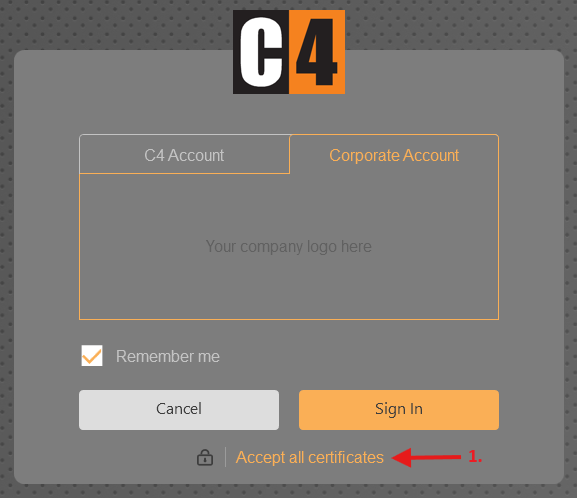
Change the option from Accept All to Accept trusted.
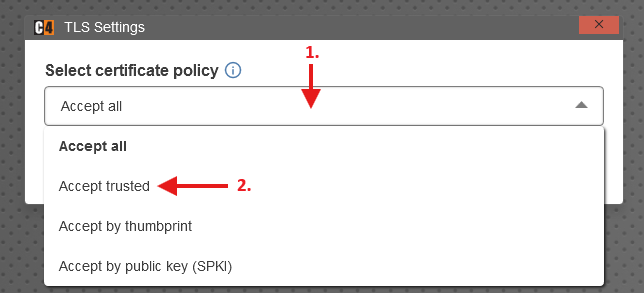
Attempt to sign in.
If the certificate is not trusted, stop and have the certificate chain corrected instead of bypassing the warning.
Confirmation: Login succeeds only when the configured server certificate is trusted.
Language, name order, and right-to-left layout
Set the displayed name order
Role: Administrator
Open Settings > Preferences.

Select the required Name order option.
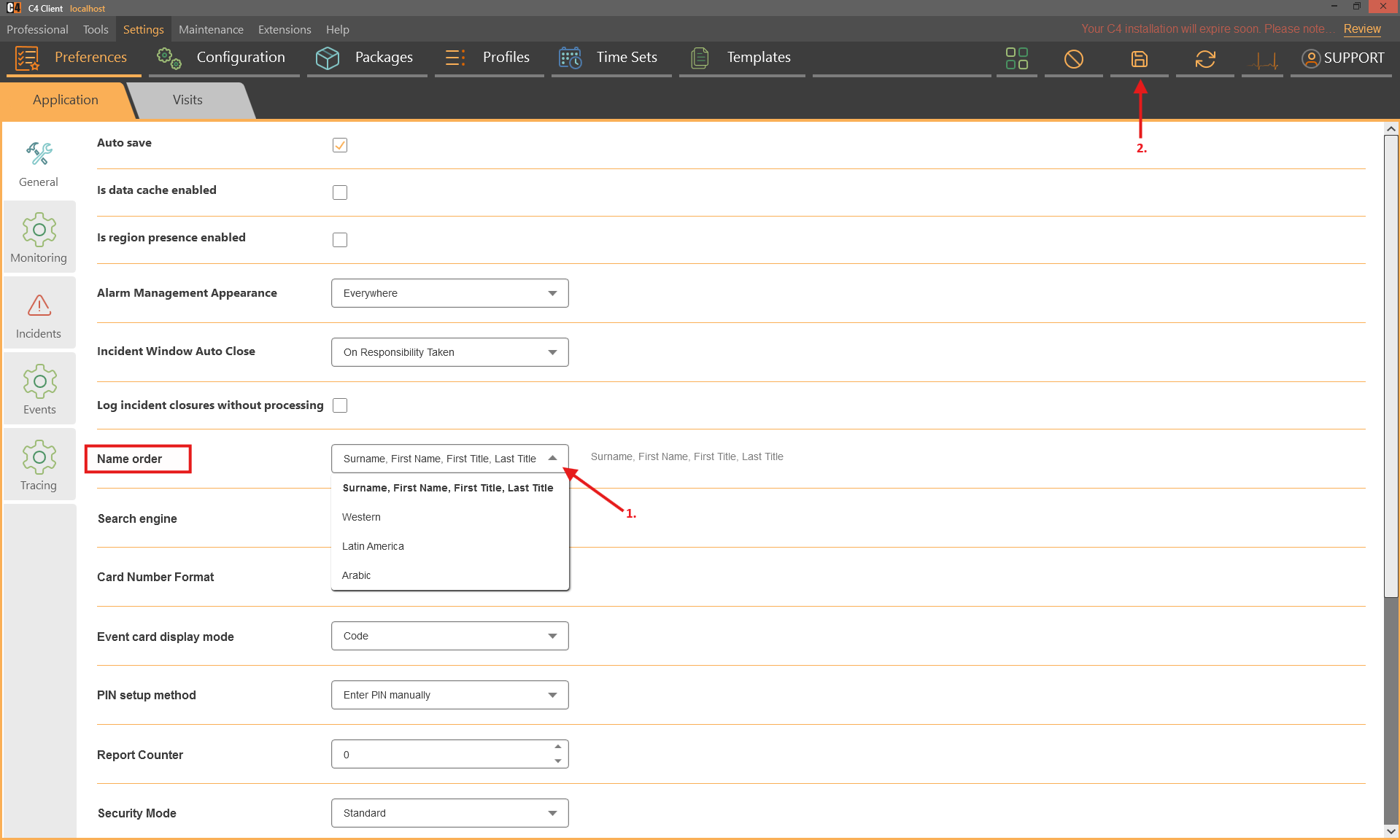
Save and refresh the client.
Return to Professional > Persons and verify how names are displayed in trees and detail views.
Confirmation: Person names use the selected order throughout the client. Historical events retain the order that applied when the event occurred.
Note: The supplied 2026 SP1+ material lists Europe/Eastern, Western/Latin America, and Arabic-related options; the exact labels can vary by build.
Use a right-to-left language
Role: Administrator
Prerequisites: A supported right-to-left language pack, such as Arabic.
Open Professional > Persons and select the person.
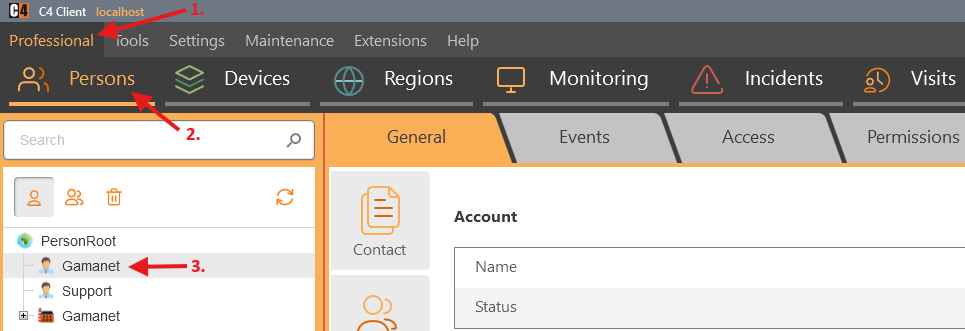
In Personal Settings, set the person language to the required right-to-left language.
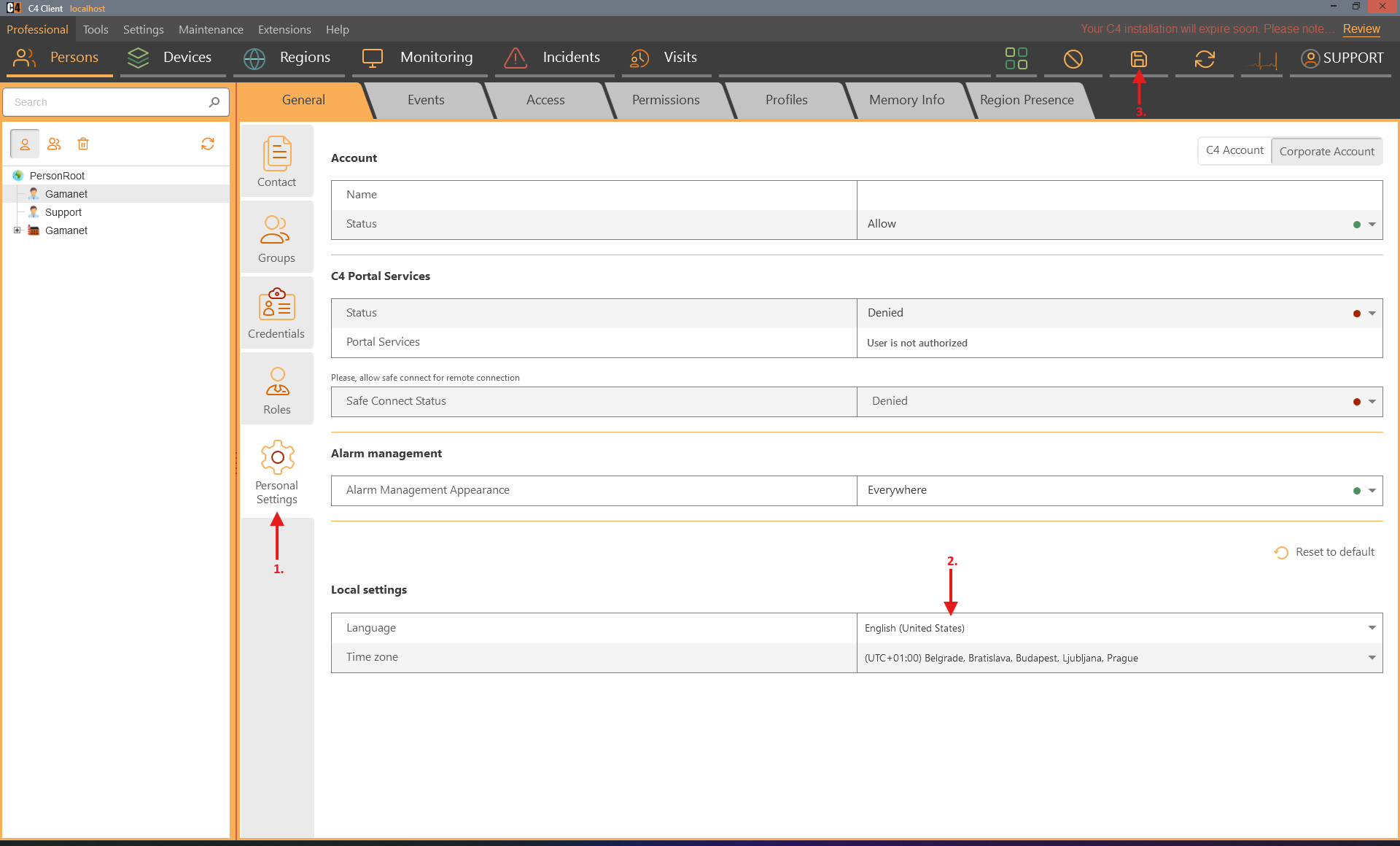
Save, sign out, and sign in as that person.
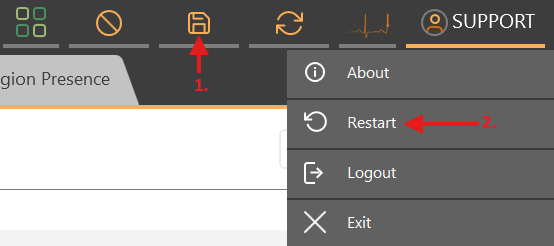
Verify text direction, alignment, and control order in the client.
Confirmation: The client uses right-to-left presentation for the selected language where supported.
Safe-change checklist
Confirm the correct server, object, and tree node before saving or sending a command; verify the result in the relevant tree, Events, History, Memory Info, or target server.
For physical device commands, confirm the device state and obtain authorization under the site procedure.
Before an access upload, verify the credential, validity, access assignment, target device, and upload method.
Use Archive when recovery may be needed; permanently delete only after reviewing dependencies and retention requirements.
2. People, organizations, groups, and accounts
The Persons panel is the central place for organizational structures, people, person groups, client accounts, contact data, photos, search, and record lifecycle actions.
Availability: Core person and group management is available in the supplied Basic and Standard use cases. Corporate accounts and some security options require Standard or additional services.
Person-tree concepts
The person tree can contain organization nodes such as Company, Division, Center, and Department, followed by Person nodes. A site can use a shorter or deeper hierarchy. The group tree is separate and is used to assign people to logical groups without changing their organizational parent.
Create an organizational structure and a person
Role: System administrator
Prerequisites: Modify permission in Professional > Persons.
Open Professional > Persons.

Right-click Person Root and select Add > Company.
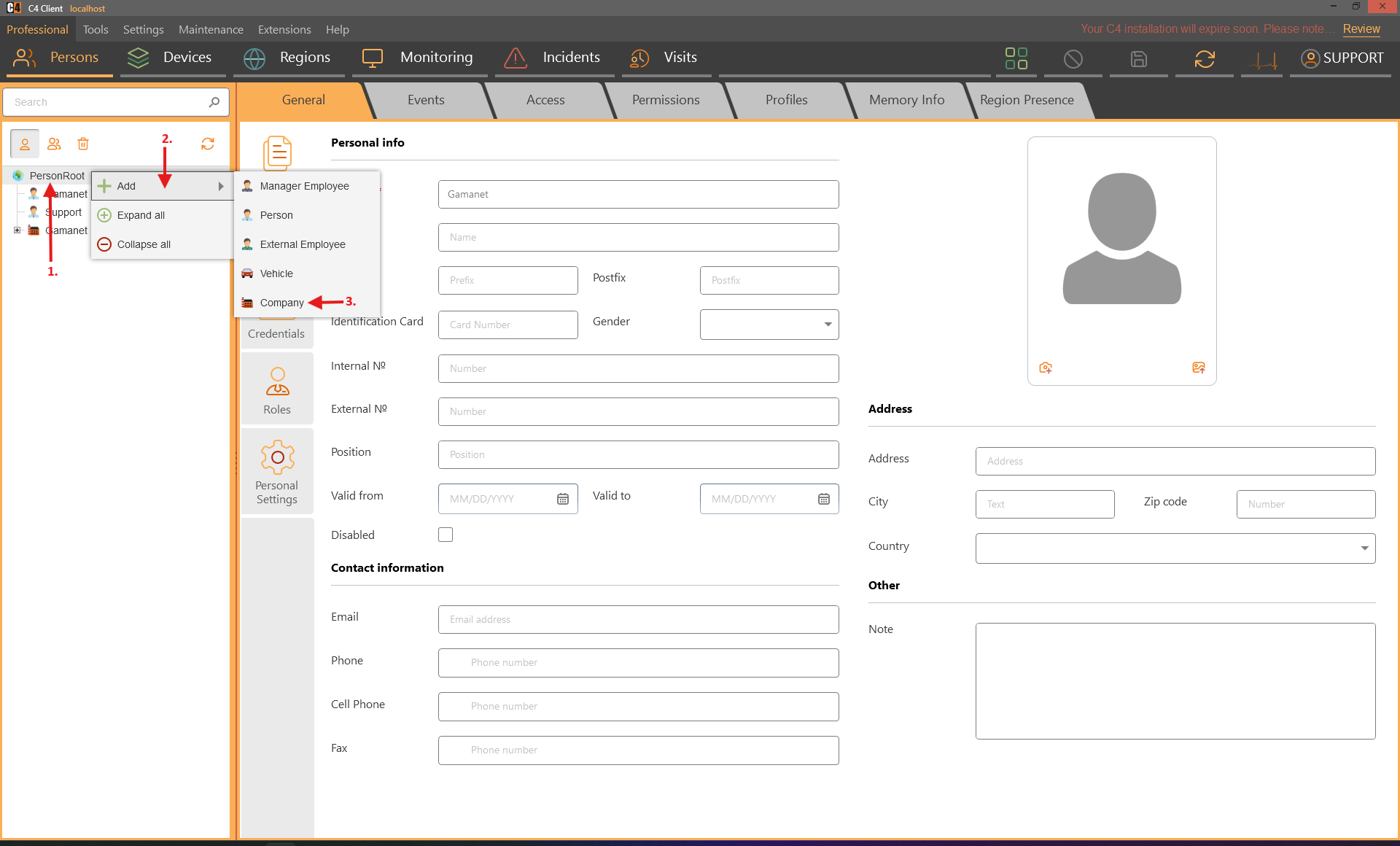
Enter the mandatory Name and save.
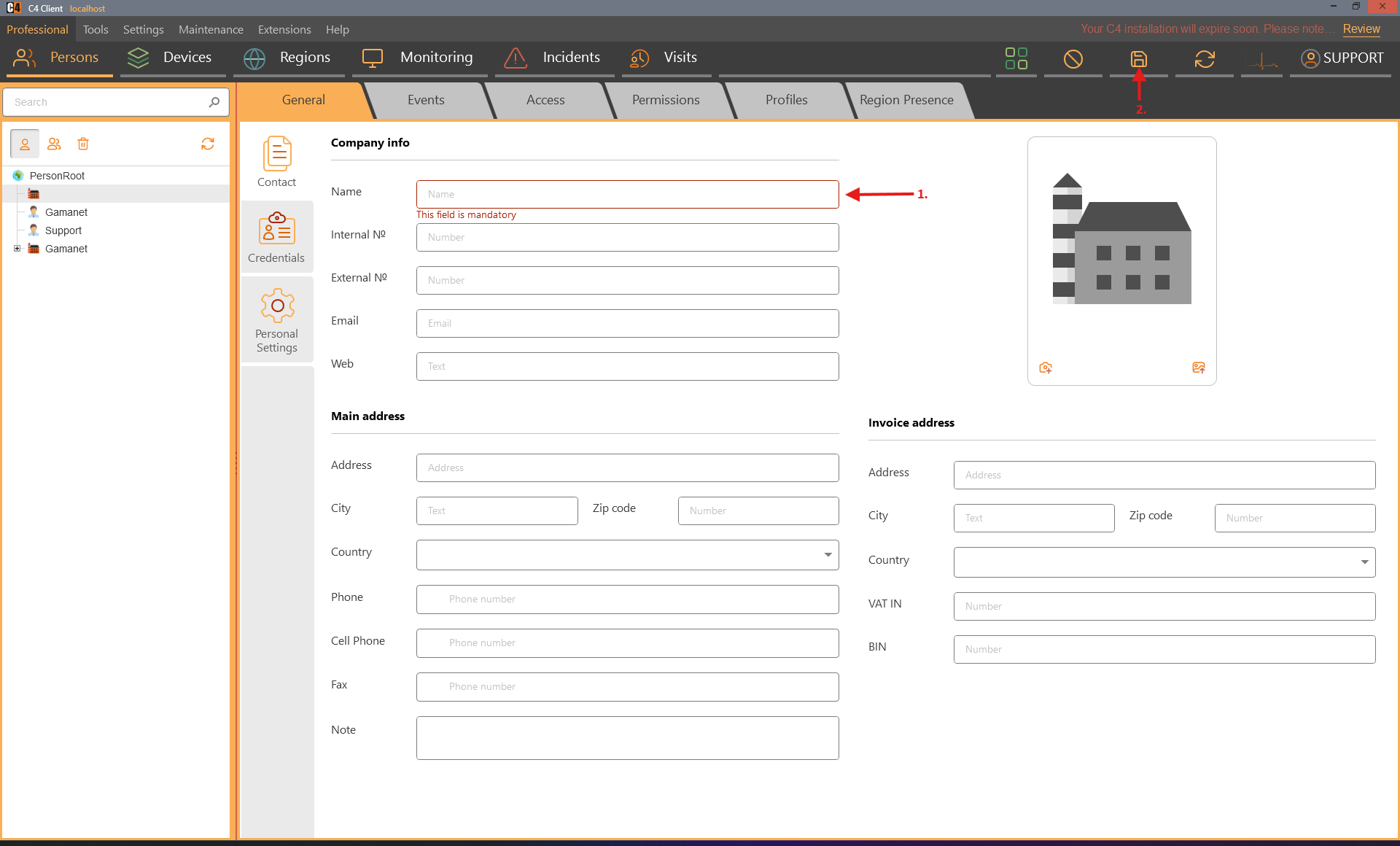
Right-click the company and add the required child levels, such as Division, Center, or Department. Save each level.
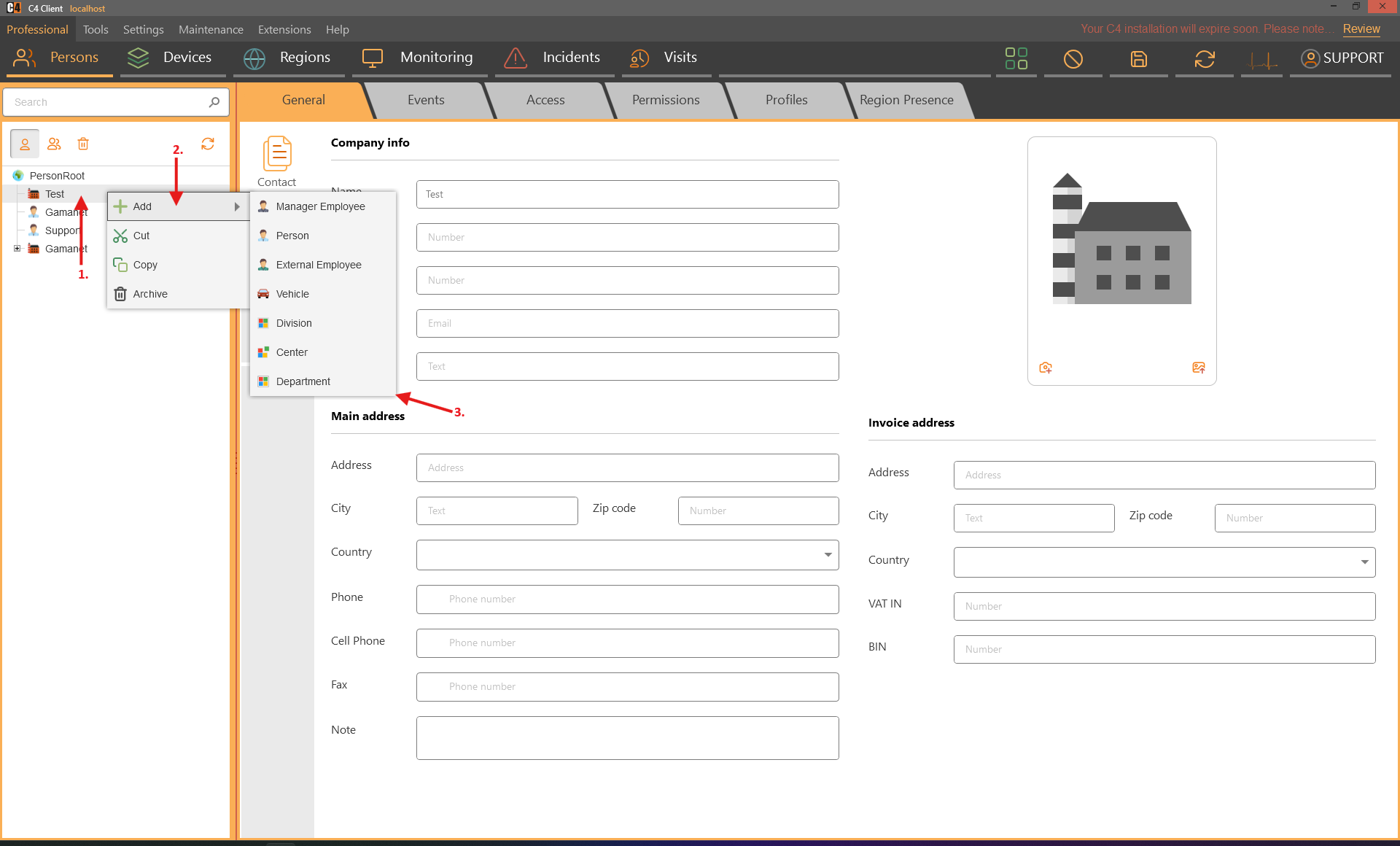
Right-click the final organizational parent and select Add > Person.
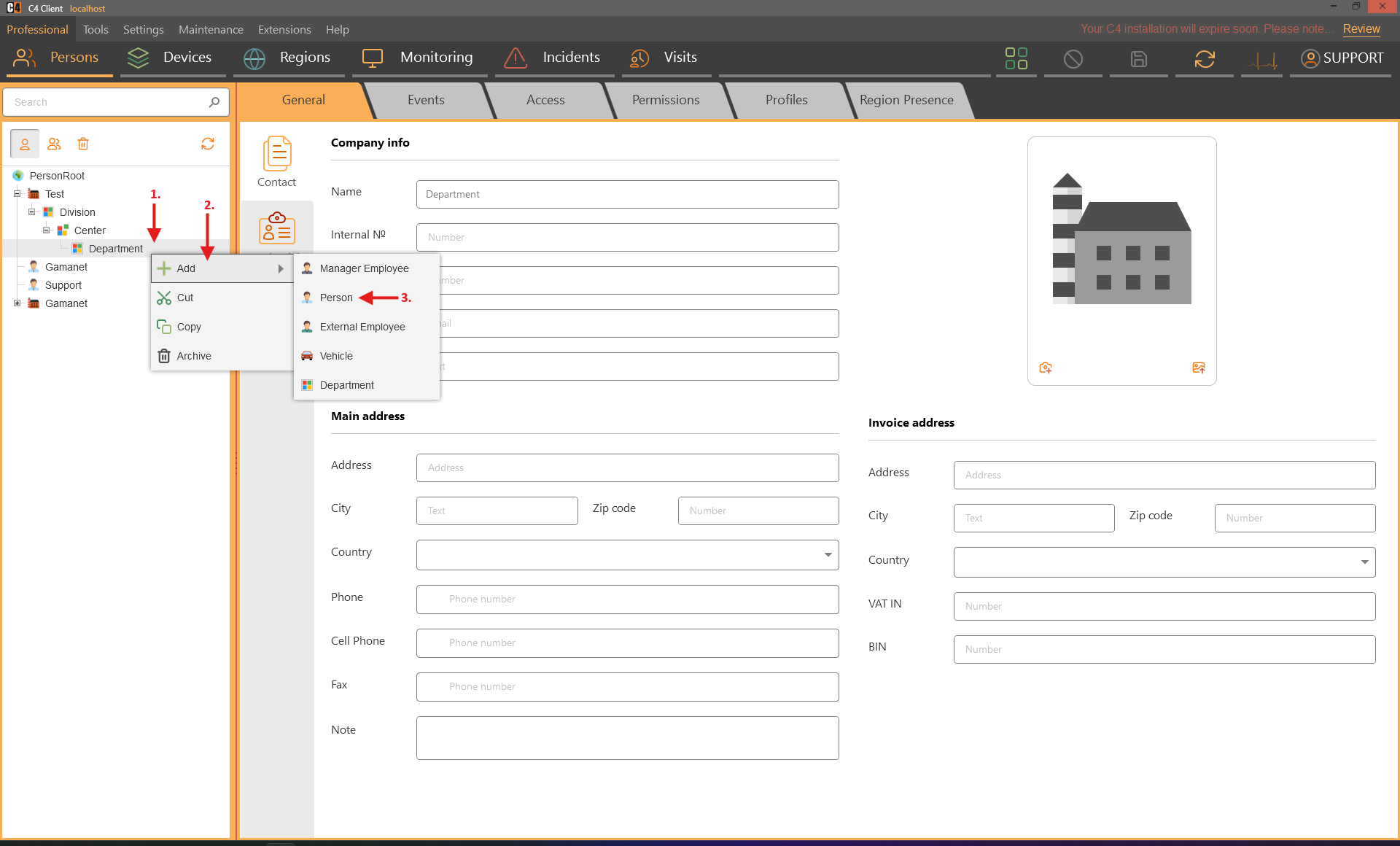
Enter at least the mandatory Surname and any required contact or identity data.
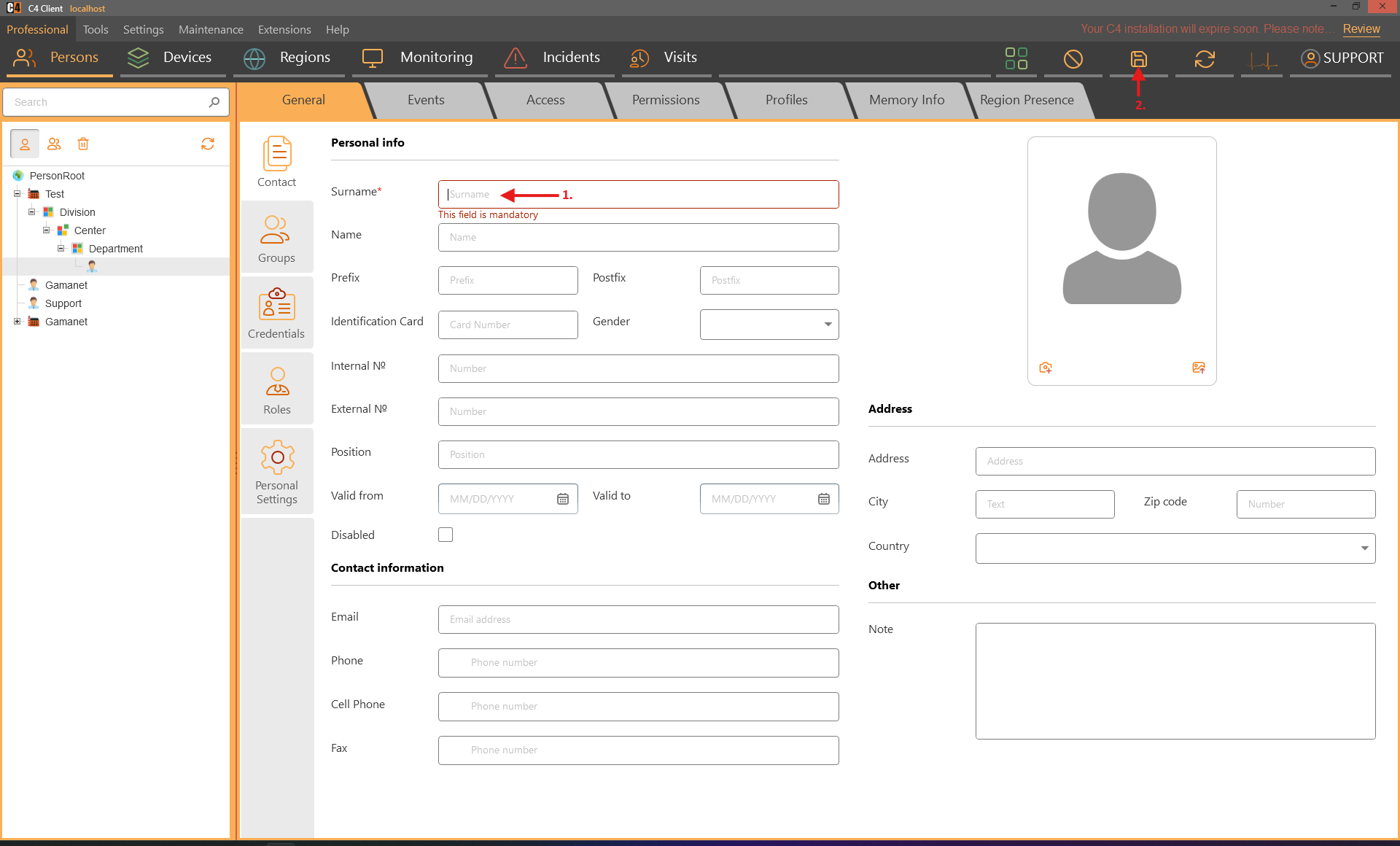
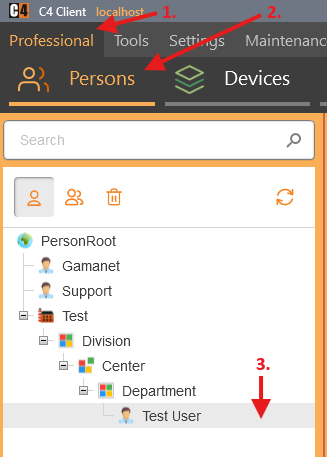
Save the person and confirm that it appears under the intended parent.
Confirmation: The organization nodes and person are visible in the person tree under the selected hierarchy.
Edit contact information and a photo
Role: System administrator or HR/security administrator
Open Professional > Persons and select the company or person.
Edit the fields in General or Contact Info as required.
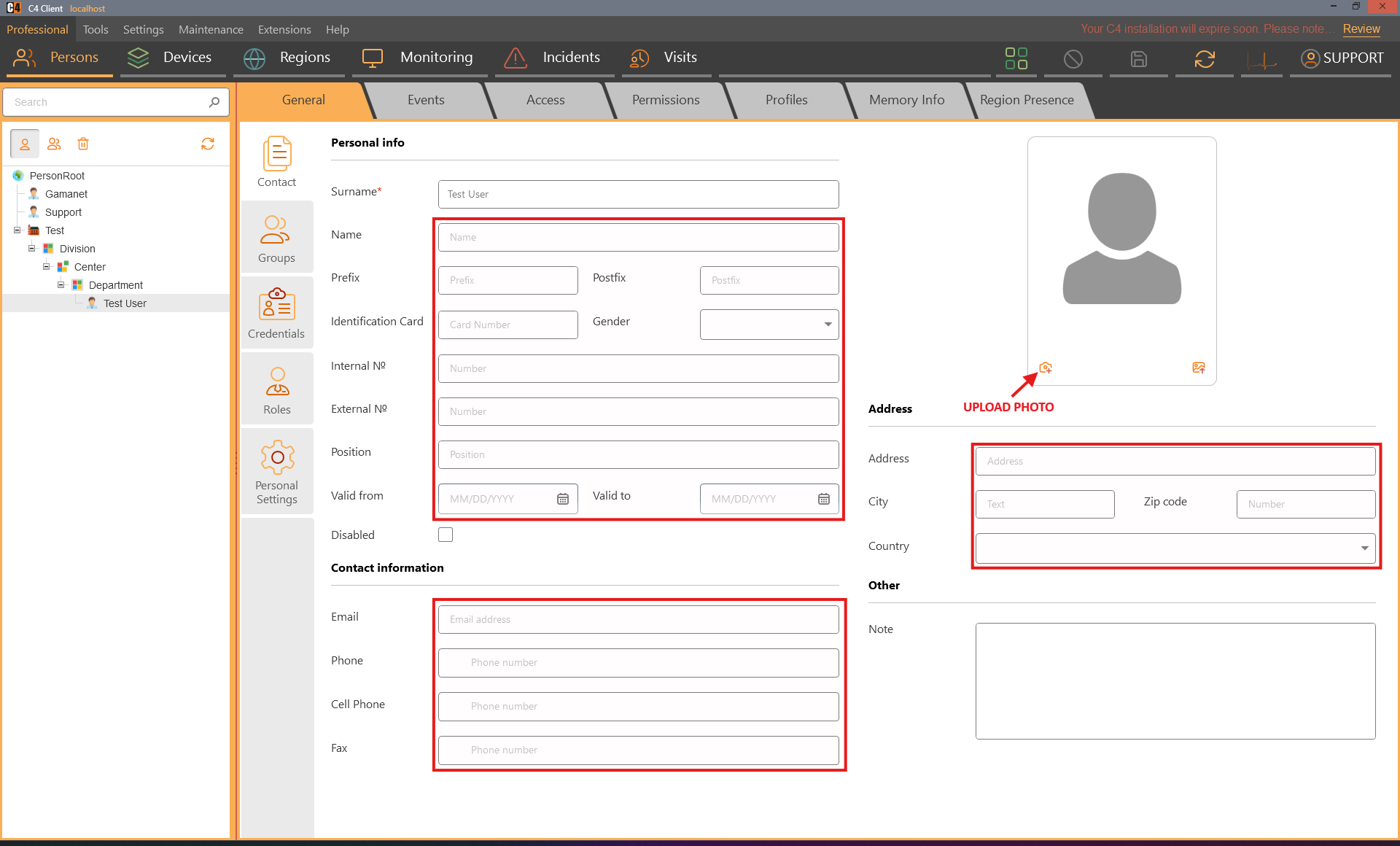
For a person photo, use the photo control to select a file or capture an image from a camera.
Save the record.
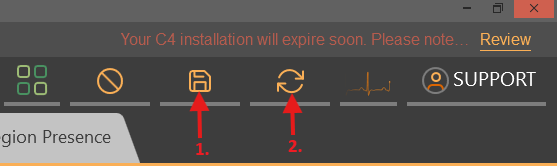
Use Refresh and reselect the record to confirm that the data and photo were retained.
Confirmation: The updated properties and photo remain visible after refresh.
Note: The SP3 material describes updated photo-selection and camera dialogs; wording can vary by build.
Search for a person by credential or license plate
Role: Operator or administrator
Prerequisites: The relevant card or license-plate credential type is installed and assigned to a person.
Open Professional > Persons.

Collapse the tree when a broad search is needed.
Enter the card code, PIN-related identifier, or license plate in the person-tree search field.
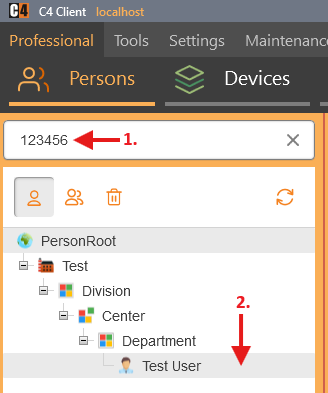
Select the filtered person.
Open Credentials to confirm the matching credential.
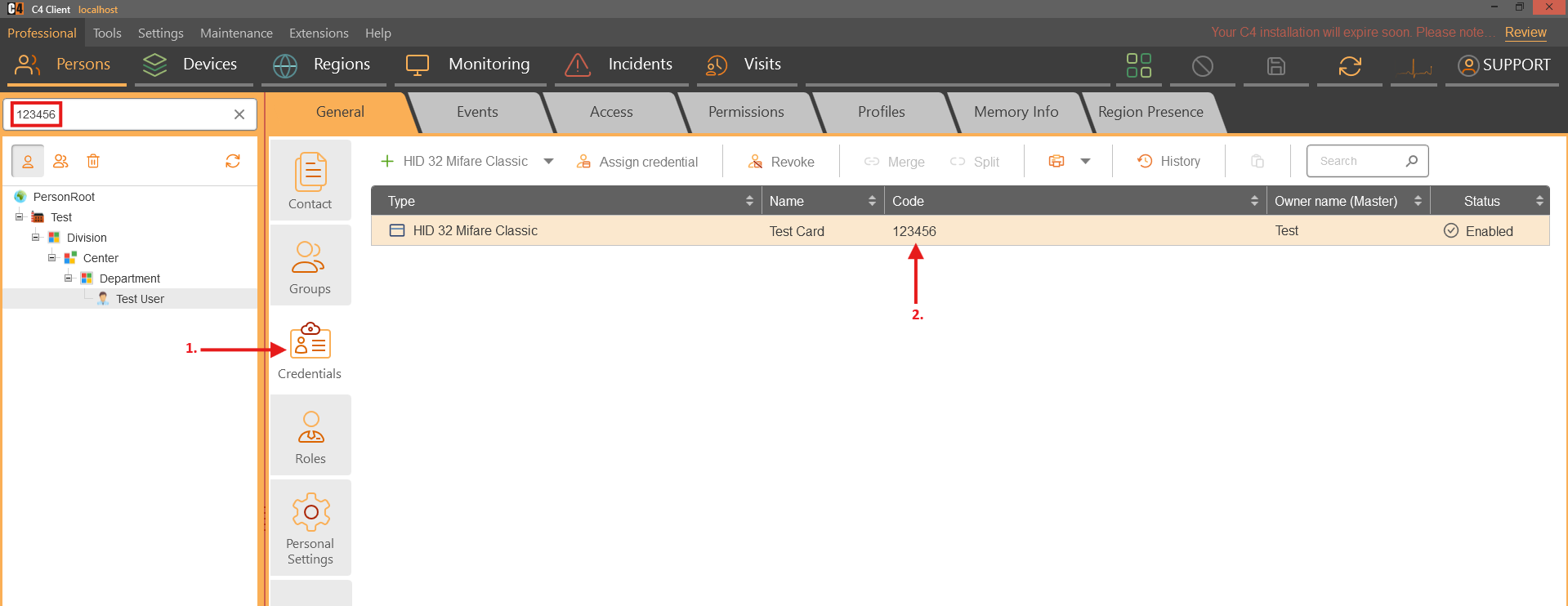
Confirmation: The person tree is filtered to the person associated with the entered credential value.
Note: SP3 extends person search to credentials. Card searches can depend on the configured decimal or hexadecimal card-number format.
Person groups
Create a person group and add members
Role: System administrator
Prerequisites: Existing persons.
Open Professional > Persons and switch to the Groups tree.
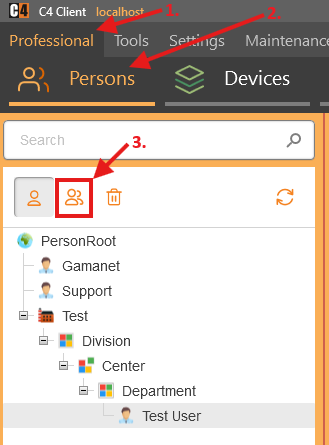
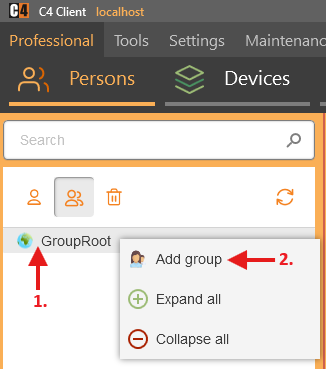
Right-click Group Root and select Add Group.
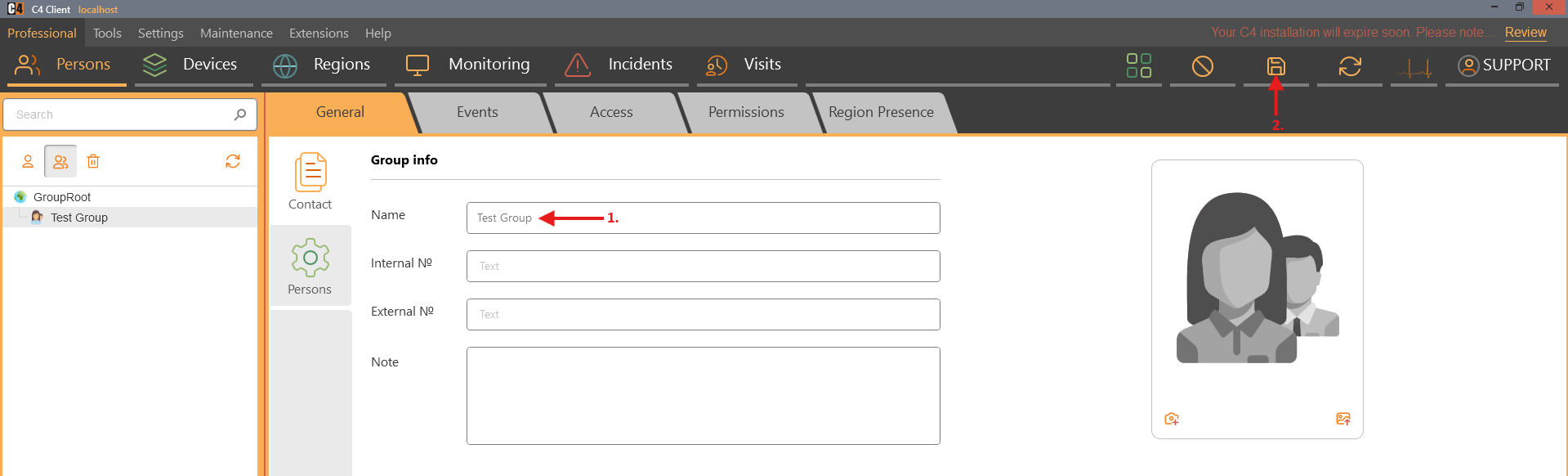
Enter the group Name and save.
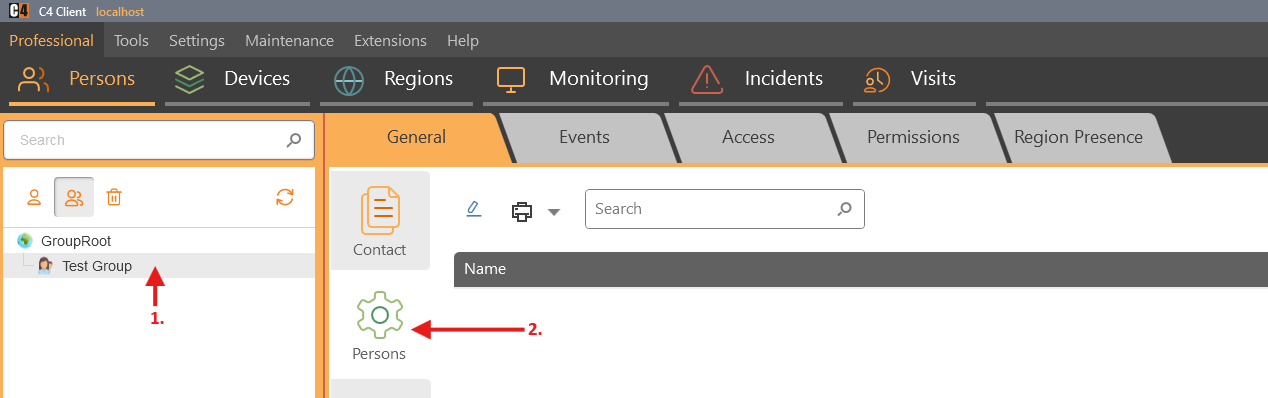
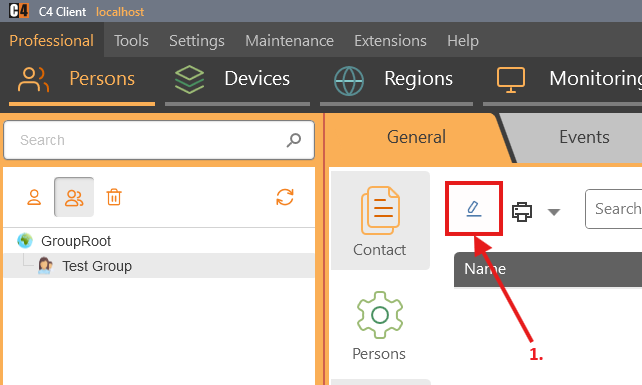
Select the group and open the Persons tab.
Select Add Person to Group.
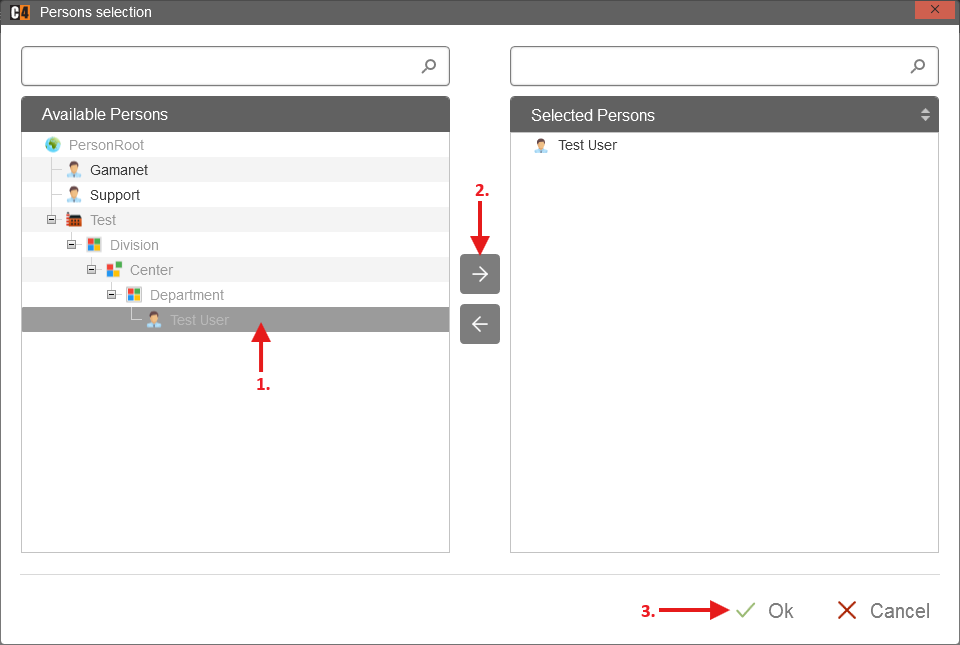
Choose people from Available Persons, select Add, and then Finish.
Save the group.
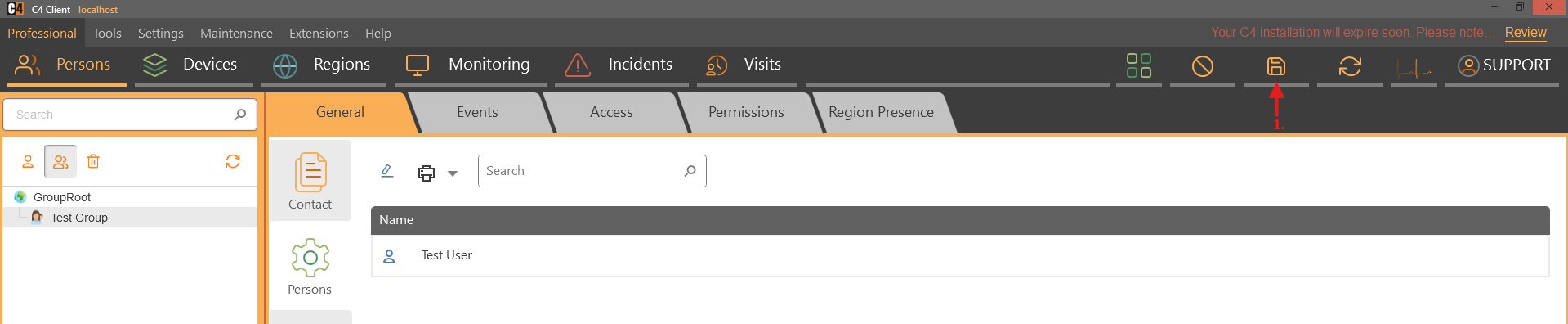
Confirmation: The selected people are listed as members of the group.
Review or remove group membership
Role: System administrator
To review a person, switch to the Persons tree, select the person, open Groups, and select Show Assigned.
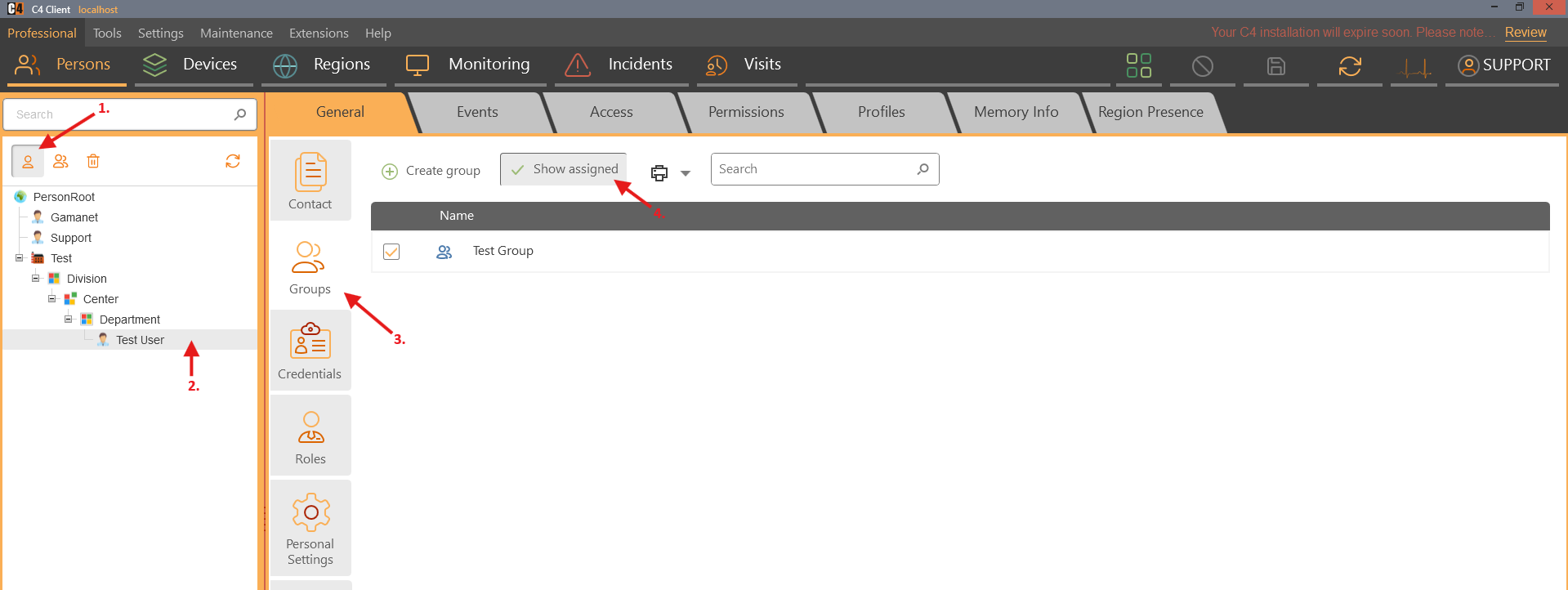
To remove members, switch to the Groups tree, select the group, and open Persons.
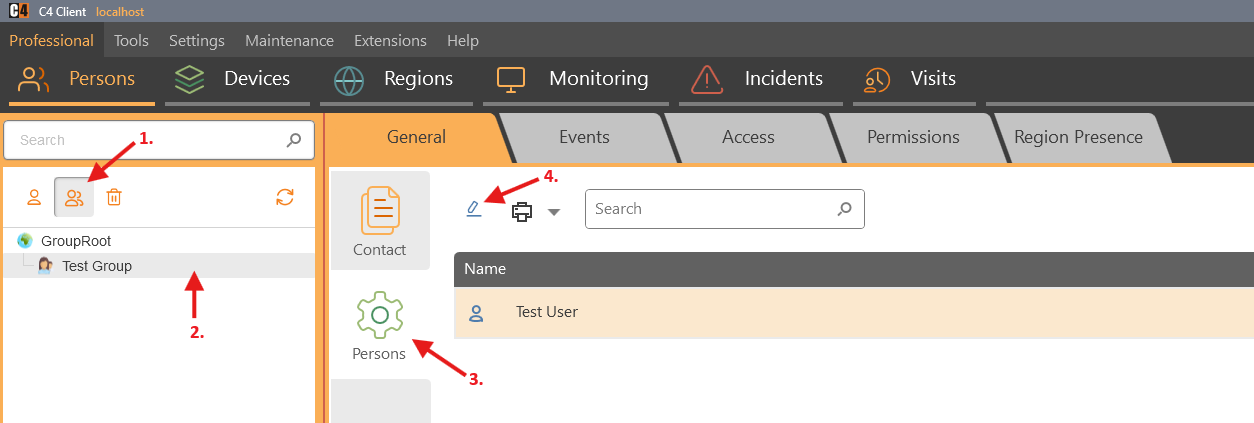
Open Add Person to Group, select people in Assigned Persons, choose Remove, and then Finish.
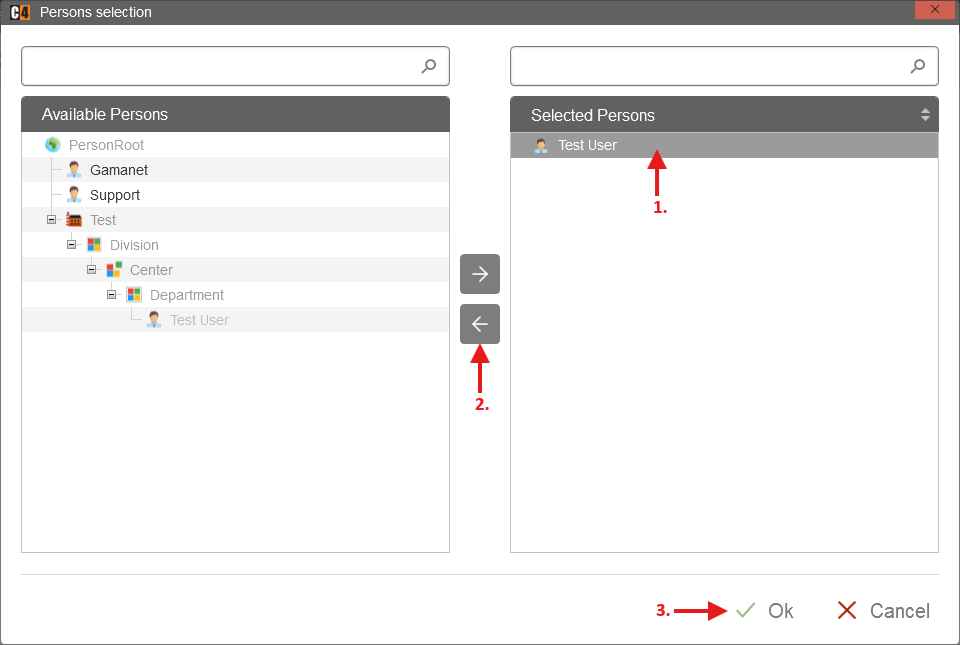
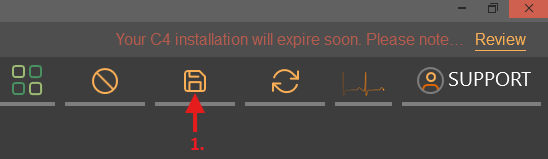
Save the group.
Confirmation: Only the remaining assigned people are listed in the group, and the person view shows the current assigned groups.
Client accounts
Create a local client account for a person
Role: System administrator
Prerequisites: An existing person.
Open Professional > Persons and select the person.
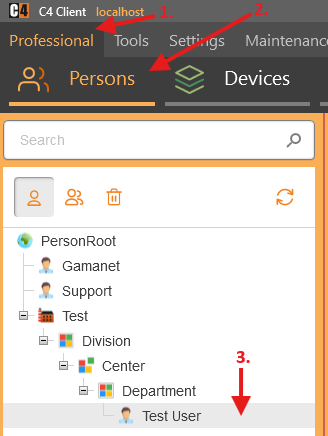
Open Personal Settings.
Under Account, enter the account Name.
Enter and repeat the password.
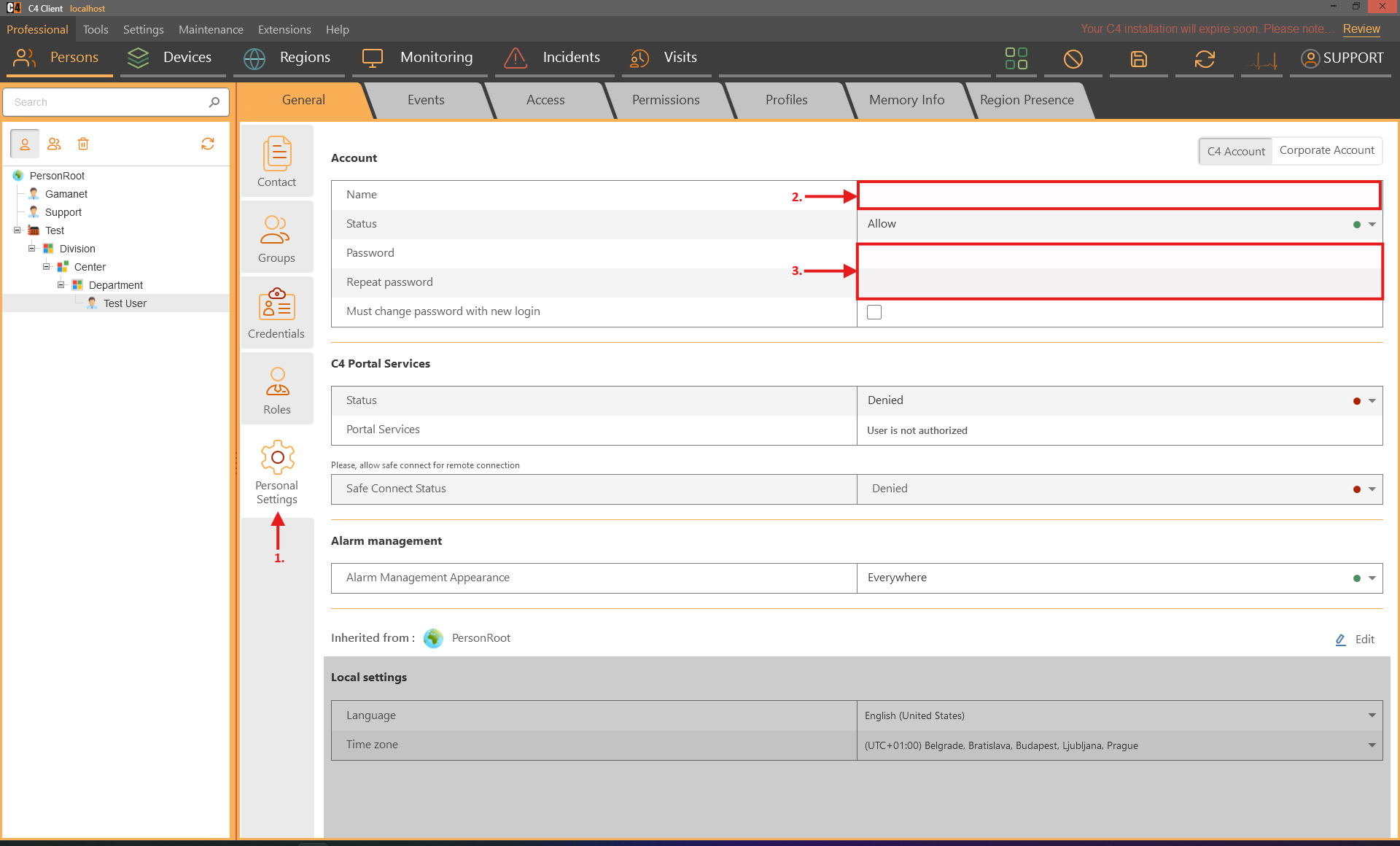
Save the person.
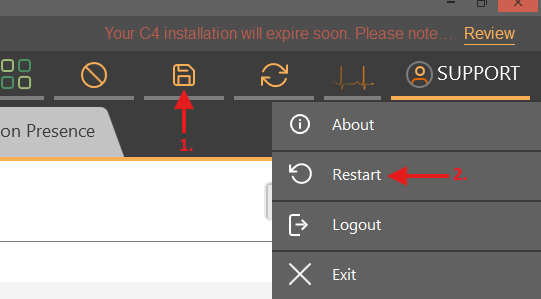
Sign out and test the account at the login screen.
Confirmation: The person can sign in with the configured local account.
Note: The supplied baseline requires at least eight characters with uppercase, lowercase, numeric, and special characters. A site policy may be stricter.
Archive, restore, delete, and export
Archive and restore a person-tree node
Role: System administrator
Right-click the person, company, or organization node and select Archive.
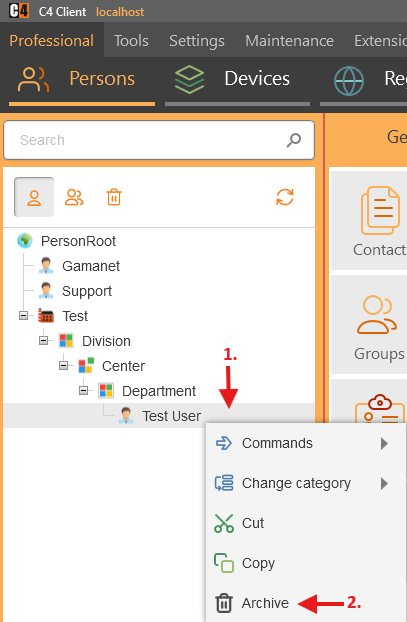
Save. The node moves out of the active tree and into the Recycle Bin.
Open the person-tree Recycle Bin.
Right-click the archived node and select Restore.
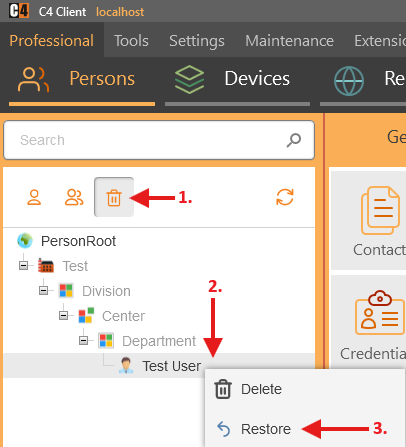
Save and verify that the node returned to the active tree.
Confirmation: The record is restored with its retained data and relationships, subject to product rules.
Permanently delete a person-tree node
Role: System administrator
Prerequisites: The node is already archived and the deletion is approved.
Warning: Permanent deletion cannot be reversed. Review credentials, access, group membership, audit, and integration dependencies first.
Open the person-tree Recycle Bin.
Right-click the archived node and select Delete.
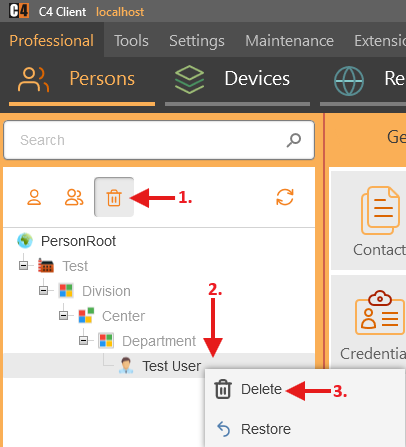
Confirm and save.
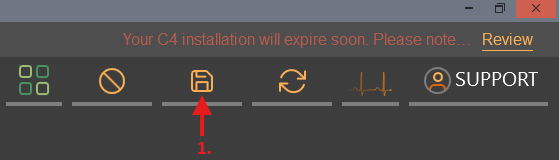
Verify that the node is absent from both the Recycle Bin and active tree.
Confirmation: The record is permanently removed. Credential behavior is described in Chapter 3.
Export a person-tree branch to CSV
Role: Administrator or authorized data user
Prerequisites: C4 2026 SP3 and permission to export the selected data.
Warning: CSV can contain personal or security-sensitive data. Store and transfer it according to site data-handling rules.
Open Professional > Persons.
Hold Ctrl and right-click the person-tree node to export.
Select File > Export.
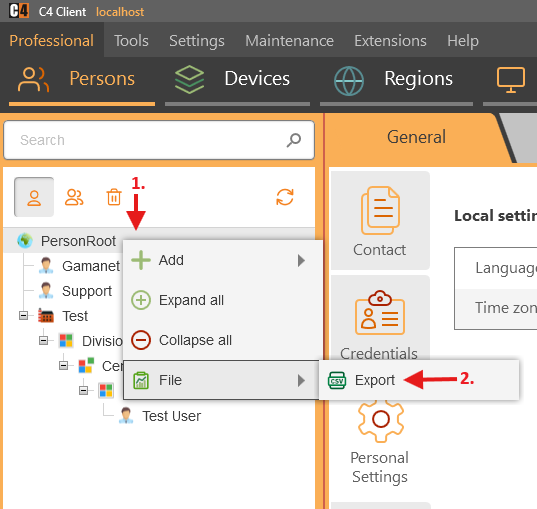
Choose the destination and proceed through Next to Finish.
Open the CSV in an approved location and verify the scope.
Confirmation: The selected tree node and supported child data are exported to CSV.
3. Credentials
Credentials identify people to access, intrusion, visitor, and other integrated systems. C4 supports installed credential types such as PINs, cards, and license plates, with assignment, revocation, search, and ownership rules.
Availability: Credential types are plug-ins. The available types, formats, code lengths, editors, and device compatibility depend on installed packages and drivers.
Install and configure credential types
Install an available credential type
Role: System or security administrator
Prerequisites: Portal-service access when required and ModifyData permission for the Packages panel.
Open Settings > Preferences > Application and enable Use portal service settings when required by the deployment.
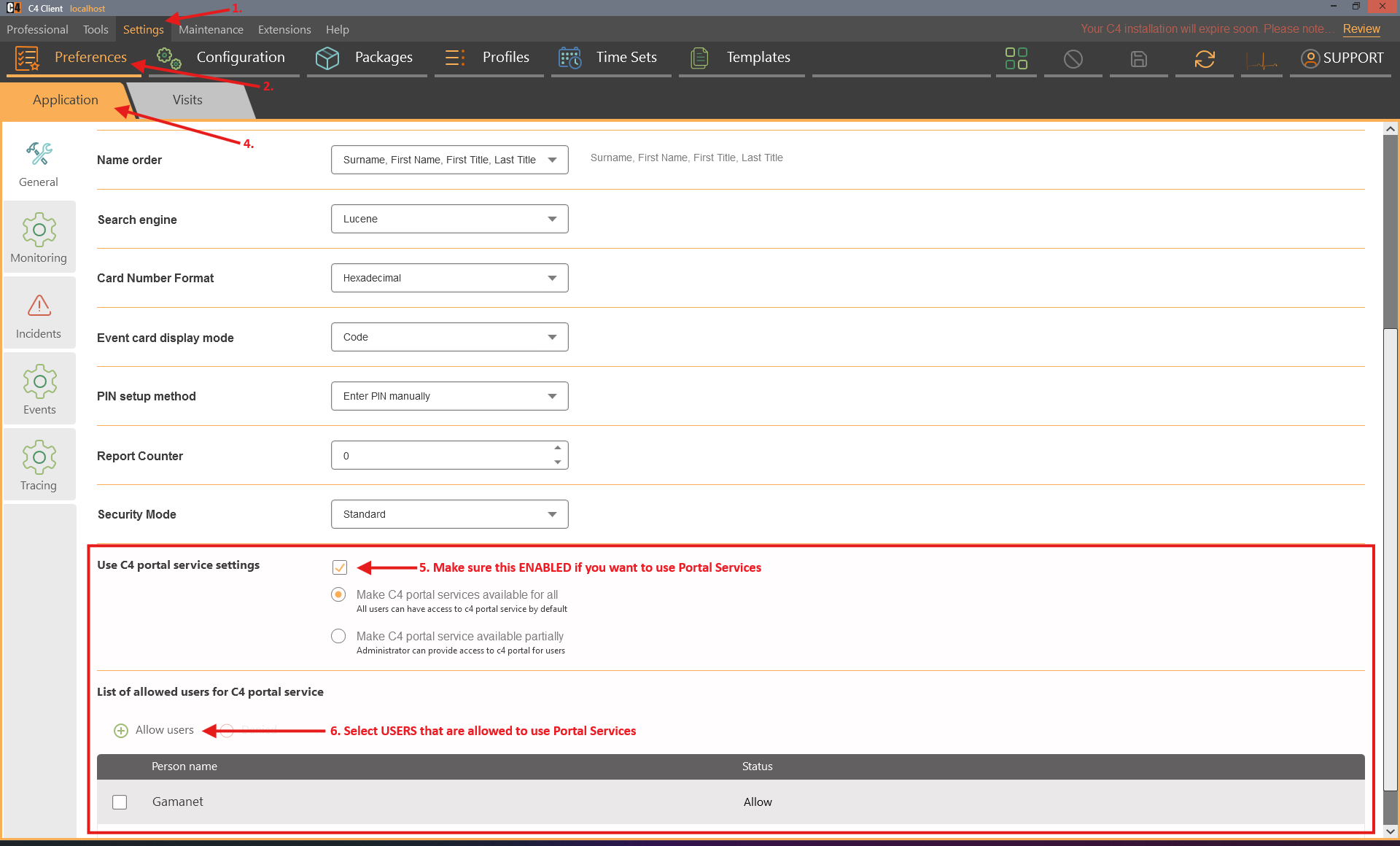
Save the preference.
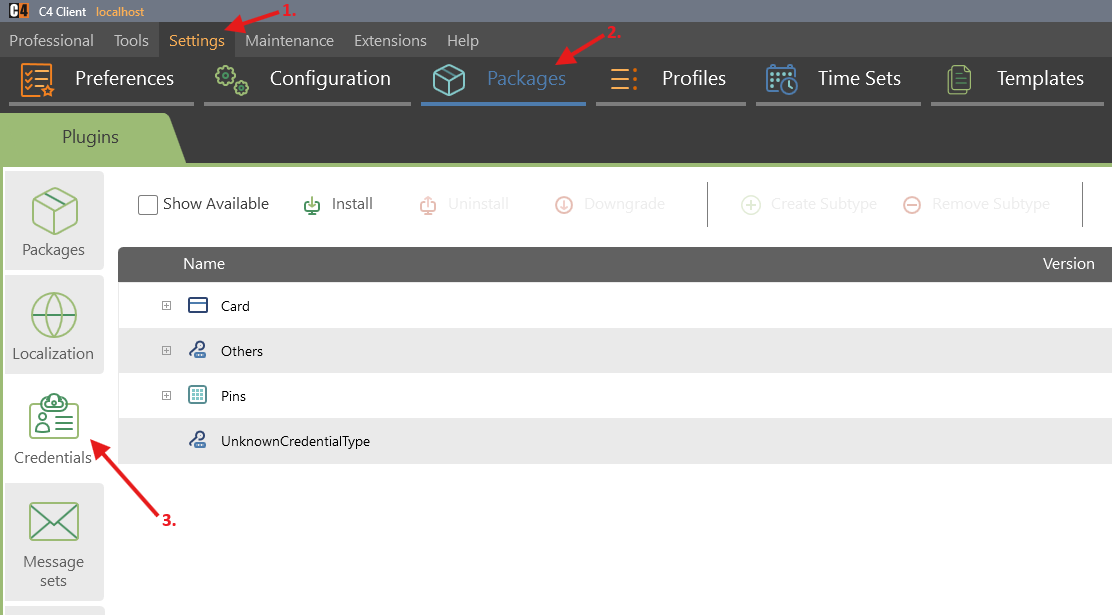
Open Settings > Packages and select Plugins > Credentials.
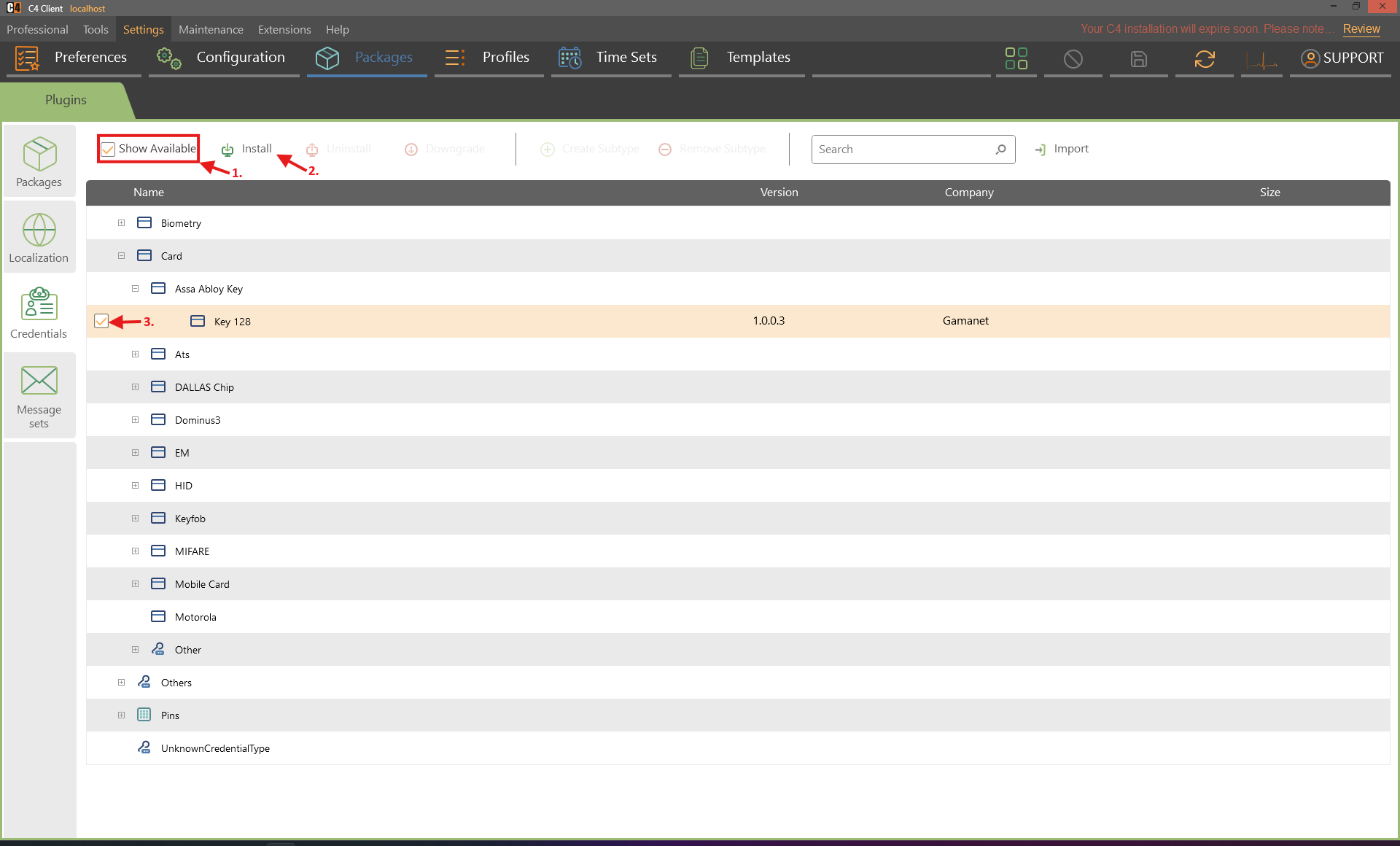
Enable Show Available. Sign in to portal services if prompted.
Select the required credential type and choose Install.
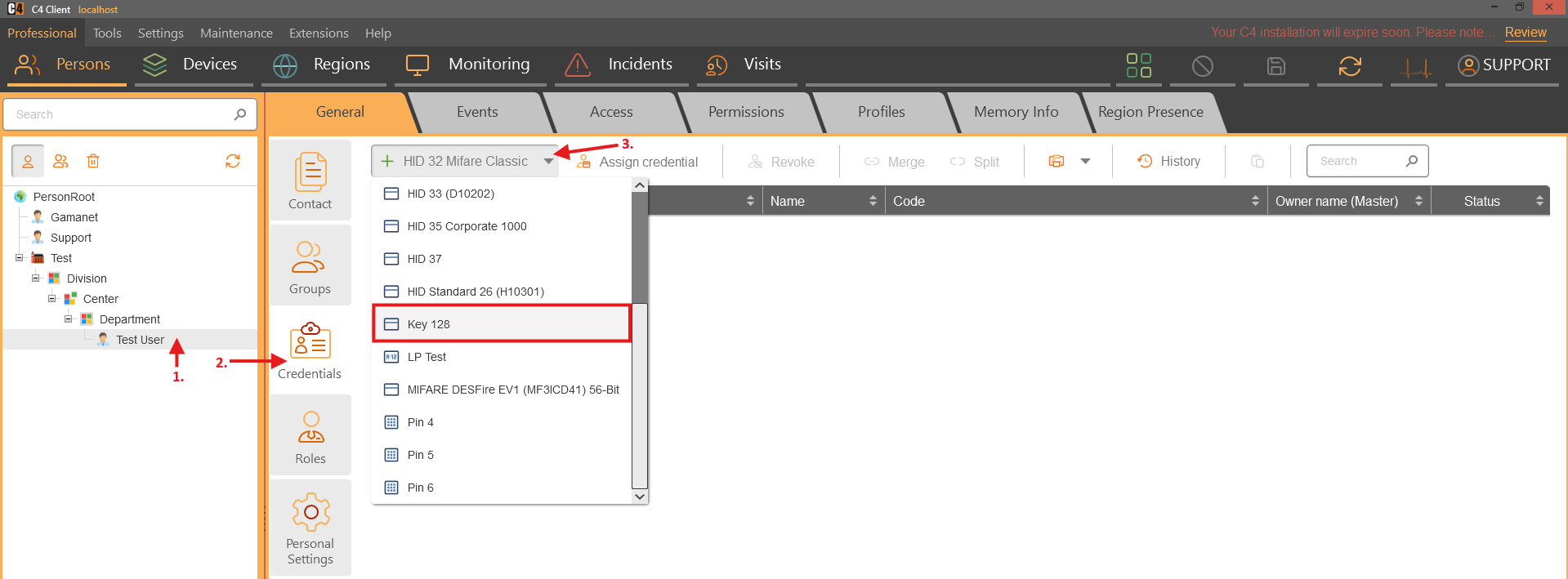
Return to Professional > Persons and verify that the type appears under Add credentials.
Confirmation: The installed credential type is available for assignment where supported.
Note: SP3 enforces package permissions. A person without ModifyData permission for Packages cannot install plug-ins.
Choose the PIN setup method
Role: Security administrator
Open Settings > Preferences > Application.

Set PIN Setup method to Enter PIN manually, Suggested PINs, or Auto-generate PIN.
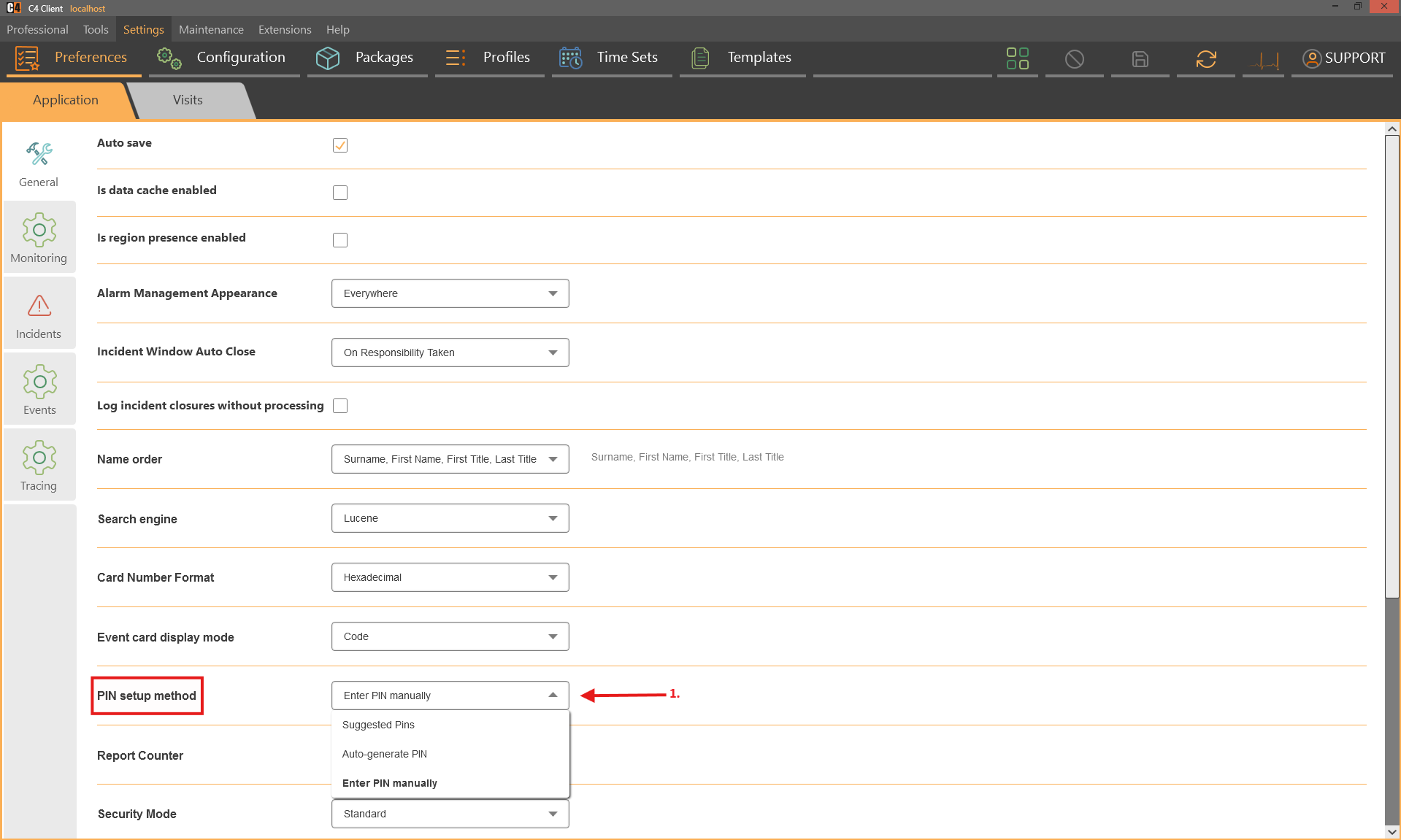
Save the preference.
Create a test PIN on an approved test person and verify the editor behavior.
Confirmation: PIN creation follows the selected setup method.
Create credentials on a person
Add a PIN credential
Role: Security administrator
Prerequisites: An existing person and an installed PIN credential type.
Open Professional > Persons and select the person.
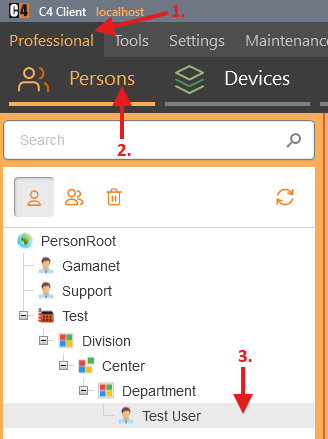
Open Credentials.
Open the Add credentials menu and select the required PIN type.
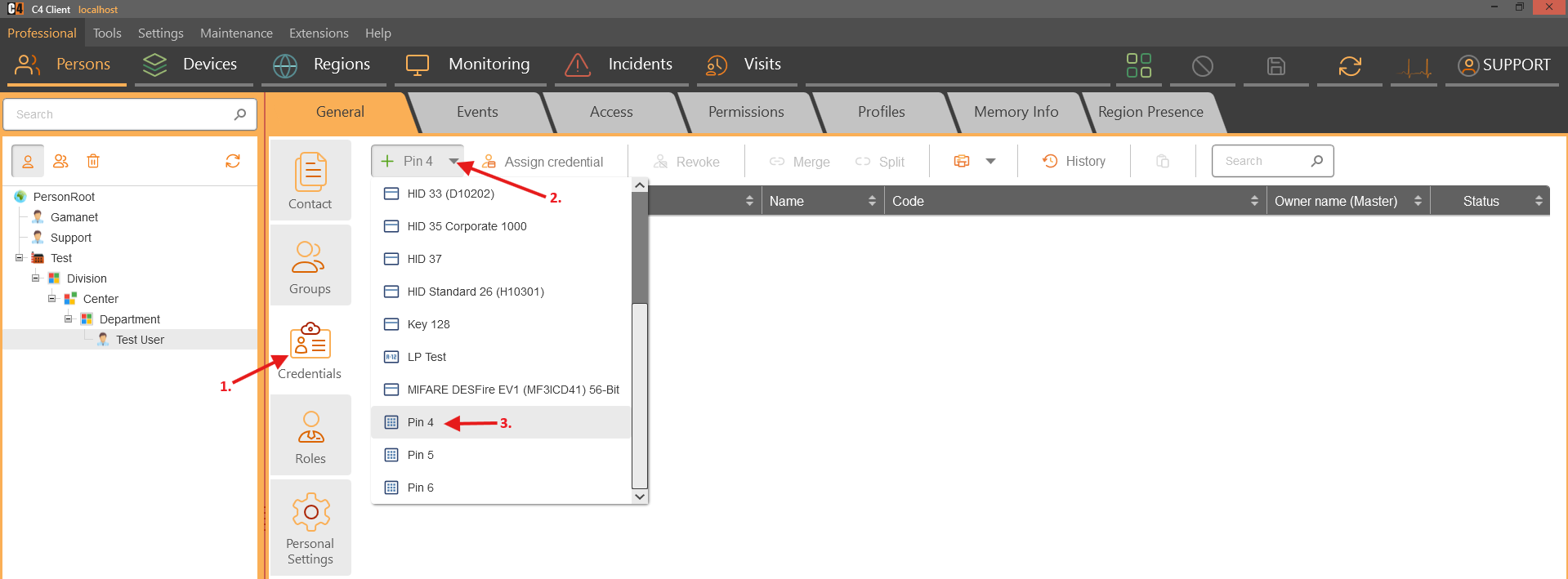
For manual mode, enter the permitted PIN. For suggested mode, select one of the generated values. For automatic mode, accept the generated value.
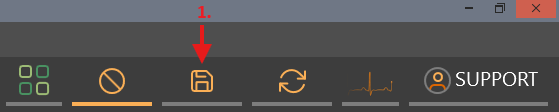
Select Finish when shown, then save the person.
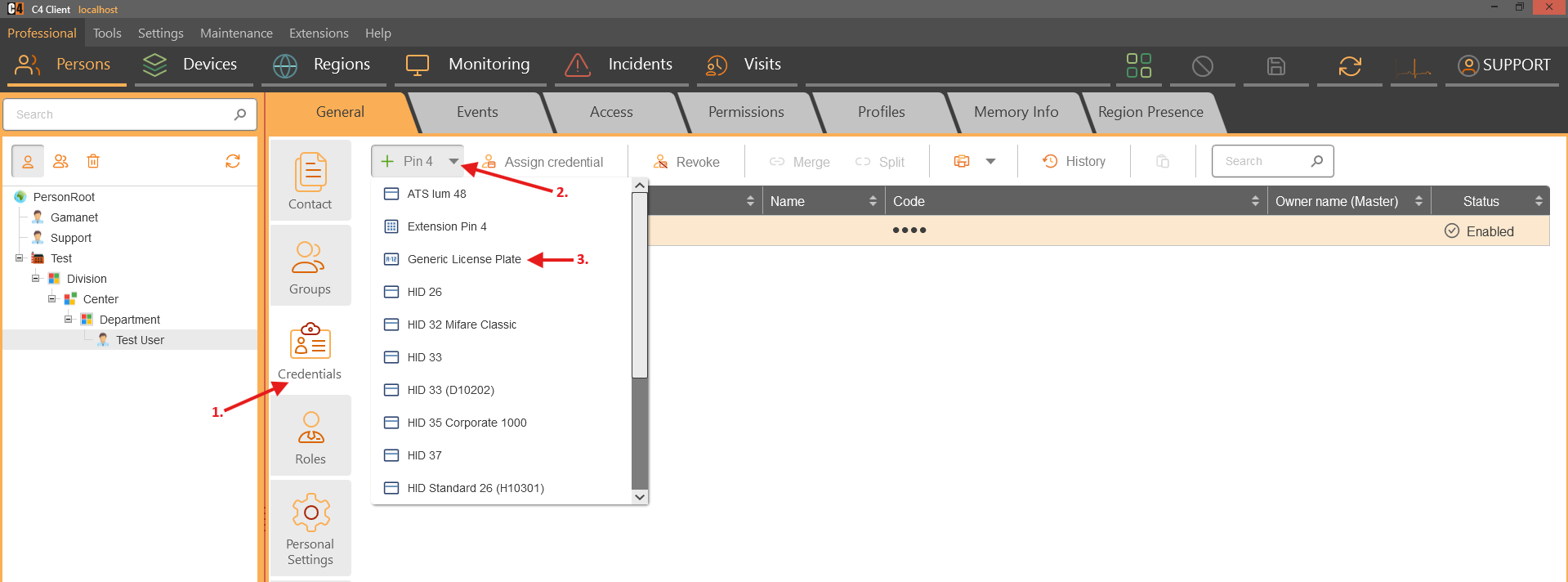
Confirmation: The PIN appears in the person credential list.
Note: C4 rejects another credential with the same type and code when uniqueness is required. Choose a different value instead of duplicating it.
Add a card or license-plate credential
Role: Security administrator
Prerequisites: An existing person and the required installed credential type.
Open Professional > Persons and select the person.
Open Credentials and choose Add credentials.
Select the card or license-plate type.
Enter the code in the required format.
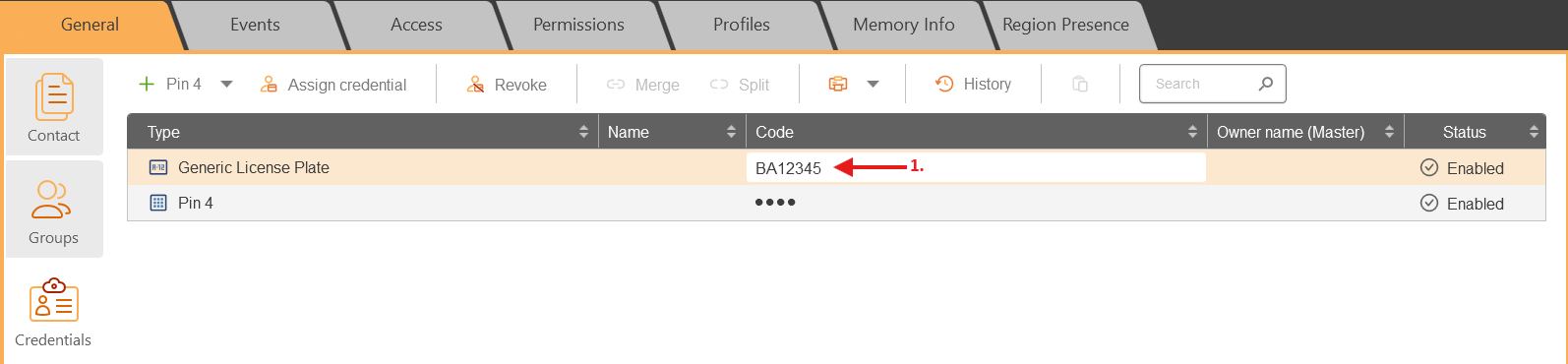
Save the person.
Confirmation: The credential is listed on the person and can be used by compatible devices after access assignment and upload.
Card master and card holder
The credential use cases distinguish the object that administrates a card (the card master) from the person currently using it (the card holder). This supports central pools and company-specific pools.
Where the card is created |
Card master |
Initial holder |
Typical use |
|---|---|---|---|
Person Root |
Person Root |
Empty |
Central credential pool that can be assigned to people or company administration. |
Company or organization node |
That company/organization |
Empty |
Credential pool restricted to the owning organization. |
Person |
Person Root or governing company, depending on hierarchy |
The person |
Direct credential creation for an individual. |
Assign a pooled card to a person
Role: Security administrator
Prerequisites: An unassigned card created at Person Root or an allowed company master.
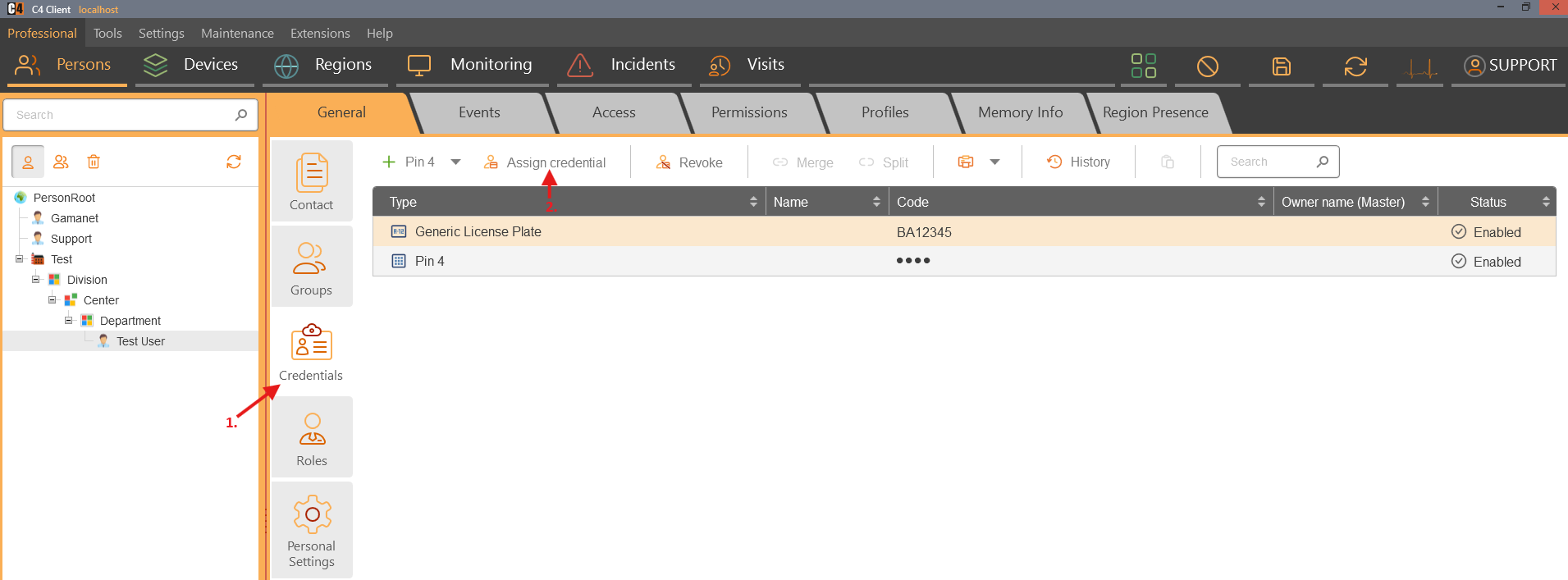
Open Professional > Persons and select the target person.
Open Credentials and select Assign card.
Search by the card code.
Select the card and choose Assign.
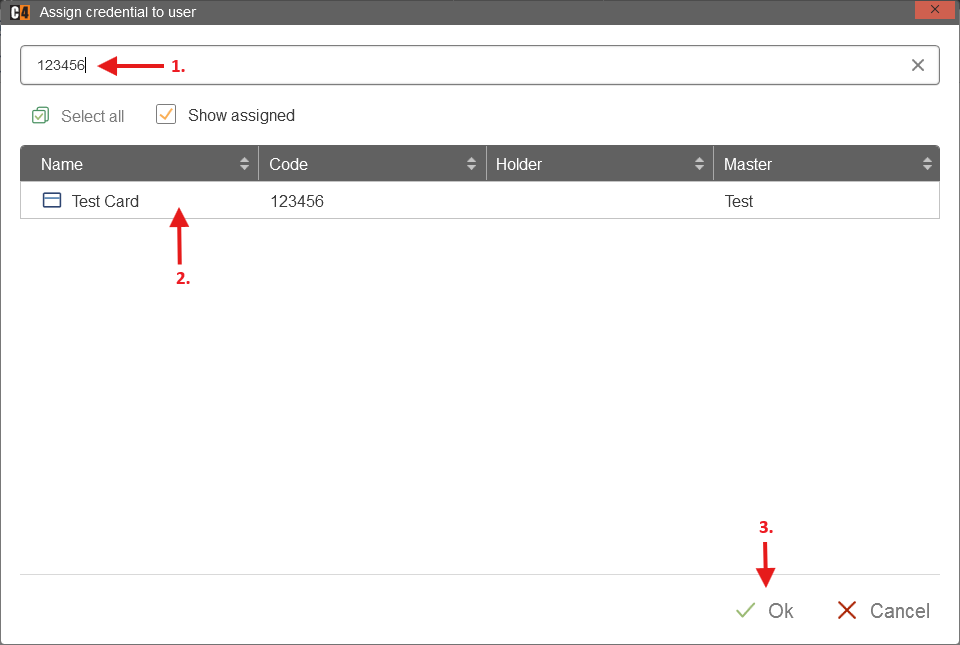
Save the person.
Confirmation: The person becomes the card holder while the card master remains the owning root or company.
Reassign or revoke a card
Role: Security administrator
To reassign, open the new person, choose Assign card, find the card, and assign it. The holder changes to the new person.
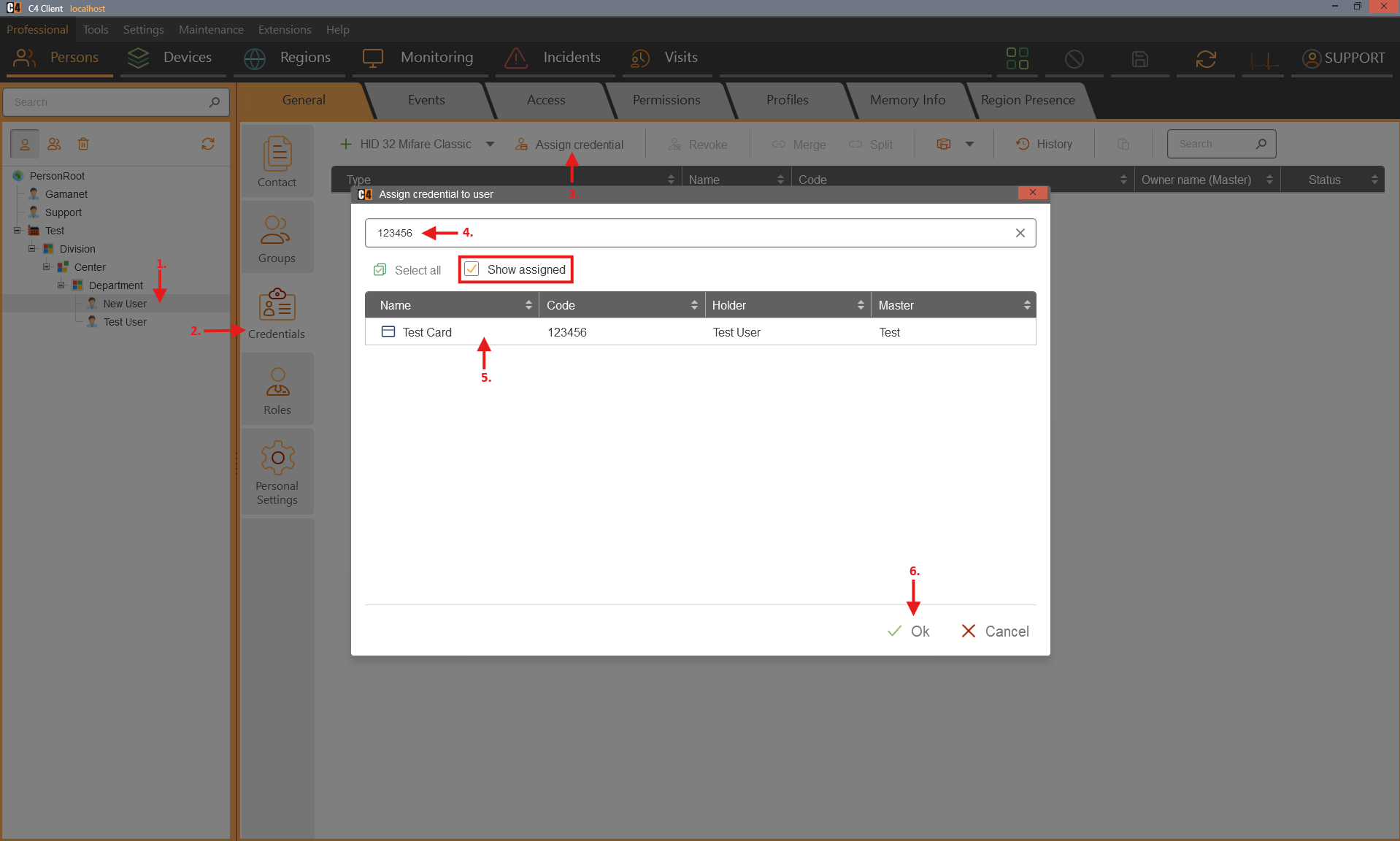
To revoke, select the current person and credential, choose Revoke, and save.
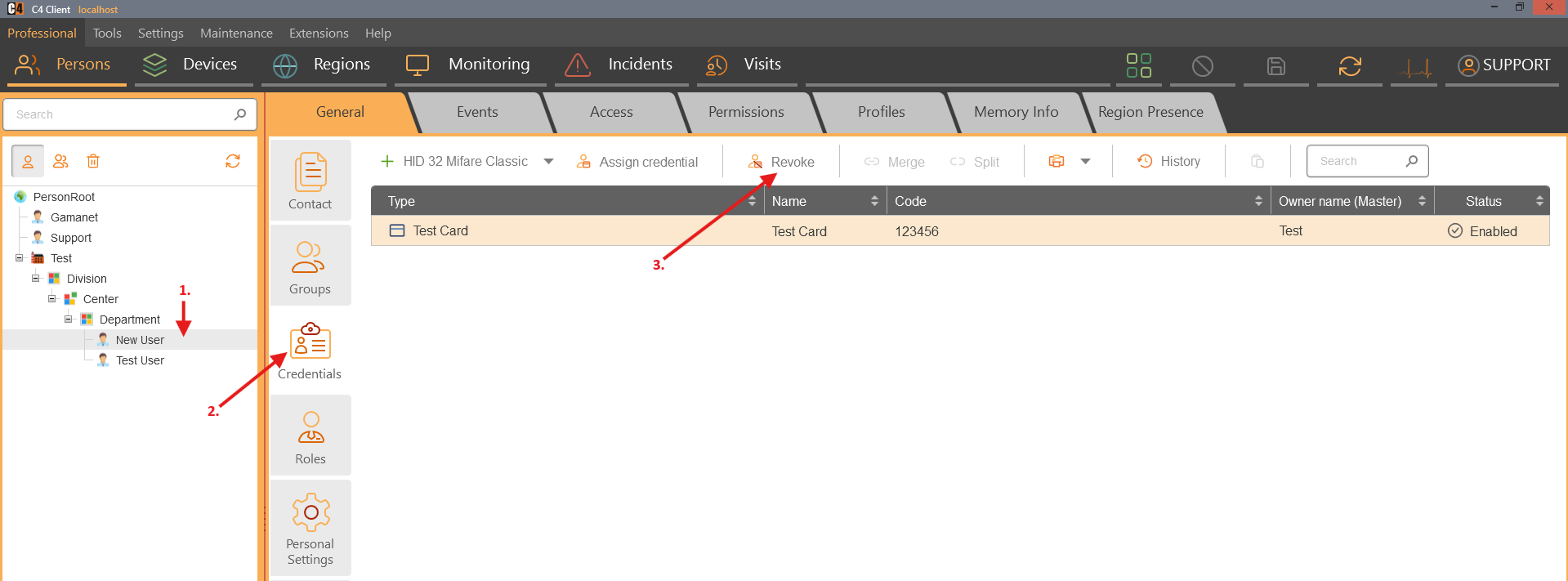
Verify the credential at its master node.
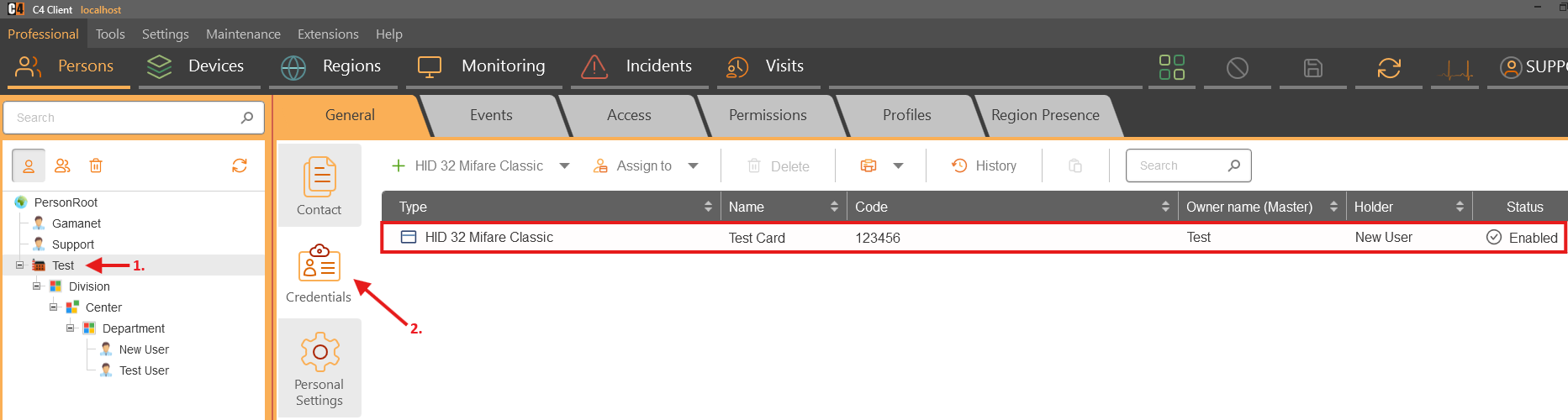
Confirmation: A revoked card has no person holder and returns to its card master. A reassigned card has the new person as holder.
Note: A card mastered by Company A is not available for assignment to Company B in the supplied credential rules.
Capture a card code from an event
Copy an unknown card code to a person
Role: Operator and security administrator
Prerequisites: A connected access reader and a supported credential type configured on the reader.
Open Professional > Devices and select the reader Events view.

Use the unknown card at the reader.
Select the resulting event and choose Copy card code into clipboard.
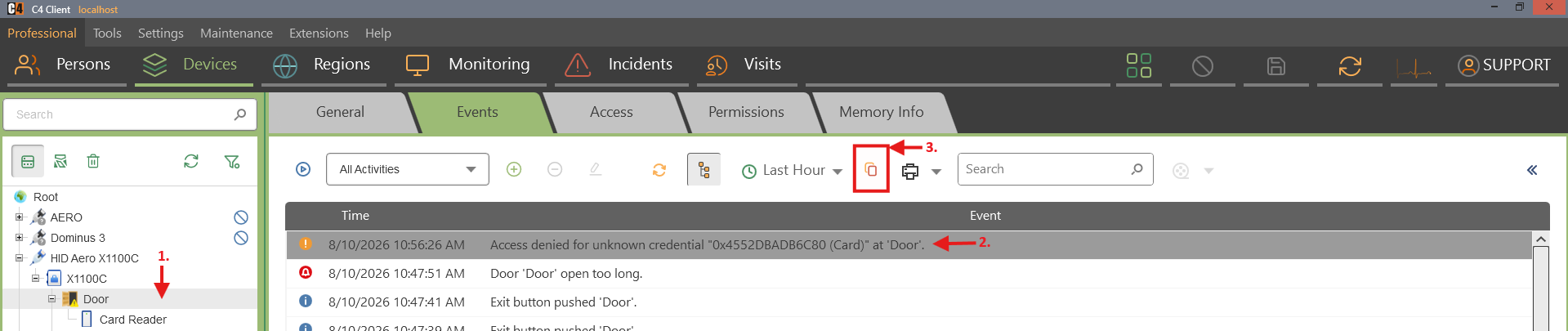
Open Professional > Persons and select the target person.
Open Credentials and choose Paste card code from clipboard.
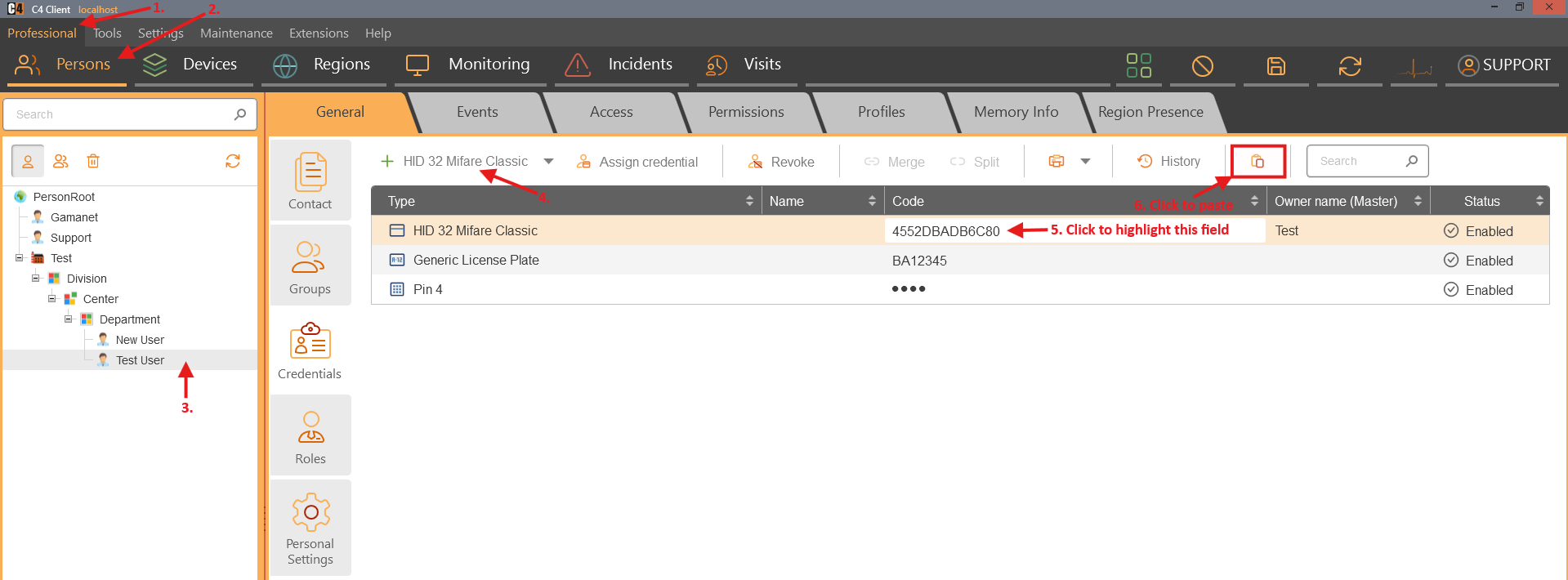
Review the credential type and code, then save.
Confirmation: A credential with the copied card code is created on the selected person.
Credential privacy and lifecycle
Control whether event text shows the card code
Role: Security administrator
Warning: Showing raw card codes can expose security-sensitive identifiers. Use the least-disclosing mode that meets operational requirements.
Open Settings > Preferences > Application or the equivalent General settings page.

Set Event card display mode to Name to hide the numeric code, or Code to show it.
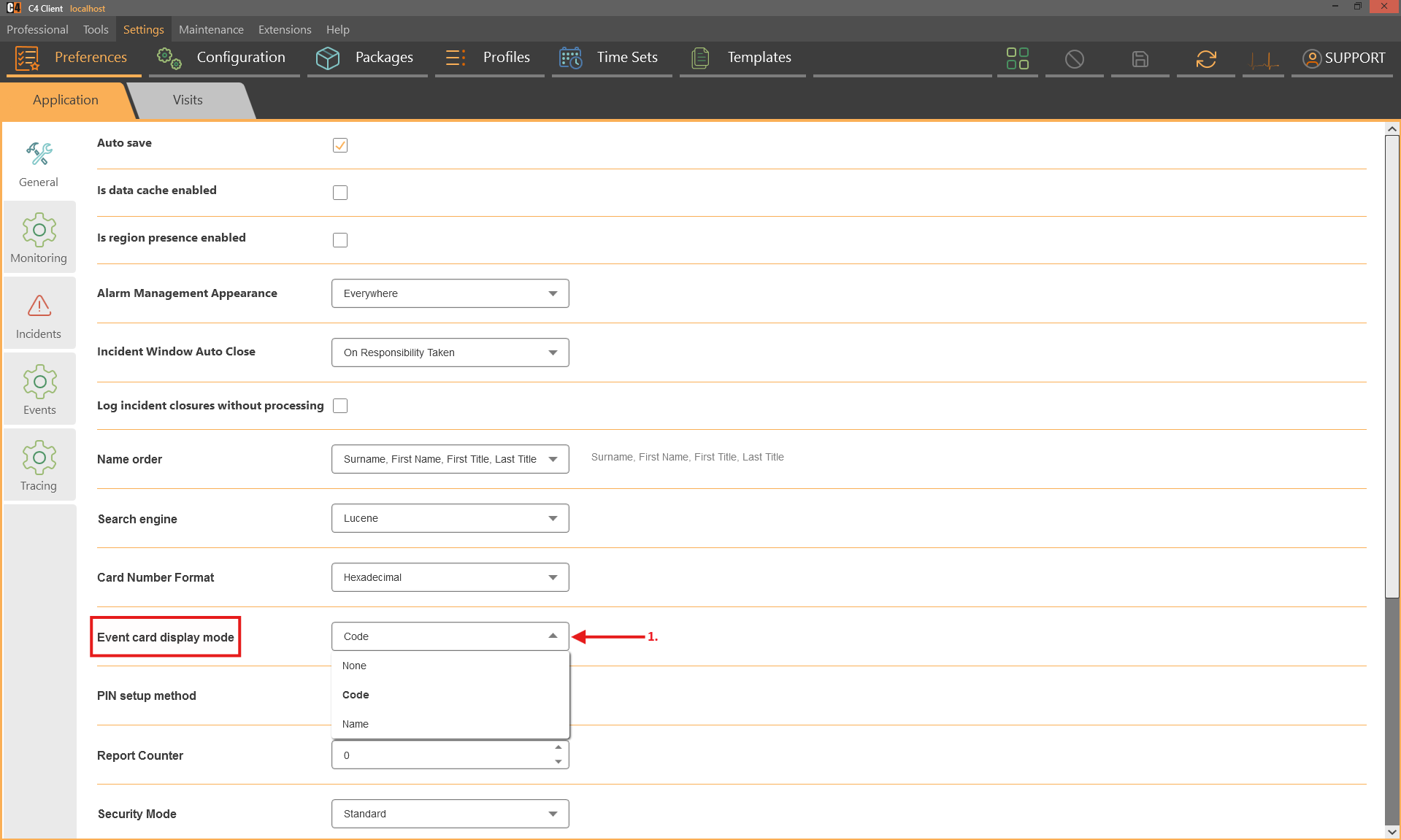
Save the setting.
Generate an approved access event and verify the event display.
Confirmation: Events show the configured credential name or code presentation.
Archive and delete behavior: The supplied card use cases show that archiving a person retains the person as card holder. Permanently deleting the person clears the holder and returns each card to its master, such as Person Root or the owning company.
4. Permissions, access rights, profiles, and uploads
Application permissions control what a person can see or modify in the client. Access rights control where a person or group may pass or operate. Device uploads transfer the approved credential and access data to physical panels.
Availability: Core access assignment and uploads appear in Basic and Standard use cases. Scheduled Permissions is deployment-dependent; the SP3 release notes state that it was removed from the standard installation.
Application and data permissions
Grant read access to selected person data
Role: System administrator
Prerequisites: A person with a client account and permission to administer permissions.
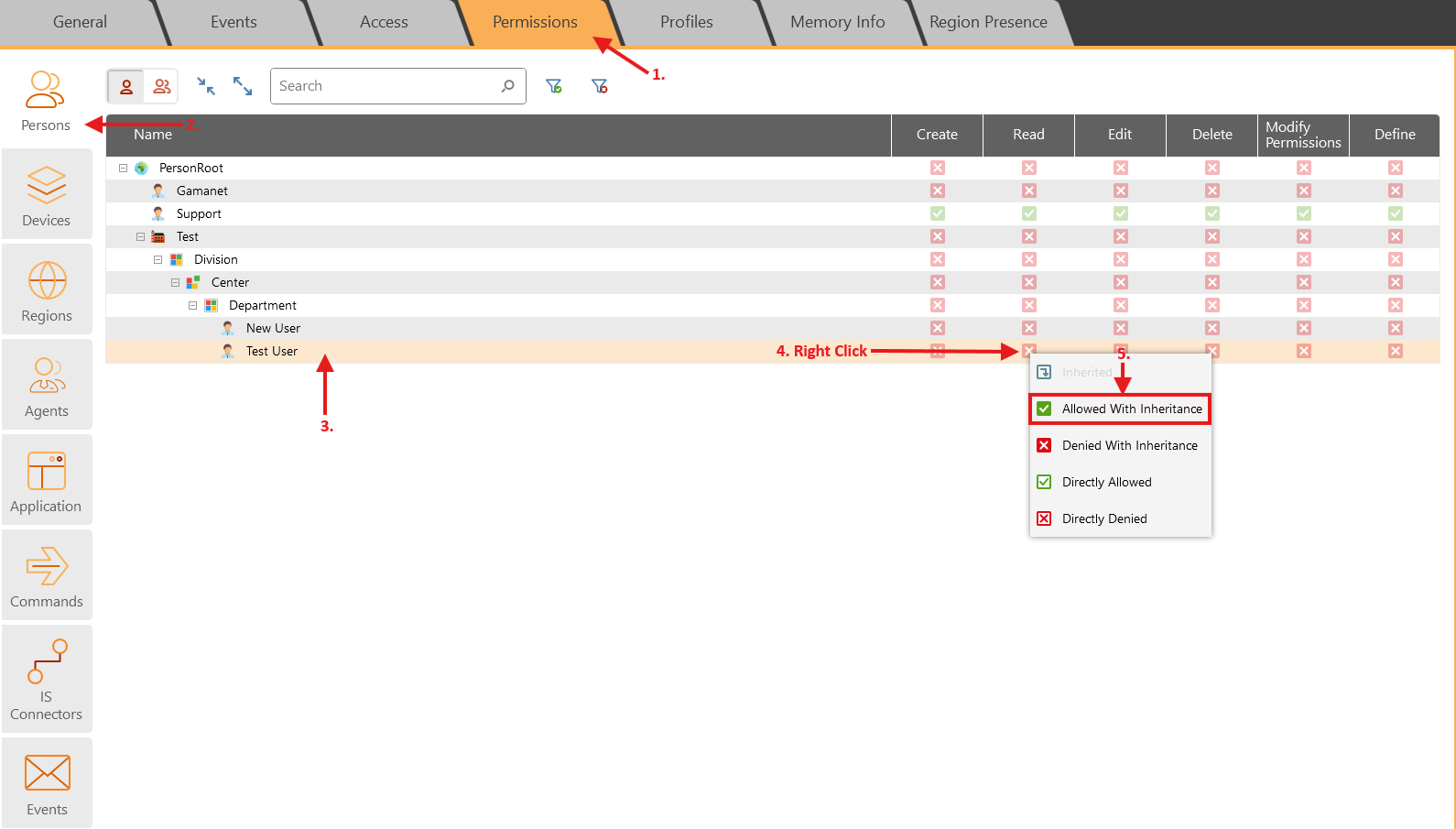
Open Professional > Persons and select the user person.
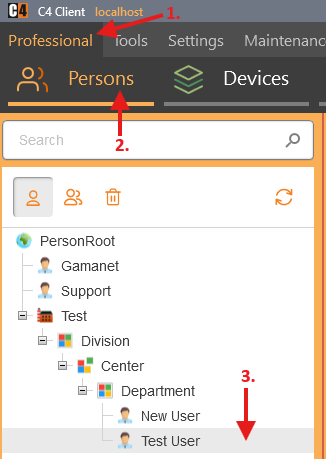
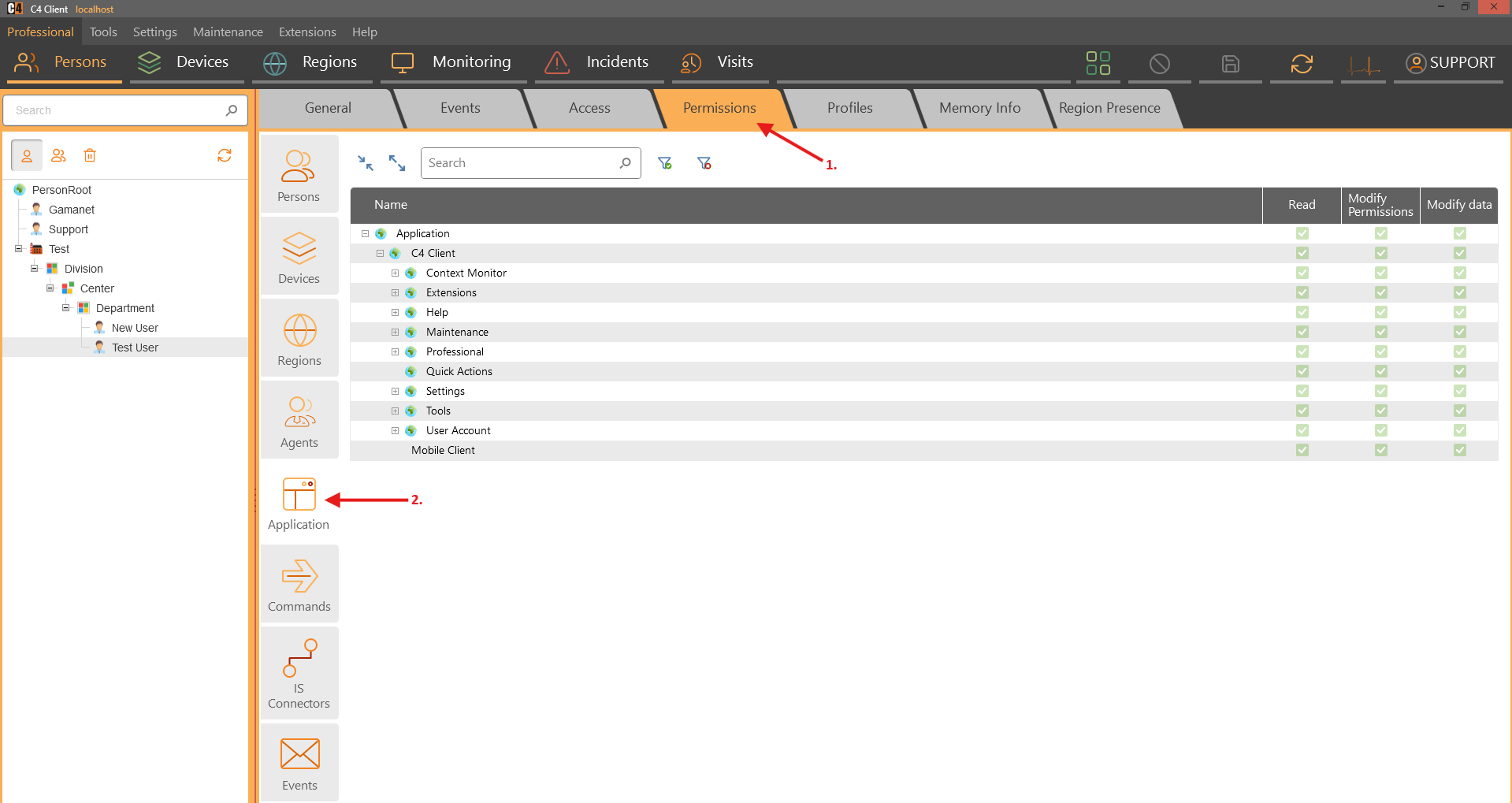
Open Permissions > Application.
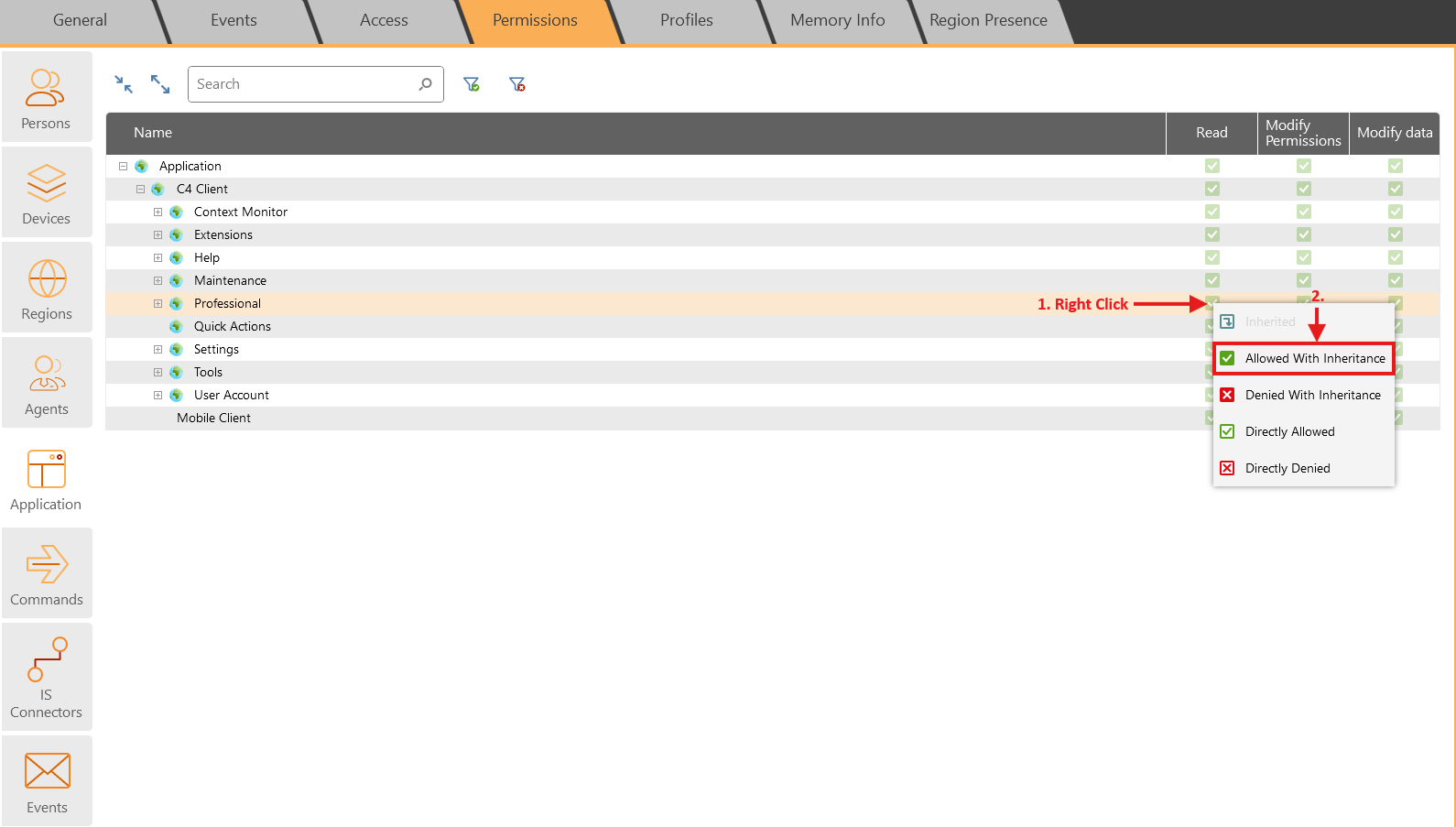
Set Allow with inheritance for Read on the Professional node.
Open the Persons permission tab.
Find the target person or organizational branch and set Allow with inheritance in the Read column.
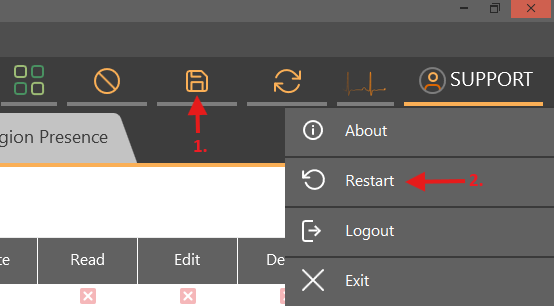
Save, sign out, and test with the user account.
Confirmation: The user sees the allowed person data and the parent nodes needed to display its tree path.
Deny read access to selected person data
Role: System administrator
Give the user the broader read access required for the Persons panel.
In Permissions > Persons, find the person or branch to hide.
Set Denied with inheritance in the Read column.
Save and test with the user account.
Confirmation: The denied person or branch is not visible to the user while other permitted nodes remain visible.
Assign direct and group access
Assign access to a person
Role: Security administrator
Prerequisites: A running access device tree, a compatible credential on the person, and permission to modify access.
Open Professional > Persons and select the person.
Open Access and expand the device tree.

Locate the door, partition, or other access point.
Select the Access column until the allow indicator appears.
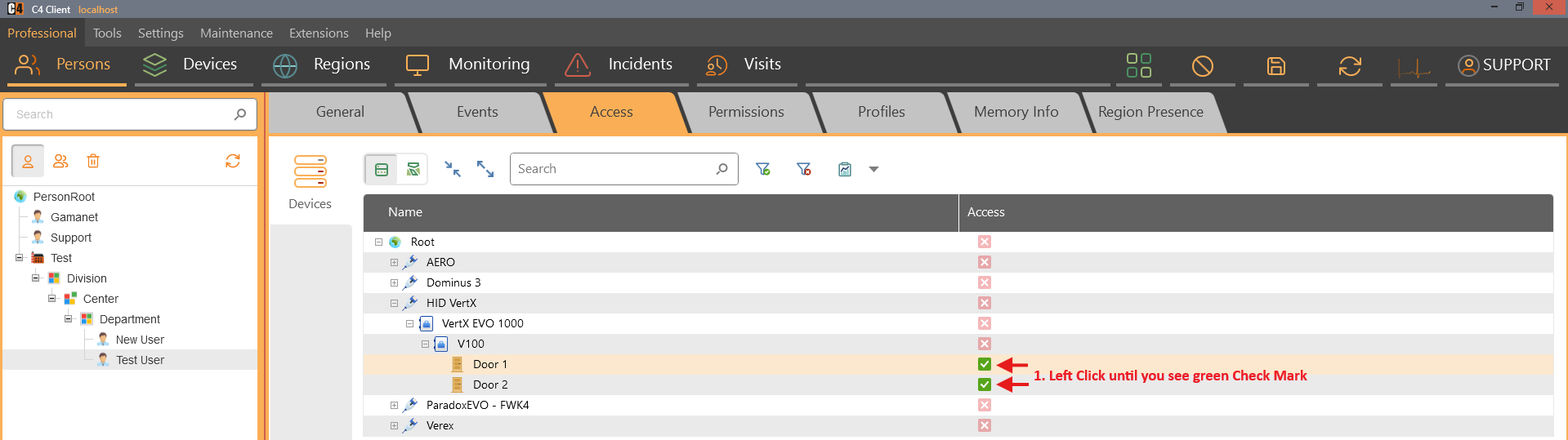
Save the person.
Confirmation: The access point shows an allow indicator for the person. Upload is still required for most physical panels.
Assign inherited access through a person group
Role: Security administrator
Prerequisites: A person group with members and a running access device tree.
Open Professional > Persons and switch to the Groups tree.
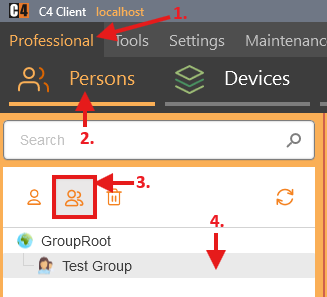
Select the group and open Access.
Expand the device tree and set Allow on the required access point.
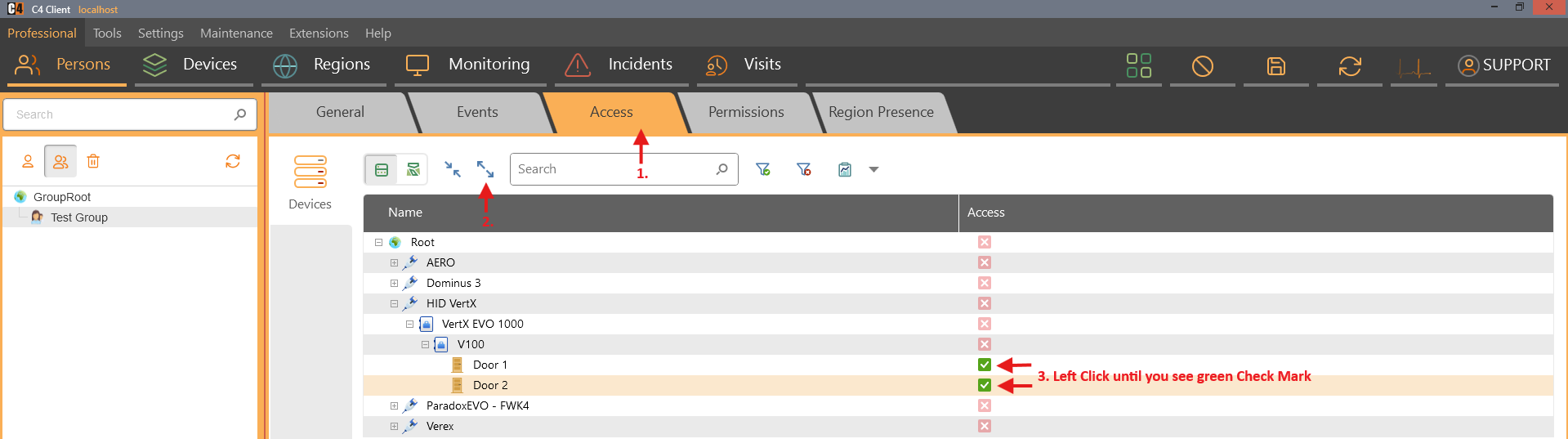
Save the group.
Return to a member person and review Access.
Confirmation: Group members inherit the access. Hover the inherited indicator to identify the source group where supported.
Filter the access view
Role: Security administrator
Select a person and open Access.
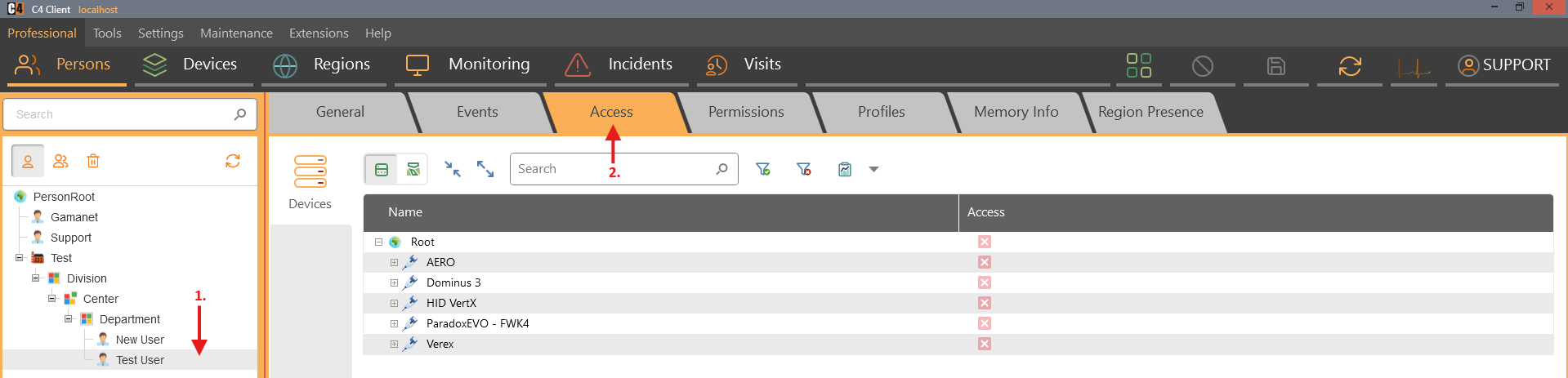
Choose Show only allowed permissions to display allowed and inherited-allowed access points.
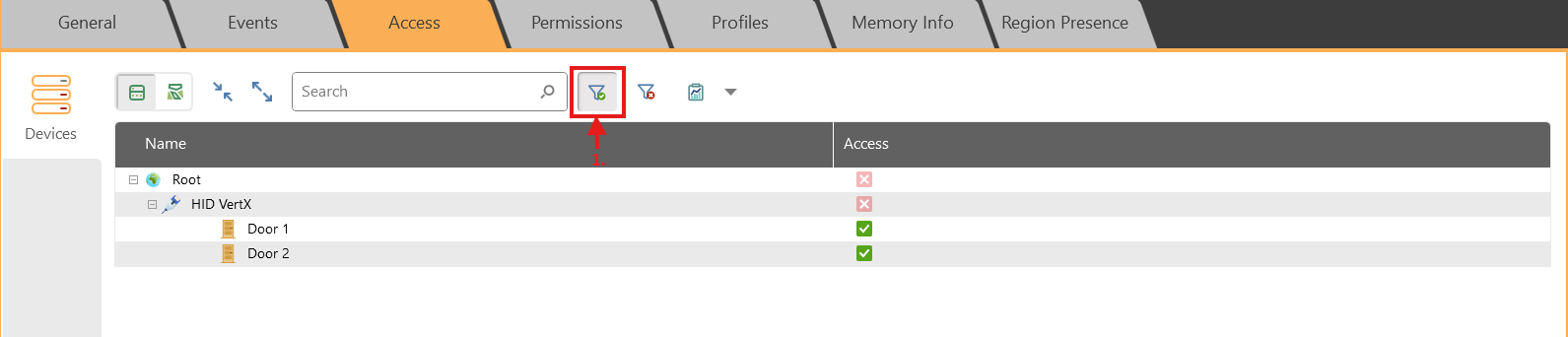
Choose Show only denied permissions to display denied and inherited-denied access points.
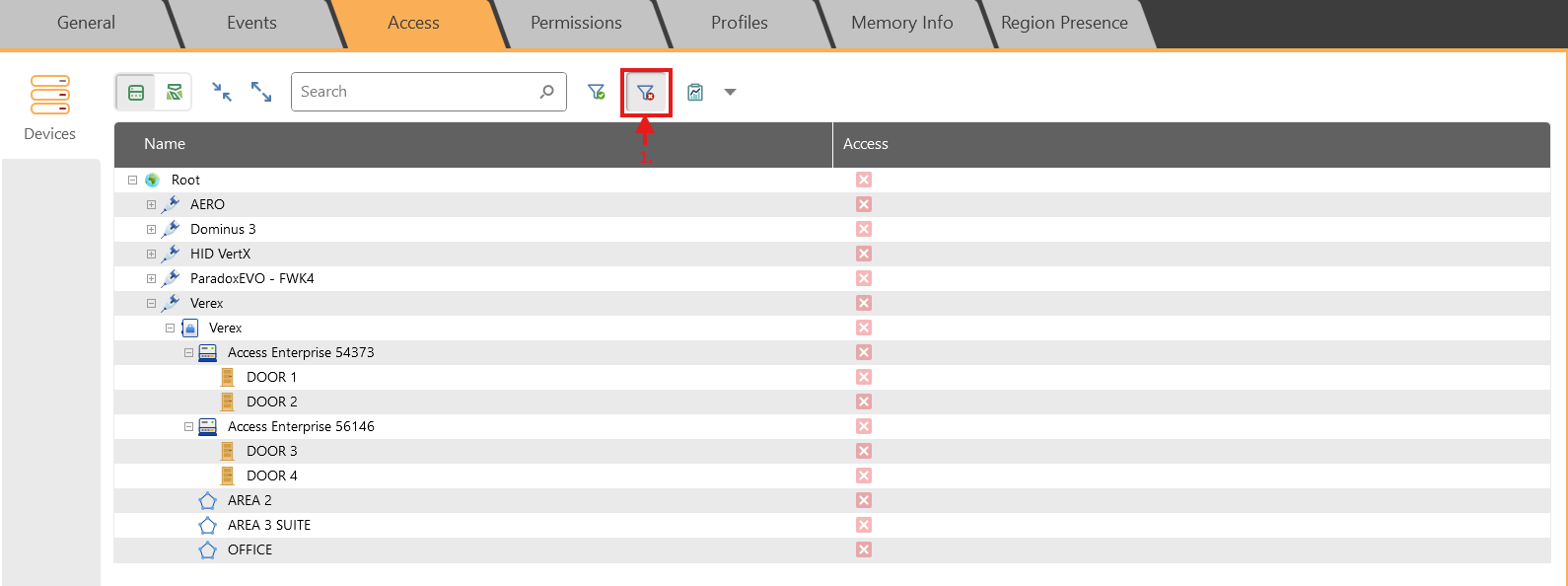
Clear the filter to return to the full device tree.
Confirmation: The tree displays only the access points relevant to the selected filter, plus required parent nodes.
Access levels and device profiles
Create an access level and add access points
Role: Security administrator
Prerequisites: A configured device tree.
Open Professional > Devices and switch to the Access level tree.
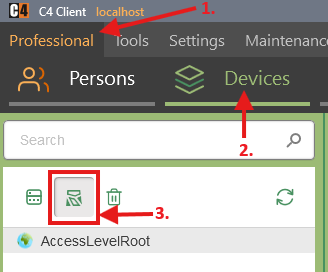
Right-click Access Level Root and select Add access level.
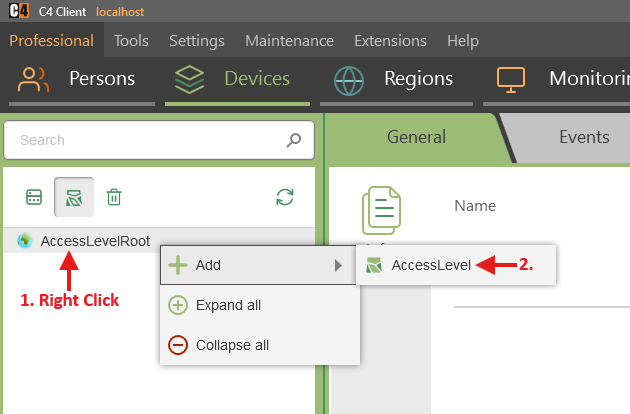
Enter the Name and save.
Select the access level and open Access Points.
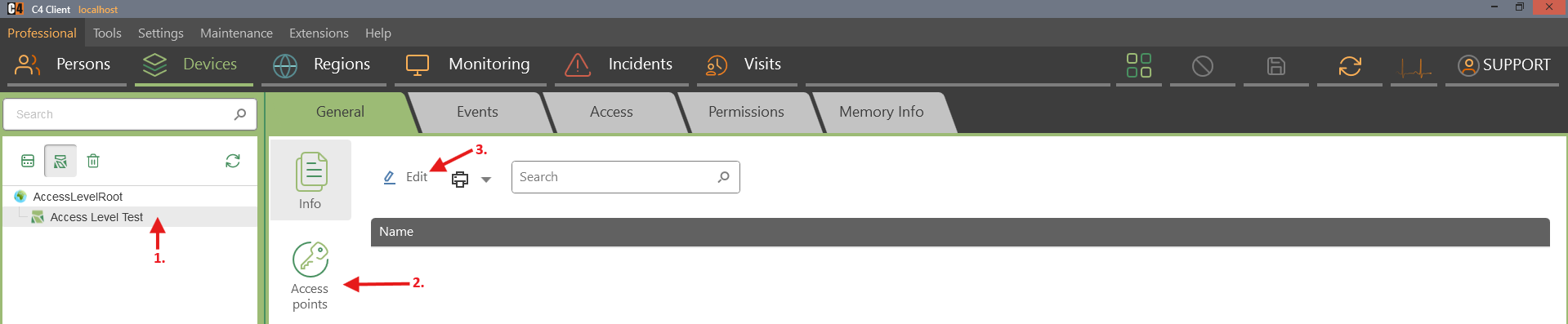
Choose Add access point, select the required points from the device tree, choose Add, and then Finish.
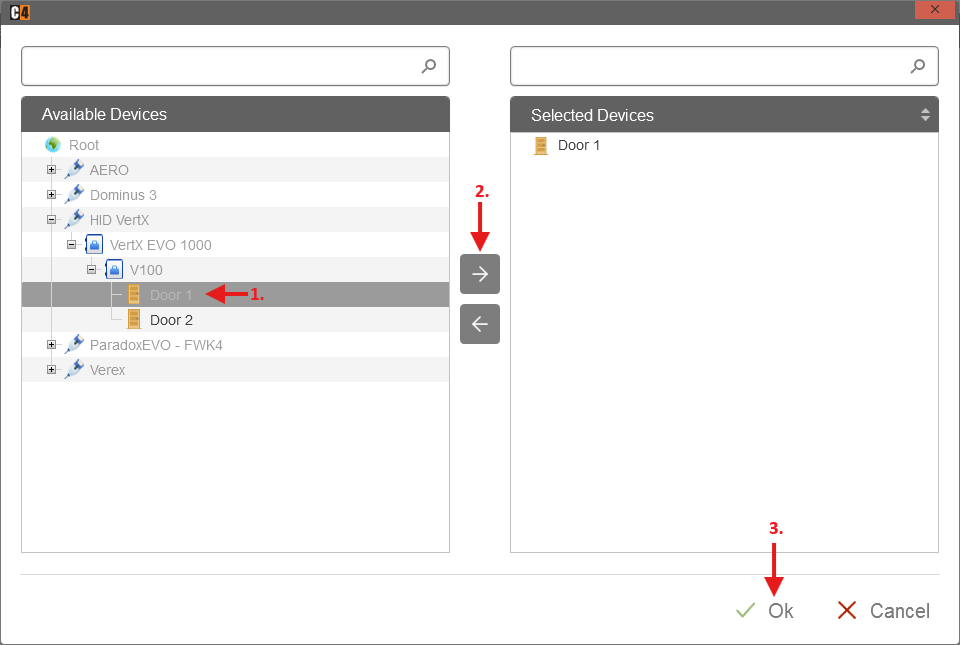
Save the access level.
Confirmation: The access level is visible with the selected access points.
Create and assign a device profile
Role: Security administrator
Prerequisites: A driver that supports profiles and an existing person.
Open Settings > Profiles and add a new profile.
Enter the Name and save.
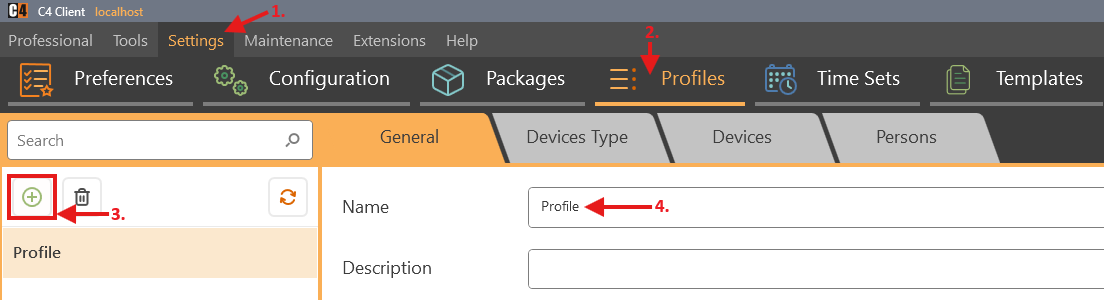
Open Device Type and choose Add new device type.
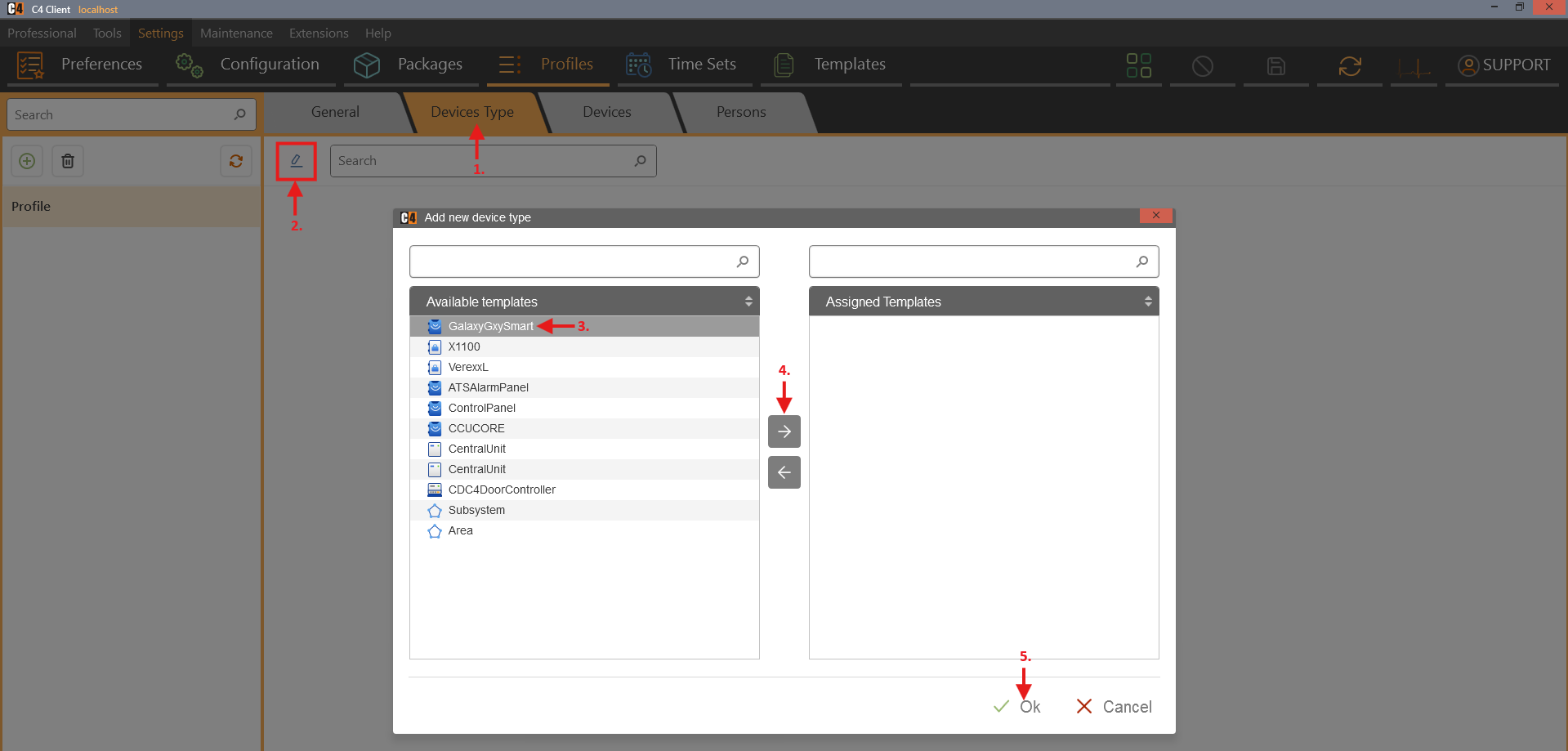
Select the template for the installed driver, choose Add, and then Finish.
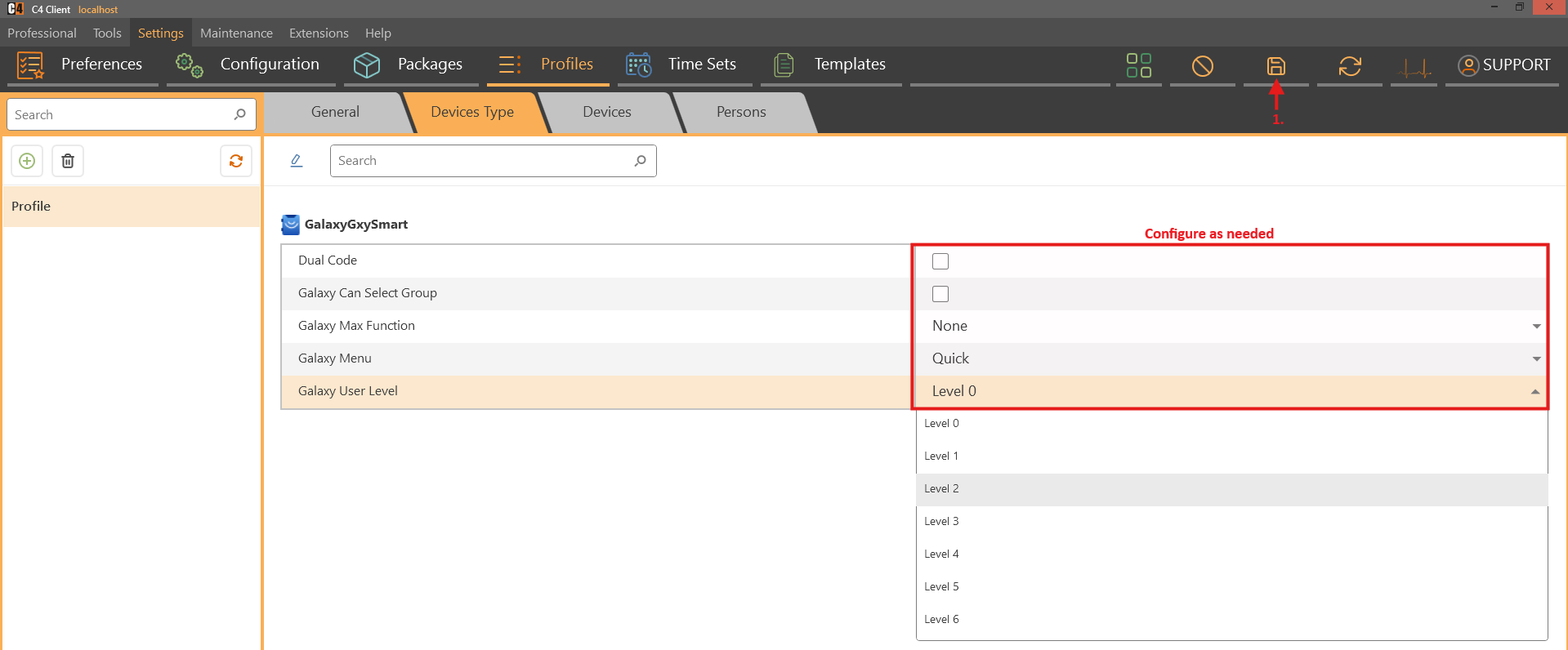
Configure the supported options and save.
Assign the profile from the profile Persons tab or from the person Profiles tab.
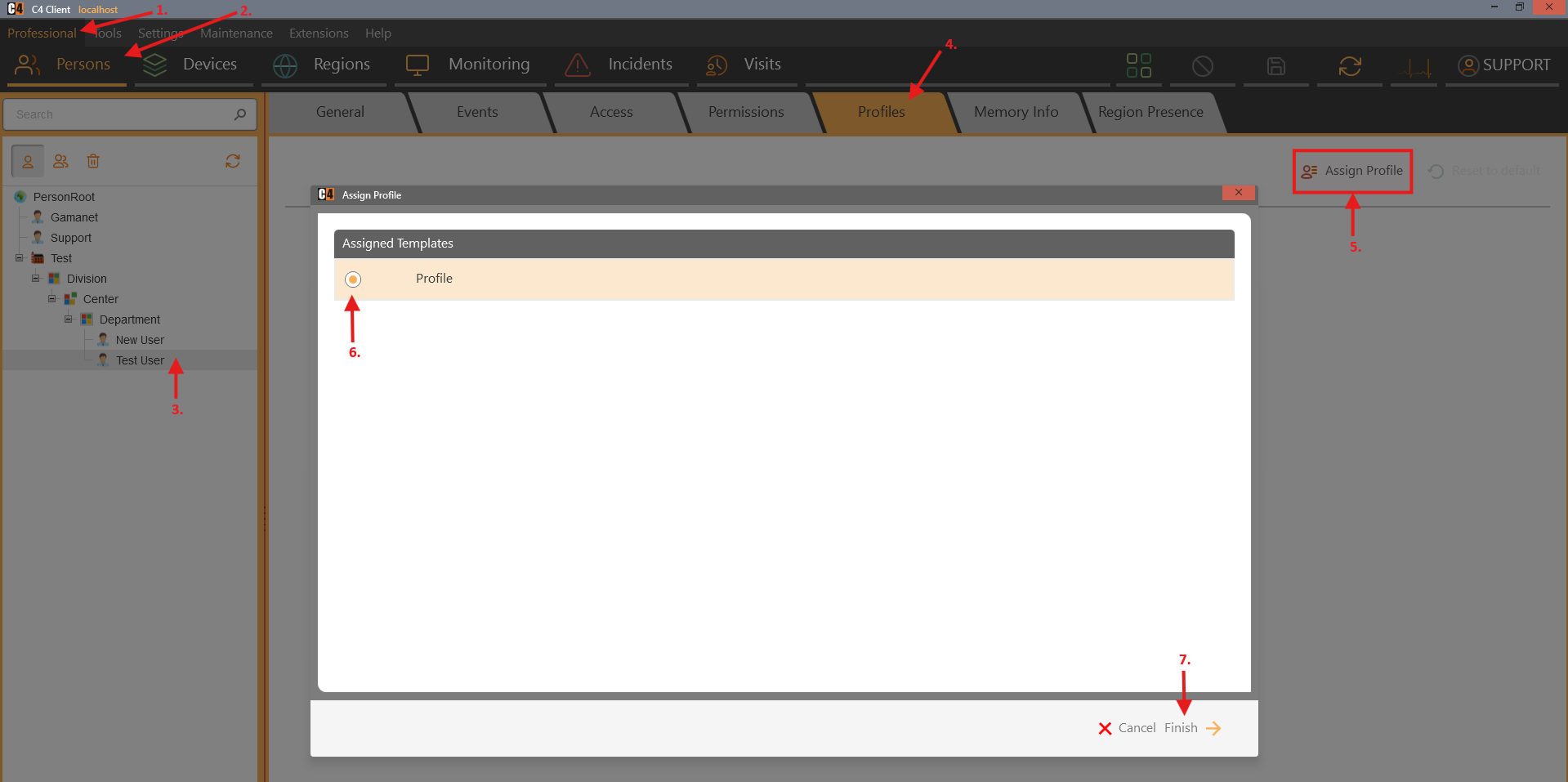
Save the assignment.
Confirmation: The selected person has the configured device profile.
Scheduled permissions
Availability: Use this procedure only when the Scheduled Permissions panel is installed. The supplied SP3 release notes state that the panel was removed from the standard installation because it was intended for demonstration.
Schedule temporary access for a person or group
Role: Security administrator
Prerequisites: Scheduled Permissions is installed; target people or groups, access points, and valid credentials exist.
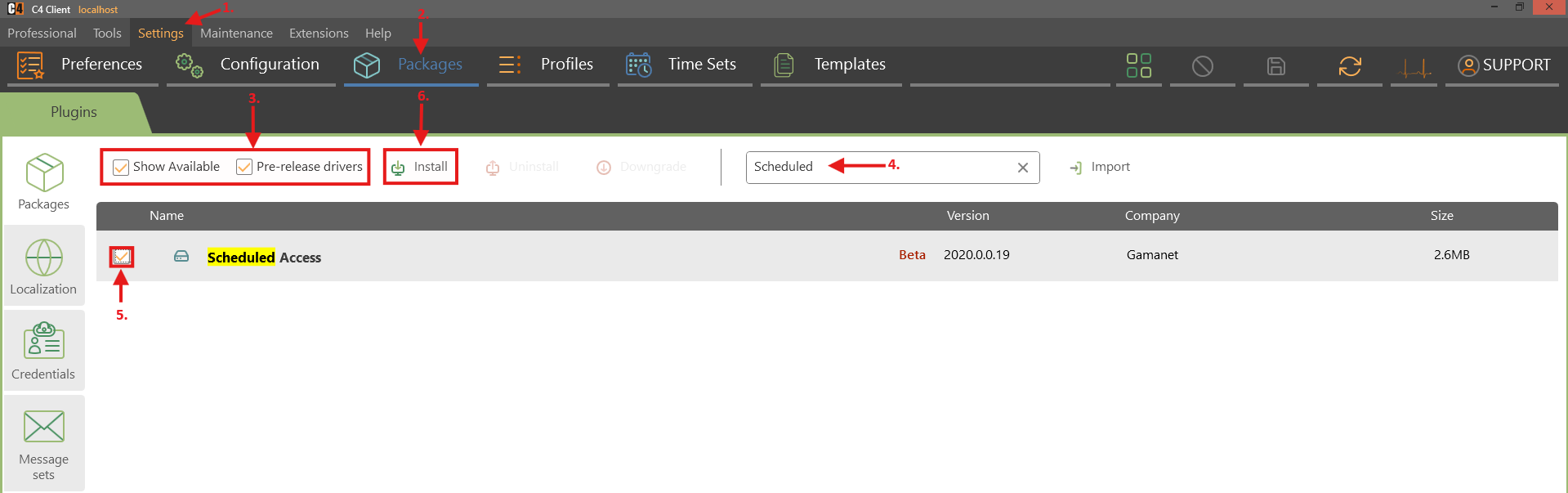
Install Scheduled Access Package in Settings > Packages.
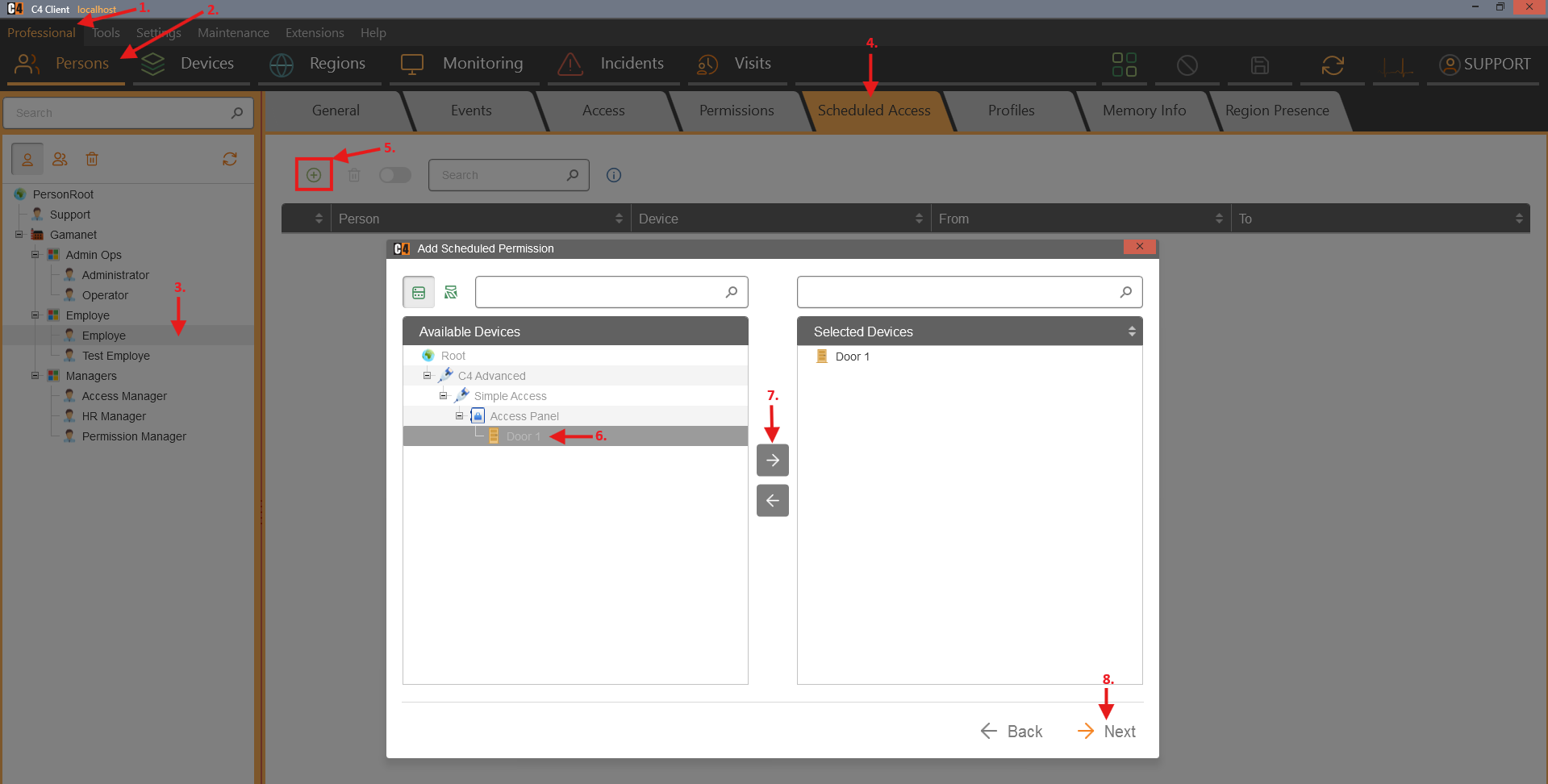
Open Professional > Persons > Select Person > Scheduled Permissions and select Add.
Choose the person, or switch to the person-groups tab and choose the group.
Select the target access points.
Enter Scheduled From and Scheduled To.
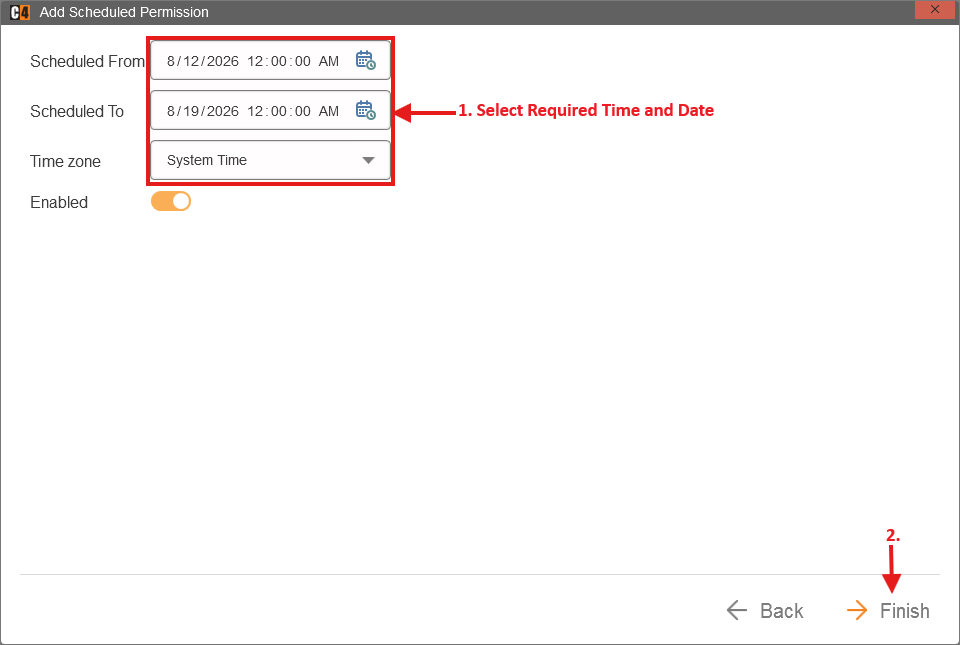
Finish and save.
At the start time, verify the selective upload and the resulting device access.
Confirmation: The selected people receive the configured access for the defined period, subject to the installed feature and device support.
Upload methods
Method |
Use it when |
Command or setting |
Verification |
|---|---|---|---|
Full Upload |
The complete panel access dataset must be rebuilt or synchronized. |
Devices > panel > Command > Full Upload |
Start/completion events and Memory Info. |
Incremental Upload |
Only changes since the last upload must be sent. |
Devices > panel > Command > Incremental Upload |
Incremental start/completion events and changed access on the panel. |
Selective Upload |
One selected person must be updated. |
Persons > right-click person > Commands > Selective Upload |
Selective upload events for each target panel. |
Night Full Upload |
A scheduled complete upload is required. |
Panel Night Full Upload setting plus a scheduler such as Night Upload |
Full upload events at the scheduled time. |
Night Incremental Upload |
A scheduled change-only upload is required. |
Panel Night Incremental Upload setting plus a scheduler |
Incremental upload events at the scheduled time. |
Run an access upload and verify panel memory
Role: Security administrator
Prerequisites: A running access panel, a person with a valid credential, and saved access rights.
Open Professional > Devices.

Right-click the target access panel.
Select Command > Full Upload or Incremental Upload, according to the approved change plan.
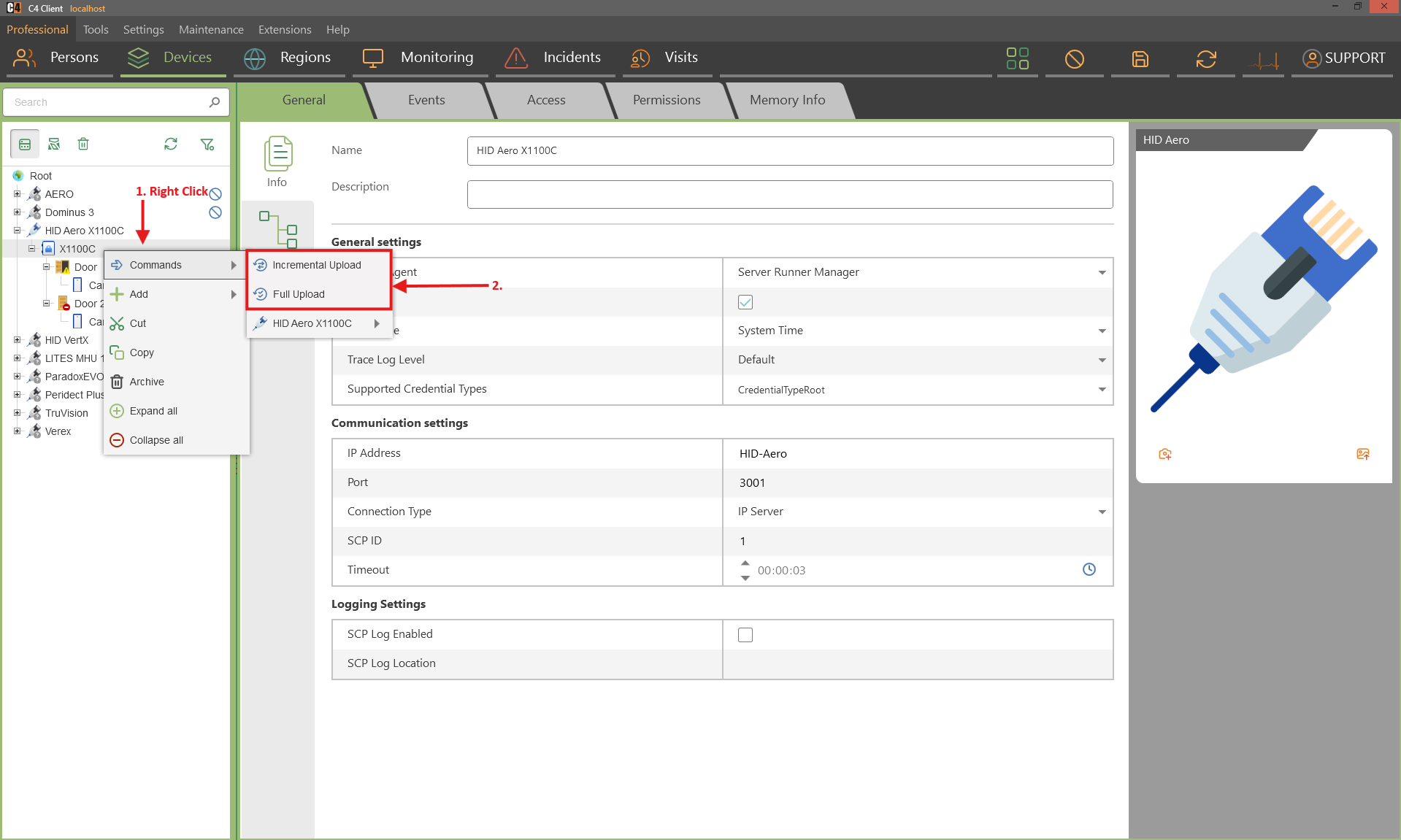
Wait for completion and review the Events tab for start and successful-completion messages.
Select the panel and open Memory Info.
Verify the person, credential type, upload time, and device position.
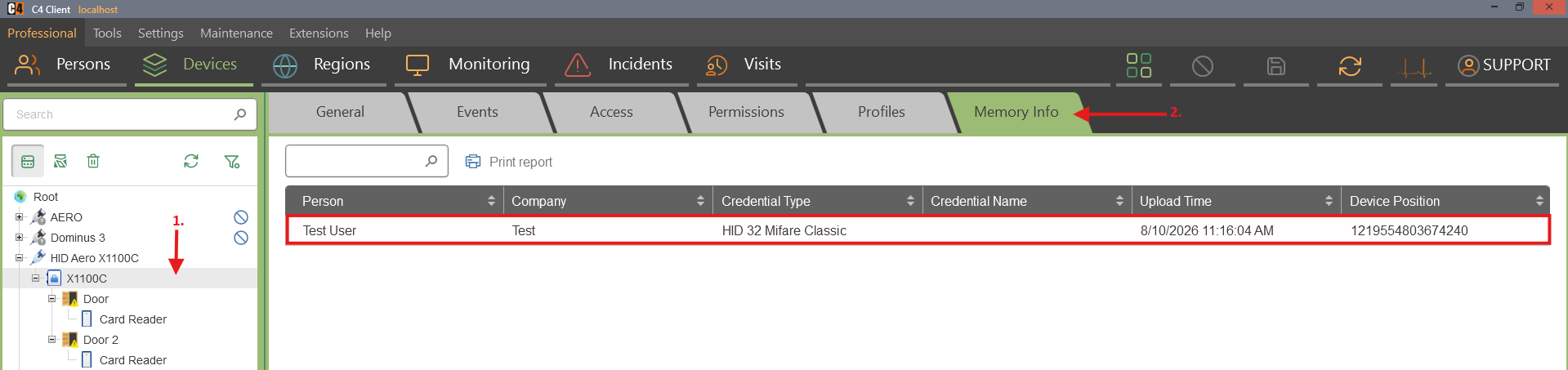
Test the credential at an approved access point when the site procedure permits.
Confirmation: The upload completes successfully and the expected people appear in panel Memory Info with the intended access.
5. Devices and device commands
Device trees represent controllers, panels, readers, doors, partitions, detectors, cameras, and other integrated equipment. Driver support determines available node types, properties, commands, statuses, and configuration-loading options.
Availability: A device plug-in or driver must be installed. Some features such as multiple concurrent driver trees, persistent server operation, night uploads, and reports can require Standard or optional packages.
Create a device tree
Load a device configuration when the driver supports it
Role: System or device administrator
Prerequisites: The device driver is installed, the controller network settings are known, and Load Configuration is supported.
Open Professional > Devices.
Right-click Device Root and add the driver bus controller.
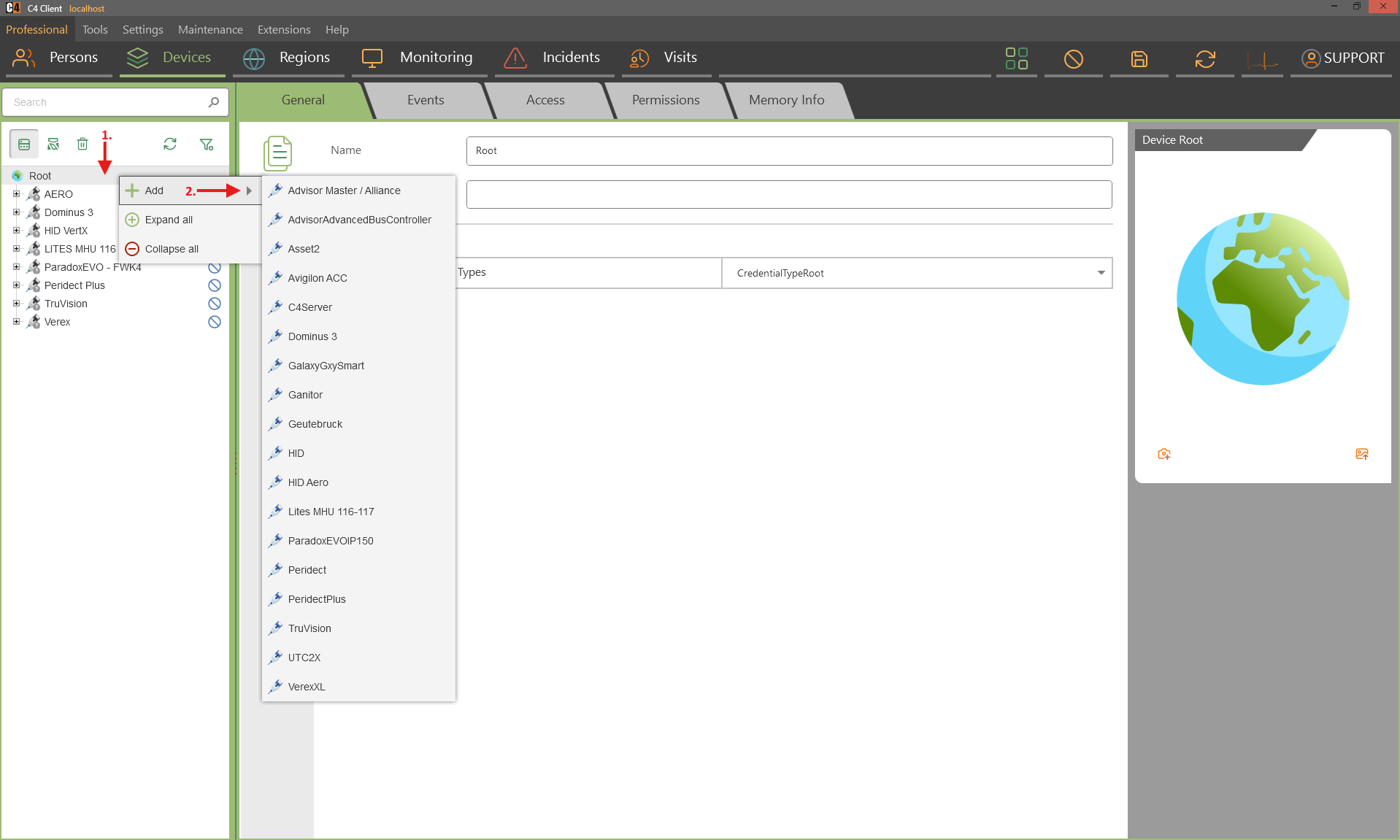
Enter the Name, IP address, port, credentials, and any required communication properties.
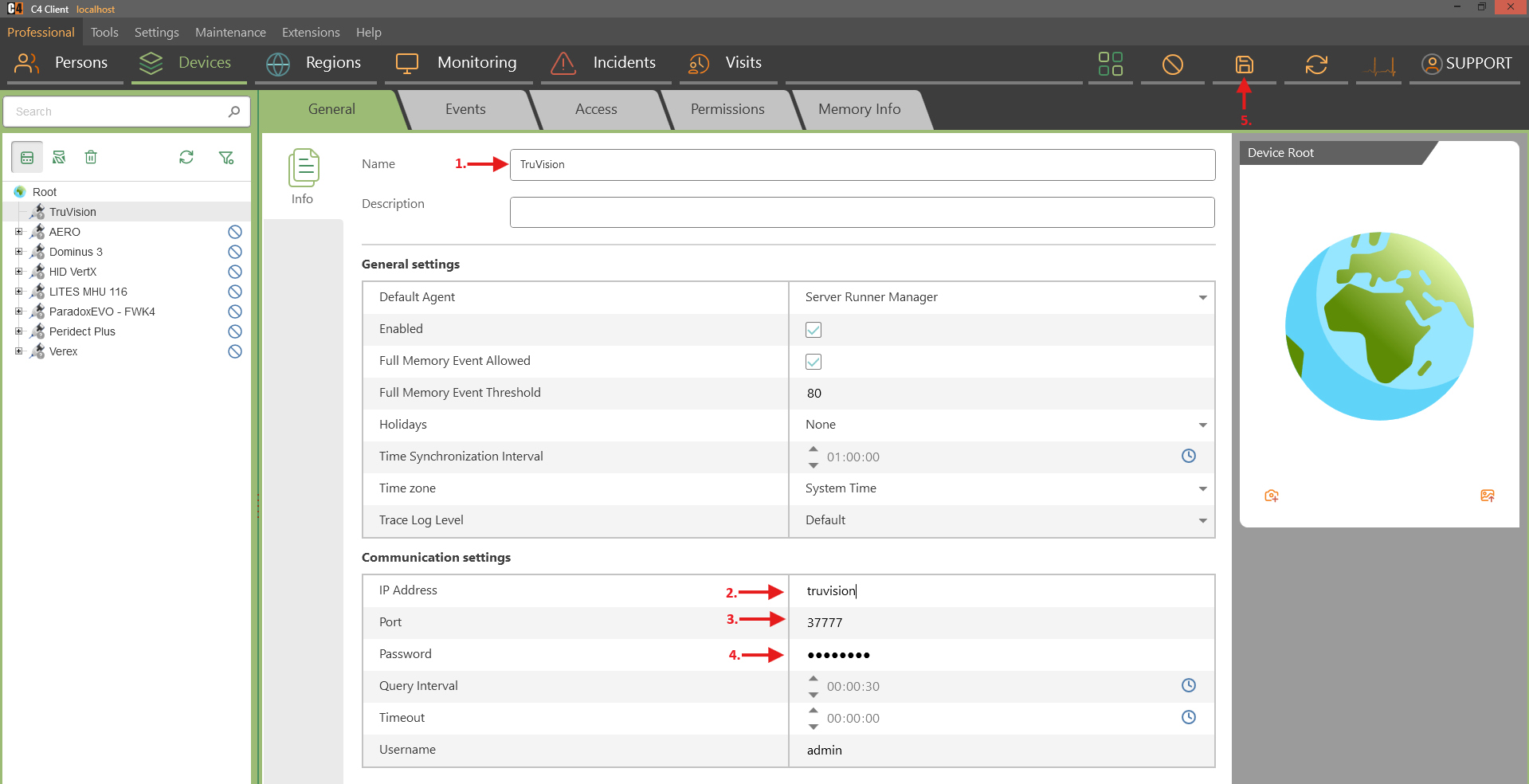
Save the controller.
Right-click the controller and select Command > Load Configuration.
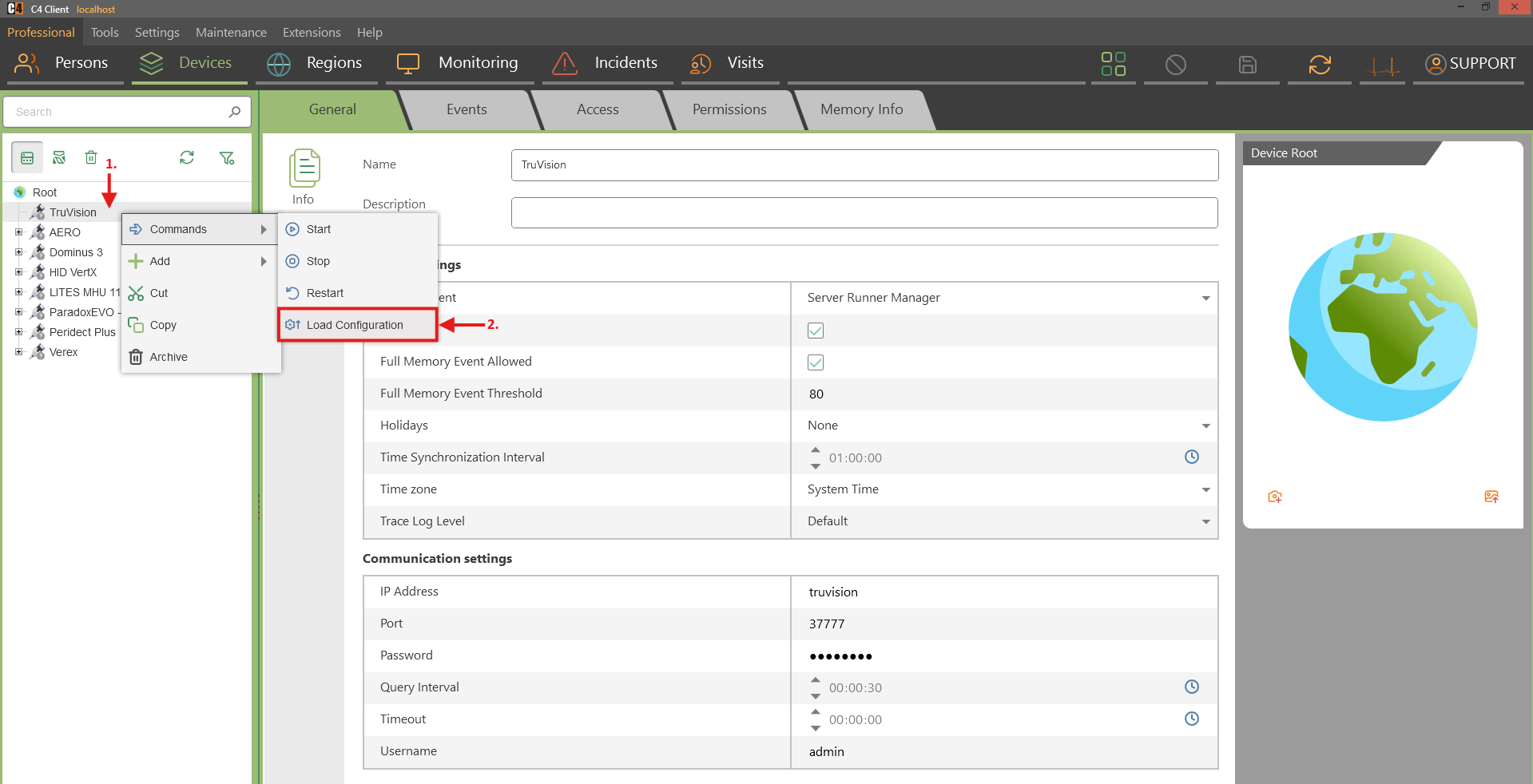
Complete the wizard and wait for configuration loading to finish.
Review the created tree before starting the connection.
Confirmation: C4 creates the supported device nodes from the controller configuration.
Create a device tree manually
Role: System or device administrator
Prerequisites: The device driver is installed and device addresses are known.
Open Professional > Devices.
Right-click Device Root and add the required bus controller.
Enter the mandatory communication properties and save.
Right-click the controller and add the panel type.
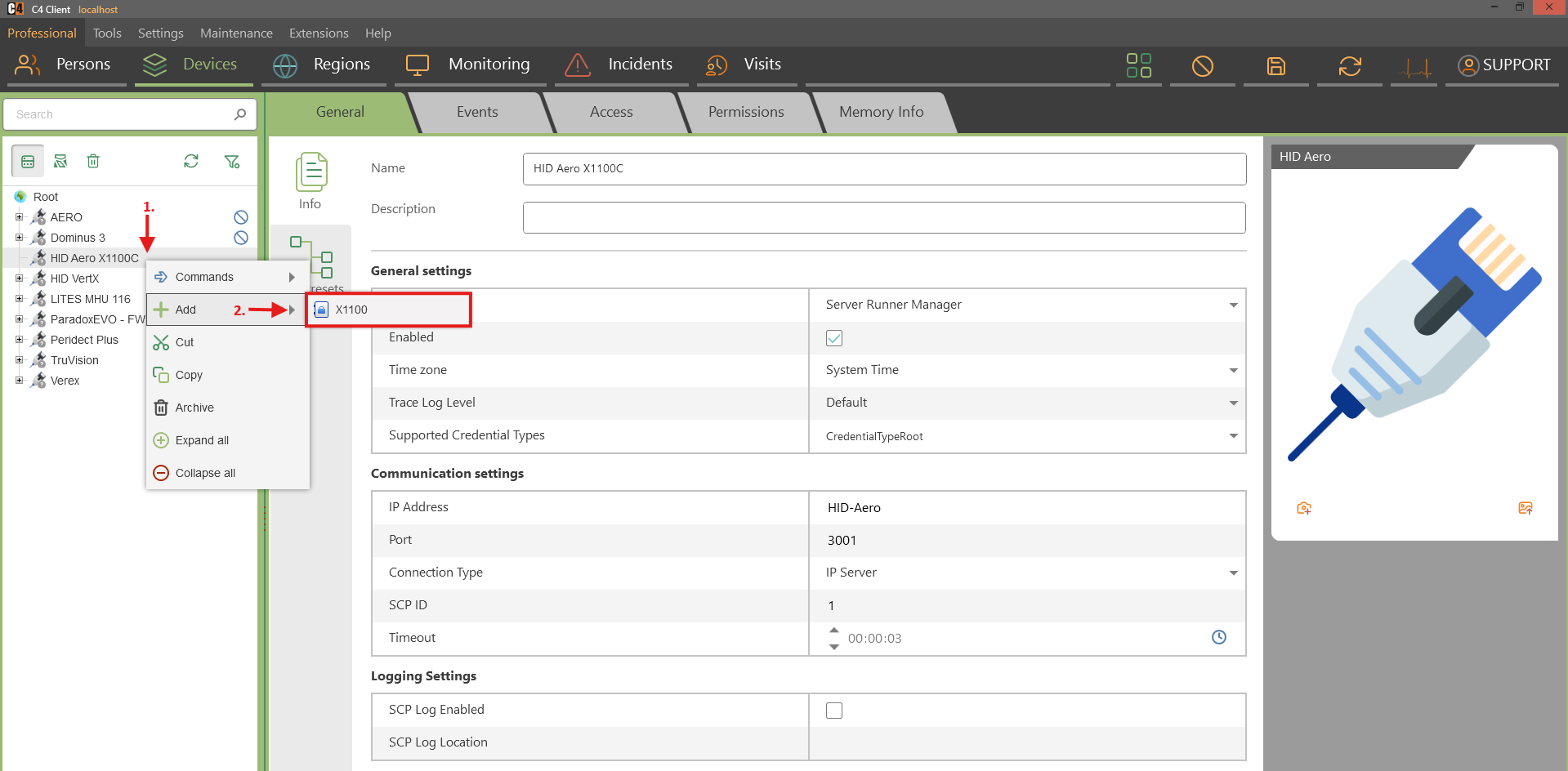
Add child nodes such as doors, readers, keypads, partitions, detectors, or inputs.
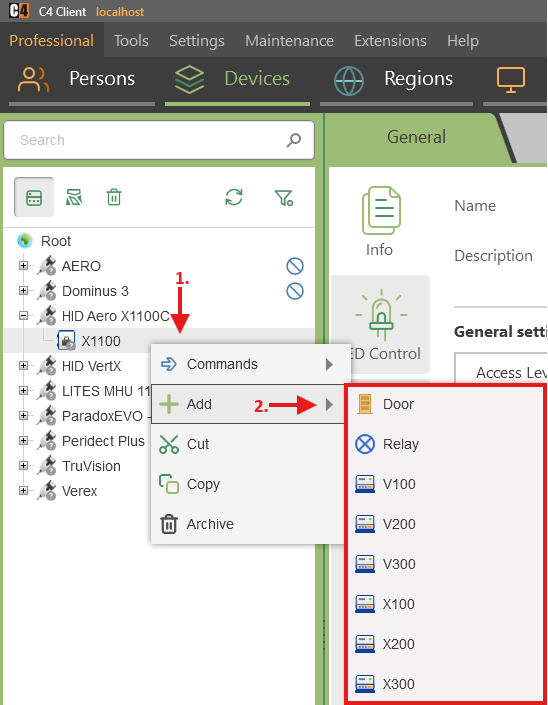
Enter mandatory names and addresses for each node.
Save and compare the C4 tree with the physical system design.
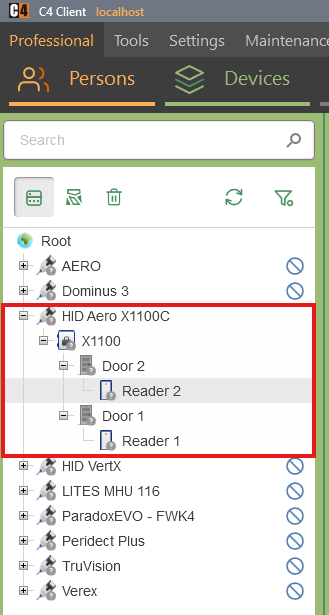
Confirmation: The device tree contains the required nodes and addresses for the installed driver.
Start and monitor a device connection
Start a device tree and confirm live status
Role: Operator or device administrator
Open Professional > Devices.
Right-click the bus controller and select Command > Start.
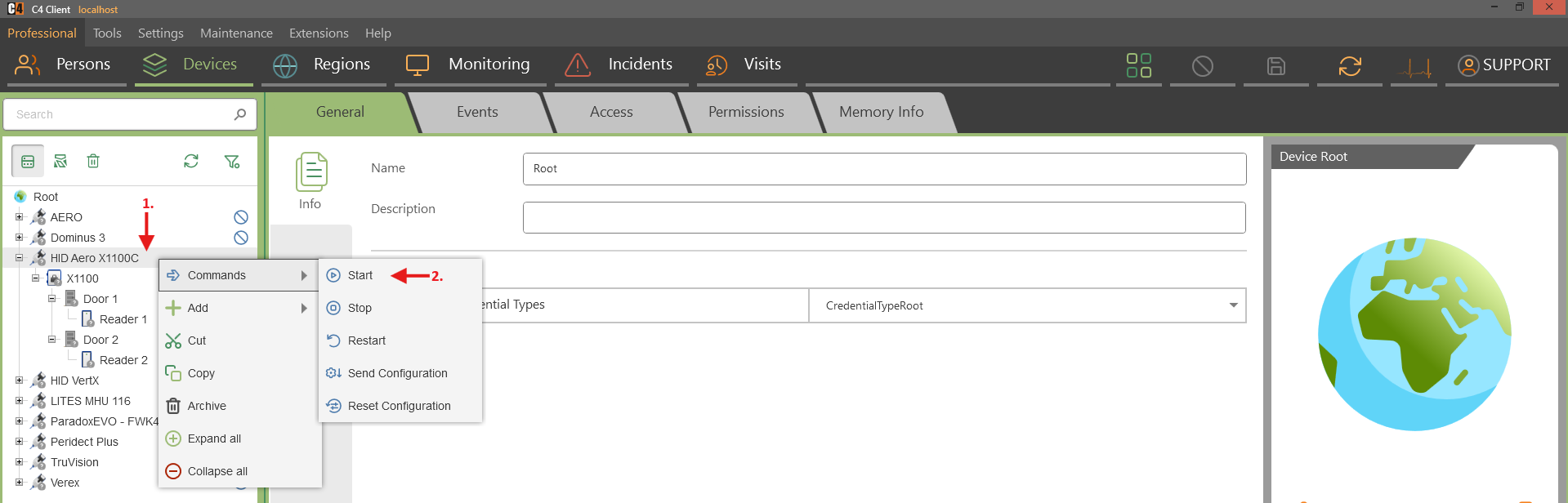
Wait for the controller and child nodes to leave the disconnected state.
Activate an approved input, detector, or door condition.
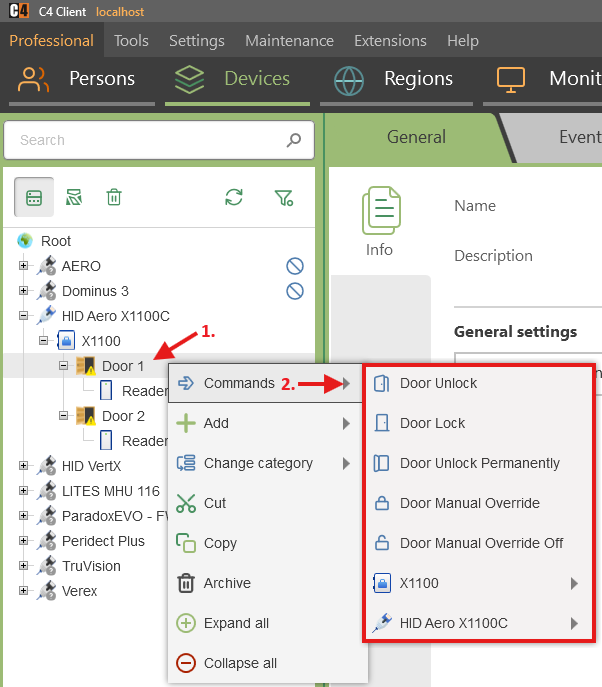
Verify that the corresponding tree node changes to the expected state and that an event is recorded.
Confirmation: The device tree is connected and reflects live device status.
Server operation: In the supplied Standard use cases, device trees continue to run on the server when the client application is closed. Events generated during that time are available after the client reconnects.
Link detectors to partitions
Associate detectors or zones with a partition
Role: Device administrator
Prerequisites: A device tree that contains partition and detector nodes.
Hold Ctrl and select the detectors or zones to link.
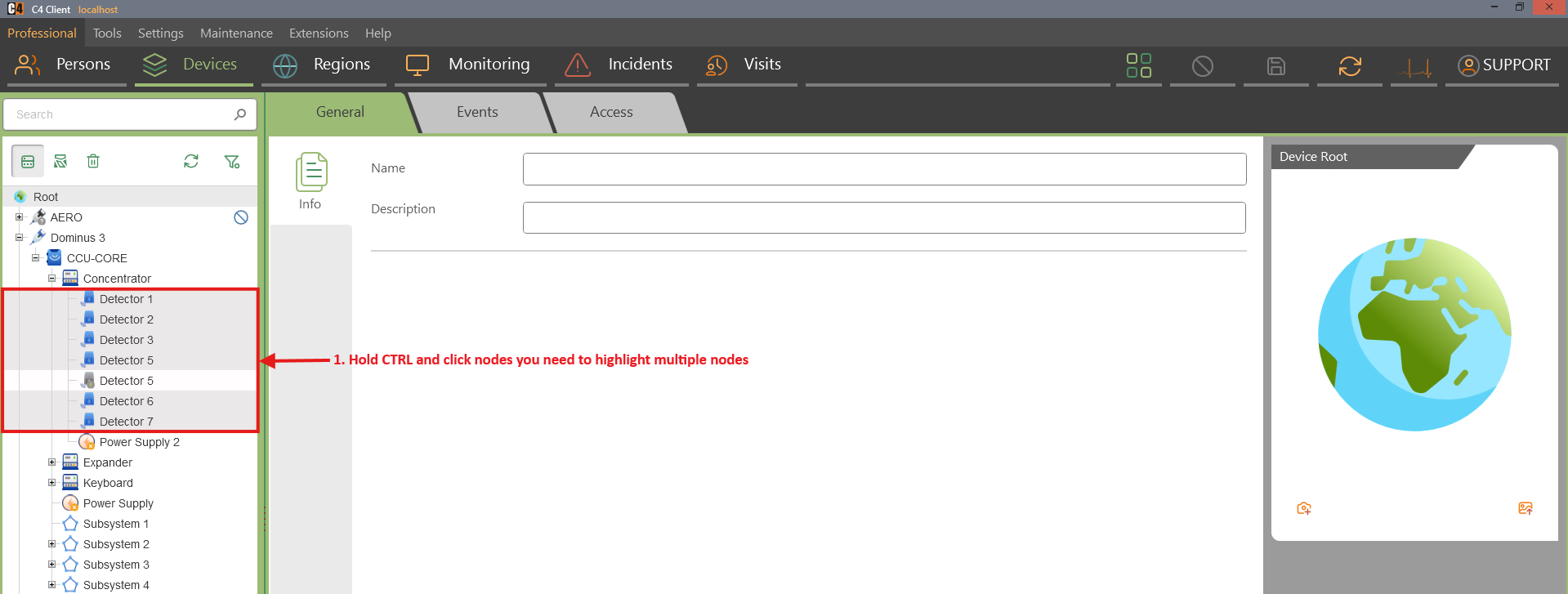
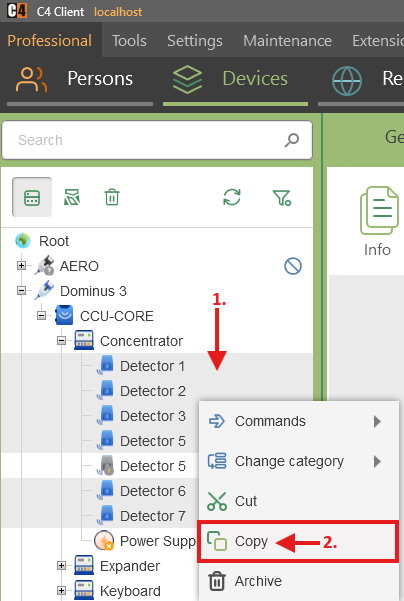
Right-click one selected detector and choose Copy.
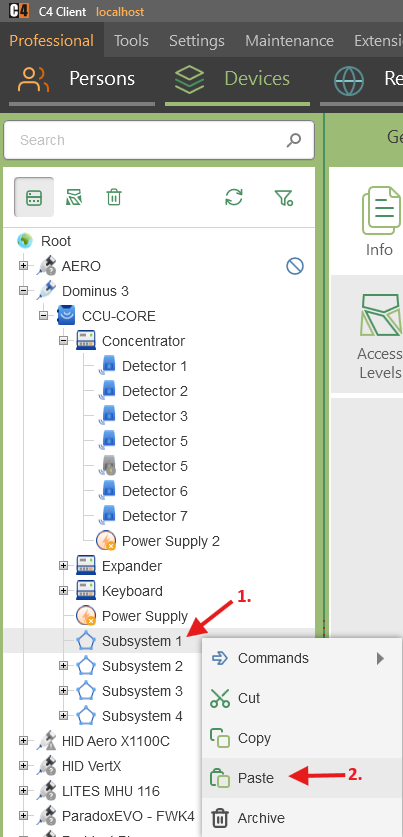
Right-click the target partition and choose Paste.
Save the device tree.
Confirmation: Linked detector references appear under the partition with the linked-node indicator.
Status filters, events, and Context Monitor
Filter device nodes by status
Role: Operator
Prerequisites: A running device tree.
Open Professional > Devices and select the status-filter control.
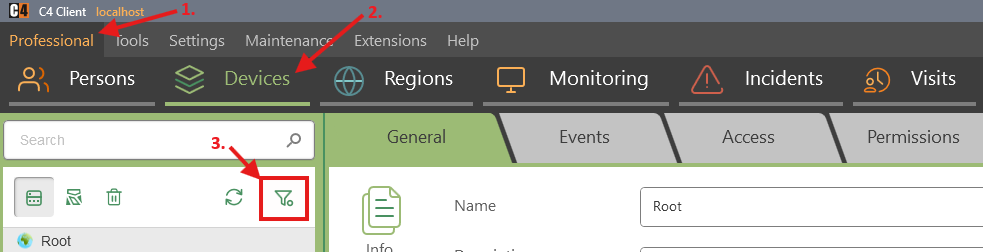
Choose the status to display, such as Armed, Door Normal, Alarm, or Disconnected.
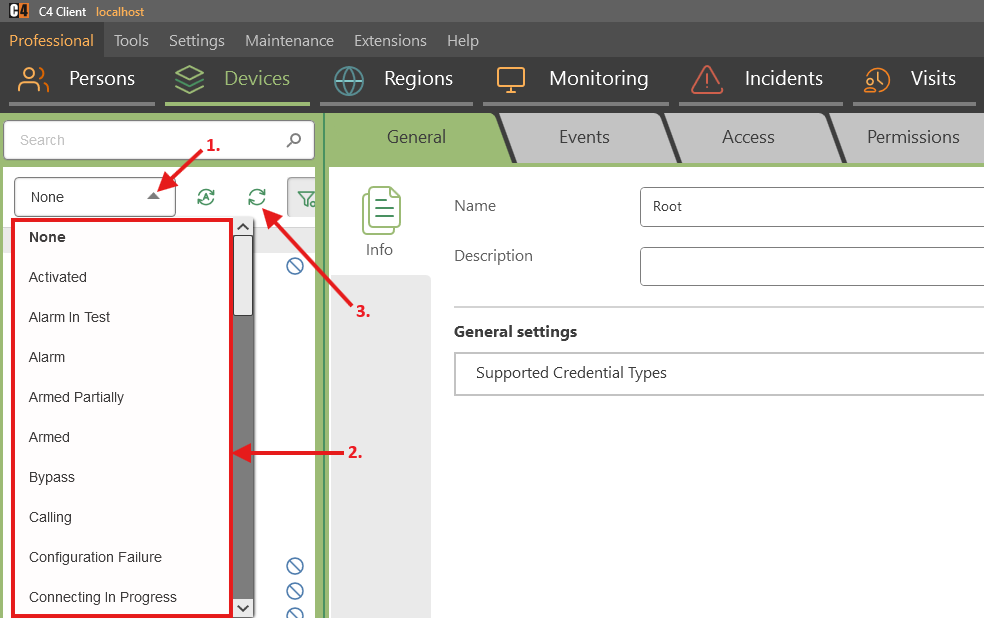
Use Refresh when states change, or enable automatic refresh when available.
Clear the filter to return to the complete tree.
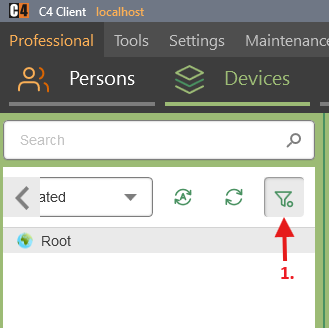
Confirmation: Only matching nodes and the parent nodes required to show their path remain visible.
Review device events
Role: Operator
Select the bus controller or device node.
Open Events.
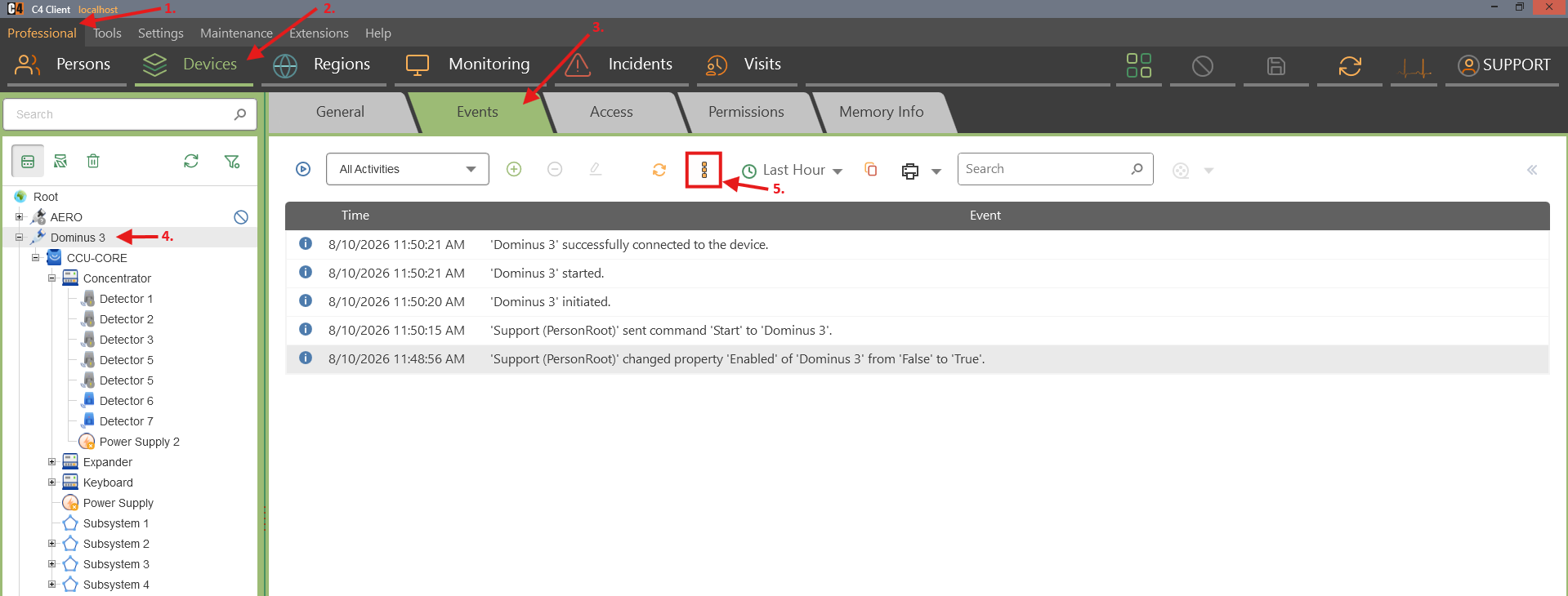
Enable Include children when events from descendant nodes are required.
Set the time range or activity filter and select Refresh.
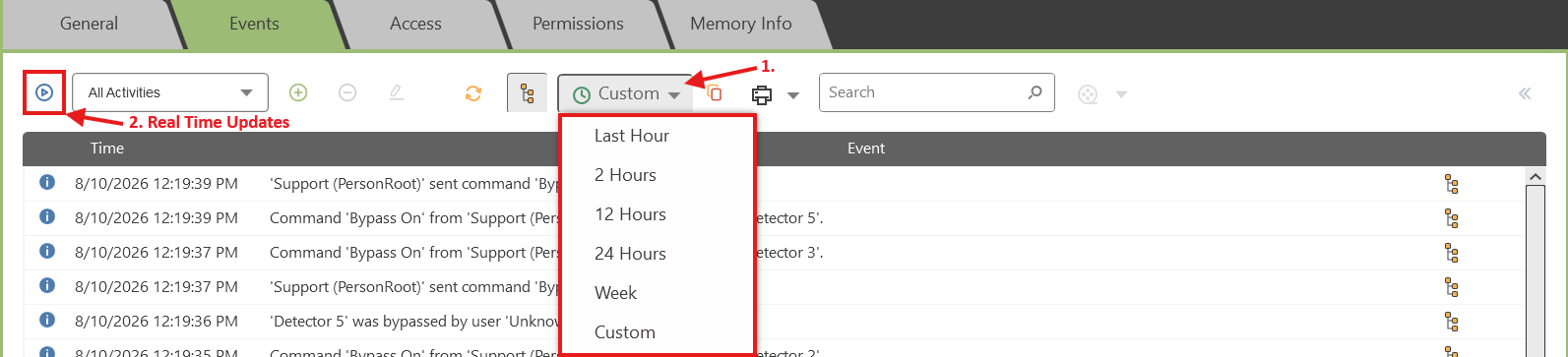
Enable Play for real-time updates when available.
Confirmation: The event list shows the selected node scope, event time, and event type.
Use Context Monitor for a selected device
Role: Operator
Prerequisites: Context Monitor is available and the device is configured.
Open Context Monitor from the top of the client.

Select a device node in the Devices tree or Monitoring view.
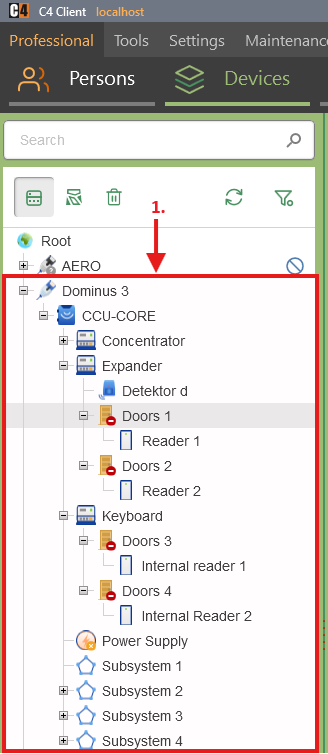
Review basic information, parent context, recent alarm/disconnection/failure statistics, and event history.
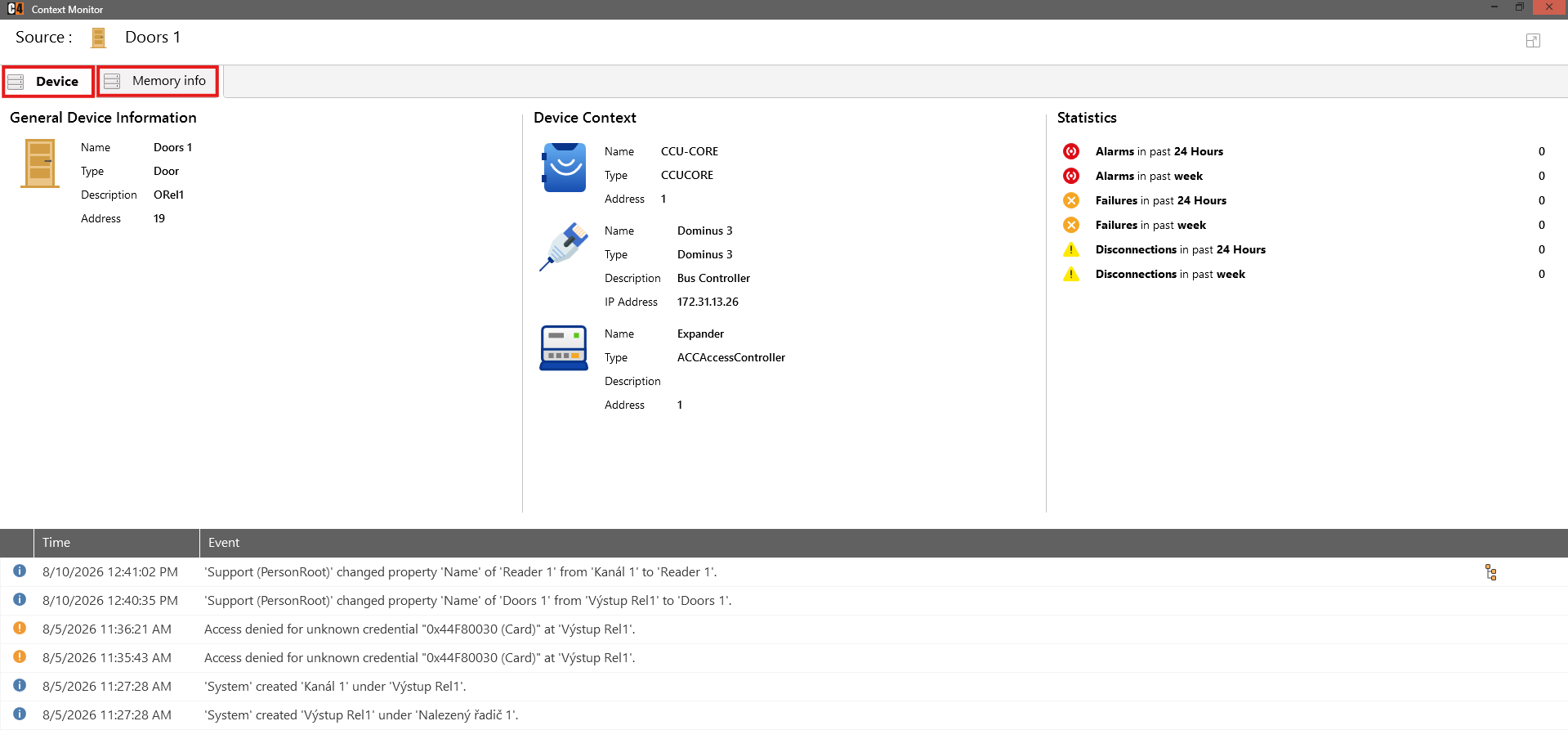
When the selected panel supports it, open Memory Info to review uploaded people.
Confirmation: Context Monitor shows a concise operational view of the selected device and its recent history.
Device commands
Command safety: The following commands affect live intrusion or access equipment. Confirm the selected node, current state, site authorization, and downstream consequences before issuing a command.
Command |
Typical prerequisite |
Expected result |
|---|---|---|
Arm |
Partition is ready and the driver supports arming. |
Partition changes to Armed and an event records the operator. |
Disarm |
Partition is armed and the user is authorized. |
Partition changes to Disarmed and an event is logged. |
Bypass On |
The detector partition is normally disarmed. |
Detector enters Bypassed state and may suppress other detector states. |
Bypass Off |
Detector is bypassed. |
Bypass is cancelled and the detector returns to its current physical state. |
Reset Alarm |
The physical alarm cause is restored. |
Alarm memory is reset; some devices also disarm the partition. |
Force Arm |
Normal Arm is not possible and the driver supports force arming. |
Partition arms under the driver rules despite conditions that blocked normal arming. |
Send a supported device command
Role: Authorized operator
Open Professional > Devices and locate the exact node.
Review its current status and related events.
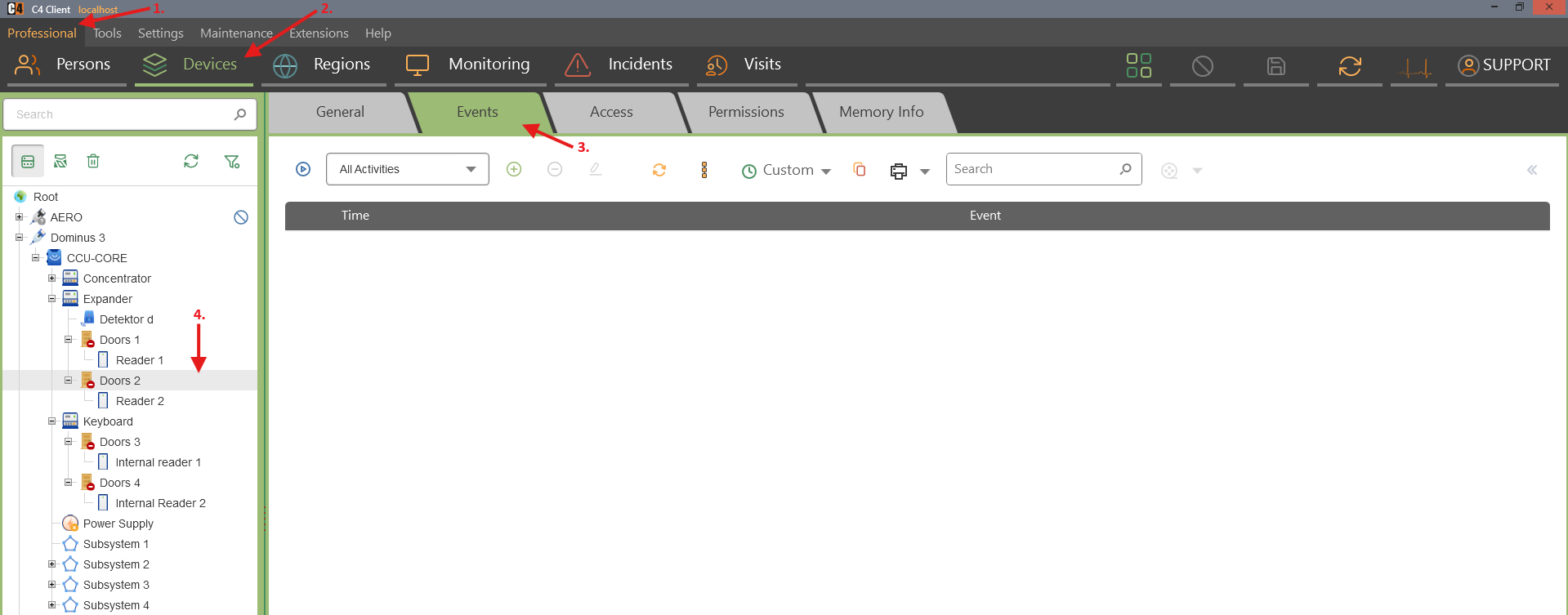
Right-click the node and select Command.
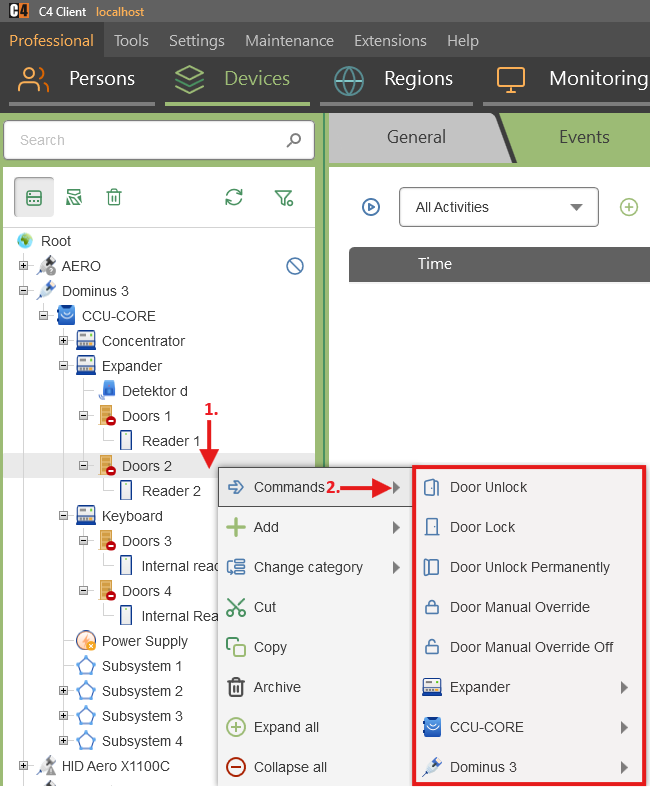
Choose the approved command.
Wait for the status to change and review the event created by the command.
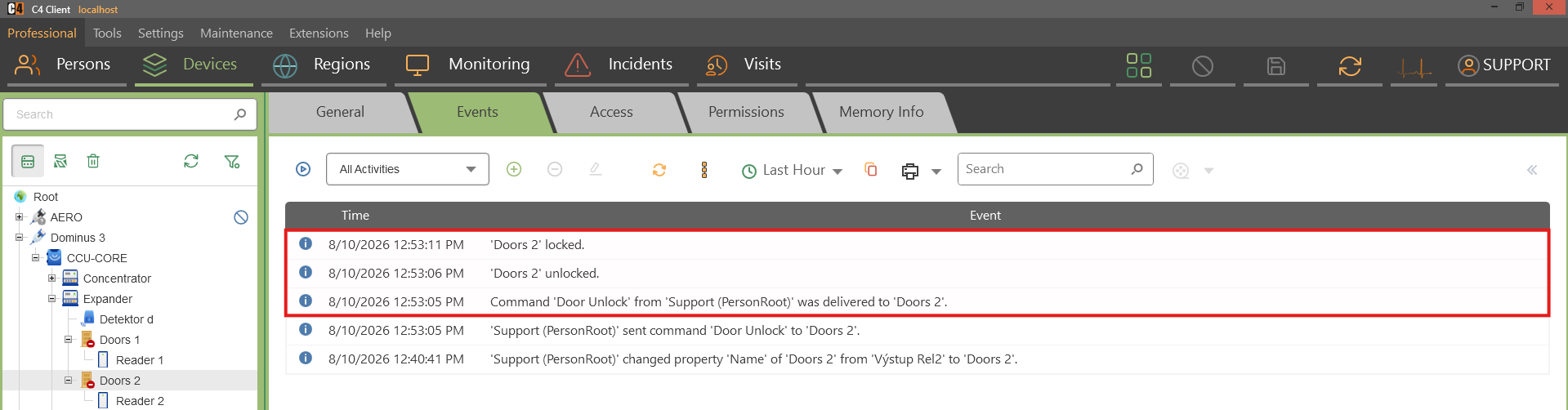
Confirmation: The device acknowledges the command and C4 shows the resulting state and audit event.
Archive, restore, delete, and export
Archive or restore a device node
Role: Device administrator
Warning: Archive only when the device is no longer needed or is being reconfigured. Consider dependent regions, visualizations, workflows, and access assignments.
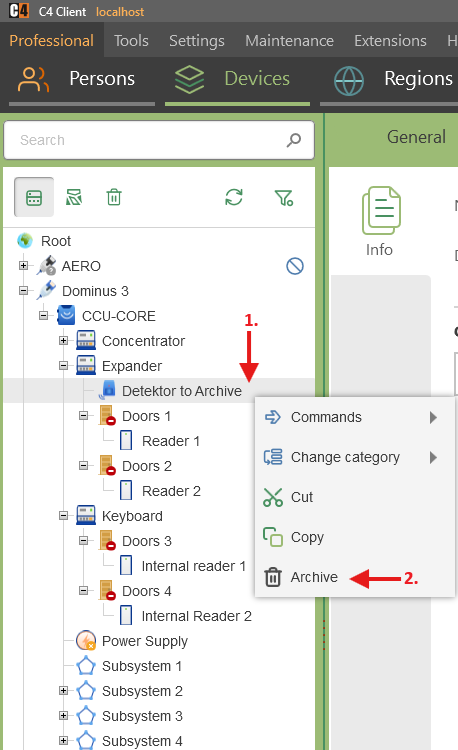
Right-click the device node and select Archive, then save.
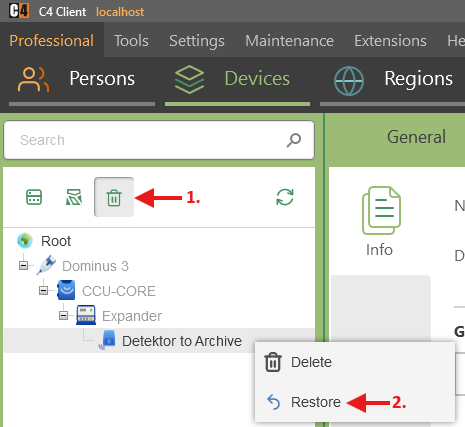
To restore it, open the device-tree Recycle Bin.
Right-click the archived node, select Restore, and save.
Review the restored node properties and dependencies before restarting it.
Confirmation: The node moves between the active tree and Recycle Bin without permanent deletion.
Permanently delete a device node
Role: Device administrator
Prerequisites: The node is archived and all dependencies have been reviewed.
Warning: Permanent deletion is irreversible and can break maps, regions, workflows, reports, access levels, and historical references.
Open the device-tree Recycle Bin.
Right-click the archived node and select Delete.
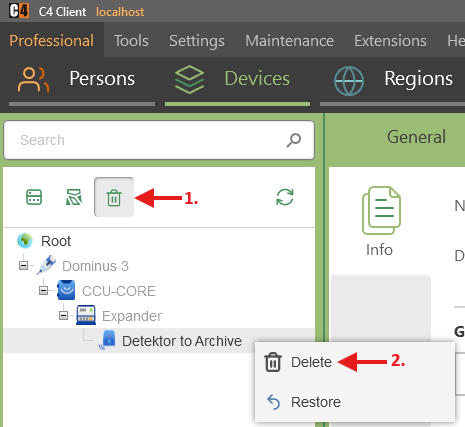
Confirm and save.
Verify the node is absent from the active tree and Recycle Bin.
Confirmation: The device node is permanently removed.
Export a device-tree branch to CSV
Role: Authorized administrator
Prerequisites: C4 2026 SP3.
Open Professional > Devices.
Hold Ctrl and right-click the device-tree node.
Select File > Export.
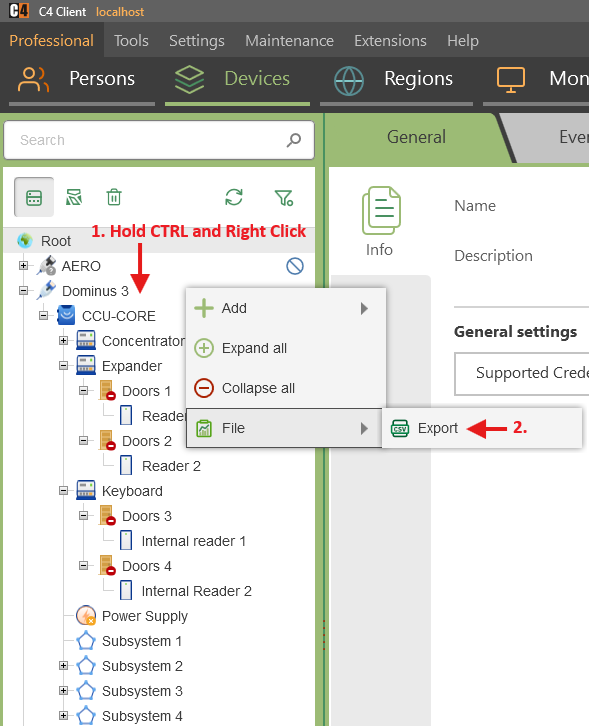
Choose the destination, then complete Next and Finish.
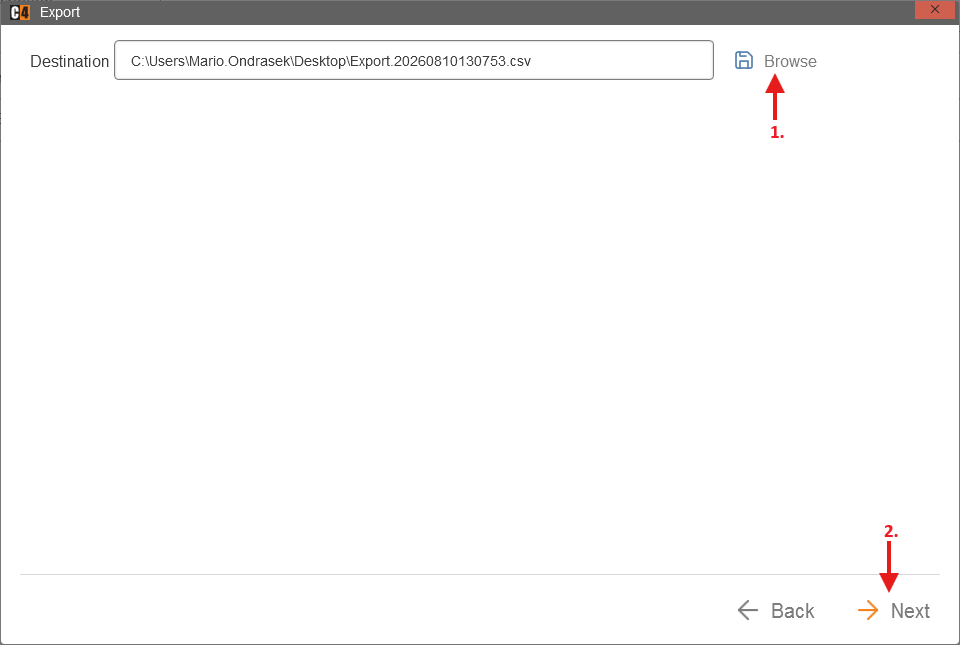
Verify the exported CSV scope.
Confirmation: The selected device-tree data is exported to CSV.
6. Regions, presence, and regional events
Regions provide a physical or logical location hierarchy for devices, monitoring, events, presence, and visualizations. Common region types include Country, Region, City, Building, Floor, and Room.
Availability: Region structure and device placement are core functions in the supplied use cases. Presence requires access readers, direction settings, valid credentials, uploads, and the region-presence preference.
Create a regional structure
Create a region hierarchy
Role: System administrator
Open Professional > Regions and select General.

Right-click Root and select Add > Region.
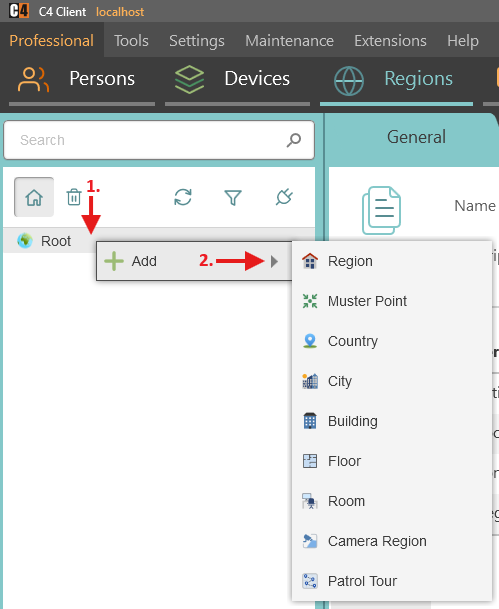
Enter the Name and save.
Right-click the new region and add the required child type, such as City, Building, Floor, or Room.
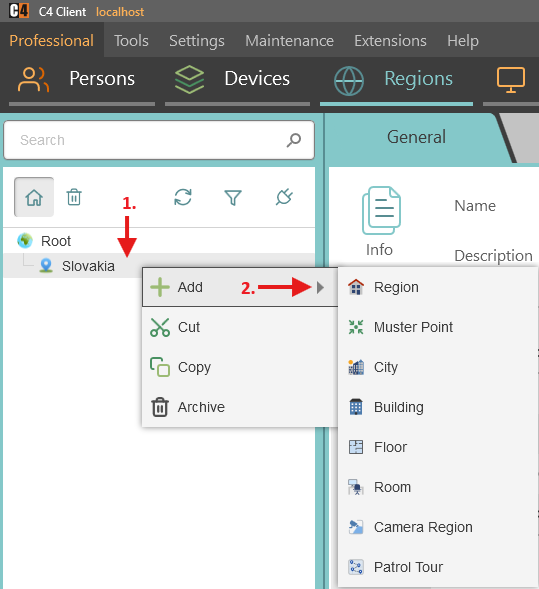
Continue until the site hierarchy is represented, saving each level.
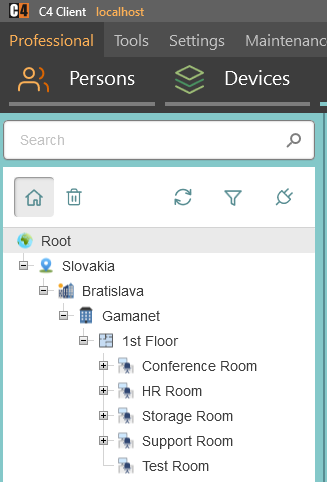
Confirmation: The region hierarchy appears under Root with the required names and levels.
Assign device nodes to a region
Role: System administrator
Prerequisites: An existing device tree and region hierarchy.
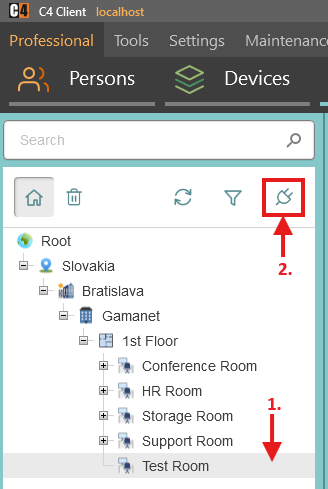
Open Professional > Regions and select the target region.
Choose Manage devices.
Select the required device nodes and move them to the assigned list.
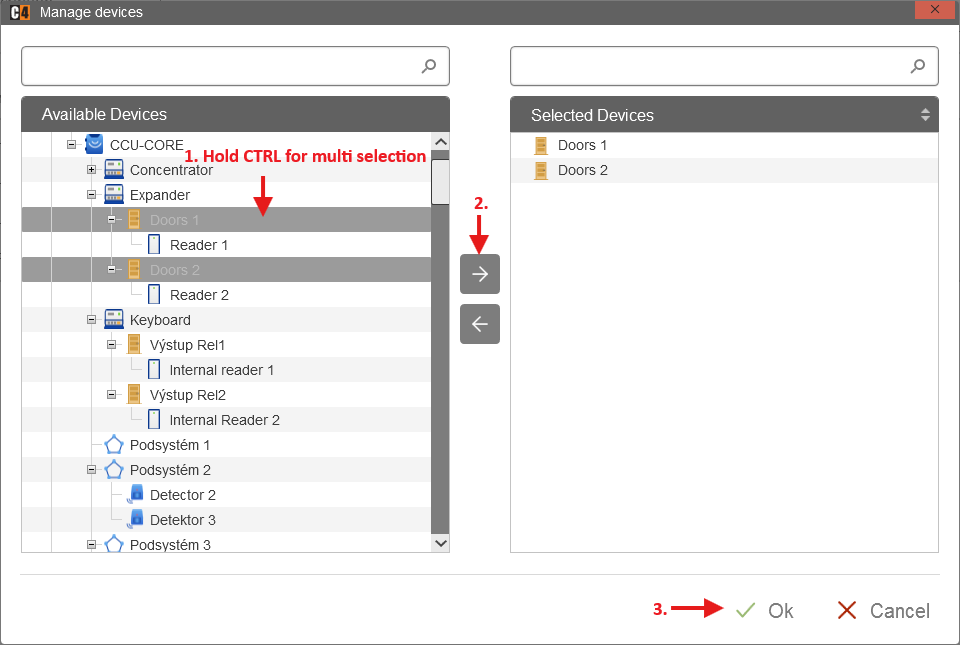
Confirm with OK and save.
Confirmation: The assigned device nodes appear under the selected region.
Regional events
View events for a region and its children
Role: Operator
Prerequisites: Devices are assigned to the region.
Open Professional > Regions and select the region.
Open Events.
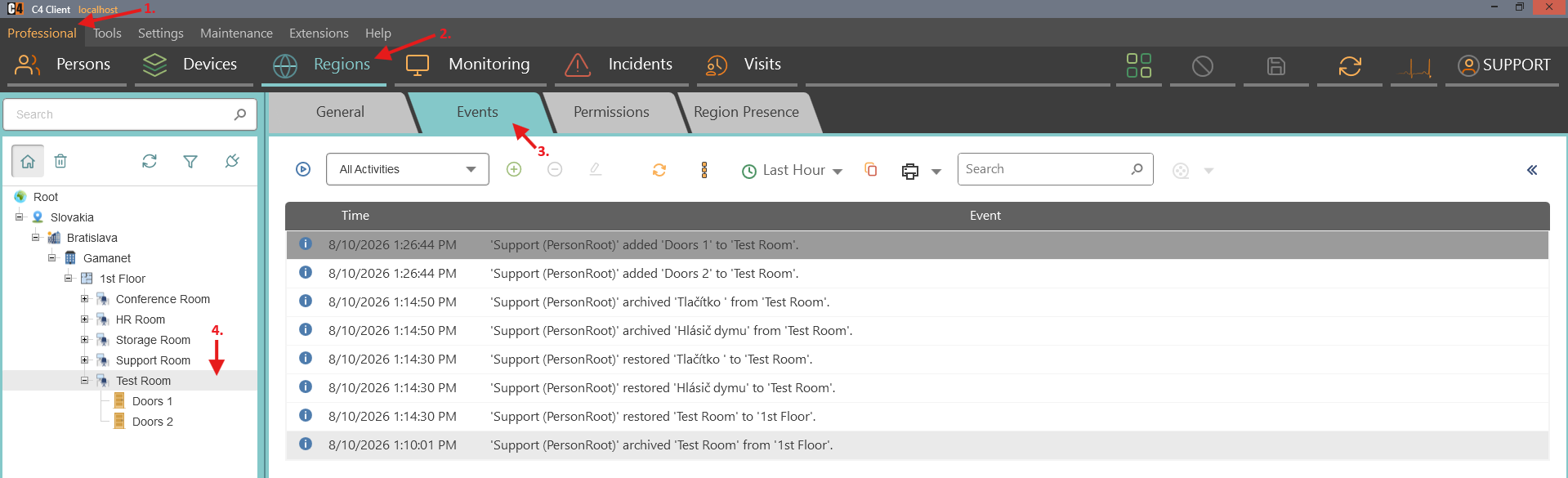
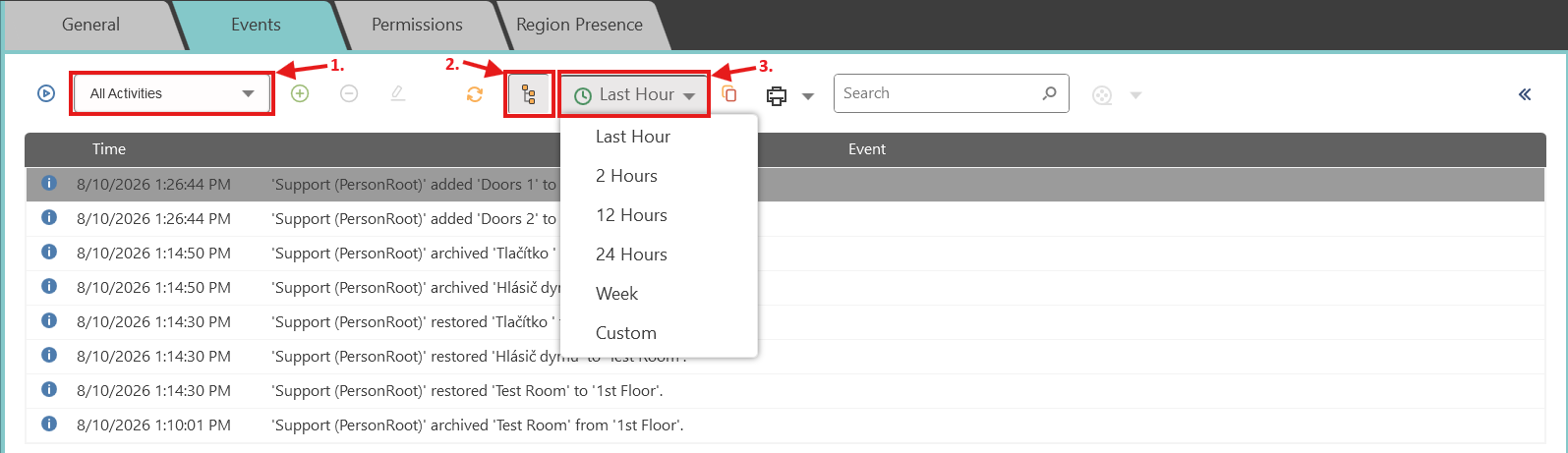
Choose the time range and activity filter.
Enable Include children to include events from nested regions and devices.
Select Refresh for historical/current results, or Play for real-time events.
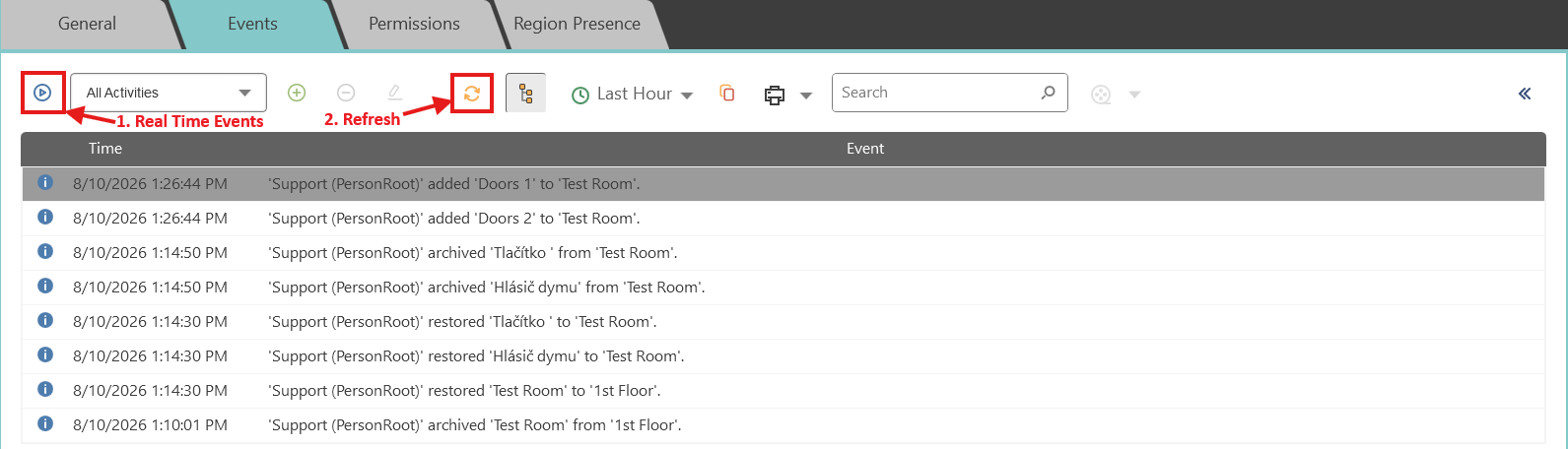
Perform an approved device action and verify that the event appears.
Confirmation: The region event list shows events from the selected scope with time and event type.
Region presence and person count
Configure entry and exit readers for presence
Role: Security administrator
Prerequisites: Region Presence is enabled in Preferences; two access readers are assigned to the region; a person with valid uploaded credential exists.
Open Professional > Regions and select the entry reader under the region.
In General, set Access direction to In.
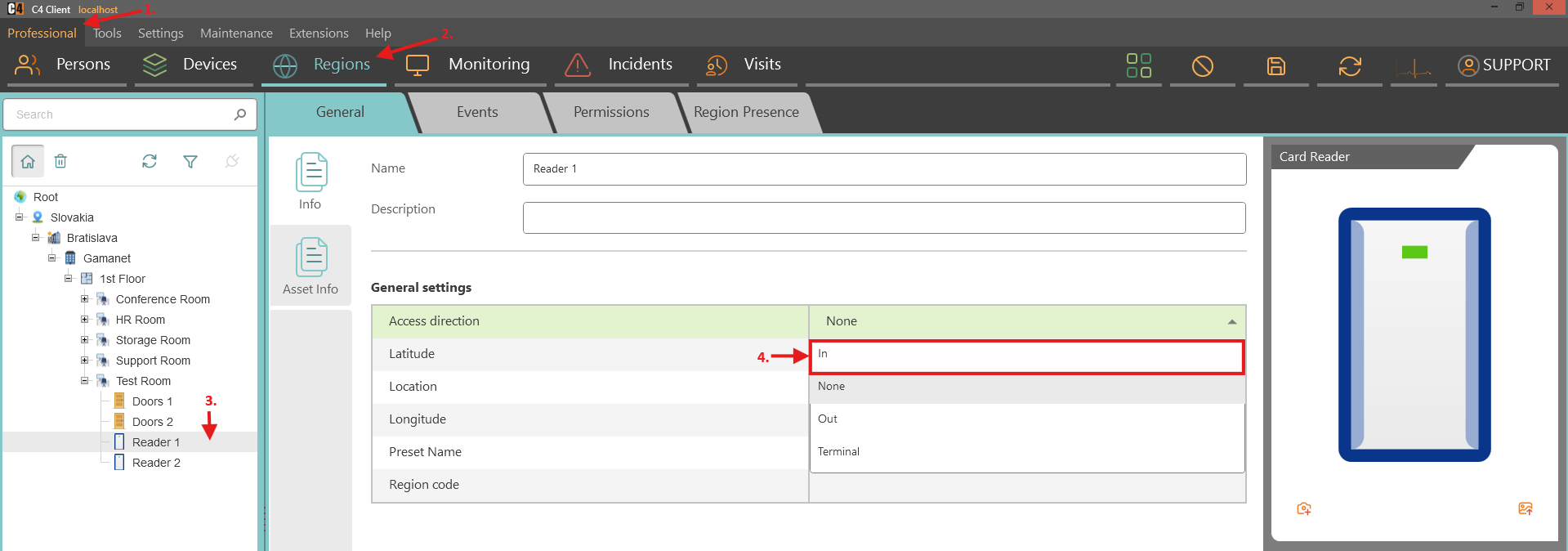
Select the exit reader and set Access direction to Out.
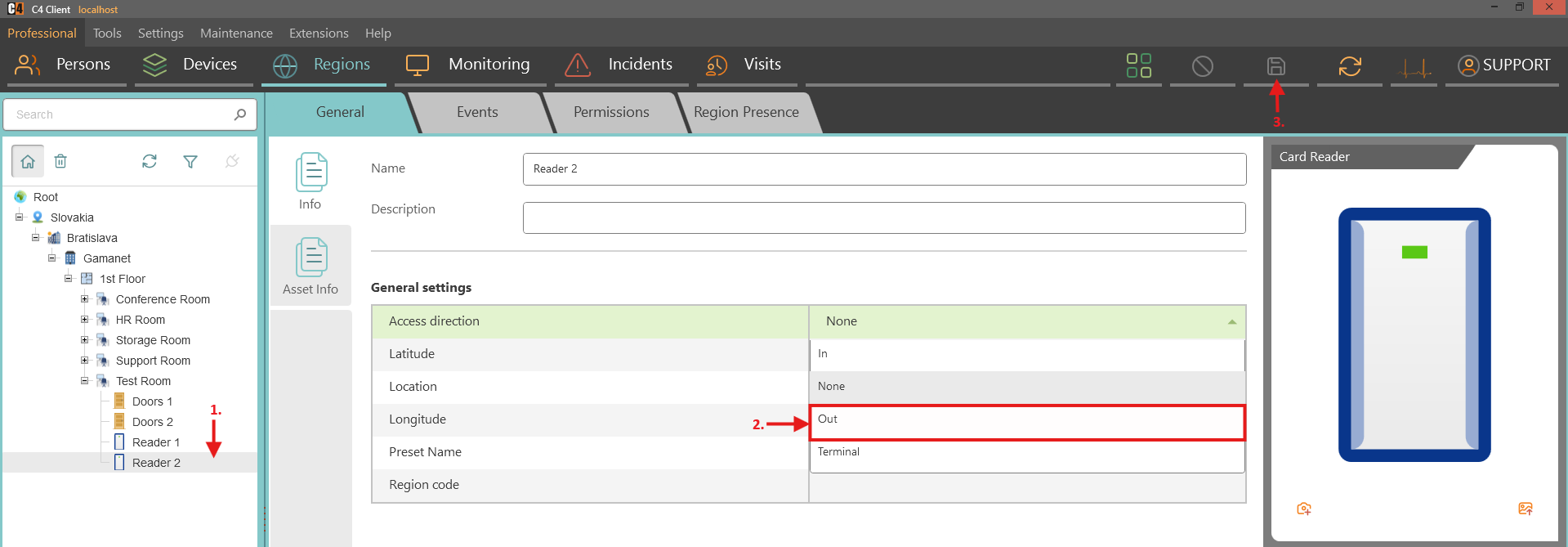
Save the changes.
Use the person credential at the entry reader.
Select the region and open Region Presence.
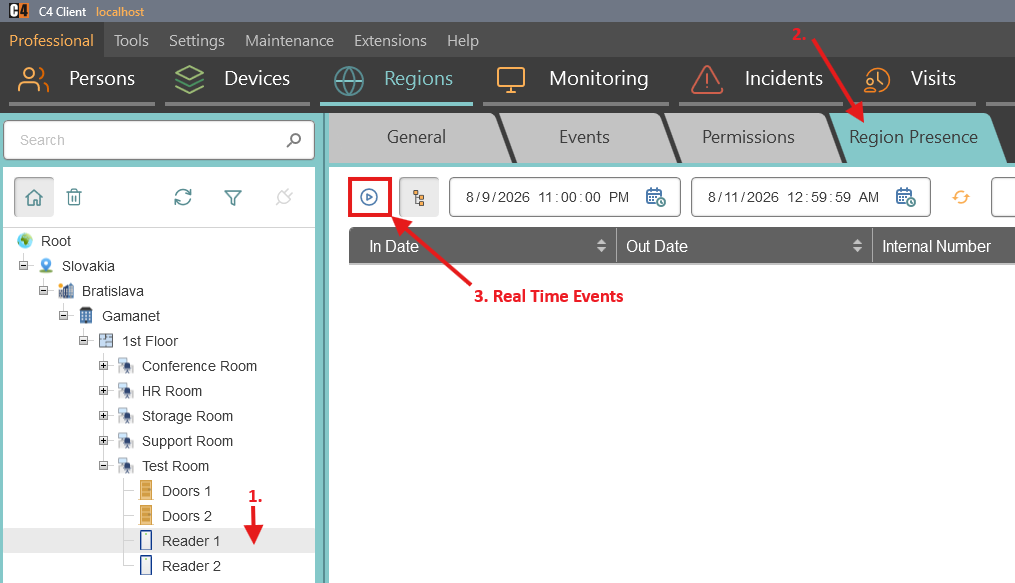
Use the credential at the exit reader and refresh when needed.
Confirmation: The presence record shows In Date, Out Date, person identity, region, and duration as the credential crosses the configured readers.
View the current person count in a region
Role: Operator
Prerequisites: Presence is configured and entry/exit events are being processed.
Open Professional > Regions and select the region.
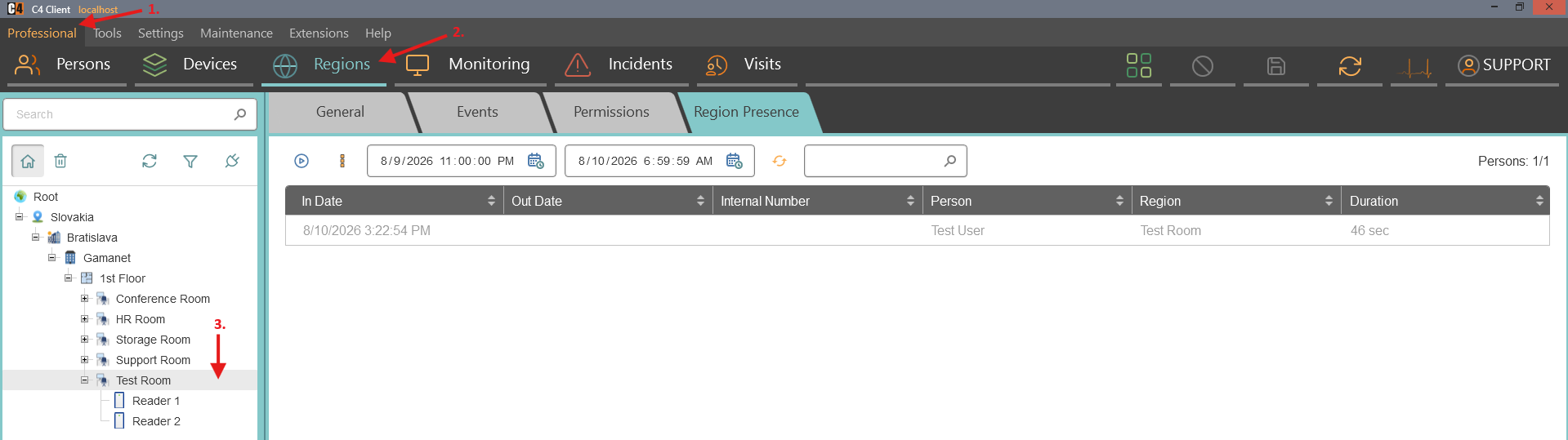
Open the person-count or presence summary view available in the installed build.
Review the current count and the underlying presence records.
Use an approved entry or exit credential and verify that the count changes.

Confirmation: The count reflects people currently considered present in the region according to processed In and Out events.
7. Visualization, Monitoring, Context Monitor, and Quick Actions
Visualization is used to design region maps. Monitoring is used to observe live status, events, and incidents on those maps. Context Monitor provides detail for the selected node, and Quick Actions provide region-specific shortcuts.
Availability: Visualization, Monitoring, and Quick Actions are Standard-oriented features in the supplied material. Quick Actions, historical Monitoring events, continuous placement, alarm animation, and configurable propagation are highlighted for SP3.
Build a region visualization
Place a device on a region map
Role: System administrator
Prerequisites: A region exists and contains the device node.
Open Tools > Visualization.
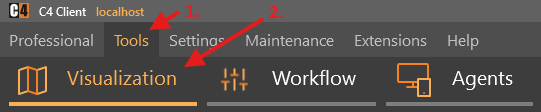
Select the region.
Choose Status Image Key or another supported visualization object type.
Find the device in Objects and drag it onto the map.
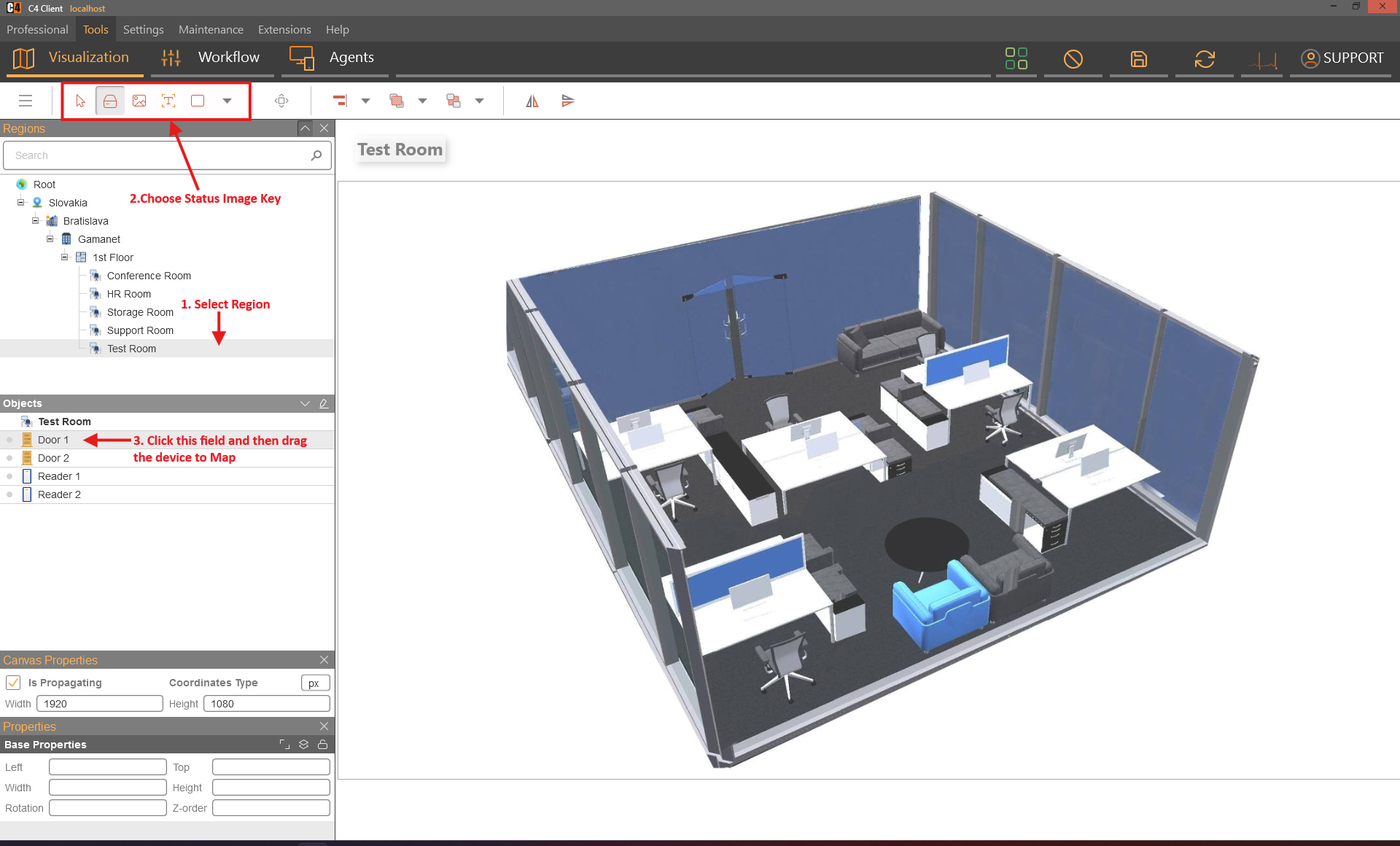
Position and size the element, then save.
Open Professional > Monitoring, select the region, and verify the live device state.
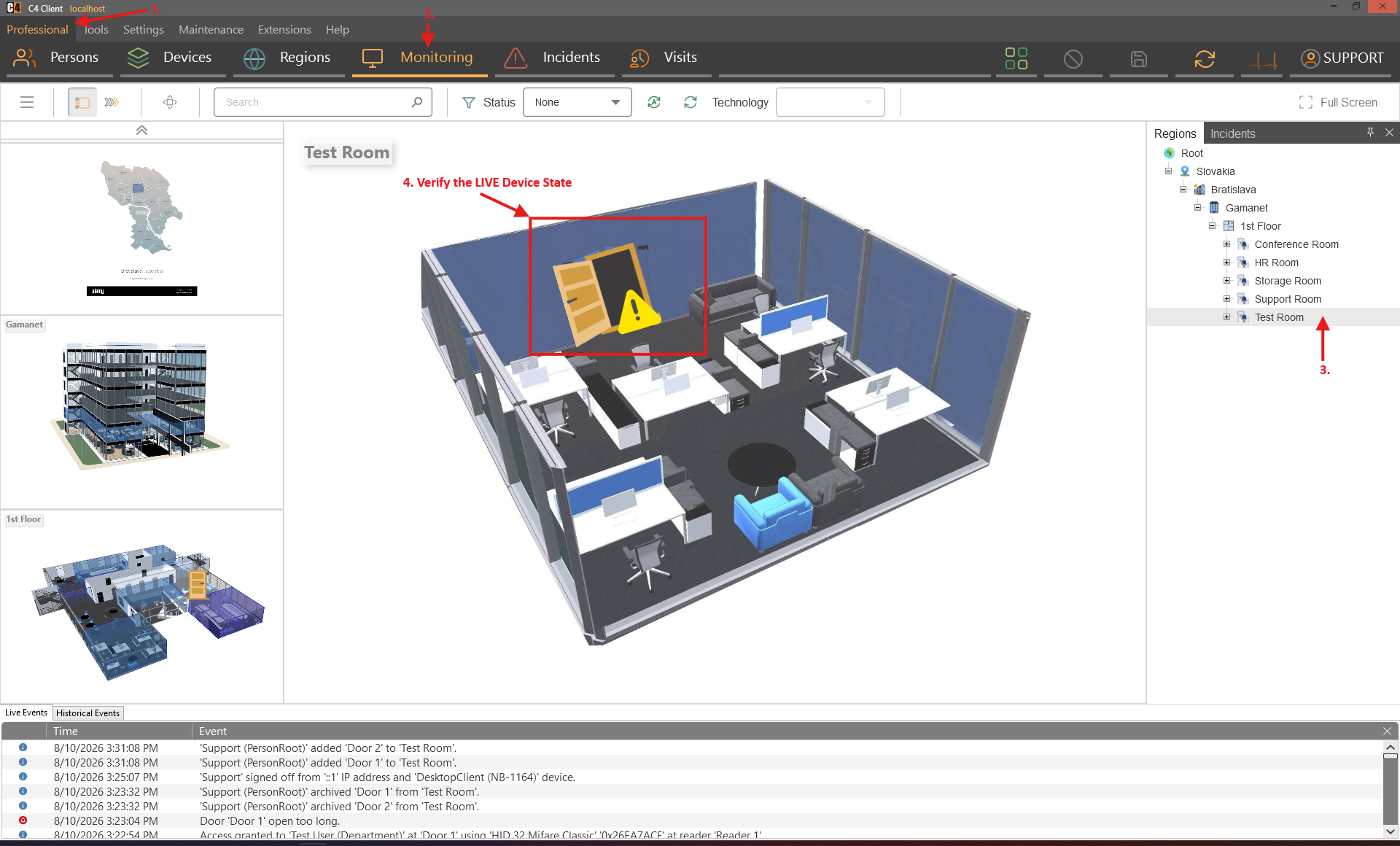
Confirmation: The device appears on the map with its current status.
Place a child region on a map
Role: System administrator
Prerequisites: A parent region and child region exist.
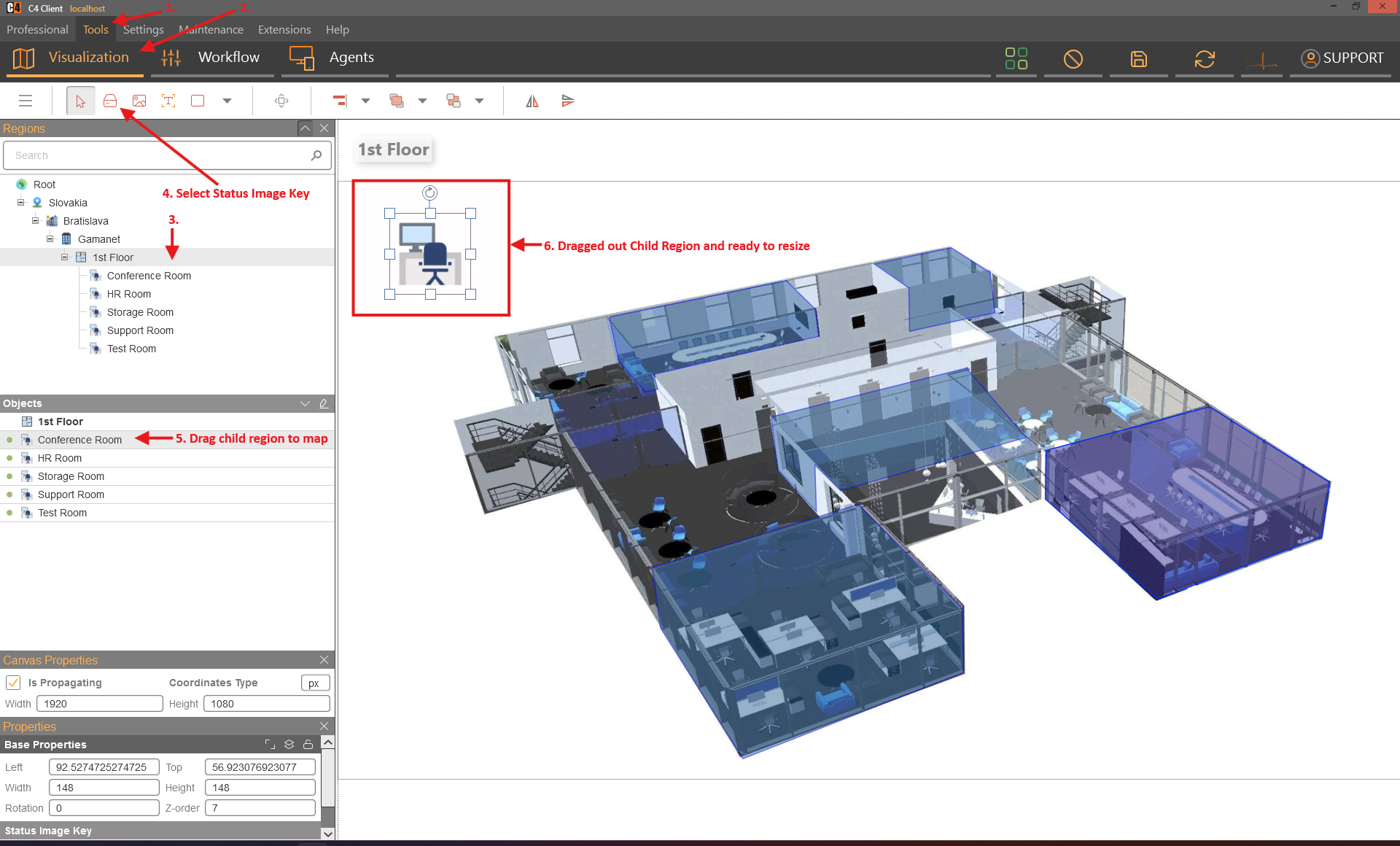
Open Tools > Visualization and select the parent region.
Choose a supported region visualization object.
Drag the child region onto the map and save.
Open Monitoring and select the parent region.
Select the child-region icon.
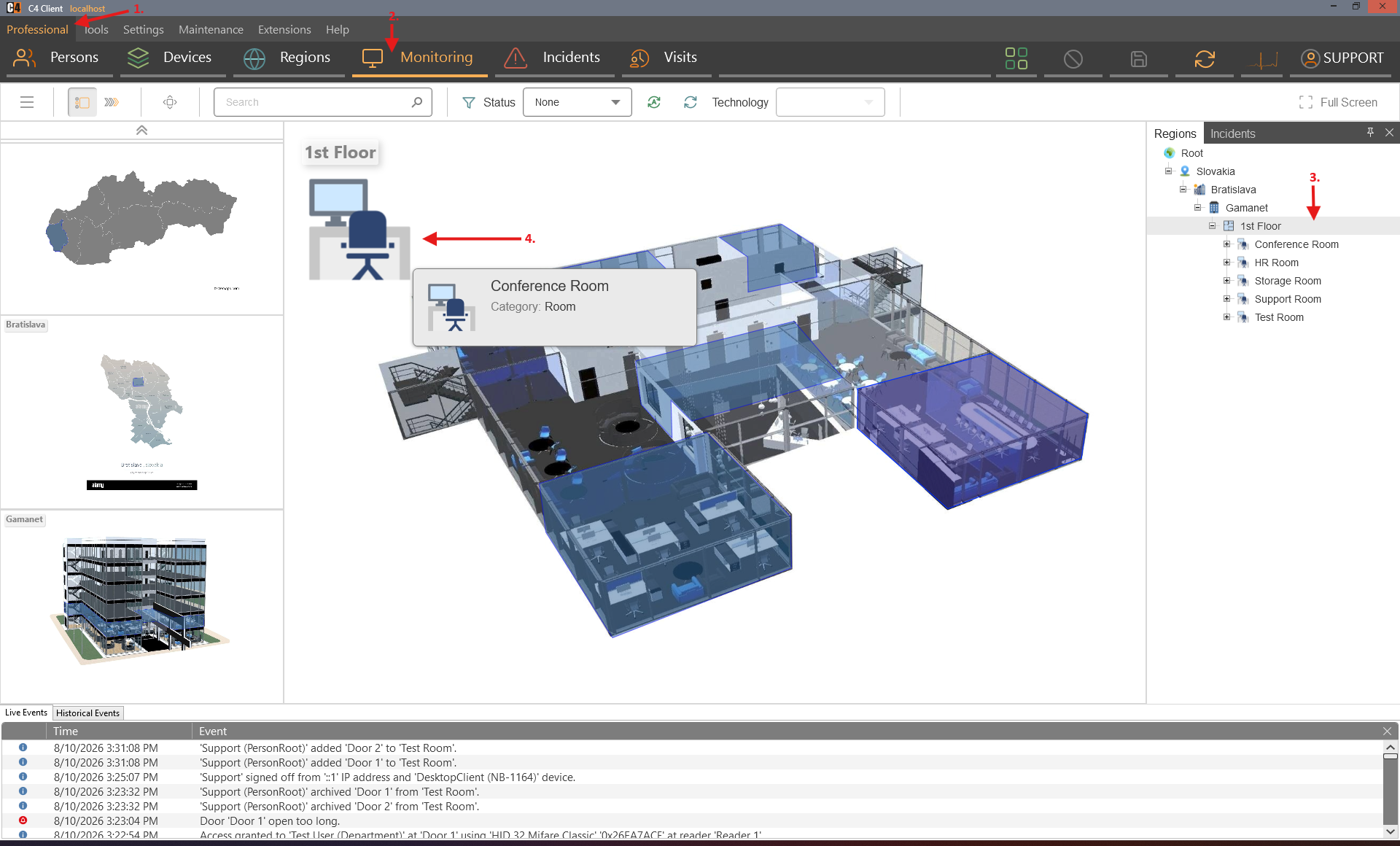
Confirmation: The child region appears on the parent map and opens its own map when selected.
Remove a visualized object
Role: System administrator
Open Tools > Visualization and select the region map.
Right-click the object and select Revoke.
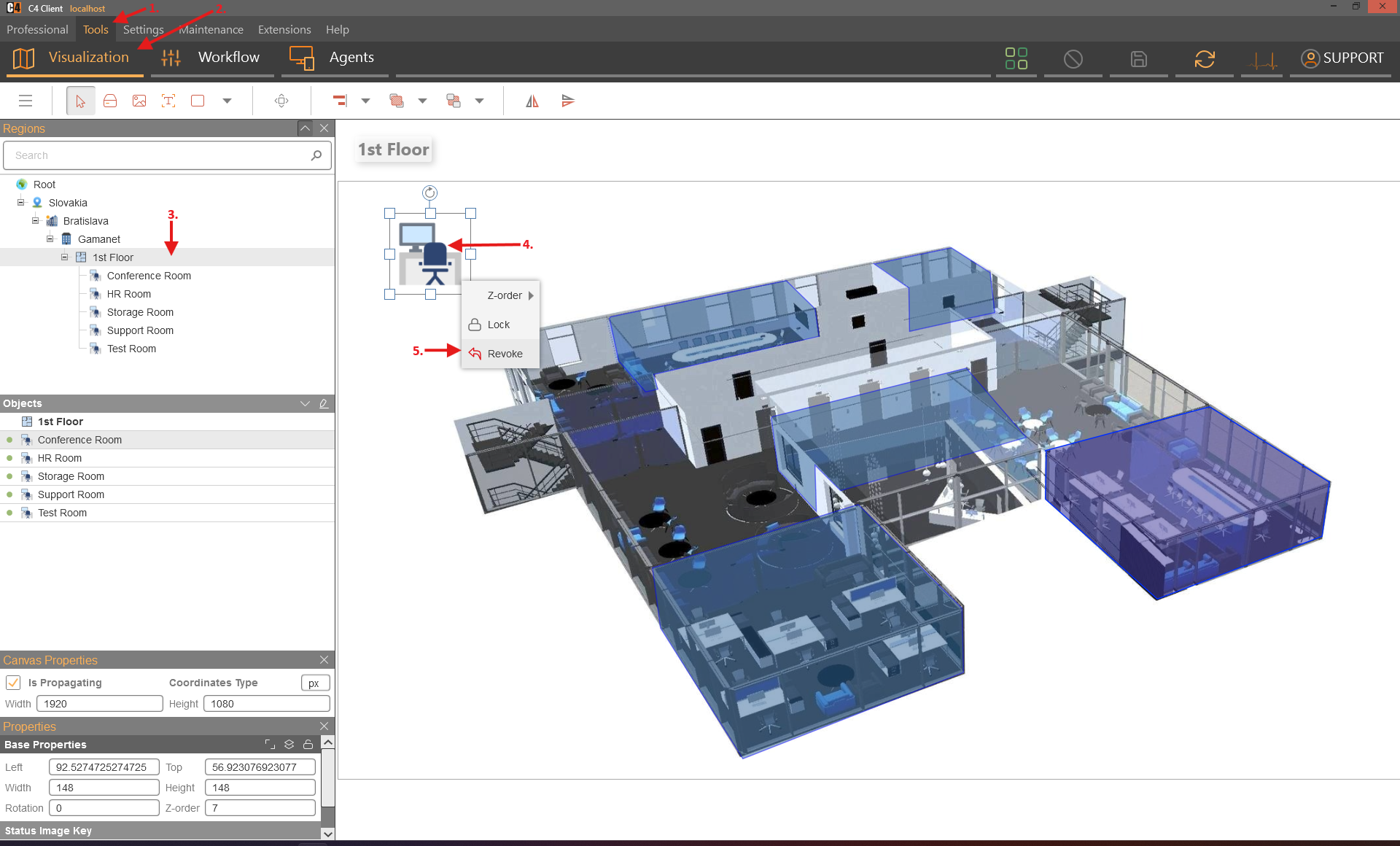
Save the map.
Open Monitoring and confirm that the object is no longer displayed.
Confirmation: The visualization object is removed without deleting the underlying device or region.
Place multiple objects continuously
Role: System administrator
Prerequisites: C4 2026 SP3.
Open Tools > Visualization and select the region.
Choose the object type > Status Image Key.
Hold Ctrl while dragging multiple device nodes onto the map.
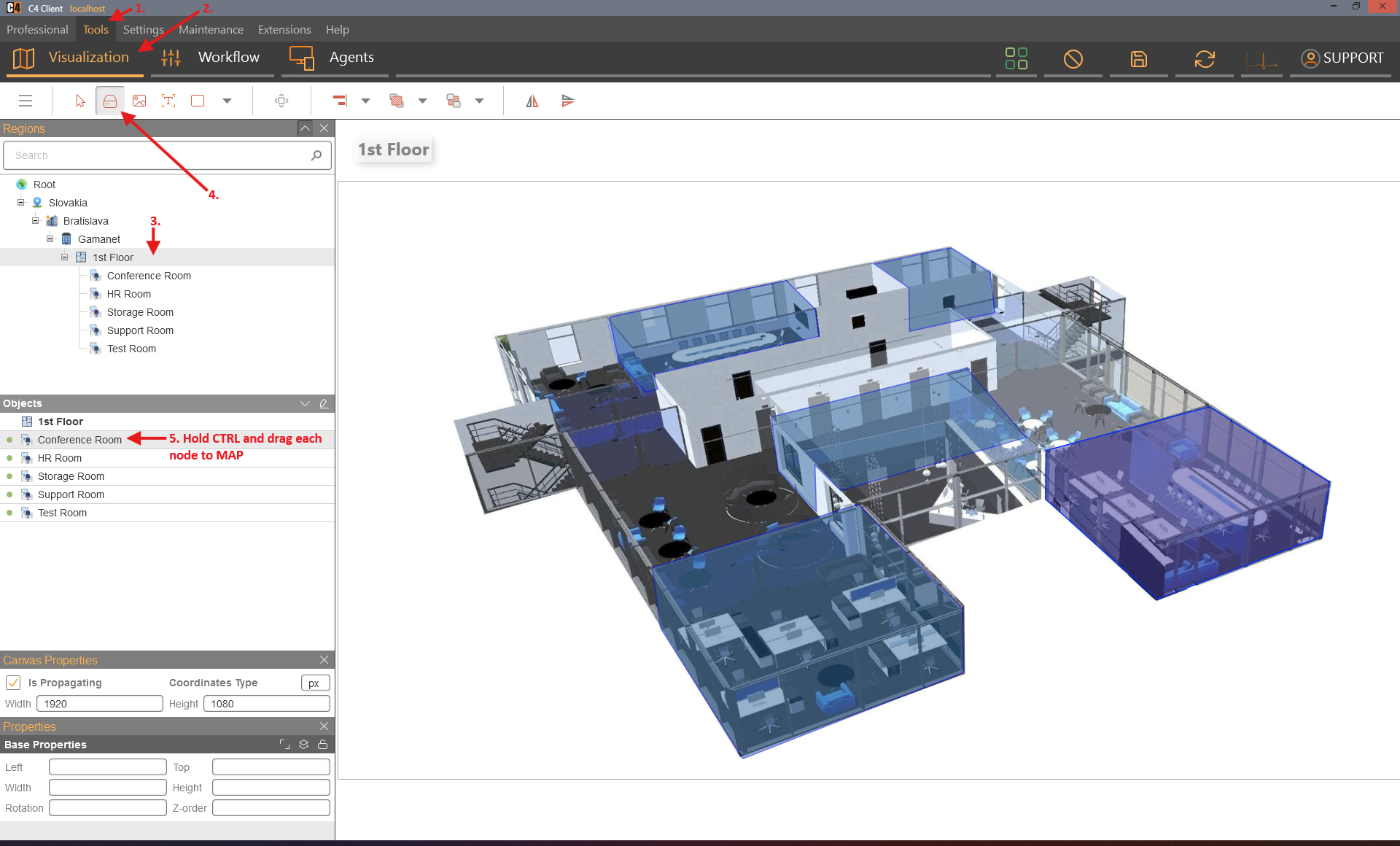
Release Ctrl when placement is complete, arrange the objects, and save.
Confirmation: Multiple objects are placed without reselecting the visualization tool for every item.
Alarm animation and status propagation
Configure alarm animation for an icon
Role: System administrator
Prerequisites: An icon-based device is placed on a map.
Open Tools > Visualization and select the object.
Set Alarm Mode to the required behavior, such as pulsing or blinking.
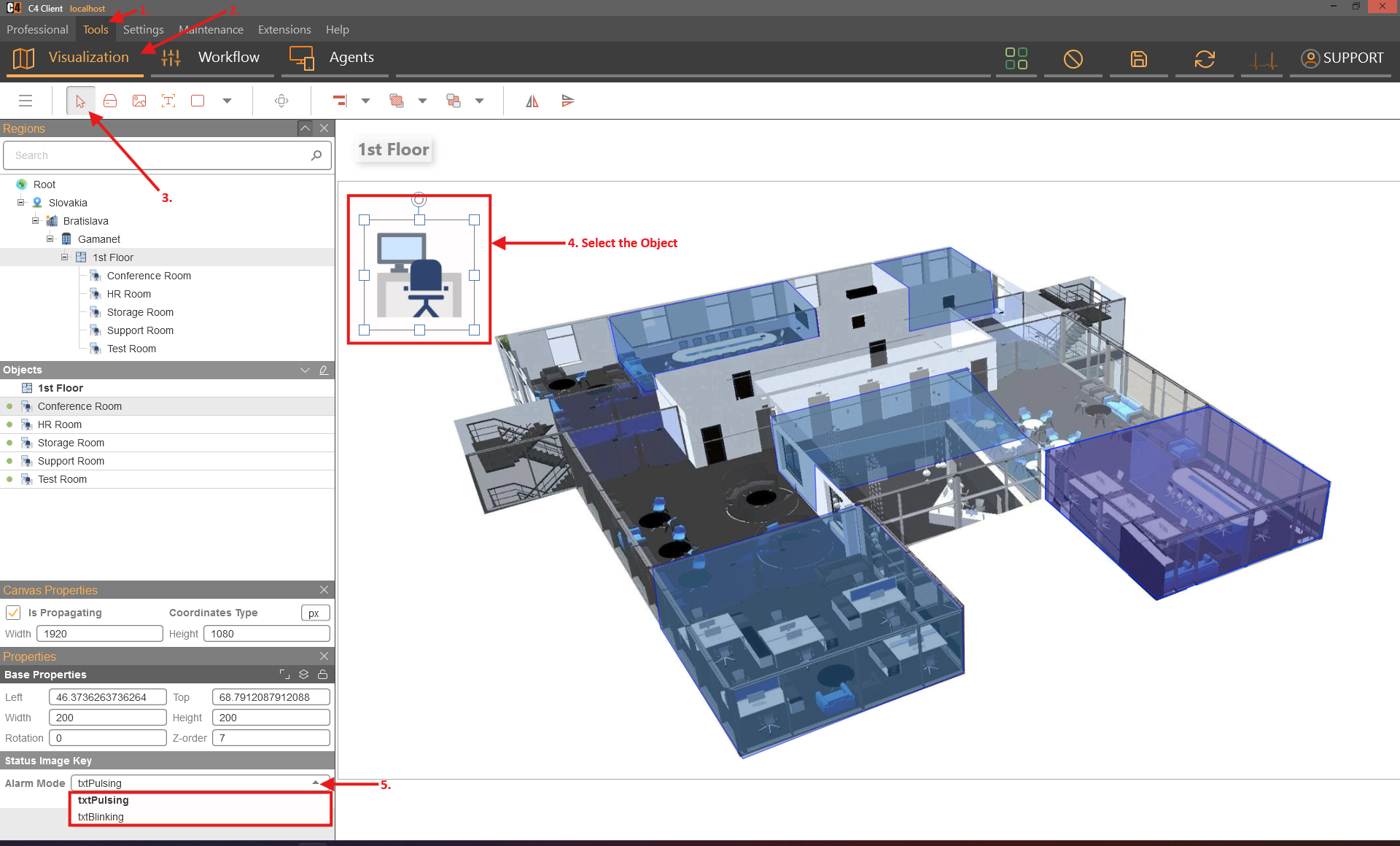
Save the map.
Generate an approved alarm and review the object in Monitoring.
Confirmation: The icon uses the configured animation while the alarm is active.
Note: SP3 uses pulsing as the default behavior in the supplied release notes.
Configure statuses that propagate to parent regions
Role: System administrator
Prerequisites: Nested region maps and device objects are configured.
Open the Monitoring settings page in Settings or Settings > Preferences, depending on the build.
Edit Propagation Statuses for Monitoring Panel.
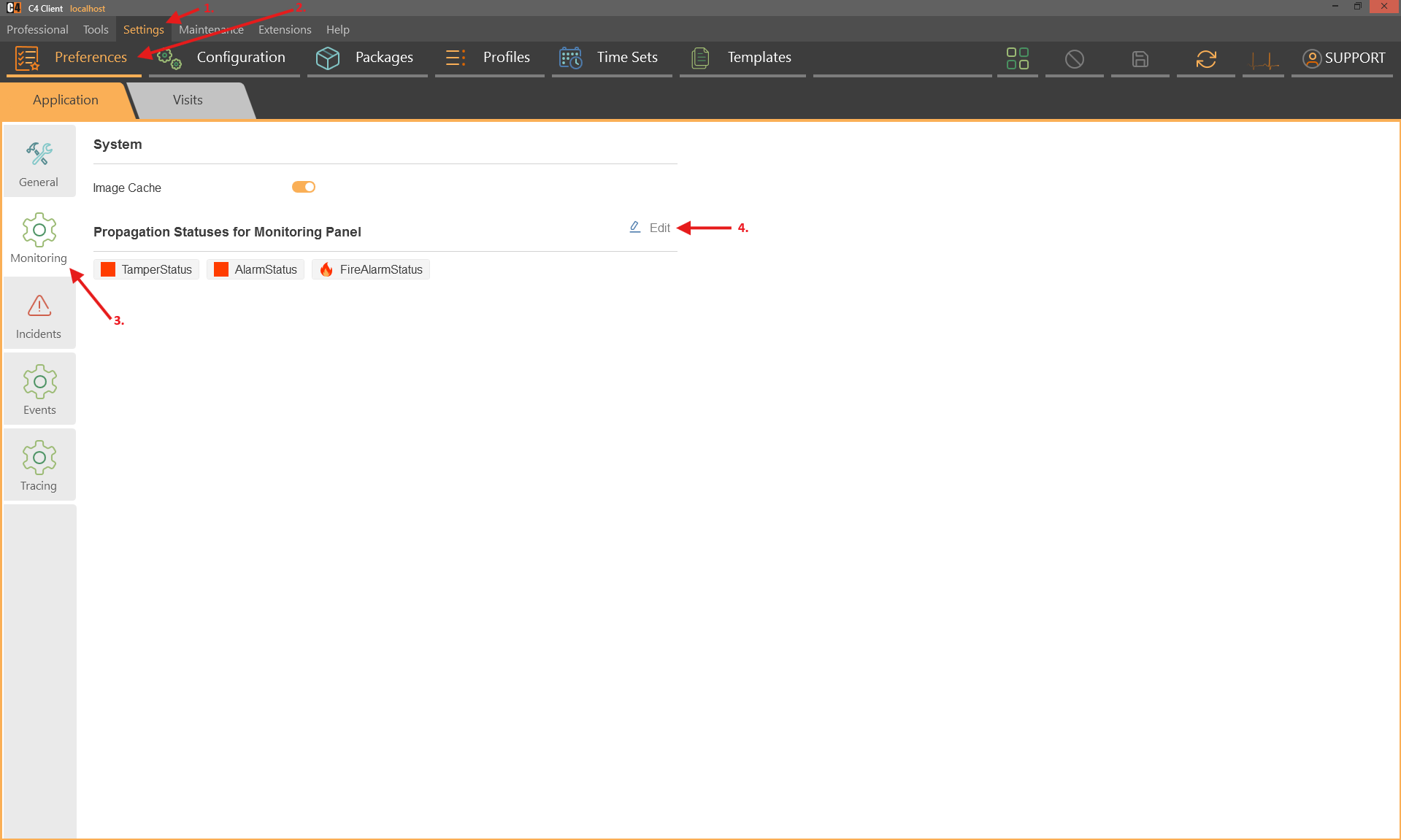
Add the statuses that should propagate, such as Disconnected.
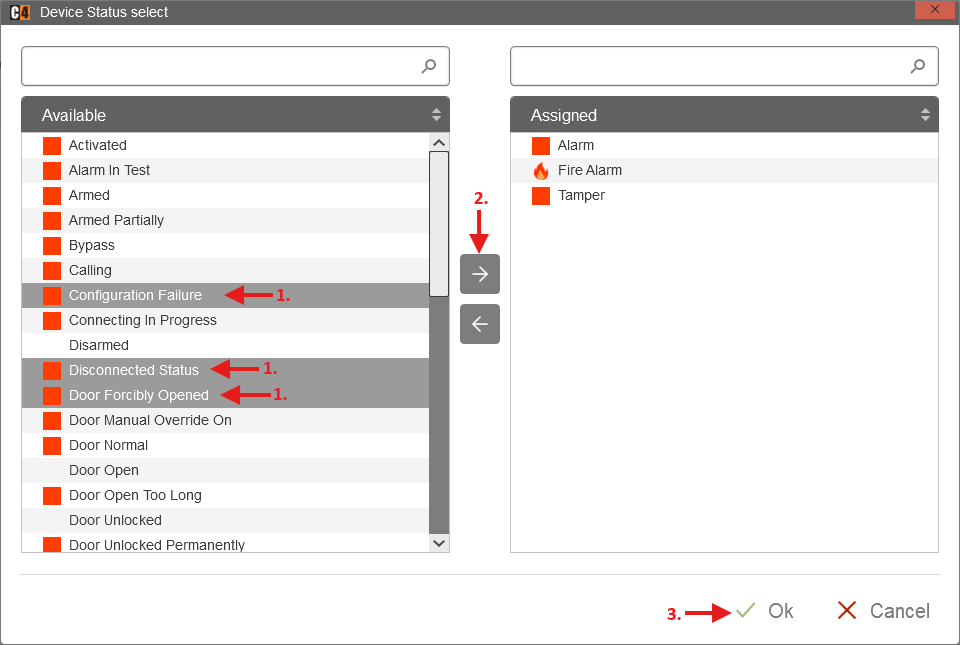
Save the setting.
Generate an approved status on a child device and review the parent-region map.
Confirmation: The parent region indicates the configured child status.
Use Monitoring
Review live and historical events in Monitoring
Role: Operator
Open Professional > Monitoring and select the region.
Use the live events view for current events.
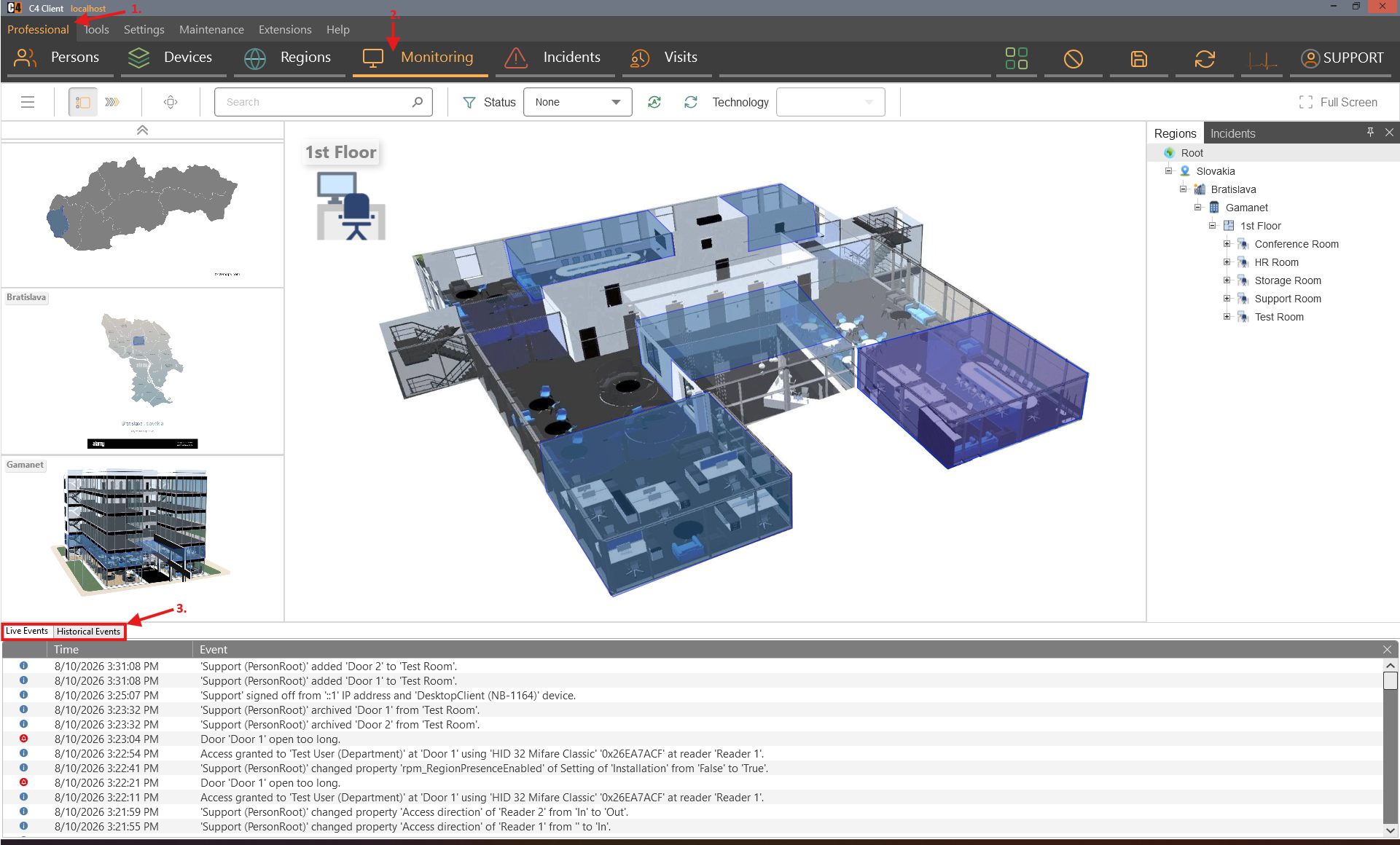
For historical review, switch the events area to Historical events.
Expand the toolbar, enable Include children, set the time range, and select Refresh.
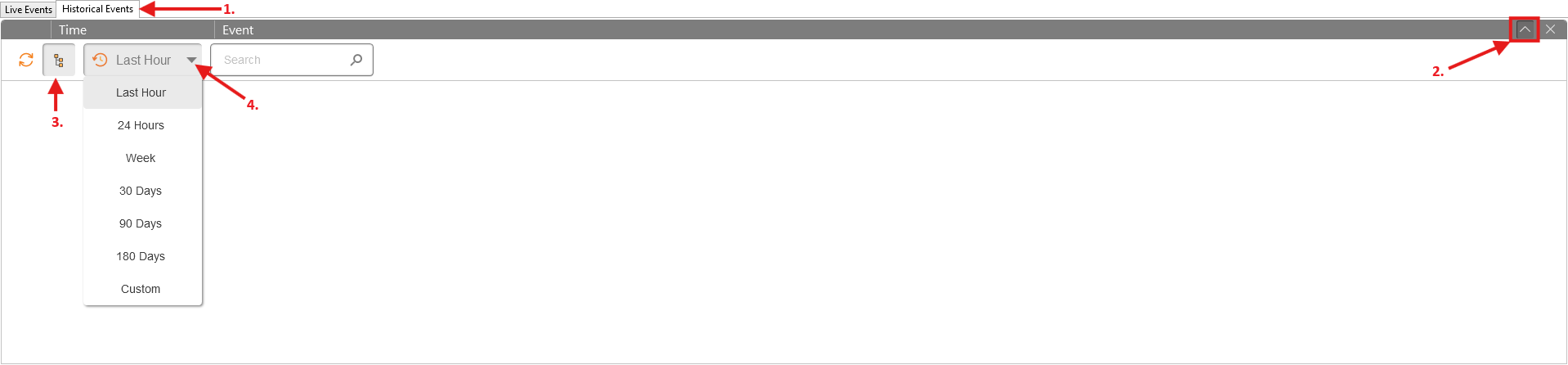
Select an event or device to open related context when available.
Confirmation: Monitoring shows events for the selected region, nested regions, and devices according to the chosen scope.
Review or resolve an incident in Monitoring
Role: Operator
Prerequisites: A workflow creates incidents for a device shown on the map.
Open Monitoring and select the region.
Generate or wait for an incident from the visualized device.
Open the Incidents area.
Double-click the incident for an overview, or select it and choose Resolve when authorized.
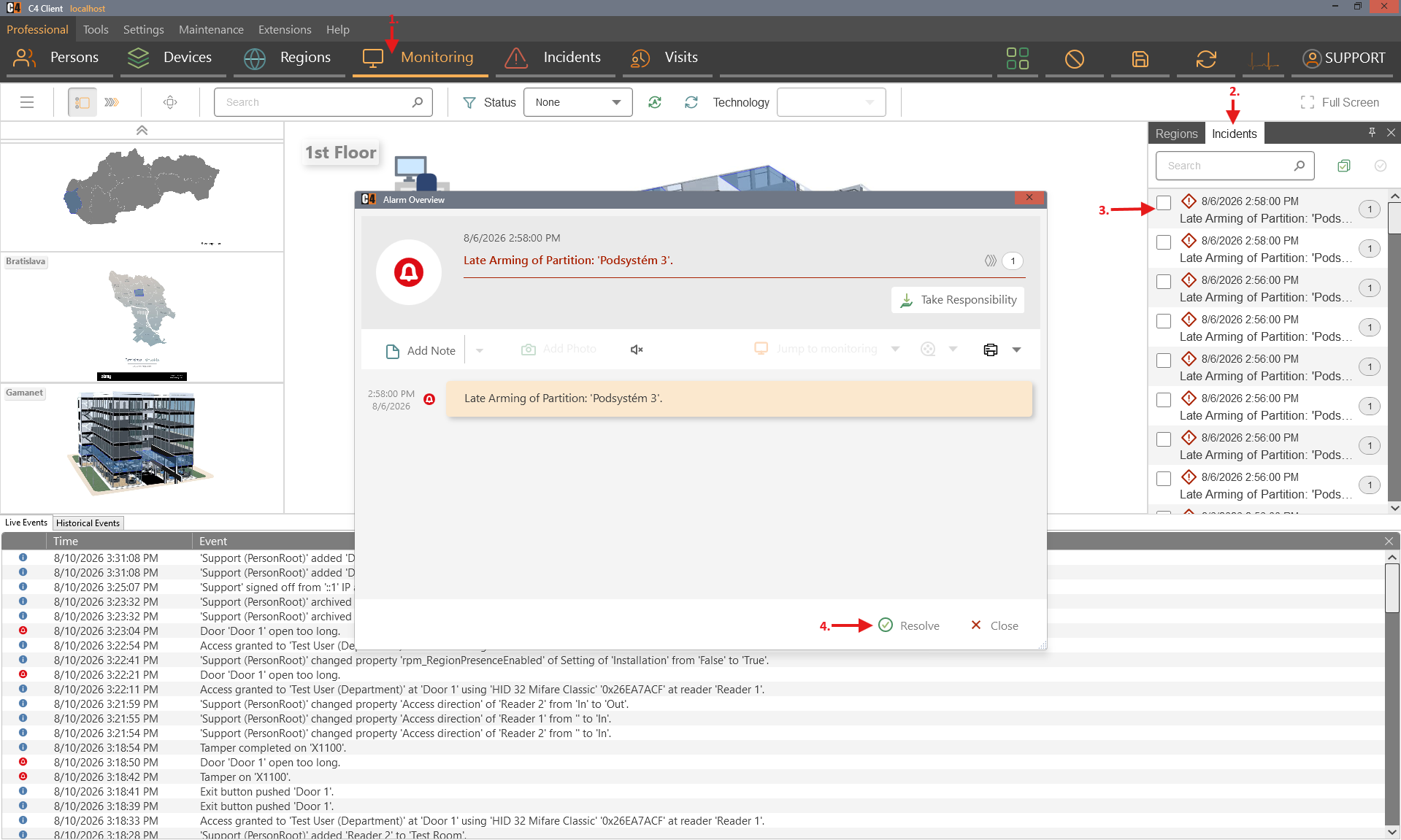
Confirm that the incident leaves the live list after resolution.
Confirmation: The incident is reviewed or resolved from the Monitoring workspace.
Quick Actions
Add a device, command, or region to Quick Actions
Role: System administrator or authorized operator
Prerequisites: C4 2026 SP3, an existing region, and configured devices.
Open Quick Actions from the top menu and switch to Edit mode.

Select the region for which the shortcut should appear.
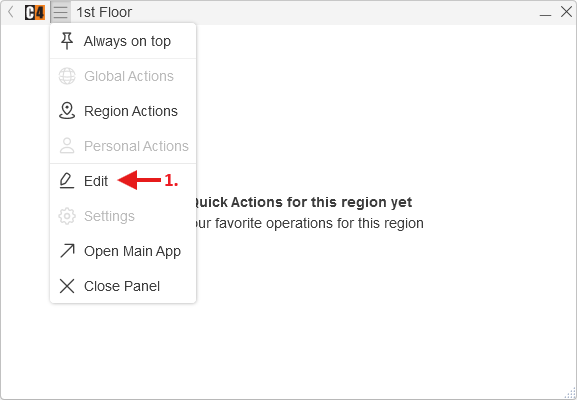
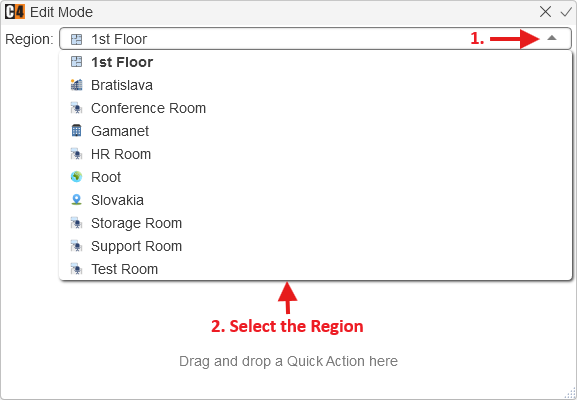
Open Devices or Regions and drag the required item to Drag and drop a Quick Action here.
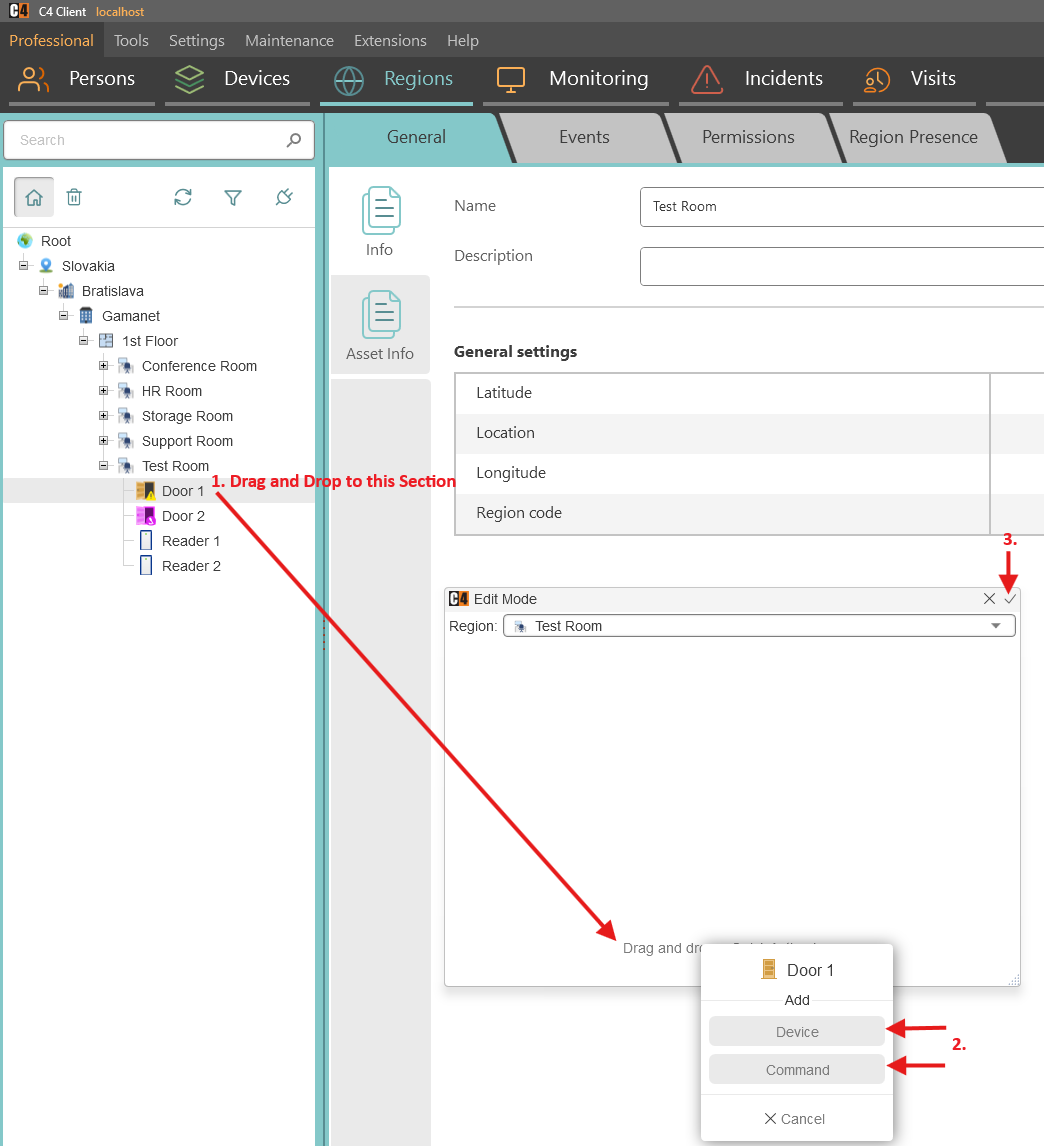
For a device, choose whether the item represents the device or a specific command.
Confirm with the checkmark or save control.
Open Monitoring for the region and test the shortcut under controlled conditions.
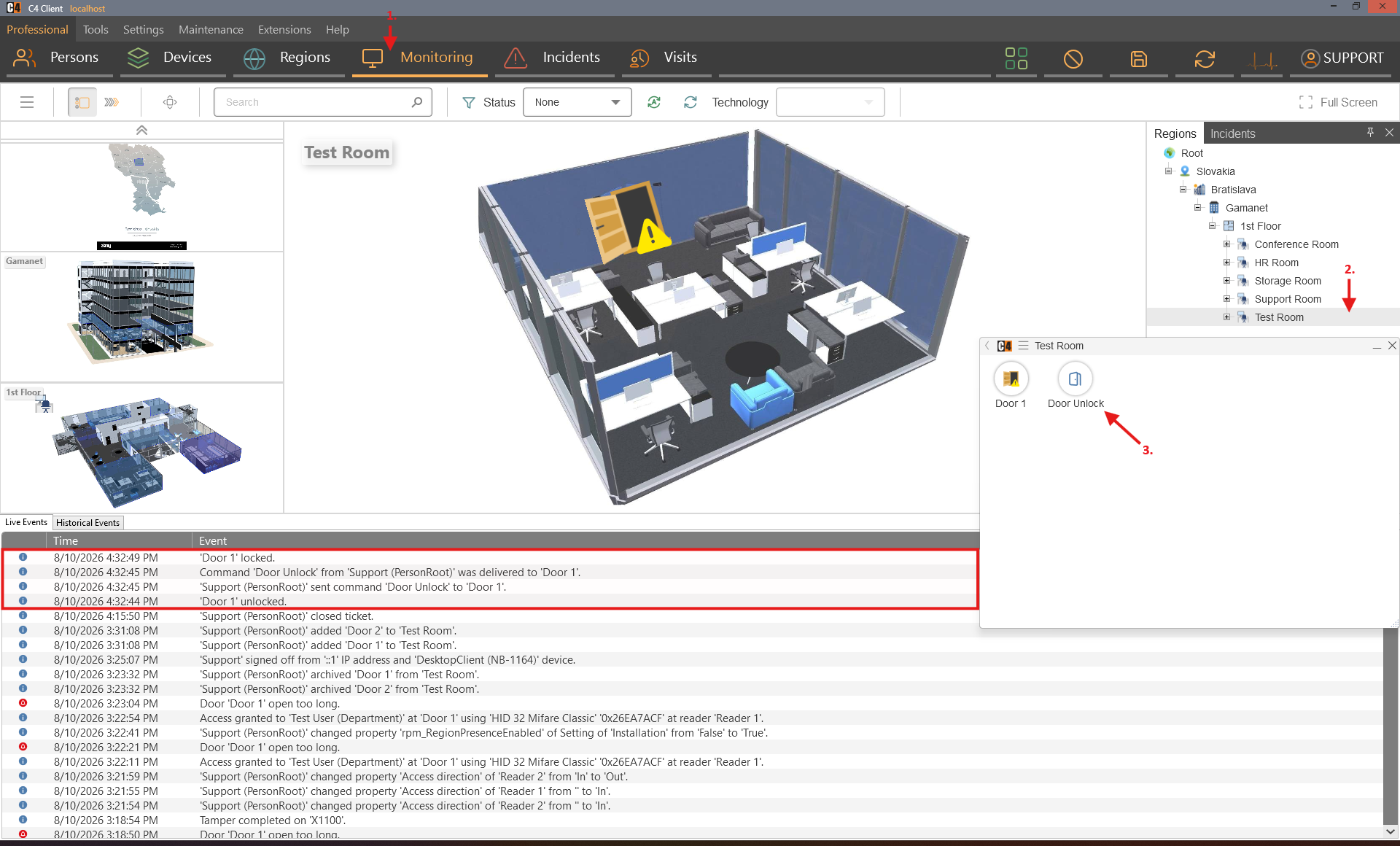
Confirmation: The selected shortcut appears in Quick Actions for the region and opens the device, runs the approved command, or navigates to the region.
Remove a Quick Action
Role: System administrator or authorized operator
Open Quick Actions and switch to Edit mode.
Select the region.
Choose the minus control next to the shortcut.
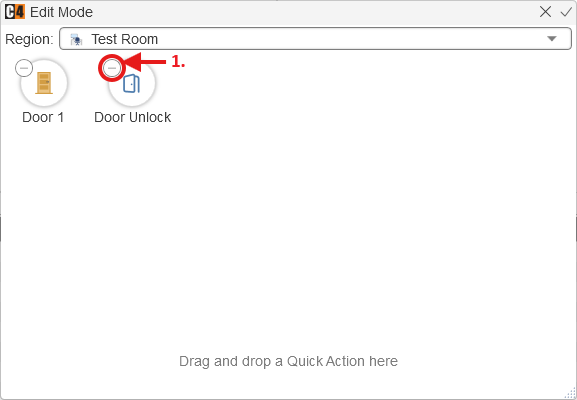
Confirm the change.
Confirmation: The shortcut no longer appears for that region.
8. Incidents and incident workflows
Incidents convert device or system conditions into operator work. A routine creates the incident, the incident window alerts operators, responsibility identifies the handling operator, notes document actions, and resolution moves the record to history.
Availability: The supplied incident use cases are Standard features. SP3 adds merged-occurrence counting, Quick Actions-related workflows, configurable incident-window auto-close, and logging when an operator closes a window without processing it.
Incident lifecycle
Stage |
Meaning |
|---|---|
Created |
A workflow action creates an incident from a condition or event. |
Presented |
The incident window and/or Incidents panel alerts permitted operators; alarm audio can be muted. |
Taken |
An operator selects Take Responsibility and becomes the responsible person. |
Processed |
Notes, device checks, instructions, or approved commands are recorded. |
Resolved |
The incident is closed and moves to History with Responsible Person and Closed By. |
Repeated occurrence |
A matching event can increment the occurrence count rather than creating an independent unresolved incident, according to the workflow behavior. |
Create an incident routine
Create a basic device-triggered incident workflow
Role: System administrator
Prerequisites: A running device tree and the required workflow templates/actions. The supplied example uses the Simple Device simulator.
Warning: Workflow conditions and actions can create large numbers of incidents. Test in a controlled environment before enabling production scope.
Open Tools > Workflow.
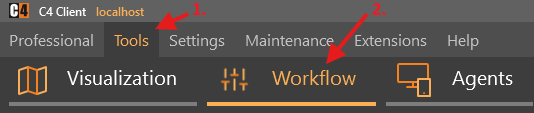
Create a new incident template, such as Fire Alarm.
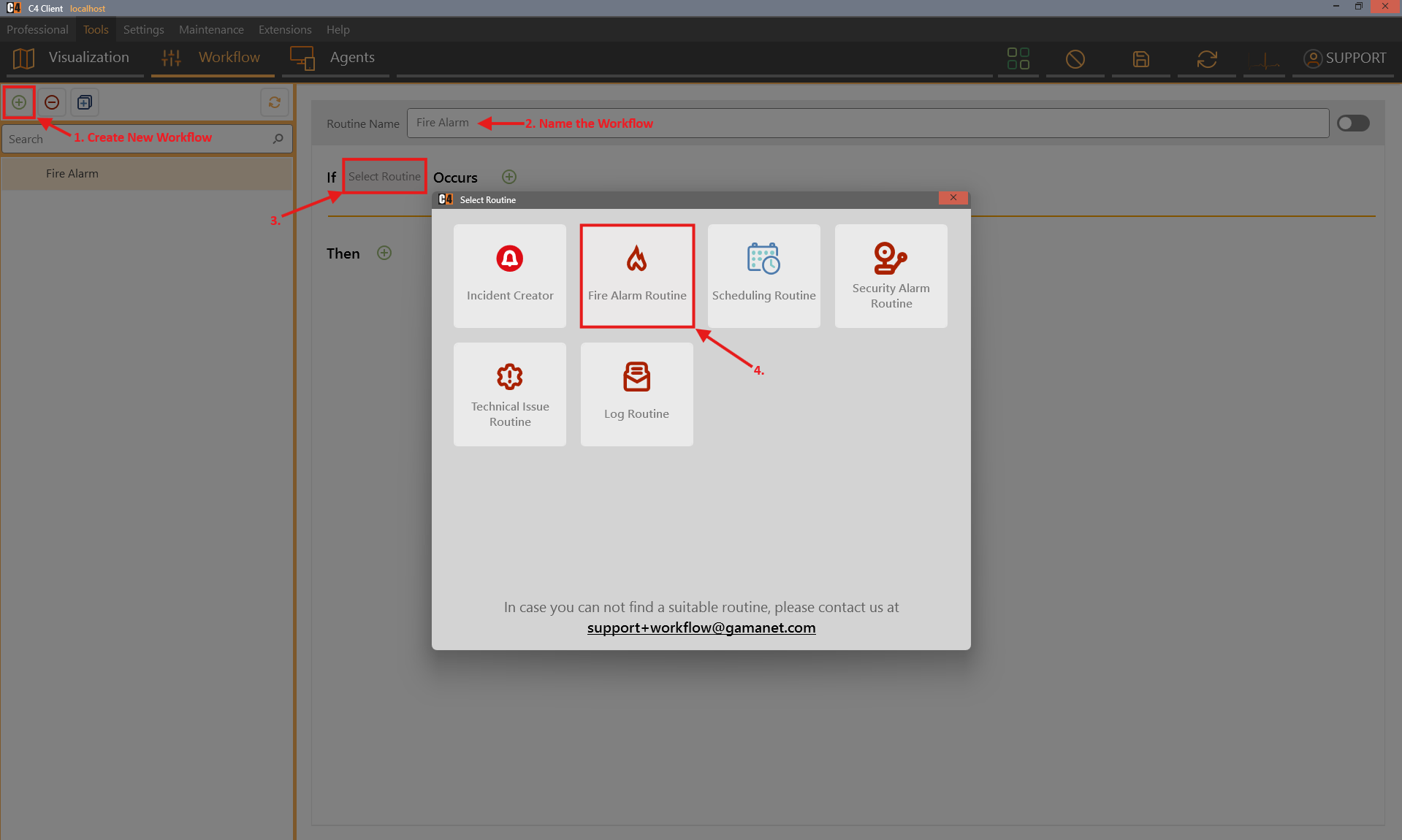
Select an If-style routine appropriate for the event.
Add the device condition and select the source device or input.
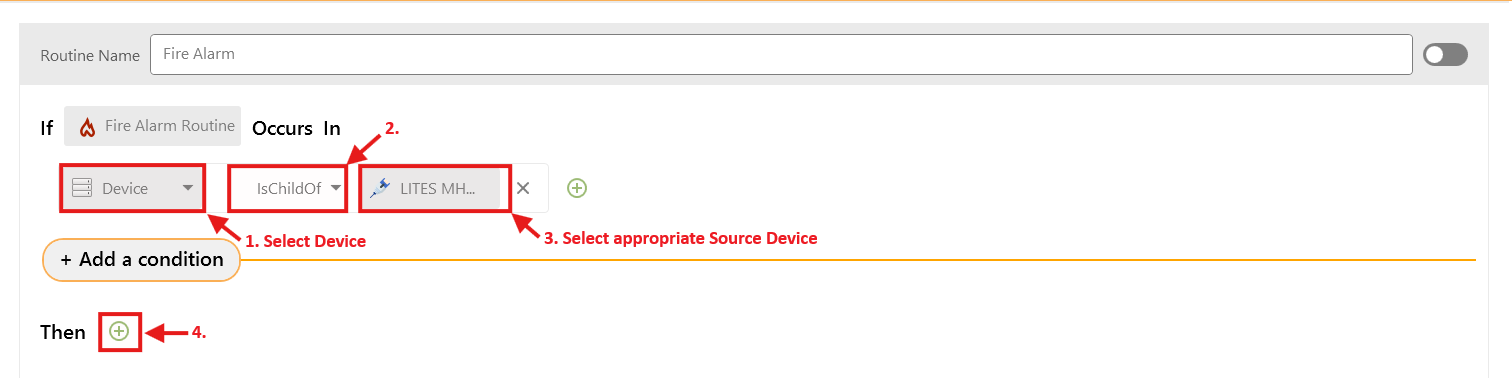
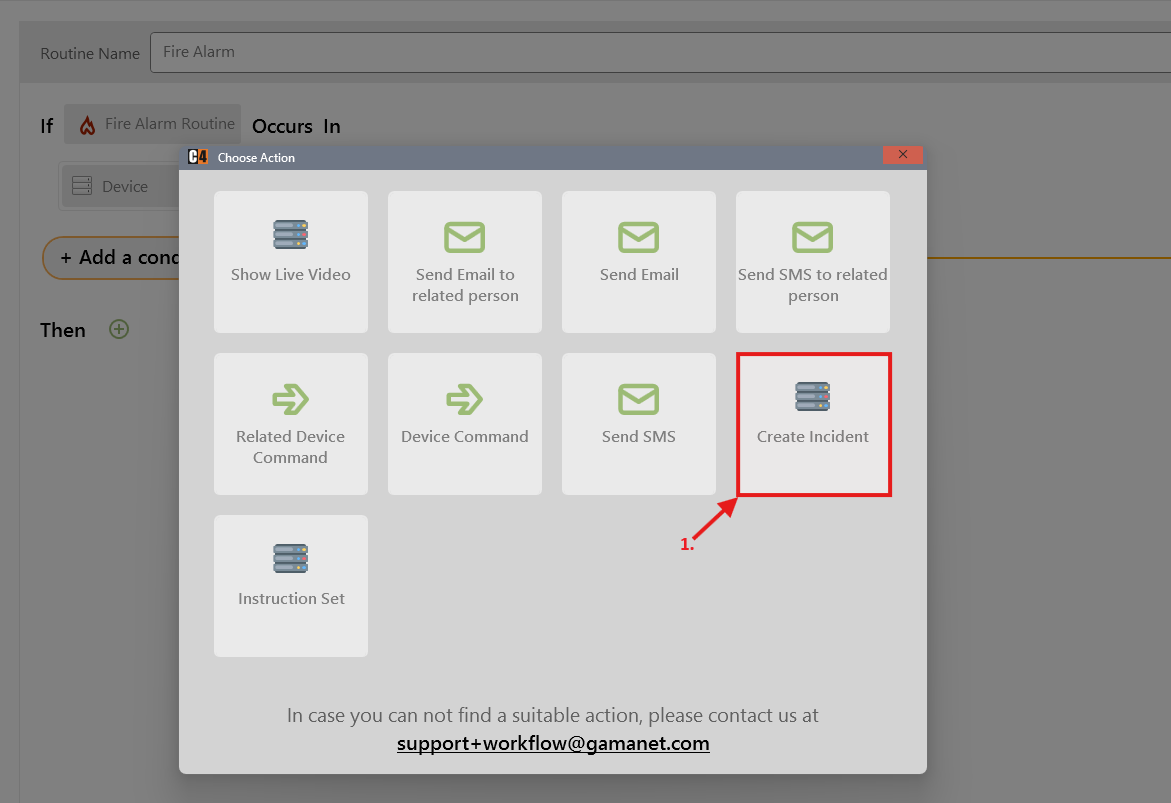
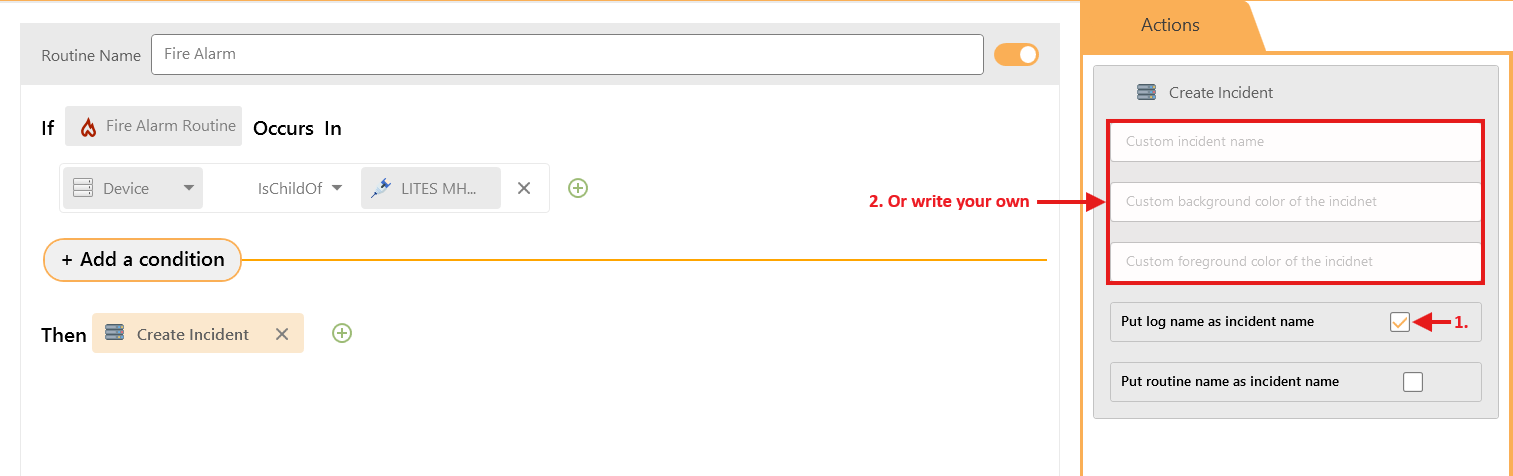
Add Create Incident as the action.
Configure the incident name, for example by using the log name.
Save and activate the template according to local workflow rules.

Generate an approved test condition.
Confirmation: The incident window opens, alarm audio is available, and the incident appears in the live Incidents list.
Respond to an incident
Take responsibility, add a note, and resolve
Role: Operator
Prerequisites: An active incident and permission to process it.
Review the incident name, source device, time, instructions, and current device state.
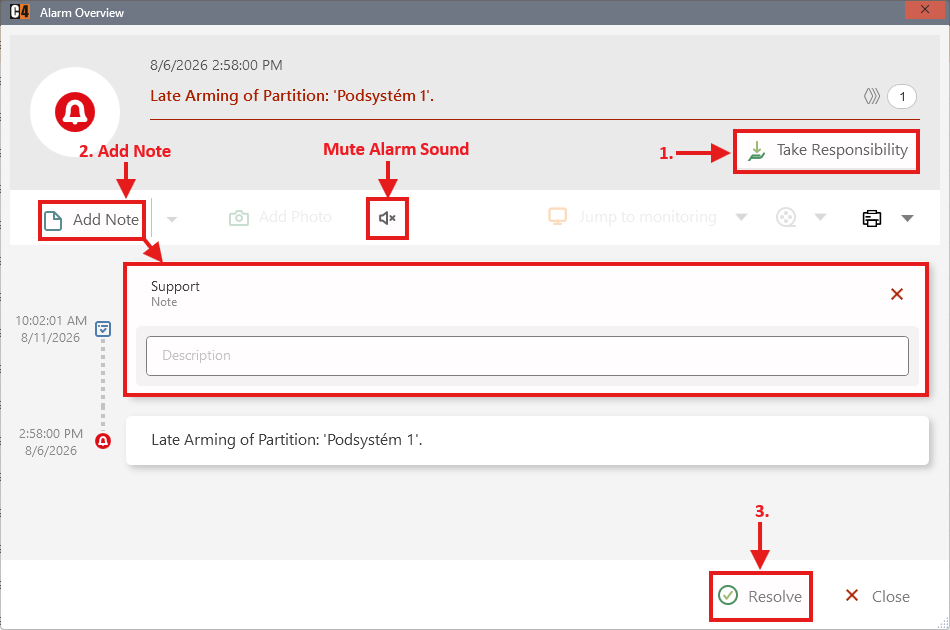
Mute the alarm sound when appropriate; muting does not resolve the incident.
Select Add Note and record the relevant observation or action.
Select Take Responsibility.
Follow the approved response procedure.
Select Resolve when the incident can be closed.
Open Professional > Incidents > History and verify the record.
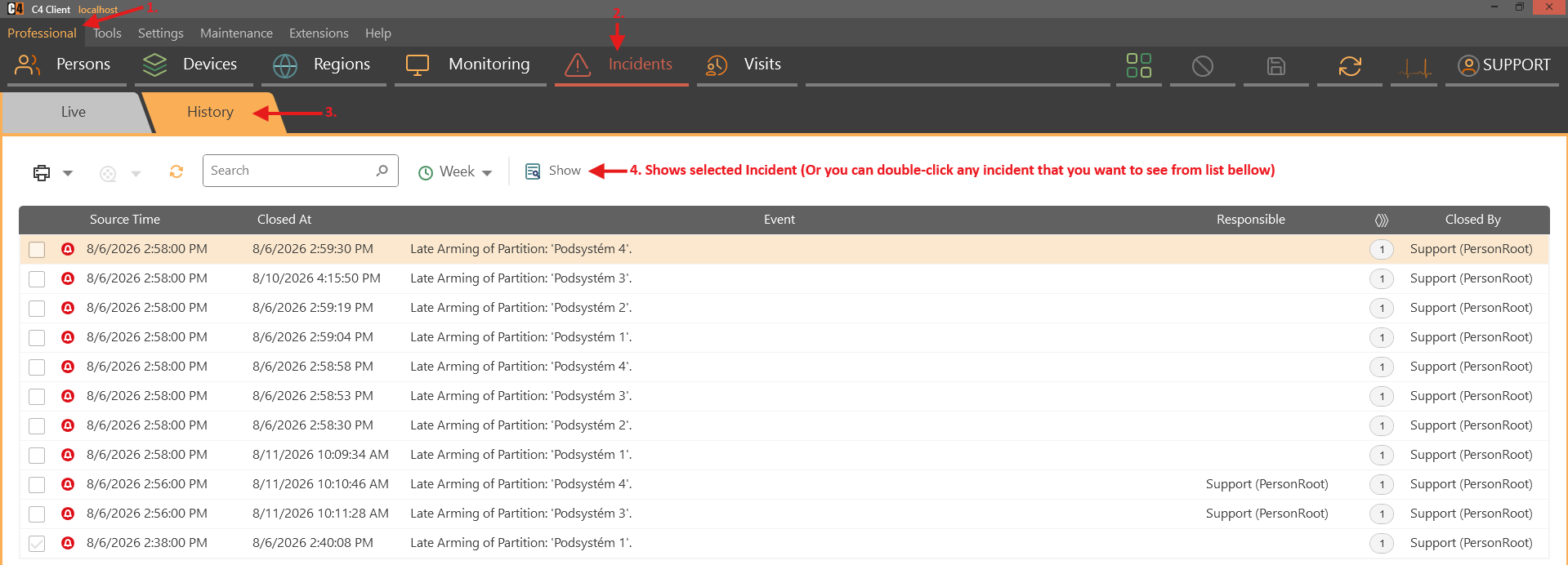
Confirmation: History contains the note, responsible person, and Closed By user, and the incident is no longer live.
Take over an incident from another operator
Role: Operator
Prerequisites: Two operators are signed in and the incident is already assigned.
Select the incident in Professional > Incidents.

Choose Take Responsibility.
Confirm the warning that the incident is already taken.
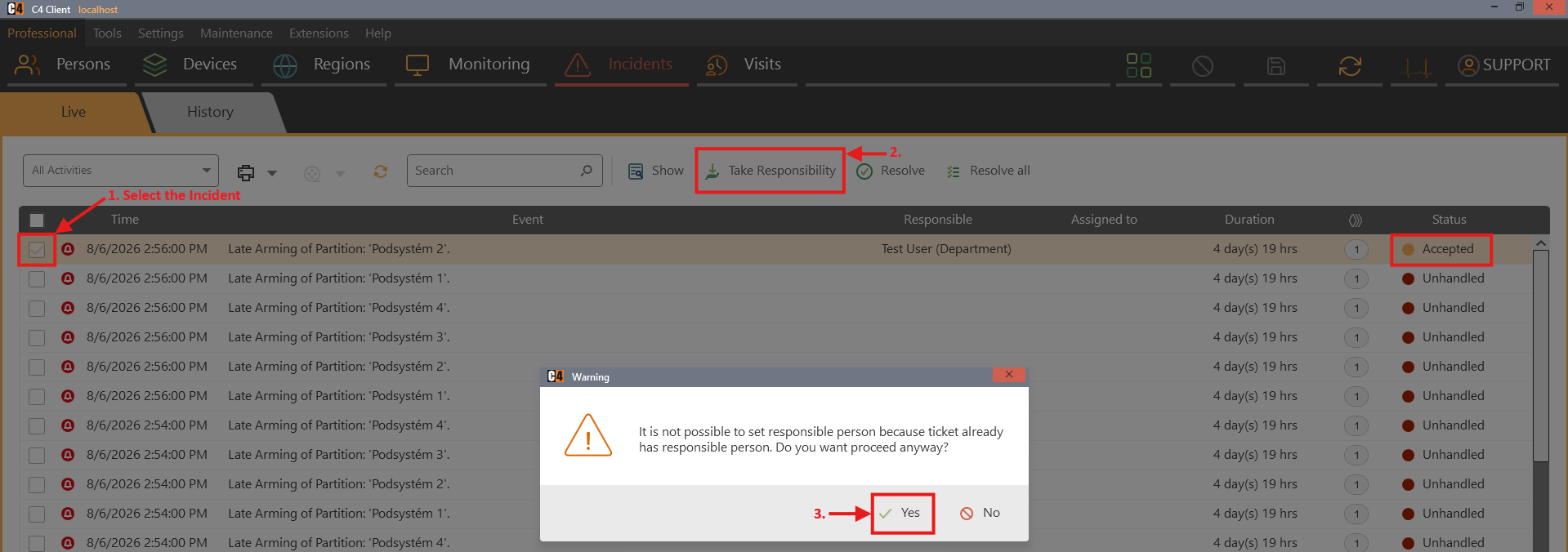
Open Show, add a transfer note when required, and continue the response.
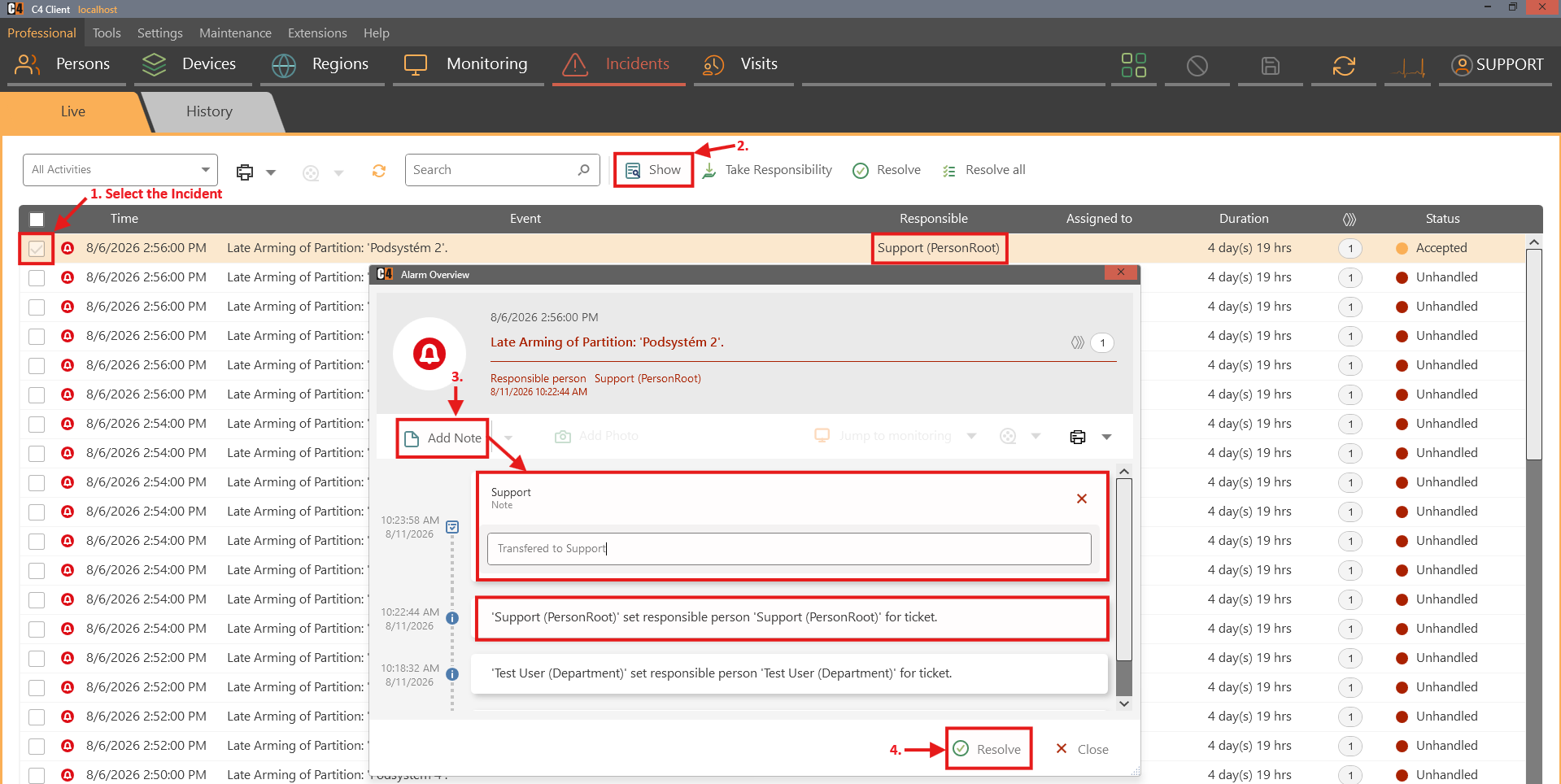
Resolve the incident when authorized.
Confirmation: The latest operator becomes responsible, and the responsibility history records the transfer.
Process multiple incidents
Resolve selected incidents or all incidents
Role: Authorized operator
Warning: Bulk resolution can close unrelated incidents. Filter and review the list before confirming.
Open Professional > Incidents.
For selected incidents, mark the checkboxes and choose Resolve.
For all visible/live incidents, choose Resolve all and confirm.
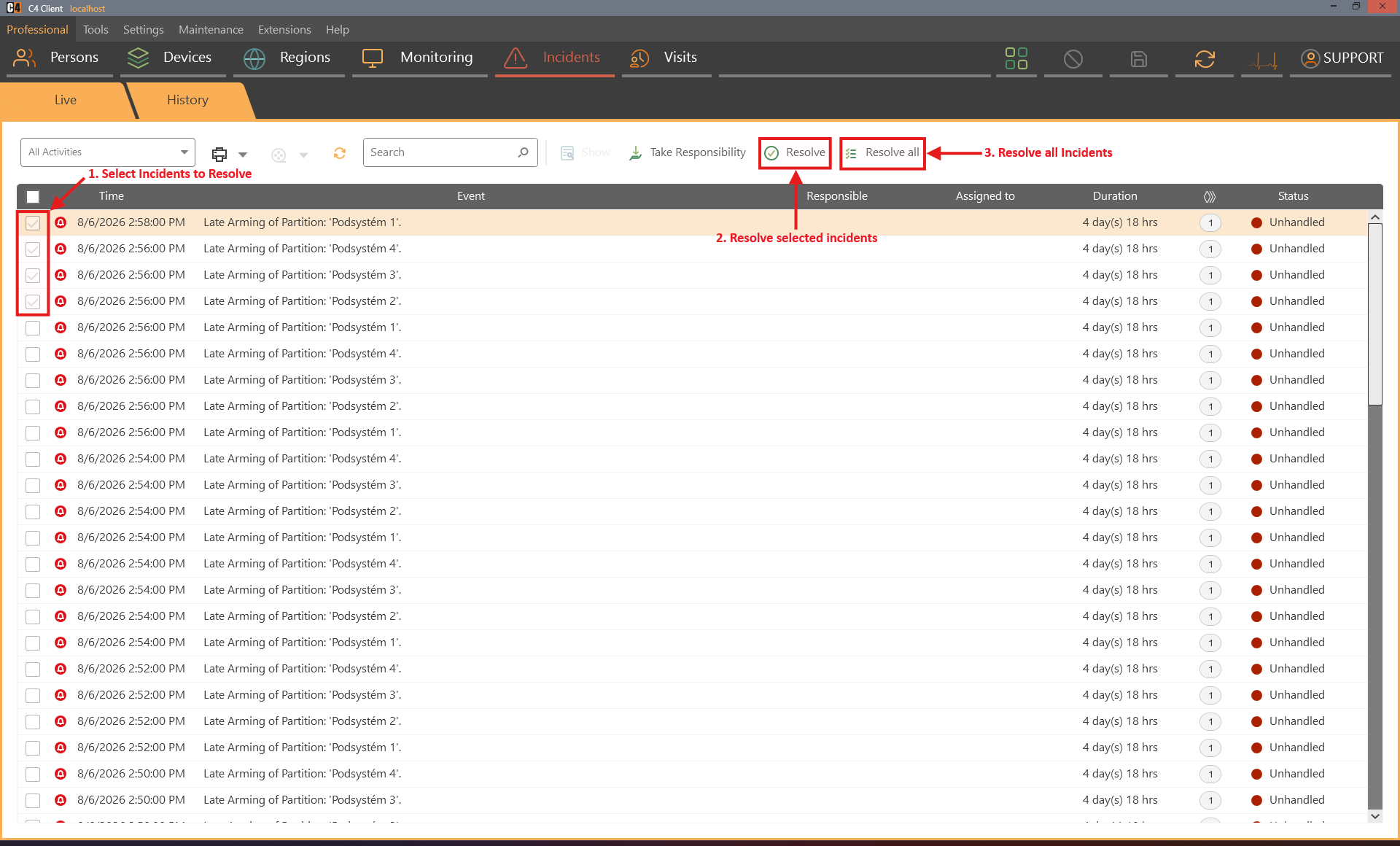
Review History and the Closed By value for the resolved records.
Confirmation: The selected or all live incidents are resolved and recorded in History.
SP3 occurrence and window behavior
Review merged incident occurrences
Role: Operator
Prerequisites: A workflow that creates incidents
Generate the first incident and verify Occurrences is 1.

Close the incident window without resolving the incident.
Generate the same incident condition again on the same source.

Review the reopened incident and occurrence count.
Confirmation: The unresolved incident shows an increased occurrence count, such as 2.
Configure automatic incident-window closing
Role: System administrator
Prerequisites: C4 2026 SP3.
Open Settings > Preferences > Application > General.
Set Incident Window Auto Close to the required behavior, such as On Responsibility taken.
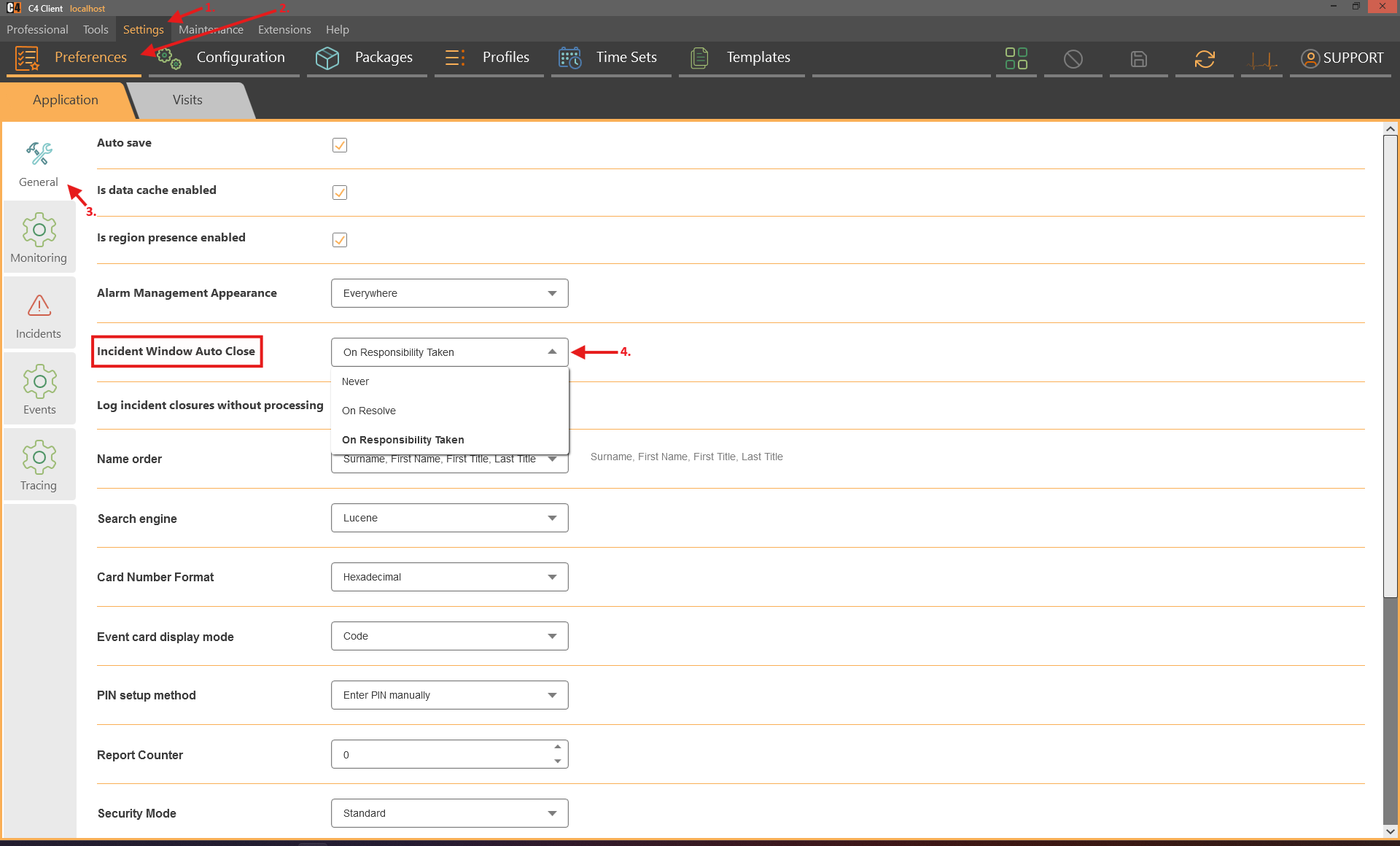
Save the preference.
Test with two operator clients and a controlled incident.
Confirmation: The incident window closes on the other client when the configured takeover or closure condition occurs.
Log an incident window closed without action
Role: System administrator and operator
Prerequisites: C4 2026 SP3.
Warning: Closing the window is not the same as resolving the incident. The underlying incident remains active unless the workflow or another operator resolves it.
Enable Log incident closures in Settings > Preferences > Application > General
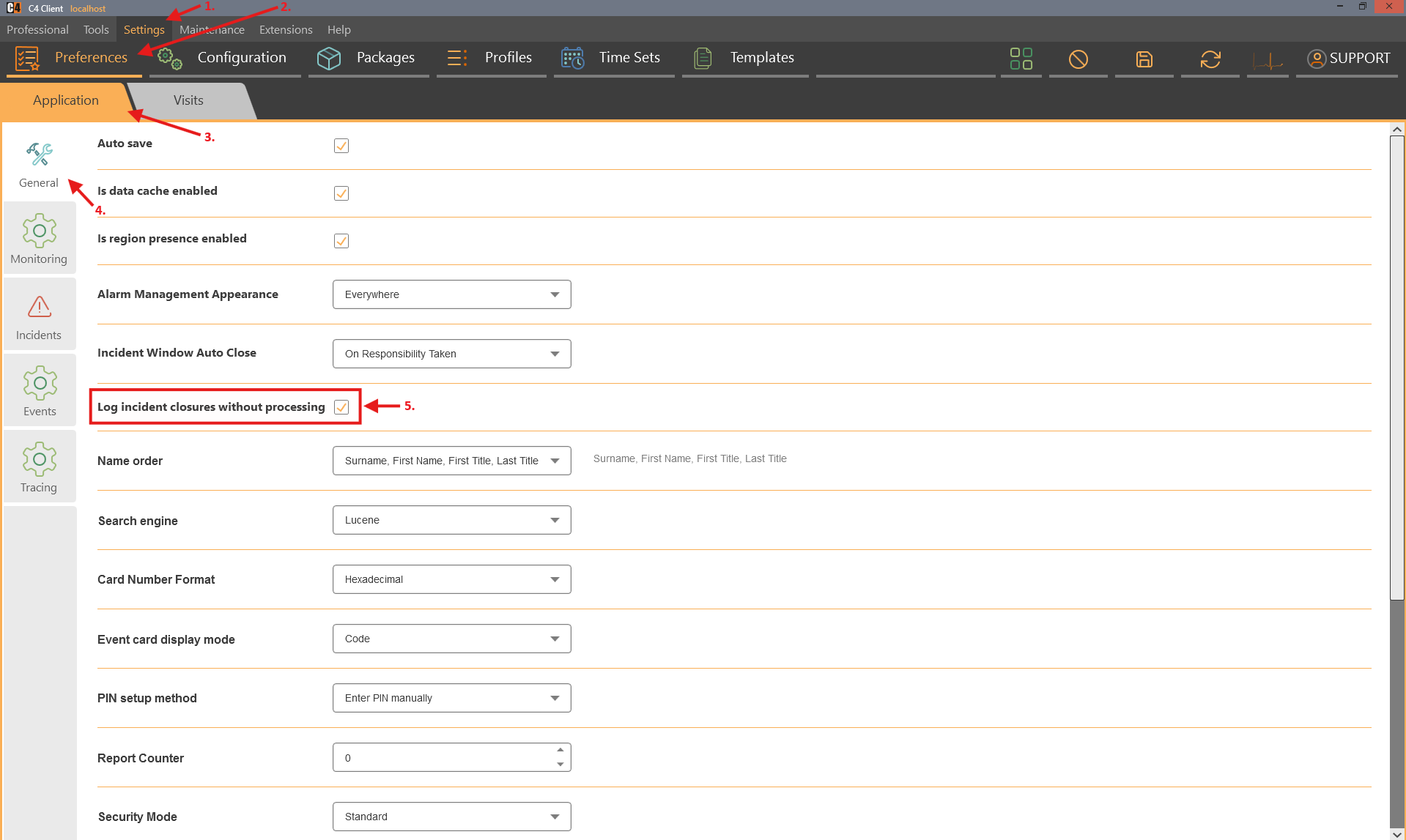
Create a controlled incident while two operators are signed in.
Have one operator close the incident window without taking responsibility or resolving it.
Review the incident history or log from the other client.
Confirmation: The incident contains a log entry identifying that the operator closed the window without processing it.
Search incident history
Find and review a resolved incident
Role: Operator or auditor
Open Professional > Incidents and select History.
Set the time range that includes the incident closure.
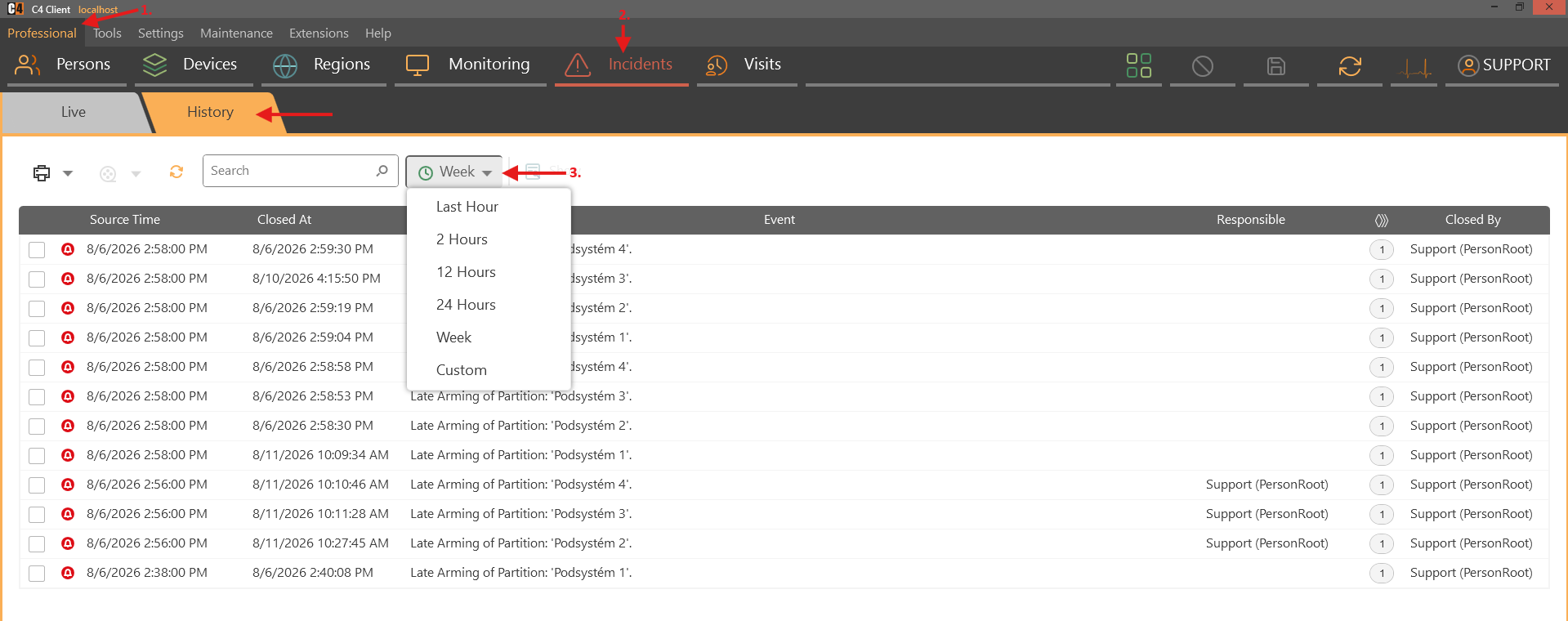
Search by device name or other available incident data.
Select the incident and choose Show.
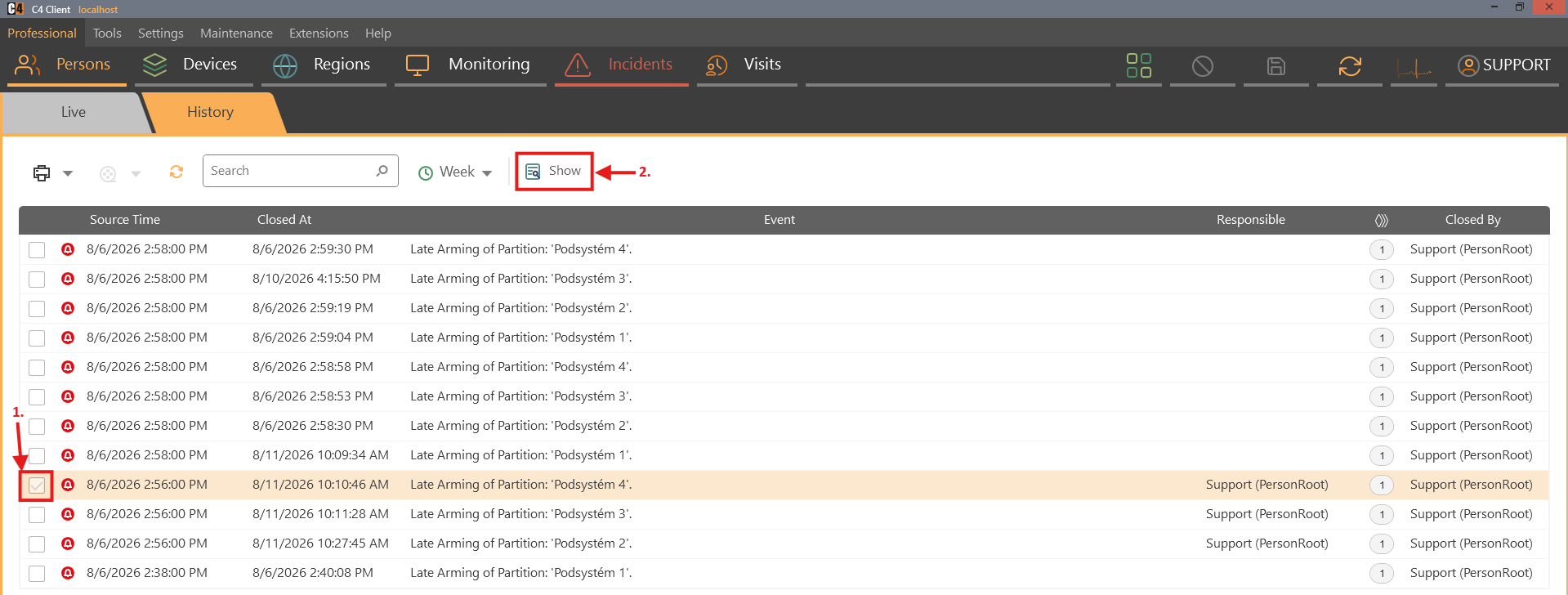
Review notes, responsibility changes, occurrence information, and Closed By.
Confirmation: The resolved incident opens with its processing history and audit fields.
9. Visits and receptions
The Visits panel manages visitor check-in, corridor access, temporary credentials, and closure. Receptions group the agents who handle visits. SP3 can close a visit automatically when the visitor uses a configured card-collector door.
Availability: Visitor and reception functions require the relevant Standard features, permissions, corridors, credentials, and access-device configuration.
Create a reception
Create and enable a reception
Role: System administrator
Open Tools > Agents and switch to the Groups tree.
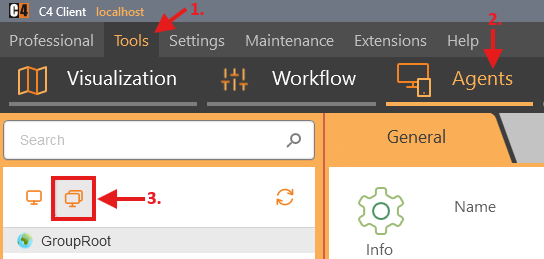
Right-click Group Root and select Add > Reception.
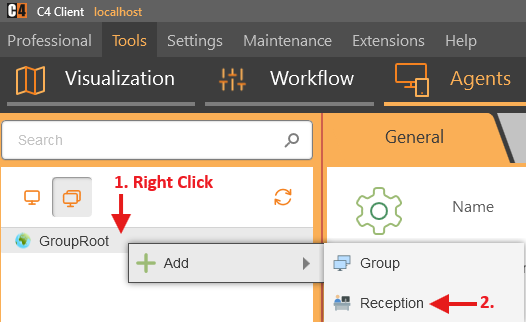
Enter the reception Name and set Agent state to Enabled.

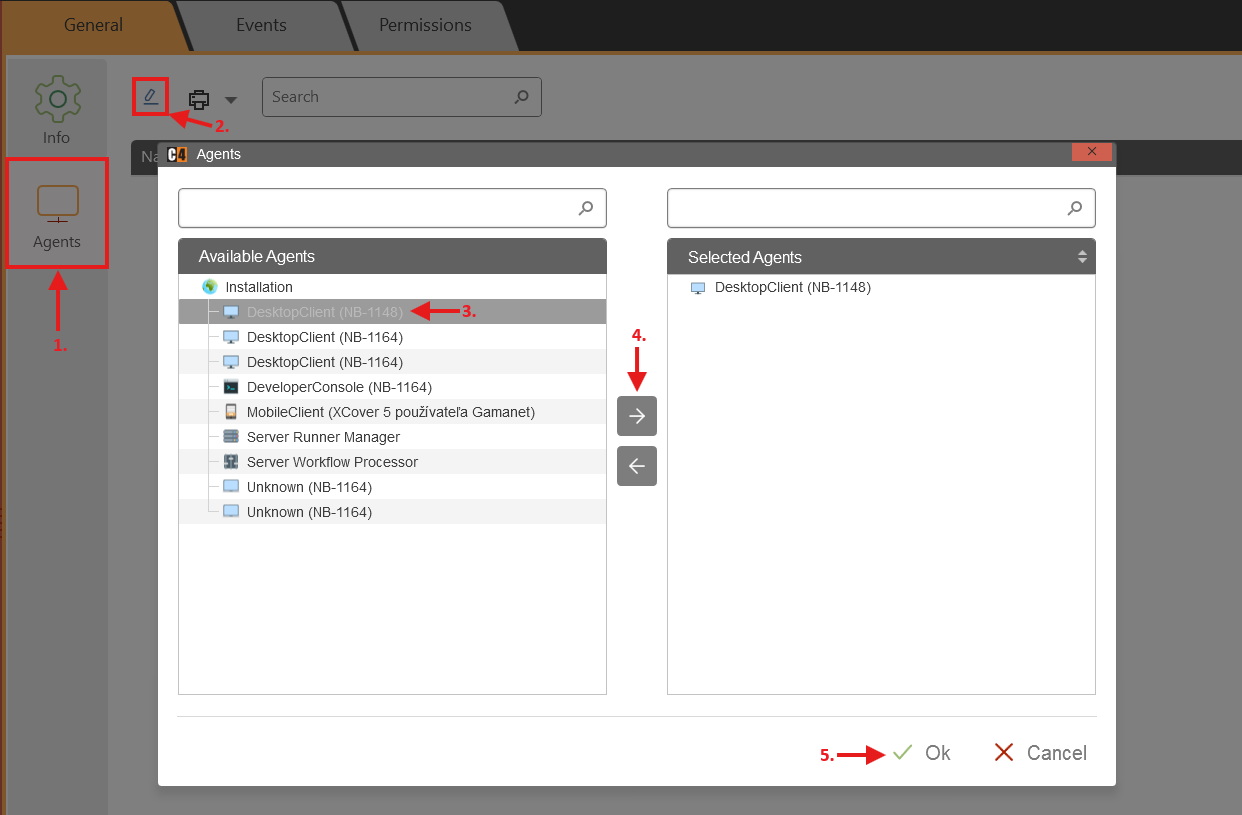
Open Agents, add the agents who belong to the reception, and save.
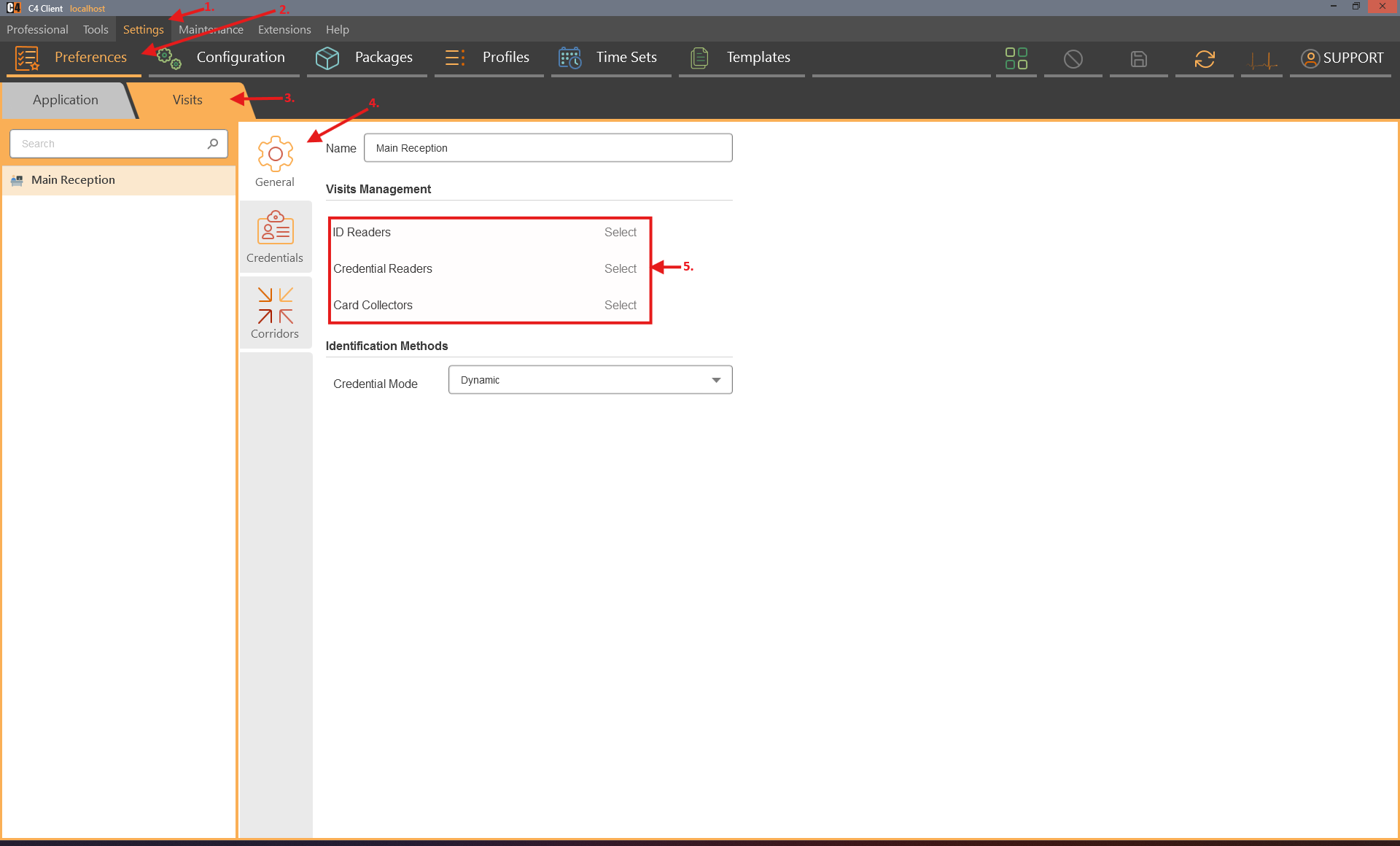
Go to Settings > Preferences > Visits > General > Add Readers
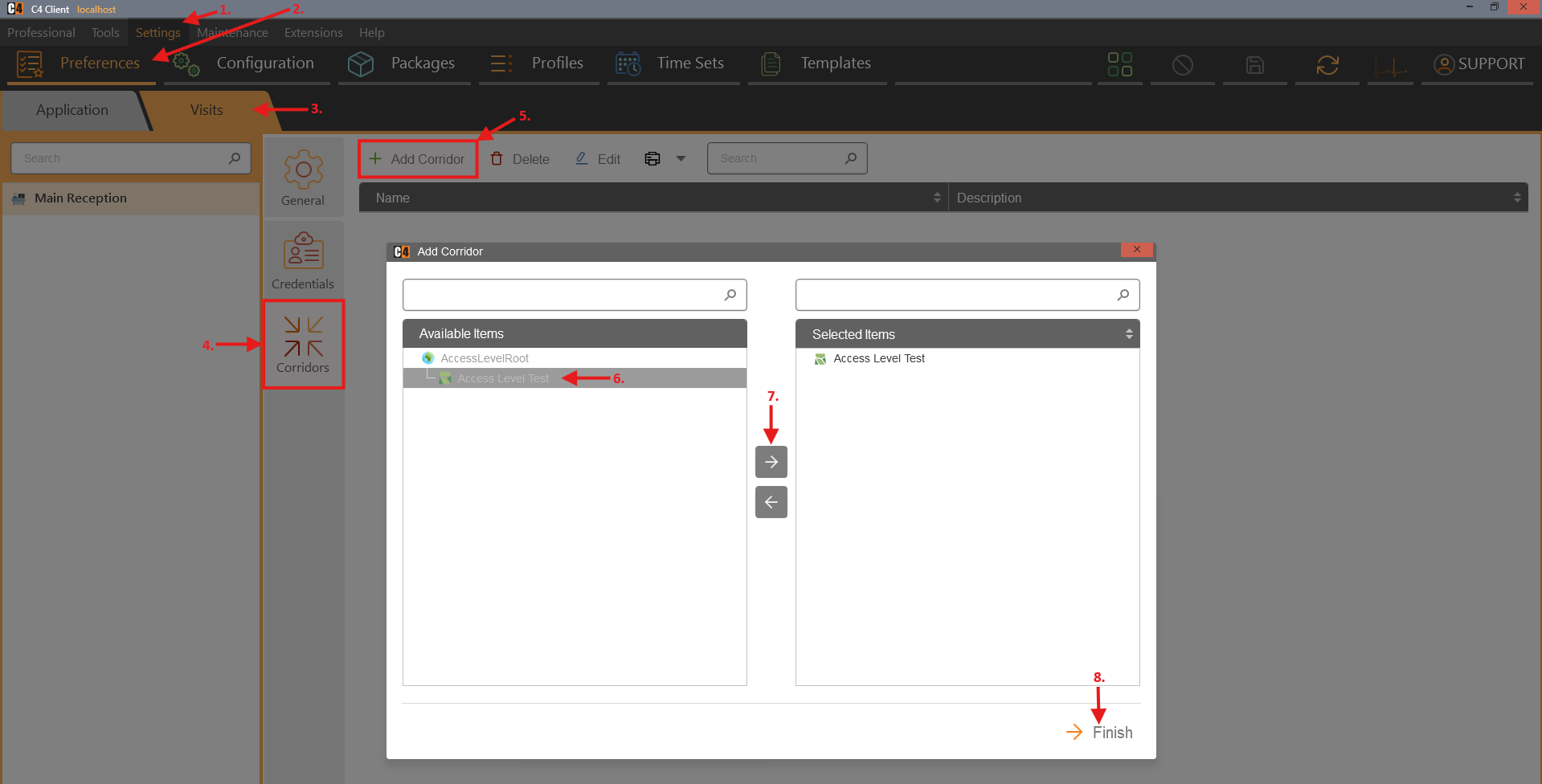
Go to Settings > Preferences > Visits > Corridors and add Corridor
Confirmation: The reception is available for use in the Visits panel.
Check in a visitor
Create an active visit
Role: Reception operator
Prerequisites: An enabled reception. Corridors and visitor credentials are optional unless required by site policy.
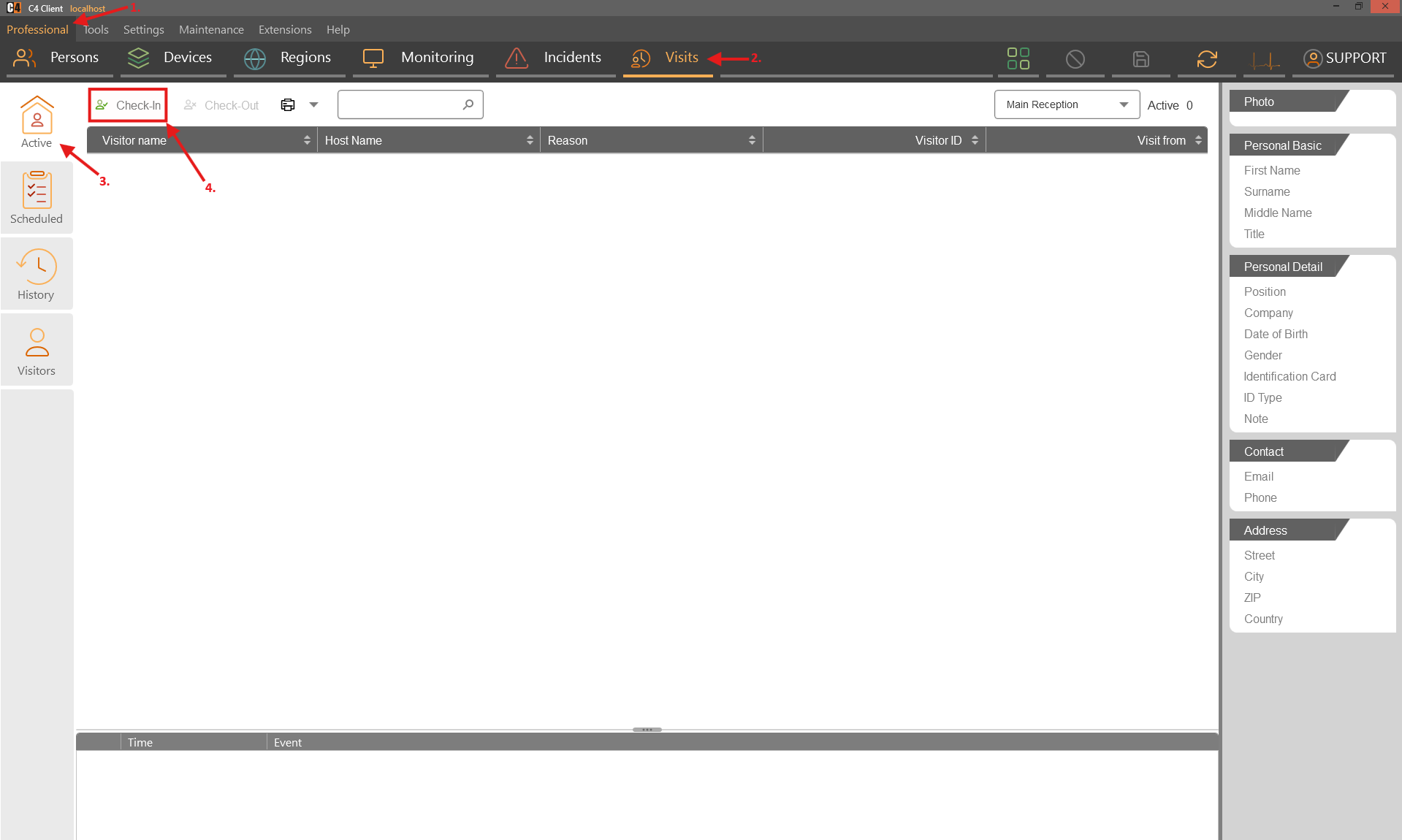
Open Professional > Visits, select Active, and choose Check-In.
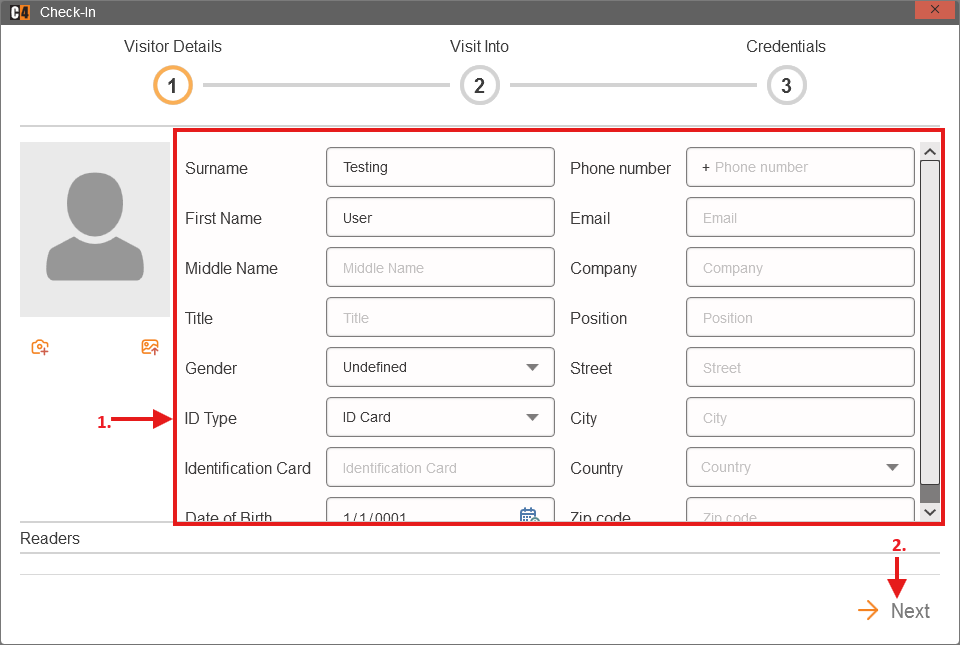
Enter the visitor surname and required identity/contact data, then select Next.
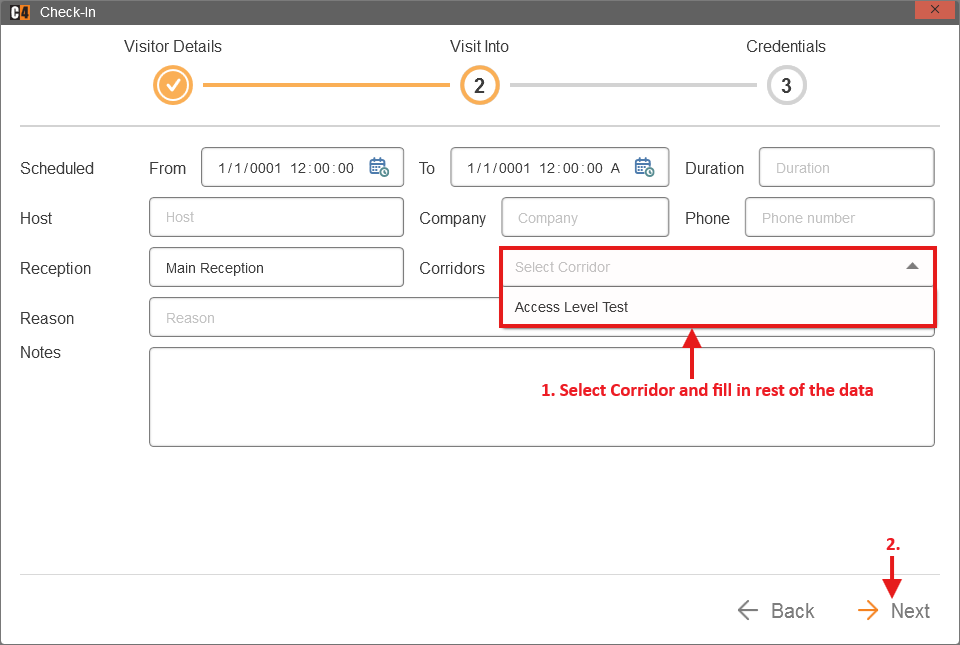
Select permitted corridors and assign a temporary credential when required.
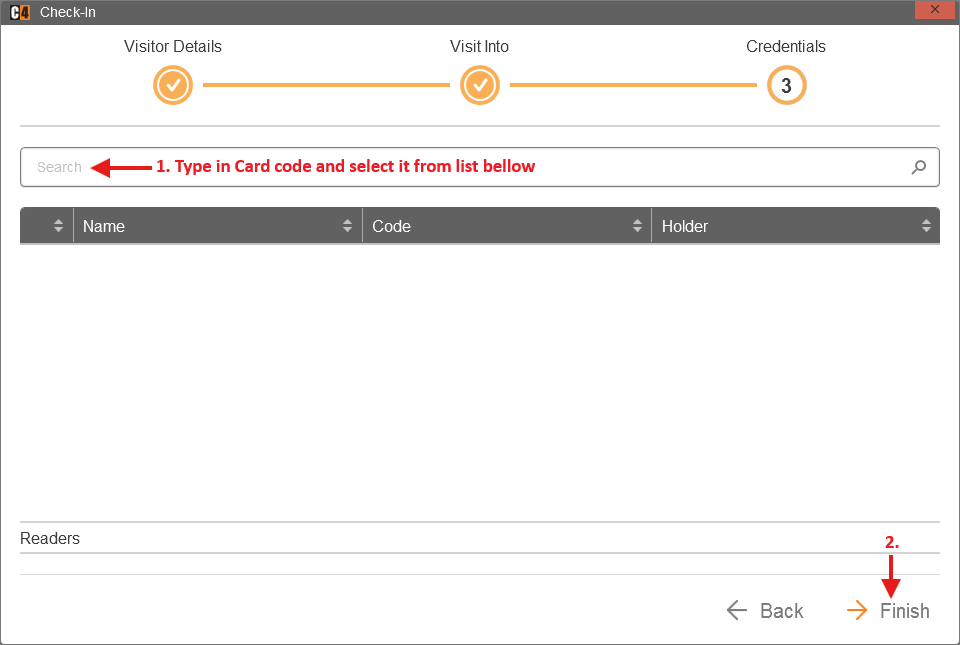
Select Finish.
Confirmation: The visit appears as active with the selected reception, corridor scope, and credential.
Close a visit with a card collector
Configure and use a card-collector door
Role: Security administrator and reception operator
Prerequisites: C4 2026 SP3, a reception with assigned corridors, a connected door, and a valid visitor credential.
Warning: Confirm that the selected door is operationally appropriate for checkout and is part of the visit corridor scope.
Open Settings > Preferences > Visits and select the reception.
In Card Collectors, select the door from an assigned corridor that should close visits.
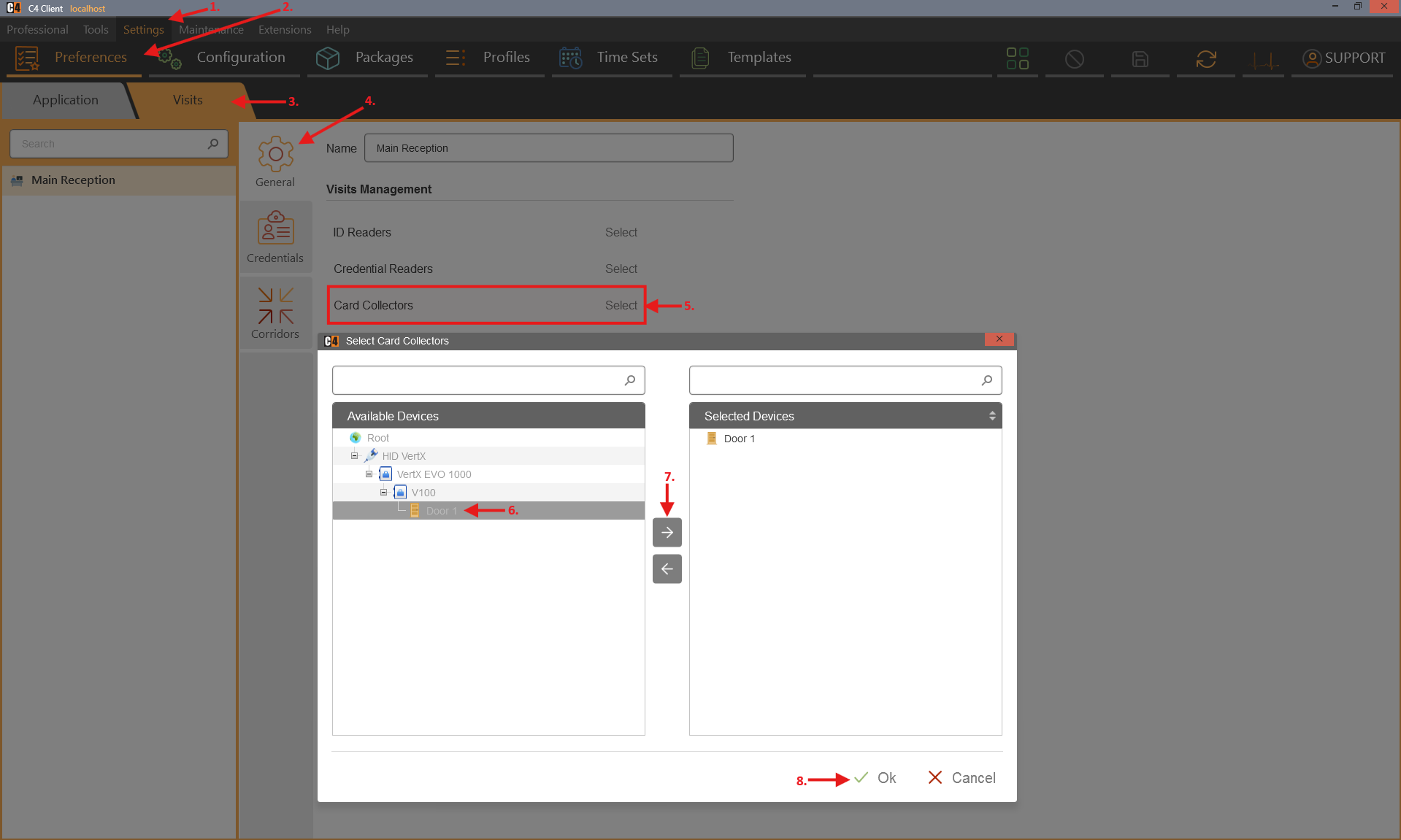
Save, then create a visit with access to that corridor and assign a valid credential.
Have the visitor use the credential at the card-collector door and review the visit status.
Confirmation: The visit closes automatically after the credential is accepted at the configured card collector.
10. Events, schedulers, workflows, reports, and extensions
C4 can format and retain events, run schedules, evaluate time-based workflow conditions, delay actions for transient network loss, and provide optional alarm and reporting extensions.
Availability: Workflow templates, e-mail actions, Alarm Matrix, status reports, and FPS reports require Standard and/or optional plug-ins. Exact names are package-specific.
Schedulers and calendars
Create a scheduler
Role: System administrator
Open Settings > Time Sets.
Select Scheduler.

Choose Add.
Enter the Name and schedule properties.
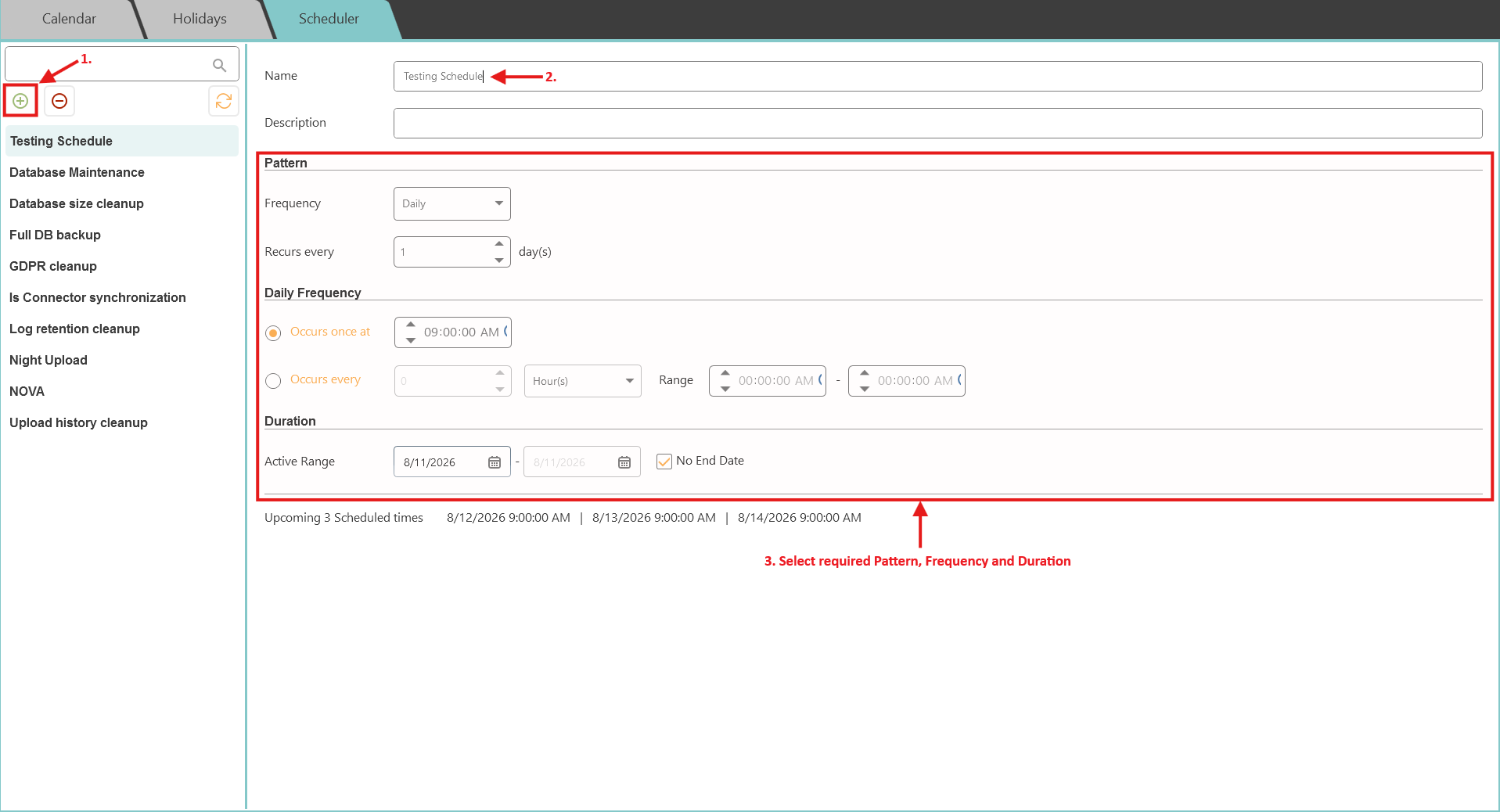
Save.
Confirmation: The scheduler appears in the scheduler list and can be selected by supported devices, connectors, reports, or workflows.
Create a calendar for Allowed Times and Time Restriction Access
Role: System administrator
Open Settings > Time Sets and add a calendar.

Enter the Name.
Select the required time range and mark it Allowed.
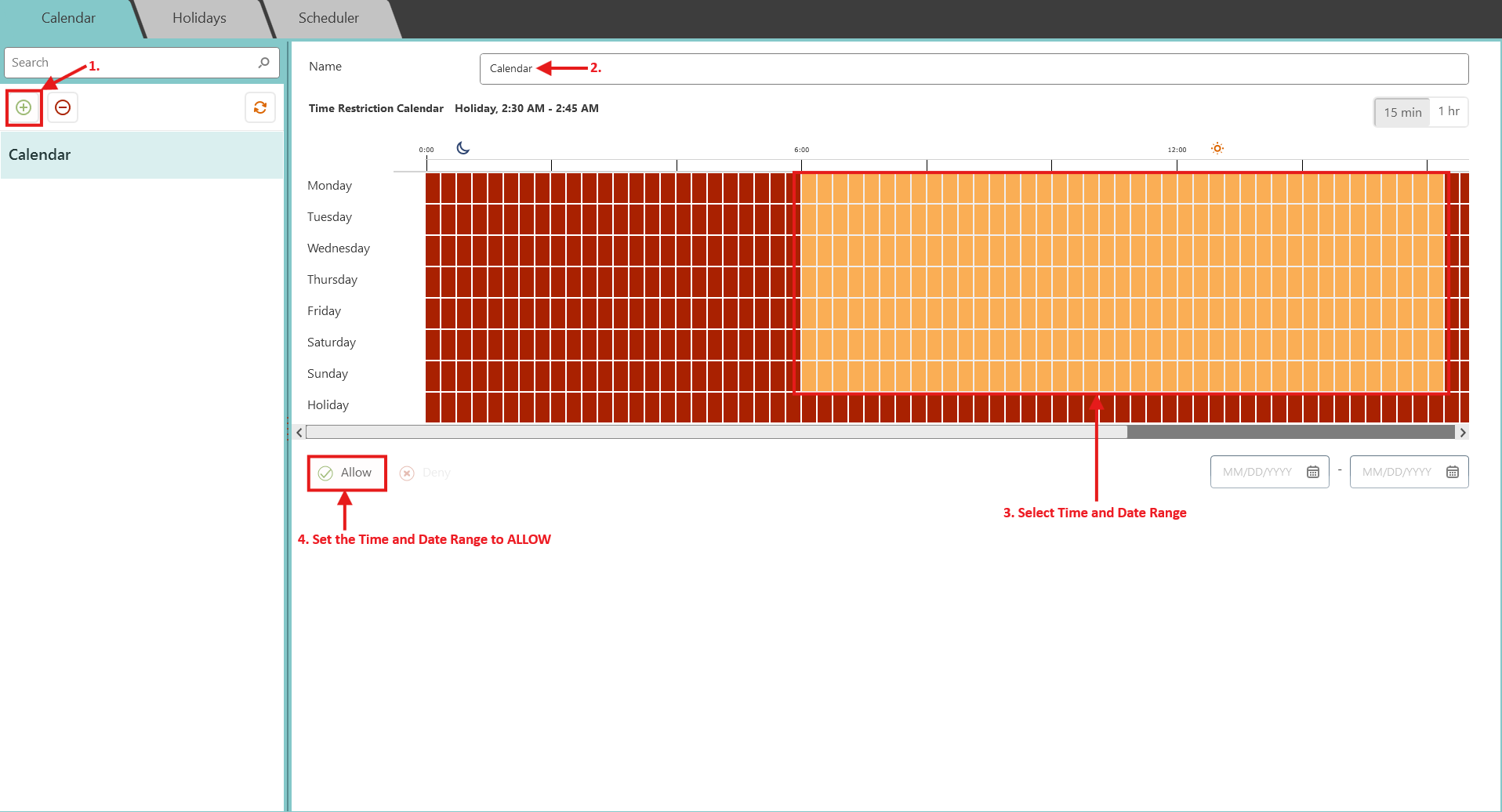
Save the calendar.
Confirmation: The calendar can be used by workflow conditions such as Is Within or Is Not Within.
Event display and retention
Change an event color
Role: System administrator
Open Settings > Preferences > Events.
Select the event type.
Set the text color and background color.
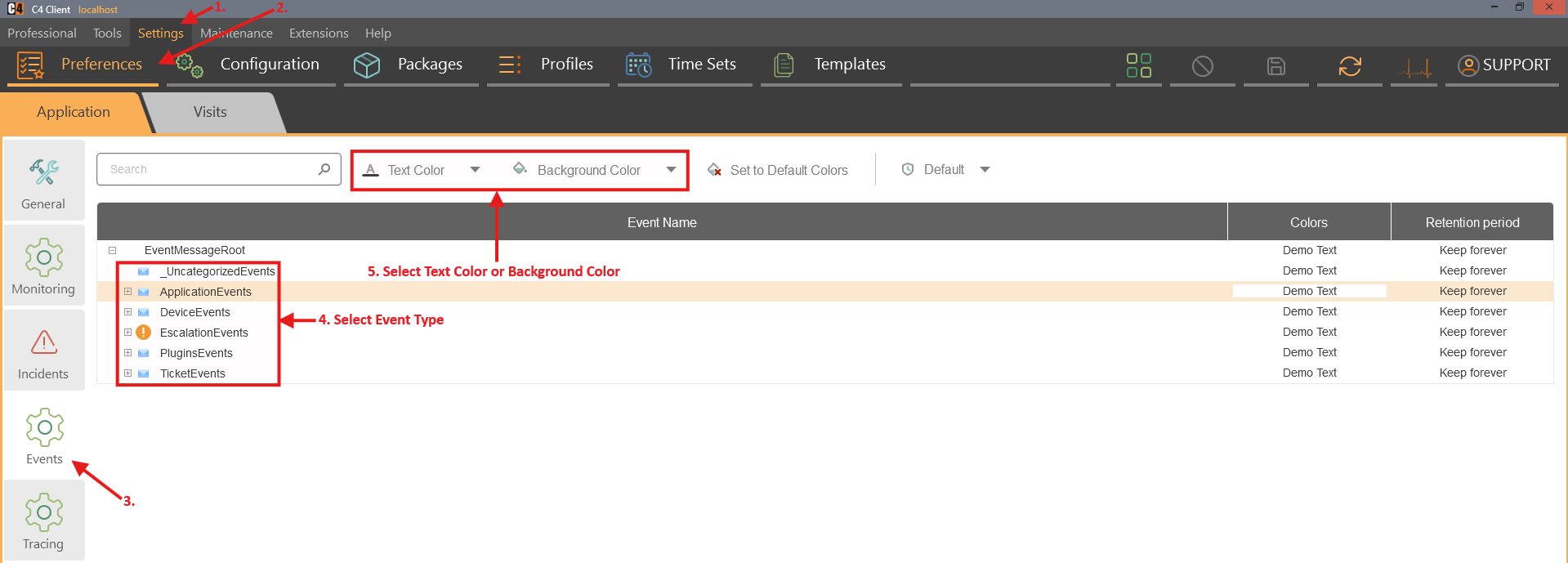
Save.
Generate the event and review it in an Events tab.
Confirmation: The event uses the configured colors.
Change event retention
Role: System administrator or compliance administrator
Open Settings > Preferences > Events.
Select the event type.
Set the retention period and save.
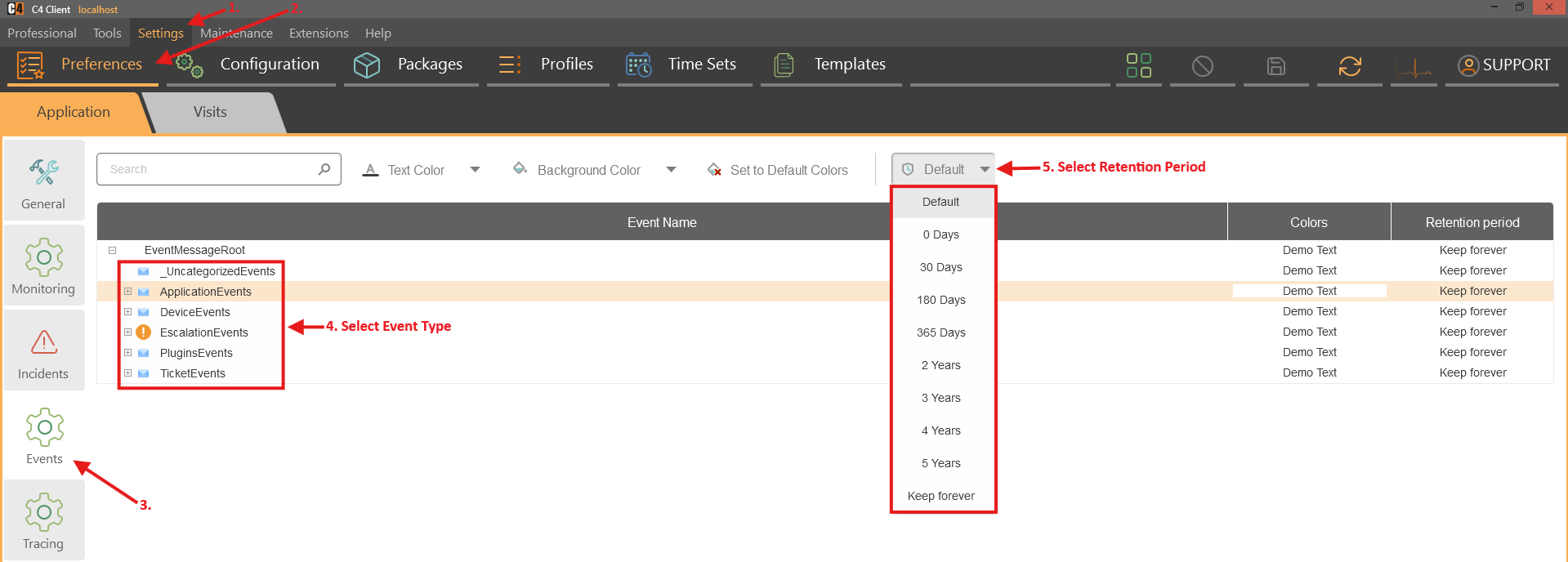
Verify the policy against legal, audit, and storage requirements.
Confirmation: Events of that type are retained for the configured period and removed after expiration by the system process.
Note: The SP3 release notes add 2, 3, 4, and 5 year retention choices. Availability can vary by build and event type.
Time-aware and delayed workflows
Run an action only within or outside a time window
Role: System administrator
Prerequisites: A saved calendar, a connected device, and an available workflow action.
Open Tools > Workflow and add a routine.
Choose a log/event routine and add the device event condition, such as Armed or Disarmed.
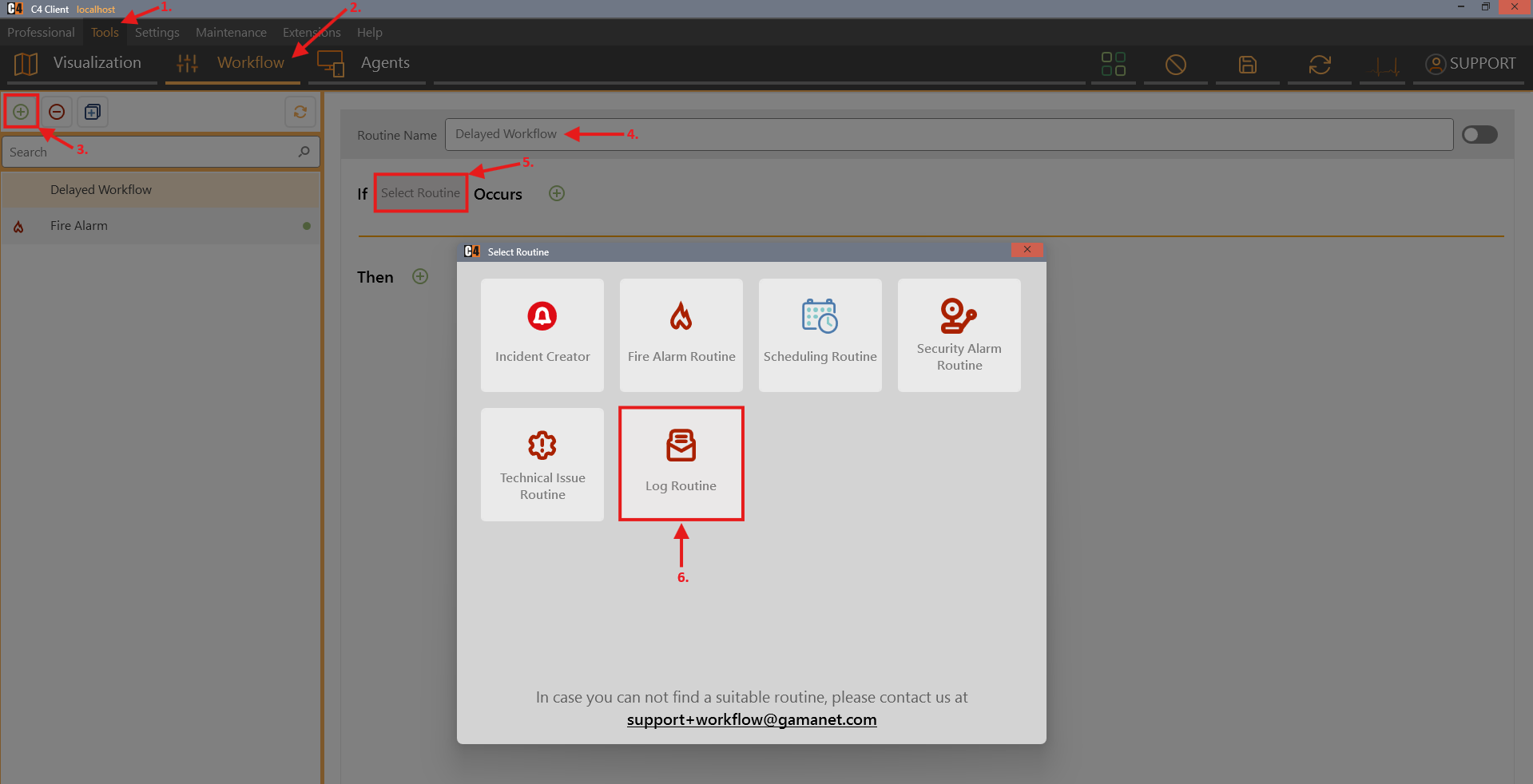
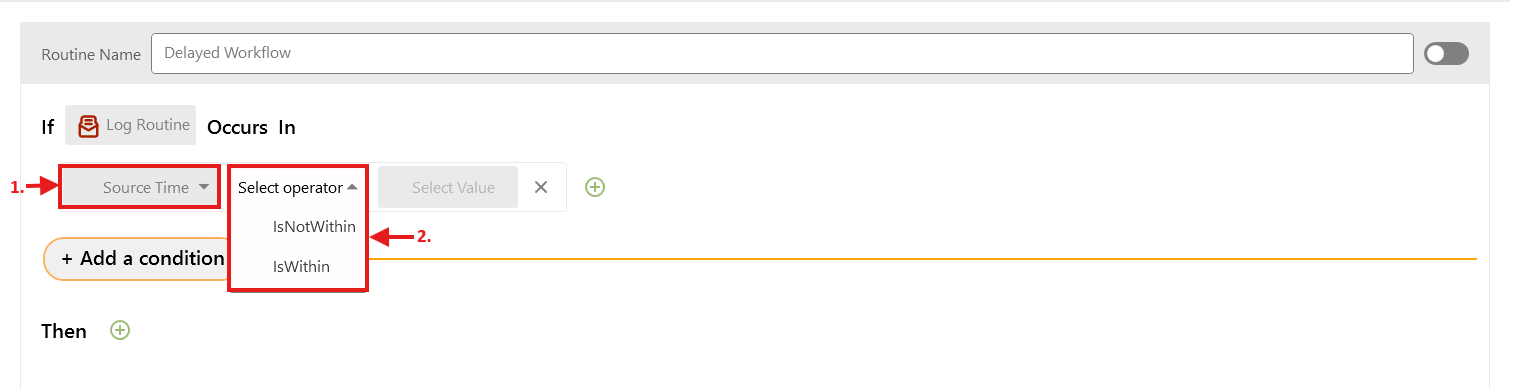
Add a Source Time condition.
Choose Is Within or Is Not Within and select the calendar.
Add the action, such as Create Incident or Send Email.
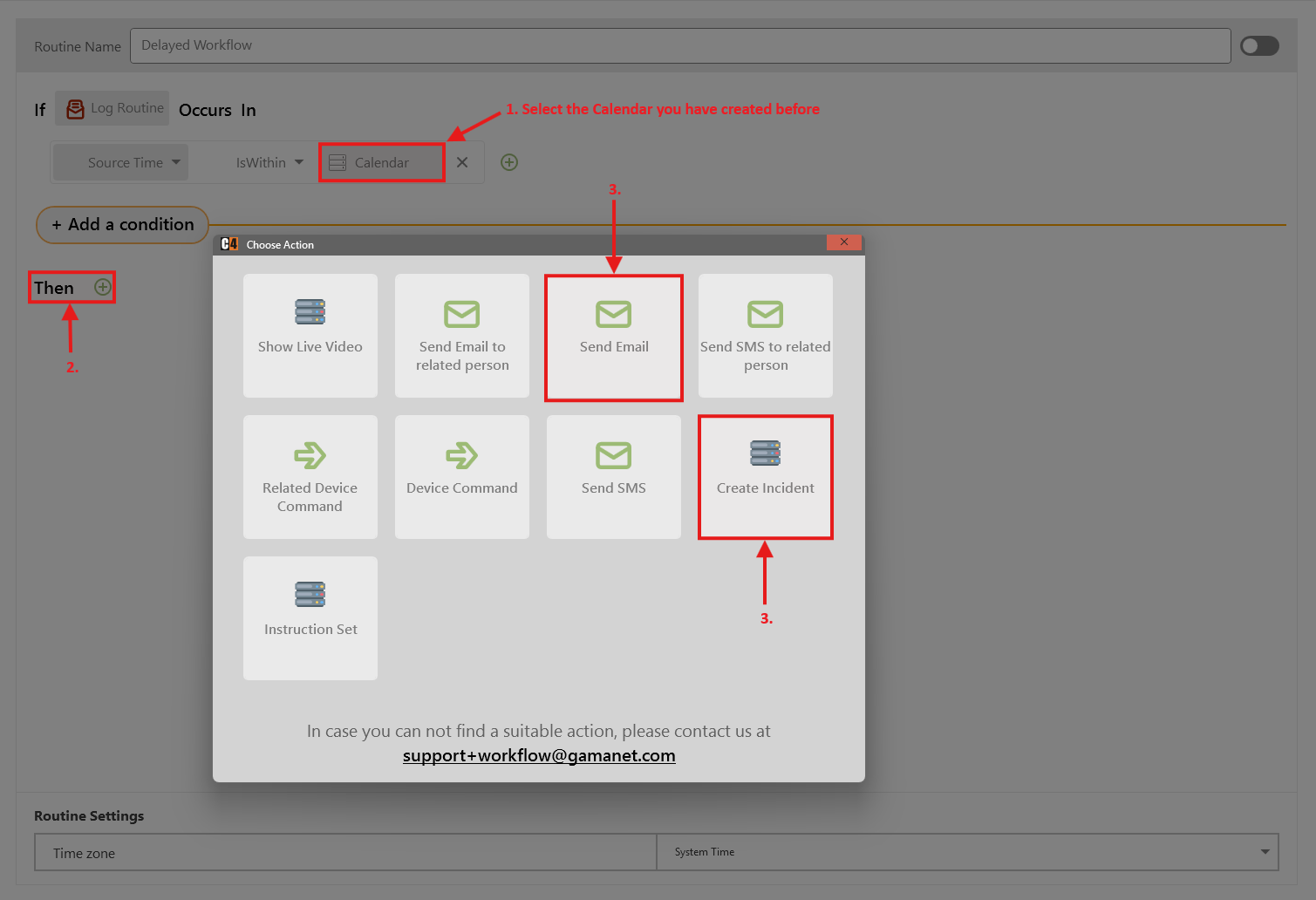
Save and test once inside and once outside the allowed time.
Confirmation: The action runs only when the event time satisfies the configured calendar condition.
Scheduled Routine
Role: System administrator
Prerequisites: A saved Scheduler and an approved action.
Open Tools > Workflow and add a routine.
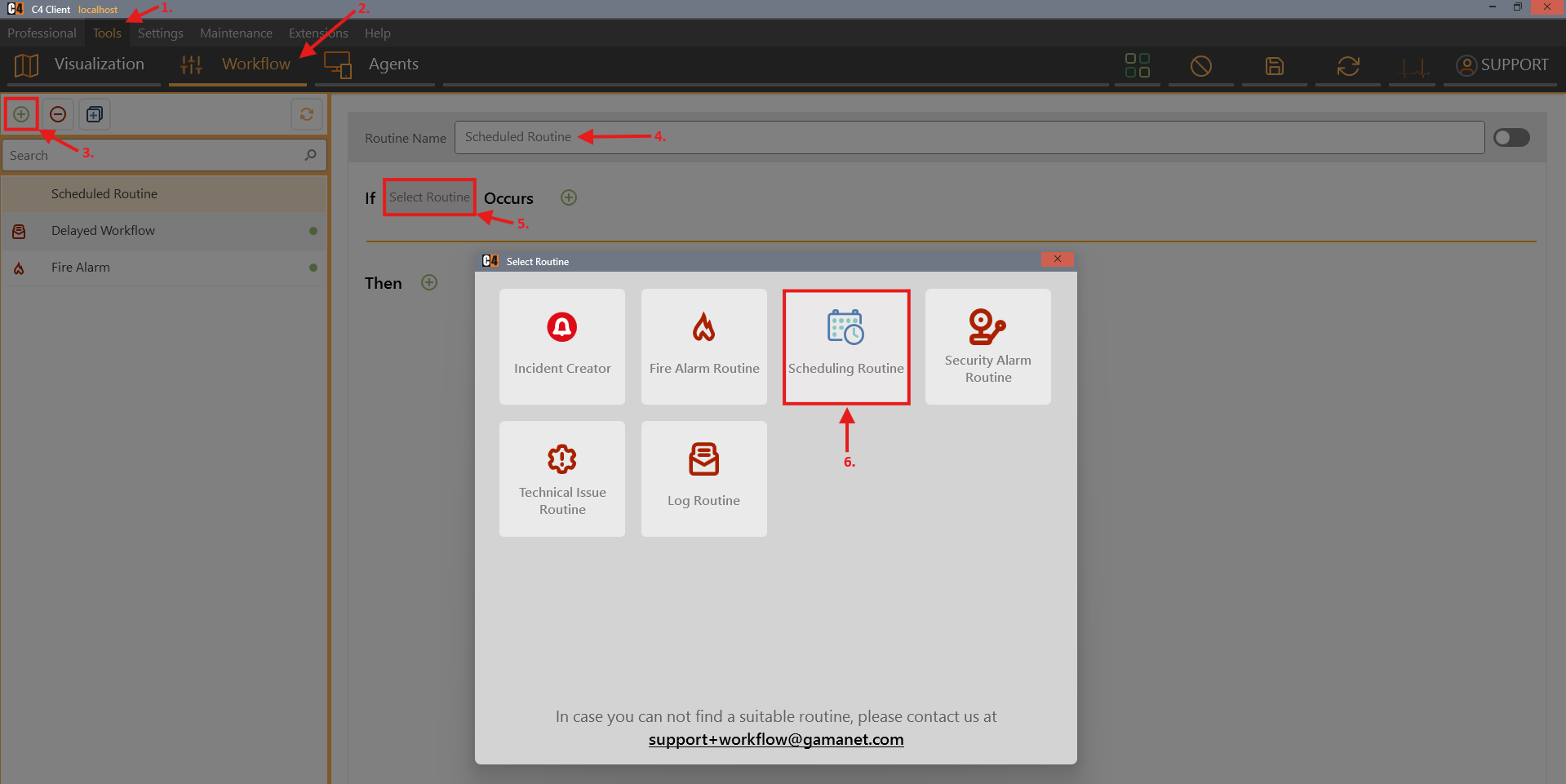
Select Scheduler Routine.
Add the required action, such as Create Incident or Send Email and select Scheduler at the bottom.
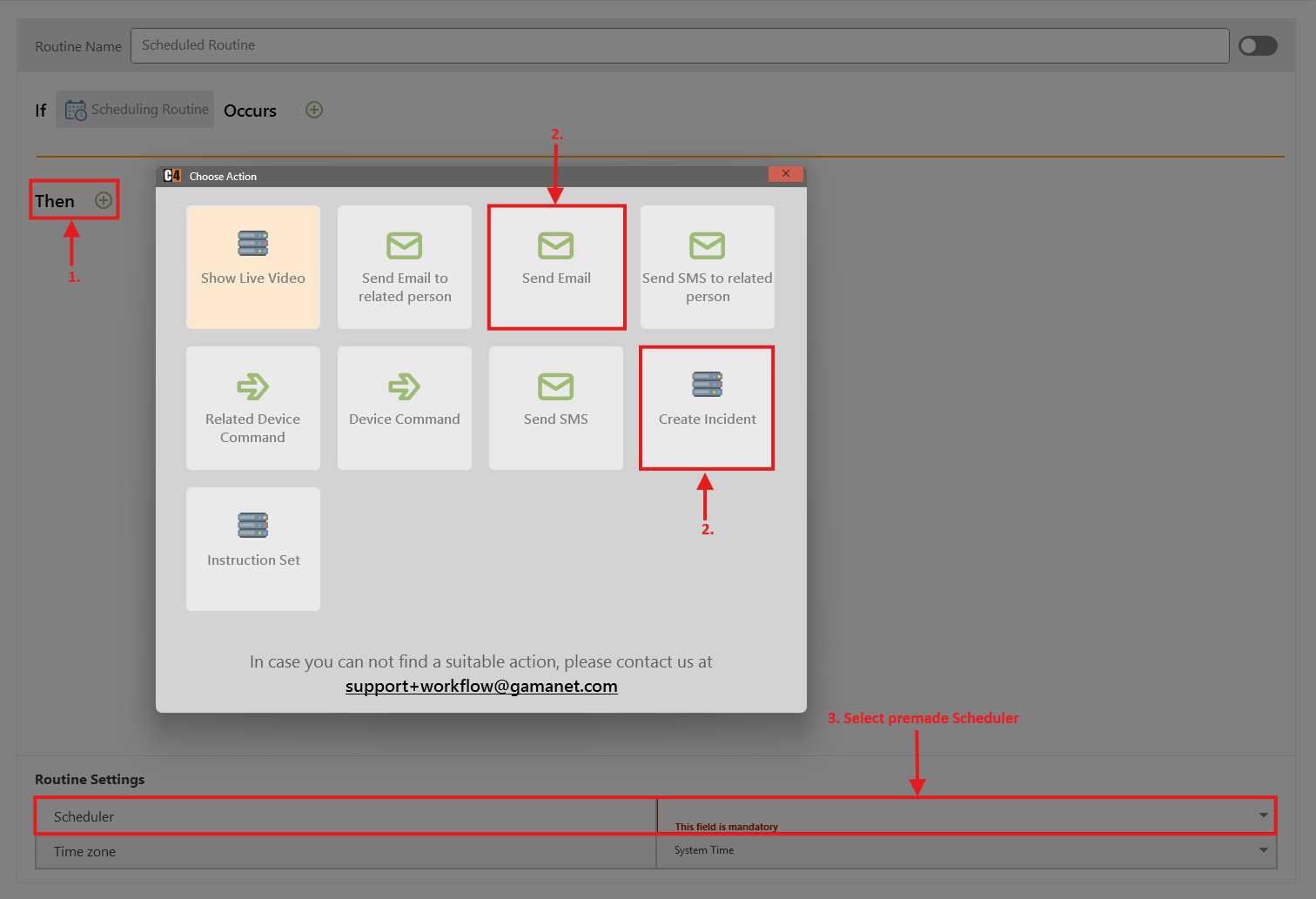
Select saved Scheduler.
Save.
Confirmation: The action runs only when the scheduled time has arrived. Check if the selected action happened.
Optional reports and extensions
Use Alarm Matrix
Role: Operator
Prerequisites: Alarm Matrix is installed and partitions exist.
Open Extensions > Alarm Matrix.
Select All to see status tiles and the count of partitions in each state.
Select a specific state to list matching partitions.
Use search by partition name, parent, or assigned region.
Right-click a partition and send an approved command when permitted.
Confirmation: Alarm Matrix summarizes partition states and provides filtered access to partitions and commands.
Schedule an e-mail report for disarmed partitions
Role: System administrator
Prerequisites: Device Status Report and report-routine plug-ins are installed; e-mail sending and recipient addresses are configured.
Create a scheduler in Settings > Time Sets > Scheduler.
Open Tools > Workflow and add a routine.
Select Disarmed Partition Report At Specific Time.
Add Send Email as the action and select recipients.
Select the scheduler and save.
At the scheduled time, verify the e-mail and attached or embedded HTML report.
Confirmation: Recipients receive a report listing partitions that were not armed at the scheduled time.
Generate an FPS daily report
Role: Operator or fire-system administrator
Prerequisites: A supported fire-protection driver and SK Daily FPS Report plug-in.
Open Extensions > SK Daily FPS Report.
Select the device root or required fire panel.
Choose Print Daily FPS Report.
Review panel status, fire-alarm counts where supported, and inhibited devices.
Confirmation: The report opens for the selected scope with the supported daily fire-panel information.
11. Enterprise deployments
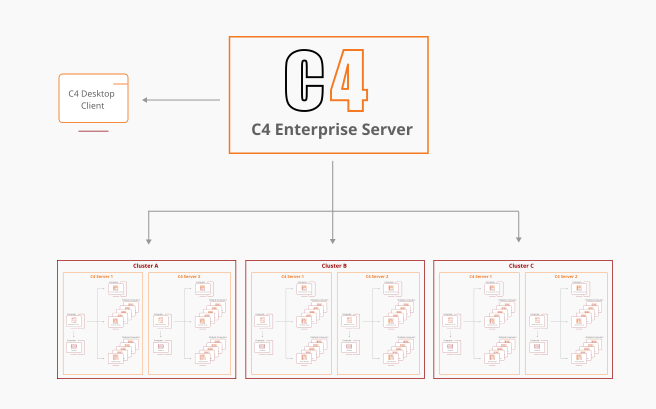
An Enterprise server can connect to one or more Advanced servers through the C4 Enterprise Connector and a C4 Server Bus Controller. Configuration normally flows from Advanced to Enterprise, while centrally managed people, credentials, groups, access levels, and access decisions can flow from Enterprise to Advanced.
Availability: Enterprise procedures require Enterprise and Advanced server installations, the C4 Enterprise Connector, TCP connectivity, firewall approval, matching packages, and deployment-specific scope and conflict rules.
Enterprise topology
Layer |
Function |
|---|---|
Enterprise server |
Central people, credentials, groups, access, regions, monitoring, and enterprise operations. |
C4 Enterprise Connector / C4 Server Bus Controller |
The configured connection object on the Enterprise server. |
Advanced server |
Local device integrations, local operation, and the target/source of Enterprise synchronization. |
Physical systems |
Access, intrusion, CCTV, fire, and other devices integrated through local drivers. |
Connect an Advanced server
Create and start a C4 Server Bus Controller
Role: Enterprise administrator
Prerequisites: Enterprise Connector installed; TCP allowed on the Advanced server; firewall exception approved; IP address and port known.
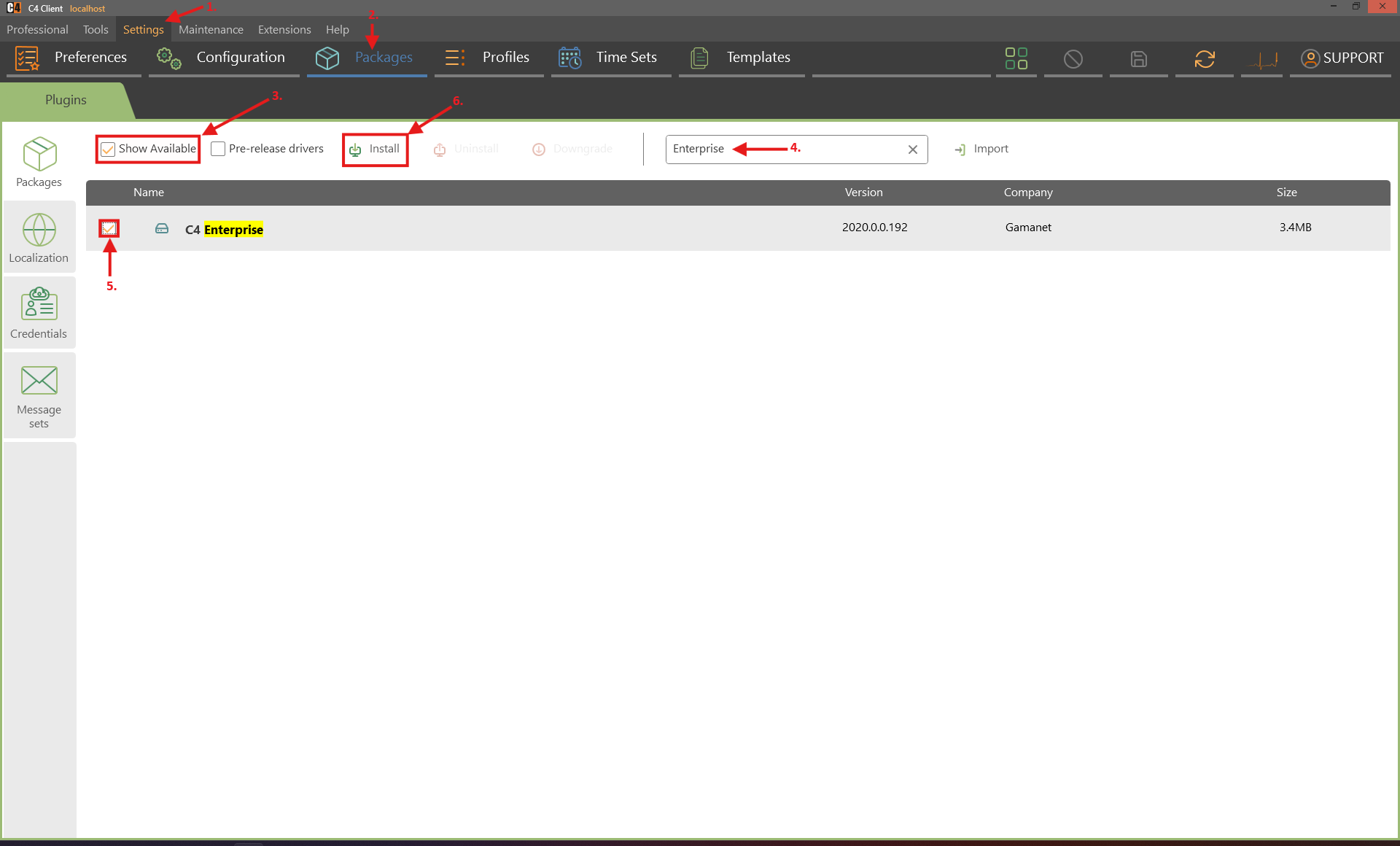
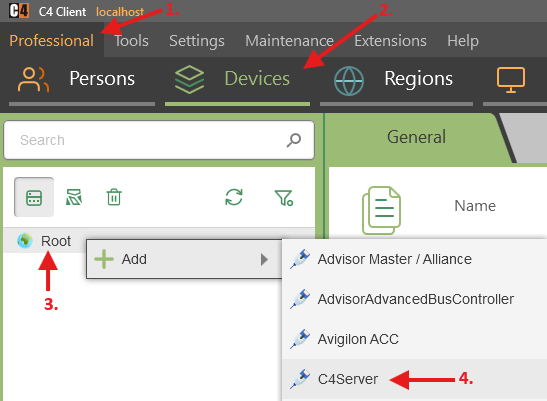
On the Enterprise server, open Settings > Packages and install C4 Enterprise Connector.
Open Professional > Devices.
Right-click Root and select Add > C4 Server Bus Controller.
Enter the Advanced server IP address and port.
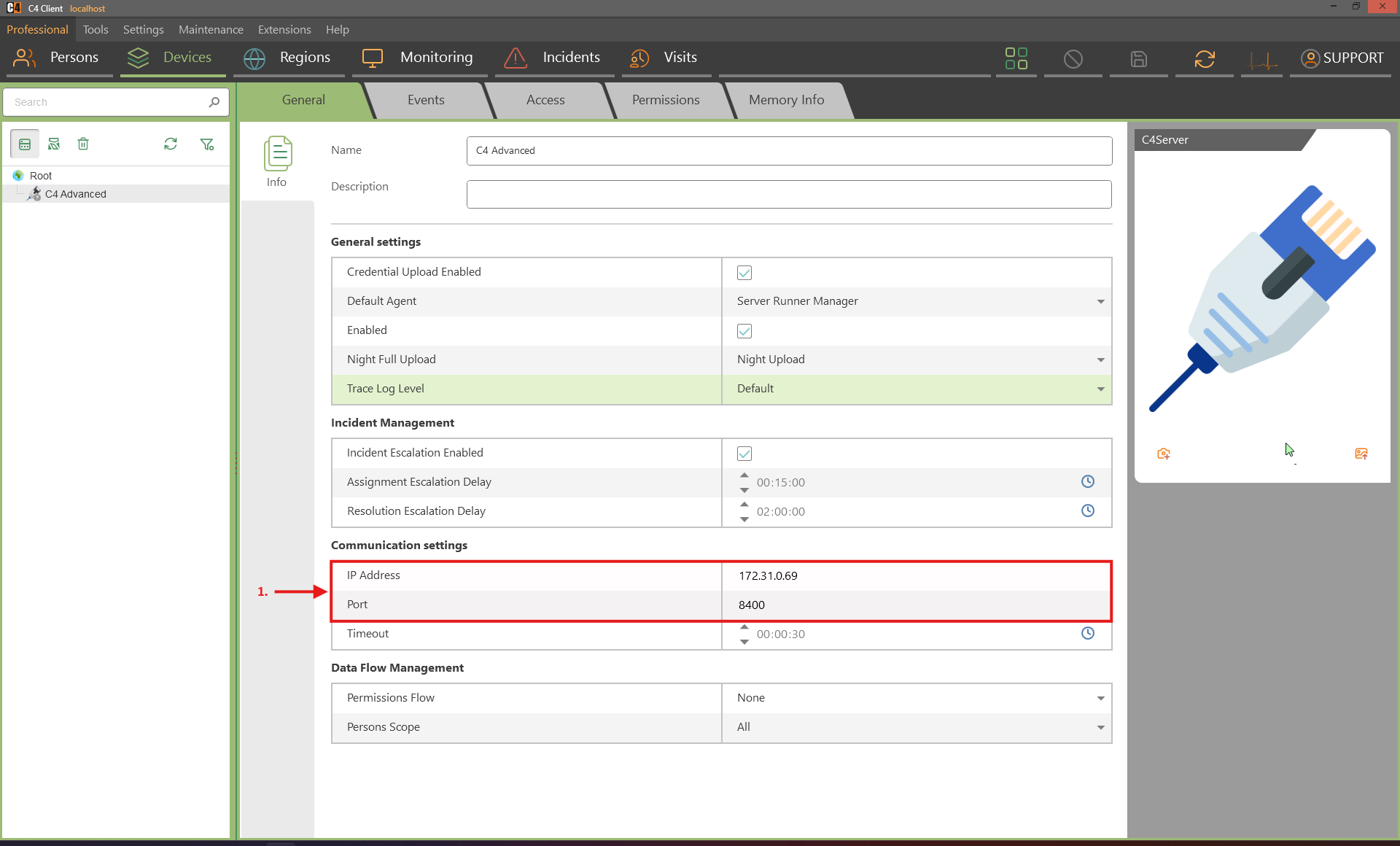
Save.
Right-click the new controller and select Command > Start.
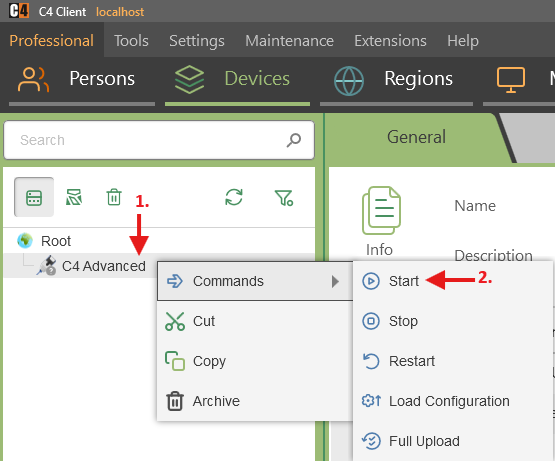
Verify that the controller reaches its normal idle/connected state.
Confirmation: The Enterprise server has an active connection object for the Advanced server.
Perform the first synchronization
Load devices and regions from Advanced to Enterprise
Role: Enterprise administrator
Prerequisites: The C4 Server Bus Controller is connected; the Advanced server contains configured devices and regions.
On the Enterprise server, open Professional > Devices.
Right-click the C4 server node and select Command > Load Configuration.
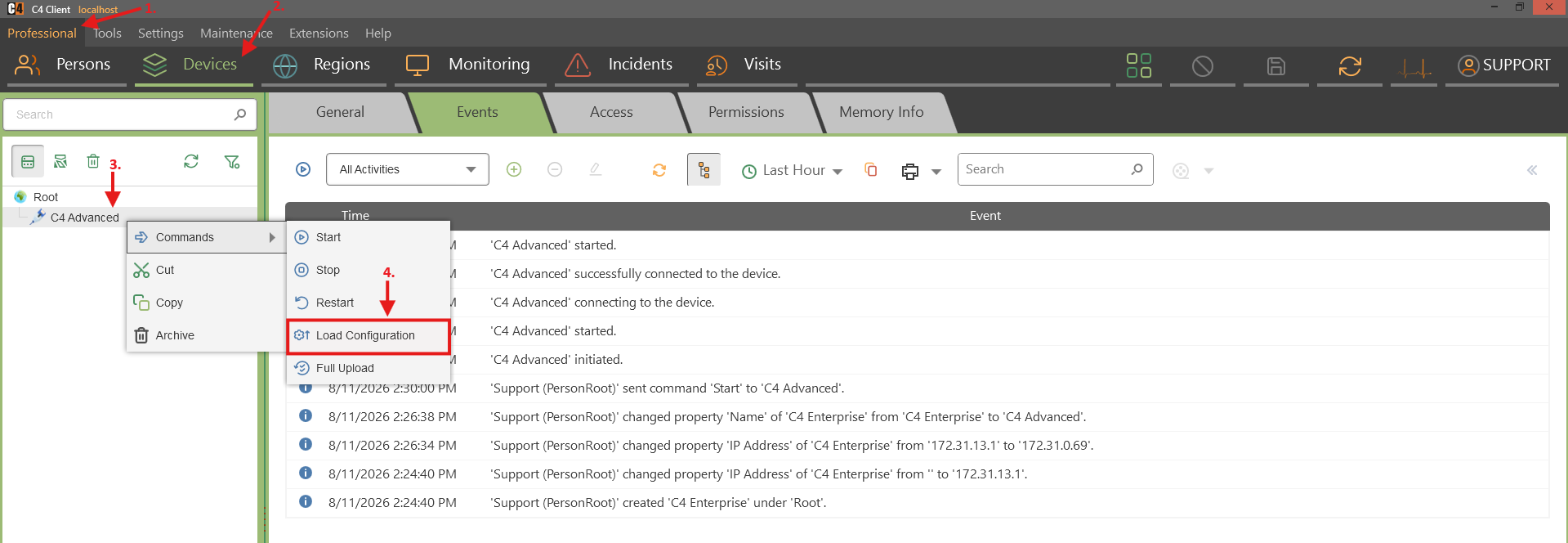
Complete the wizard and wait for it to finish.
Review the device trees under the C4 Server Bus Controller and the imported regions.
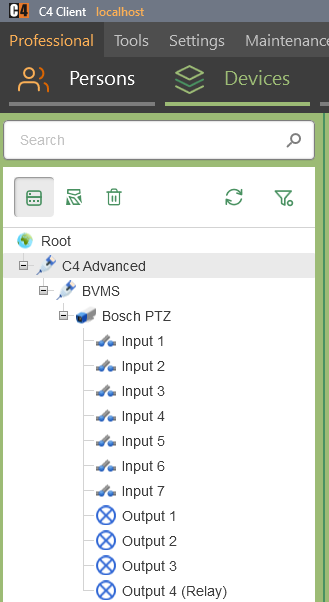
Confirmation: Advanced device trees and regions are represented on the Enterprise server.
Upload central data from Enterprise to Advanced
Role: Enterprise administrator
Prerequisites: The C4 Server Bus Controller is connected; central people, credentials, groups, or access levels are configured.
On the Enterprise server, open Professional > Devices.
Right-click the C4 server node and select Command > Full Upload.
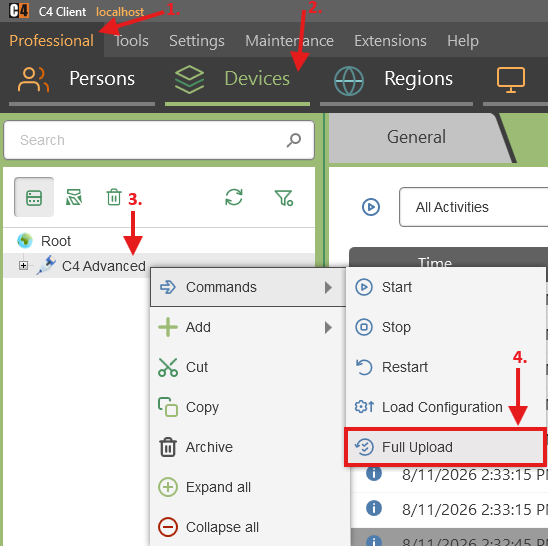
Wait for completion and review events.
On the Advanced server, verify the synchronized people, credentials, groups, and access levels within the configured scope.
Confirmation: Supported central data is created or updated on the Advanced server.
Synchronize person changes
Role: Enterprise administrator
Prerequisites: The person is in scope and the C4 server connection is active.
Create, edit, move, archive, or restore the person on the authoritative server according to the deployment model.
Run Full Upload from the Enterprise C4 server node.
Verify the person properties, parent, and archive state on the Advanced server.
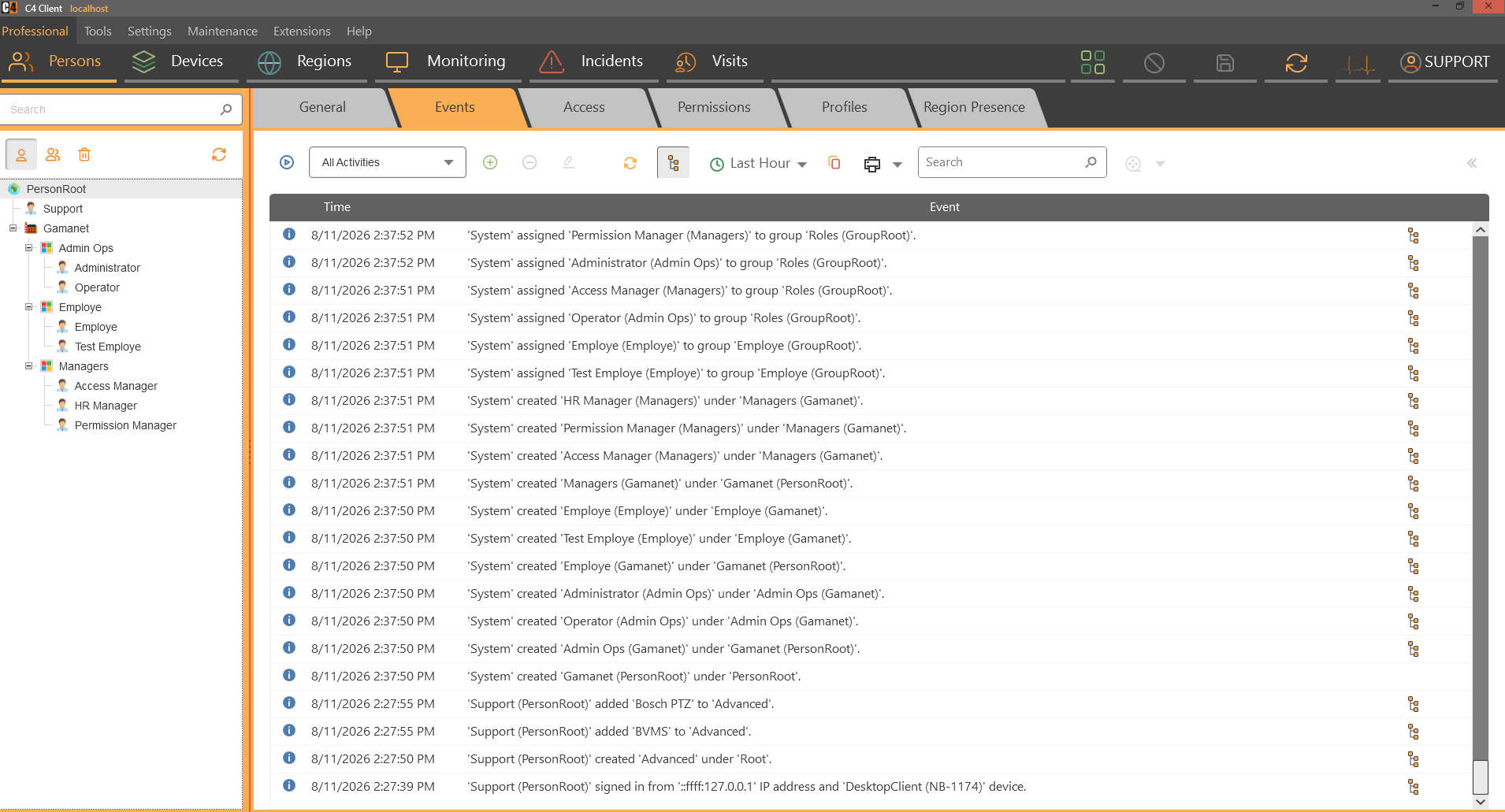
Review events and resolve any scope or conflict warning before the next upload.
Confirmation: The supported person change is reflected on the Advanced server.
Credentials and centrally managed access
Synchronize a card credential from Enterprise
Role: Enterprise administrator
Prerequisites: The same card credential type is installed where required and the person is in scope.
On Enterprise, select the person and create the card credential.
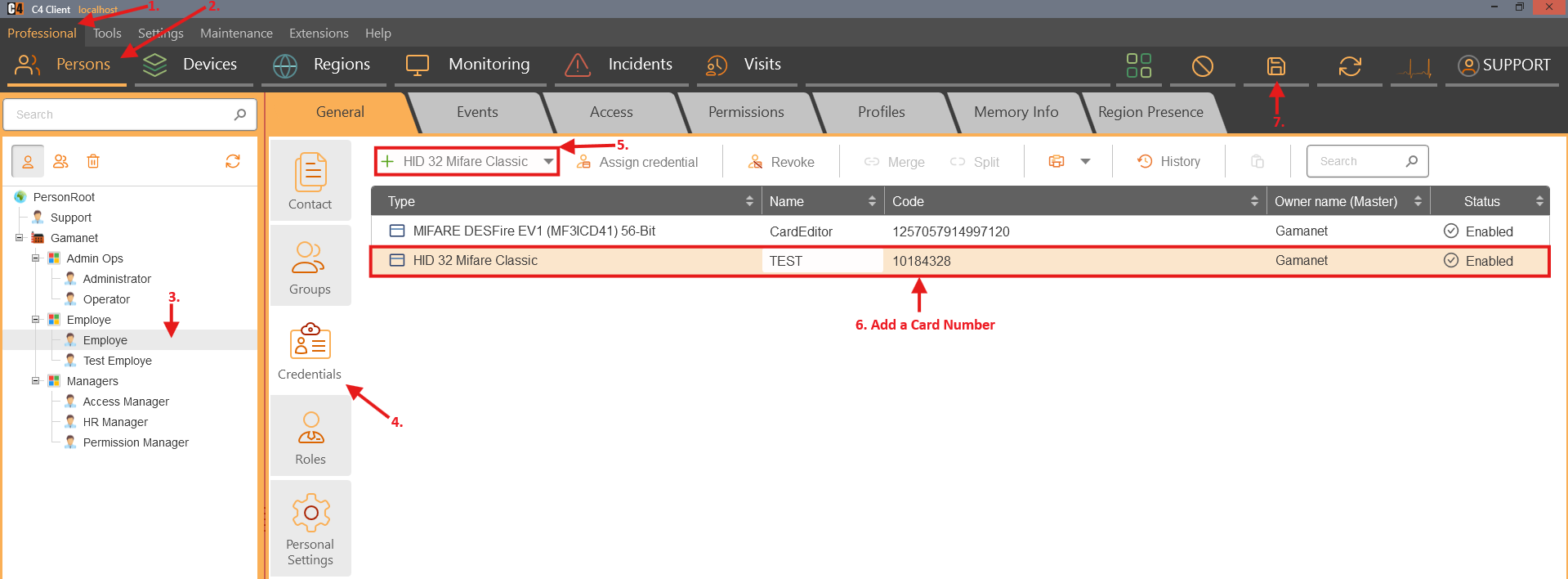
Save the person.
Open Professional > Devices, right-click the C4 server node, and run Full Upload.
On Advanced, verify the credential on the person.
Confirmation: The person has the card credential on the Advanced server.
Assign access centrally and upload it to a local panel
Role: Enterprise security administrator
Prerequisites: The person and credential exist centrally; Load Configuration has imported the local access tree; the target device is connected.
Run Full Upload on the C4 server connection, then Load Configuration when the local device tree has changed.
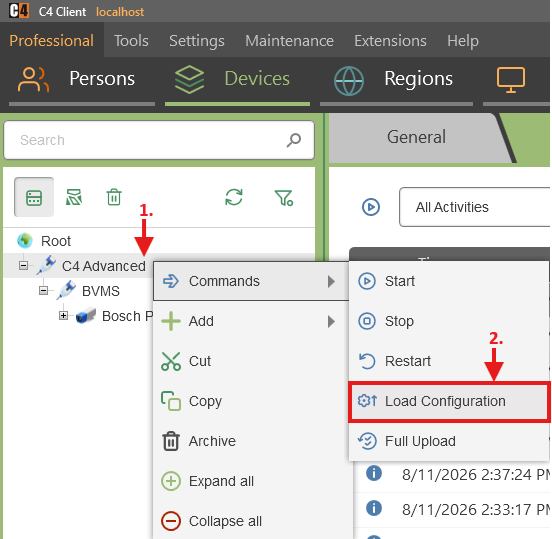
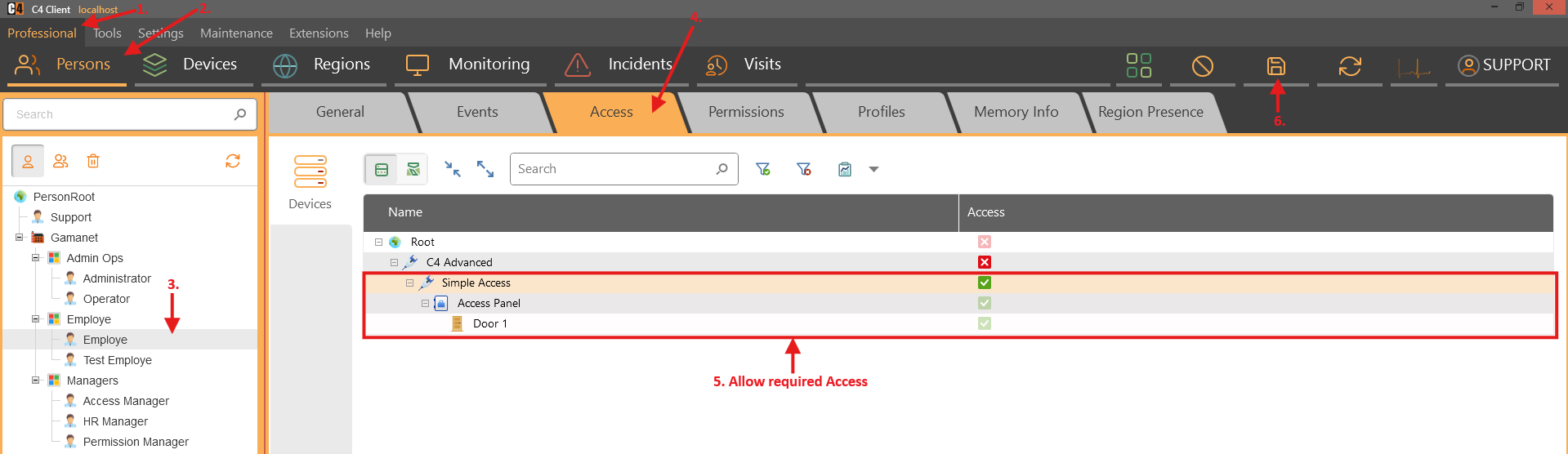
On Enterprise, select the person and open Access.
Under the C4 Server Bus Controller, set Allow on the required local access point
Run Full Upload on the C4 server connection.
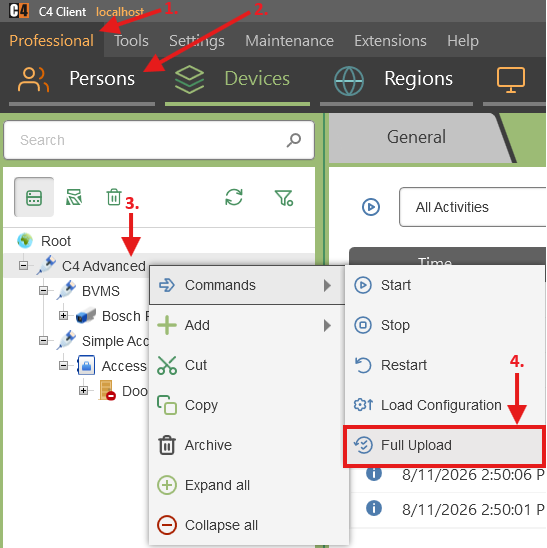
On the Advanced server, run the required Full or Incremental Upload on the physical access panel.
Verify panel Memory Info and test under an approved access procedure.
Confirmation: The central access decision reaches the Advanced server and the physical panel.
Enterprise source gaps and escalation
Deployment-specific procedures: The supplied Enterprise document lists local-management access, many credential update/revoke actions, region and visualization operations, role assignment, and Notify/Escalate incident scenarios, but several entries contain headings only and no tested steps. Configure and validate those functions with the approved Enterprise deployment runbook rather than inferring missing behavior.
At a high level, Notify escalation keeps primary handling on the Advanced server while informing Enterprise, whereas Escalate can transfer handling to Enterprise after configured conditions or time. The exact templates, timers, ownership changes, and resolution synchronization must be tested for the deployed connector version.
12. IS Connector synchronization
IS Connector exchanges organizational, person, credential, and connector-specific data between C4 and an external information system. The connector configuration defines direction, root scope, identifiers, fields, and schedule.
Availability: A connector-specific package and external-system configuration are required. Data direction, supported fields, primary identifiers, and conflict rules are connector-dependent.
Create a connector and run the first synchronization
Create an IS Connector
Role: Integration administrator
Prerequisites: The connector package is installed and connection credentials/endpoints are available.
Open Settings > Configuration and select IS Connectors.
Right-click IS Connector Root and select Add > the required connector type.
Enter all mandatory connection, mapping, direction, and identifier properties.
Set Root when data must be synchronized under a specific company or organization node.
Set a synchronization scheduler when automatic execution is required.
Save.
Confirmation: The configured connector appears under IS Connector Root.
Run the first synchronization
Role: Integration administrator
Right-click the connector and select Command > Synchronize.
Wait for completion and review connector events/logs.
For external-to-C4 direction, verify the organization, people, properties, and credentials under the configured root.
For C4-to-external direction, verify the supported data in the external system.
Confirm that unrelated C4 data outside connector management remains intact.
Confirmation: The first supported dataset is synchronized in the configured direction.
Synchronize person lifecycle changes
External change |
Expected C4 result after Synchronize |
|---|---|
New person |
The person is created under the mapped parent. |
Property update |
Mapped properties are updated without changing unrelated records. |
Parent change |
The person moves to the new mapped parent. |
Disabled or outside validity |
The person becomes disabled or invalid according to the connector mapping. |
Enabled again |
The person returns to enabled/valid state. |
Archived or removed |
The person is archived according to connector rules. |
Restored |
The person returns from archive and current mapped properties are applied. |
No external change |
A repeated synchronization creates no unnecessary changes. |
Validate an incremental person change
Role: Integration administrator
Complete a successful baseline synchronization.
Make one controlled person change in the authoritative system.
Run Synchronize, or wait for the configured scheduler.
Verify only the intended person and property/parent/state changed.
Run Synchronize again without another source change.
Verify that no duplicate or unnecessary update is created.
Confirmation: The connector applies the intended change and takes no action when nothing changed.
Synchronize credentials
Synchronize credential changes
Role: Integration administrator
Prerequisites: The credential type is installed and mapped by the connector.
Run a baseline synchronization and verify existing credentials.
In the authoritative system, add, revoke/remove, reassign, or update one credential.
Run Synchronize.
Verify the credential code, type, holder, and assignment on the target side.
Confirm that unrelated credentials were not changed.
Confirmation: The connector creates, revokes, reassigns, or updates the mapped credential as configured.
Schedules, roots, and identifier handling
Use a synchronization scheduler
Role: Integration administrator
Create or select a scheduler in Settings > Time Sets.
Assign it to Synchronization scheduler on the connector.
Save and run one manual Synchronize to establish the baseline.
Make a controlled external change and wait for the scheduled time.
Review logs and verify the change.
Confirmation: Synchronization runs at the scheduled time and applies supported changes.
Identifier normalization: The supplied use case expects leading/trailing spaces in the primary internal or external identifier to be treated as the same identifier, rather than deleting and re-adding the person. Case handling depends on connector requirements and should be tested explicitly.
Connector verification checklist
Direction is correct and the authoritative system is clearly defined.
Root scope includes only the intended organization branch.
Primary identifiers are stable, unique, and normalized as expected.
Field mappings cover required names, status/validity, parent, contact data, and credentials.
Archive, restore, disable, enable, move, and reassign behavior is tested.
Repeated synchronization with no changes is idempotent.
Scheduler time, time zone, and service operation are correct.
Logs and exception handling are monitored before production rollout.
13. Security and data-governance controls
This chapter consolidates the security-sensitive settings that are distributed across the operational chapters: package permissions, certificate validation, Cyber Security mode, credential disclosure, event retention, exports, and permanent deletion.
Restrict package installation
SP3 checks ModifyData permission for the Packages panel before allowing package or plug-in installation. Grant this permission only to administrators responsible for approved software changes. Test with a restricted account to confirm that package download and installation are unavailable.
Cyber Security mode
Enable Enterprise security mode
Role: Senior system/security administrator
Prerequisites: Trusted login, A tested maintenance plan, signed/approved components, recovery access, and server-service restart approval.
Warning: The supplied SP3 use case states that unexpected or unsigned C4 components can stop working after Enterprise security mode is enabled. Validate all core assemblies and plug-ins before activation.
Open Settings > Preferences > Application.
Set Security Mode to Enterprise.
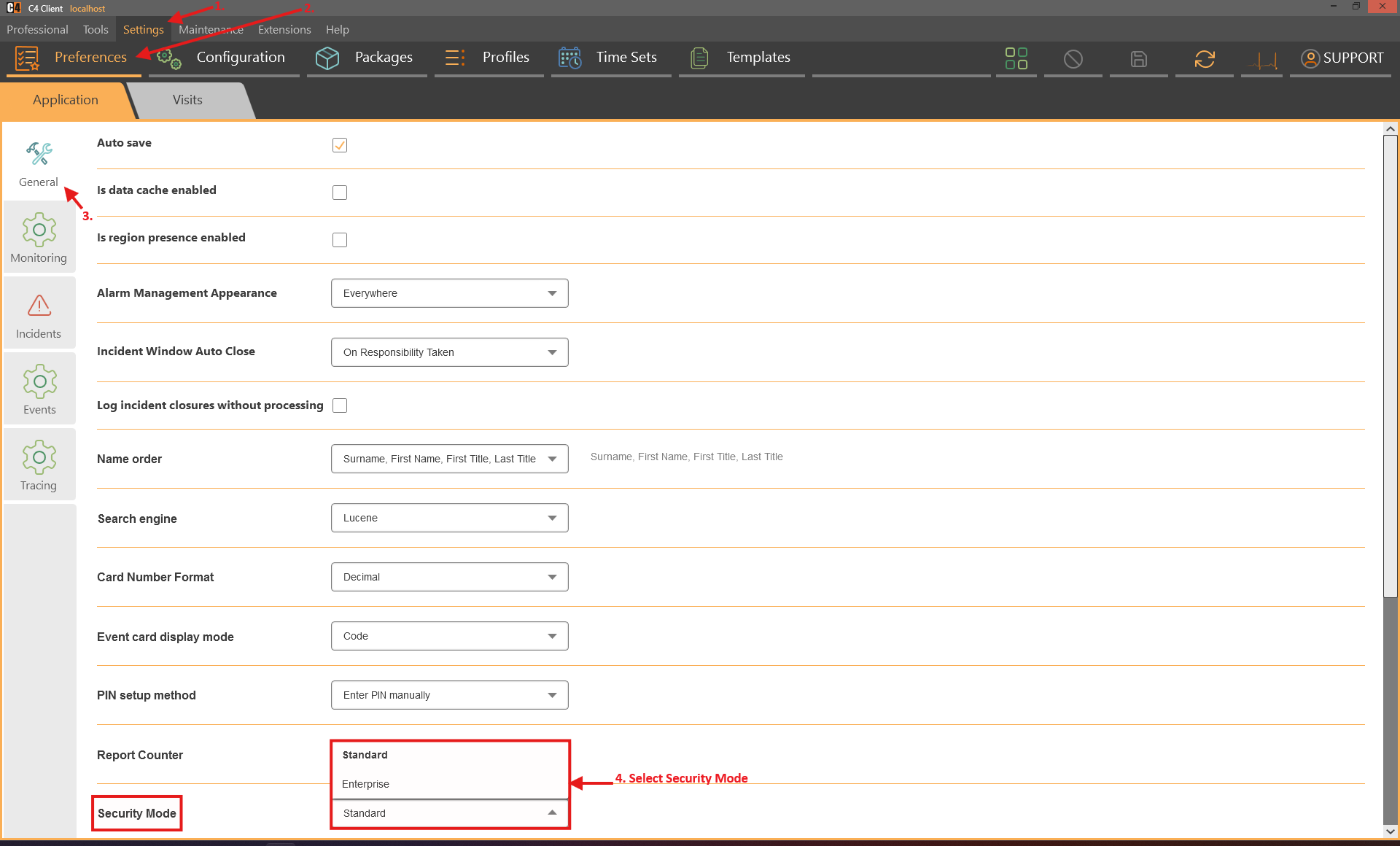
Save the change.
Restart the required C4 server services during the maintenance window.
Verify server startup, client login, drivers, reports, plug-ins, workflows, and connectors.
Review logs for integrity or signature failures.
Confirmation: C4 enforces the stricter component-integrity checks and all approved modules continue to operate.
Protect credential and personal data
Prefer event display by credential name instead of raw code unless the code is operationally required.
Limit who can search, create, assign, export, or copy credentials.
Treat CSV exports, event logs, visitor data, person photos, and contact details as sensitive data.
Use the shortest event retention that satisfies legal, operational, and audit requirements.
Review card master/holder behavior before deleting people or moving cards between organizations.
Protect connector credentials, endpoints, and mapped identifiers as integration secrets.
Archive versus permanent delete
Action |
Use when |
Key effect |
|---|---|---|
Archive |
The record should leave active use but may need restoration or audit review. |
Moves the object to the Recycle Bin and generally preserves relationships for restoration. |
Restore |
An archived record must return to active use. |
Returns the record to the active tree; dependent behavior should be verified. |
Permanent Delete |
The approved retention and dependency review is complete. |
Irreversibly removes the object and can return credentials to their master or break references. |
14. Troubleshooting and verification
Use the following checks to distinguish permission, package, connection, data, and scope problems. Review Events and logs before repeating an action, because repeated uploads or synchronizations can obscure the original failure.
Common symptoms
Symptom |
Check first |
Recommended action |
|---|---|---|
A panel or menu is missing |
Edition/license, installed package, user permission, and whether the feature was removed from the standard installation. |
Sign in with an approved administrator, verify Packages and permissions, and compare with the installed release notes. |
A credential type is missing |
Credential plug-in installation and Packages ModifyData permission. |
Install the approved type, then reopen Persons > Credentials. |
Login fails with trusted validation |
Server certificate trust chain, name, validity, and time. |
Correct the certificate rather than switching to Accept All. |
Device nodes remain disconnected |
Controller Start command, IP/port, credentials, firewall, driver service, and physical network. |
Review device and server events, correct communication, then restart the controller under the change procedure. |
A device command is not available |
Selected node type, current state, driver capability, and user command permission. |
Select the correct node, meet prerequisites, or use the device-specific runbook. |
Access works in C4 but not at the door |
Credential validity/type, access allow/deny, target panel, upload completion, device capacity, and Memory Info. |
Run the correct upload, review events, confirm the person in panel memory, then test safely. |
Person search does not find a card |
Credential assignment, installed type, card-number format, and search scope. |
Try the configured decimal/hex format and confirm the card holder. |
Region events are empty |
Time range, Include children, activity filter, Refresh/Play, and device assignment to the region. |
Correct the scope and generate an approved test event. |
Region presence does not update |
Region presence preference, reader In/Out direction, corridor/region assignment, credential upload, and access event. |
Correct directions and verify the entry/exit events before reviewing the presence record. |
Incident does not appear |
Workflow active state, source condition, operator permission, incident window settings, and client/server events. |
Test the condition with a controlled source and review workflow logs. |
Incident count increases unexpectedly |
Whether repeated matching occurrences are configured to merge. |
Review source and workflow; resolve the incident or adjust the workflow design. |
Quick Action is not visible |
Selected region, saved edit mode, item type, and Monitoring region. |
Edit the same region again, save, and reopen Monitoring. |
Monitoring does not show a state |
Object saved on the correct map, live device state, propagation-status settings, and current region. |
Verify Visualization, save, refresh Monitoring, and test the source state. |
Enterprise data is missing |
C4 server connection, person scope, Load Configuration versus Full Upload direction, and package compatibility. |
Run the correct direction, review events on both servers, and verify in-scope data. |
IS Connector makes no change |
Direction, root, scheduler, primary identifier, external source change, and connector logs. |
Run manual Synchronize, inspect logs, and test one controlled record. |
Verification evidence
Tree and properties: verify the correct parent, lifecycle state, and saved values after Refresh.
Events: verify start, completion, command, state, error, time, and source.
Memory Info: verify the person, credential, upload time, and panel position.
Incident History: verify notes, responsibility changes, occurrences, and Closed By.
Monitoring and targets: verify current state, configured effects, scope, and no unrelated changes.
15. Glossary, SP3 highlights, and source notes
This appendix provides shared terminology, a compact list of user-facing SP3 changes represented in the source material, and the boundaries applied while converting QA cases into a general guide.
Glossary
Term |
Meaning |
|---|---|
Access level |
A named collection of access points that can be reused in access configuration. |
Access point |
A controlled door, partition, reader, or other device point to which access can be allowed or denied. |
Advanced server |
A server that typically hosts local device integrations and can connect to an Enterprise server. |
Bus controller |
The root connection object for a device driver or remote C4 server. |
Card holder |
The person currently assigned to use a card. |
Card master |
The root or organization that administrates the card pool. |
Context Monitor |
A context panel with selected-device details, statistics, events, and supported memory information. |
Credential |
A PIN, card, license plate, or other installed identifier used by C4 and connected systems. |
Device tree |
The hierarchical representation of controllers, panels, and child devices. |
Enterprise server |
The central server in a multi-server C4 deployment. |
Incident |
An operator work item created by a workflow from an event or condition. |
IS Connector |
An integration component that synchronizes C4 data with an external information system. |
Memory Info |
The panel view that lists uploaded people and credential information. |
Person group |
A logical group of people used for membership, access, and related administration. |
Profile |
A reusable set of supported device properties assigned to people. |
Quick Action |
A region-specific shortcut to a device, command, or region in SP3. |
Reception |
An agent group used to handle visits. |
Region |
A physical or logical location node used for devices, presence, events, maps, and monitoring. |
Routine or workflow |
A condition/action definition that responds to events or schedules. |
Scheduler |
A saved time definition used by uploads, connectors, workflows, or reports. |
Selective Upload |
An upload initiated for one selected person rather than the complete panel dataset. |
User-facing 2026 SP3 highlights represented in this guide
Area |
SP3 change |
|---|---|
Incidents |
Merged occurrence counting; configurable automatic window close; optional logging when a window is closed without processing. |
Client layout |
Right-to-left language support and updated credential/photo dialogs. |
Quick Actions |
Region-specific device, command, and region shortcuts. |
Visits |
Automatic visit closure through a configured card-collector door. |
Monitoring |
Historical events, continuous Ctrl placement, configurable icon alarm animation, and propagation-status settings. |
Search and export |
Credential-aware person search and Ctrl-context CSV export for person and device trees. |
Security |
Enterprise Cyber Security mode, more package permission checks, and assembly-integrity improvements. |
Events |
Additional 2-5 year retention choices. |
Source documents used
Source |
How it was used |
|---|---|
Use Cases C4 Transformers v2026 SP3 with versions |
Primary baseline for people, credentials, regions, devices, access, incidents, permissions, Context Monitor, Quick Actions, schedulers, events, Monitoring, and visitors. |
Use cases for release notes C4 2026 SP3 |
SP3 additions, behavior changes, permissions, security, search, export, Monitoring, incident, and visitor updates. |
Credentials Use Cases |
Card master/holder, pooled cards, reassignment, cross-company restriction, and delete behavior. |
Enterprise use case |
Enterprise connection, initial synchronization, person scope/lifecycle, card creation, and central access workflow. |
Use Cases IS Connector Transformers |
Connector creation, direction, root, scheduler, person lifecycle, credentials, idempotence, and identifier normalization. |
Use Cases C4 Transformers Plugins v2023 |
Alarm Matrix, disarmed-partition report, delayed network routine, and time-aware workflow examples. |
Use casesDevices / Regions / Incident |
Legacy or supporting details where they add a distinct procedure, such as Load Configuration. |
C4 TestovaciePripady.2008 |
Reviewed as legacy, customer-specific test material; not used as the current UI baseline. |
Interpretation limits
This guide describes tasks supported by the supplied QA material; it is not a substitute for the installed product help, device-manufacturer instructions, or site emergency plan.
Version and edition tables in the source are not fully consistent for SP3, so this guide uses high-level availability notes instead of a definitive feature matrix.
Several Enterprise headings have no detailed test procedure. Those functions are identified as deployment-specific rather than reconstructed from assumptions.
Driver node names, required fields, commands, event text, and upload behavior vary by plug-in and physical device.
Always validate a workflow, upload, connector, or security setting in a controlled environment before production rollout.