C4 DRIVER DOCUMENTATION
MB-Secure
Integration Manual
MB Secure driver | C4 FWK4
PRODUCTION DOCUMENT v1.0
Field |
Document value |
|---|---|
Document ID / revision |
C4-IM-MBSECURE-FWK4 / 1.0 |
Applies to |
C4 FWK4 | MB-Secure firmware V04 or later | IQ Multi Access 27.10.x.x development baseline |
Document status |
Production |
Document owner |
Gamanet - C4 Integration Development |
Technical content authors |
Neekhil Dedhia | Tomáš Gažovič |
Publication date / language |
2026-10-12 / English |
Configure. Operate. Validate.
This manual applies only to the combinations and capabilities identified in its compatibility and supported-functionality sections.
Document Information
Purpose and scope
This manual describes the MB-Secure integration with C4 through the MB Secure driver for C4 FWK4. It defines supported functions, communication, prerequisites, configuration, credential synchronization, operation, restrictions, migration and integration tests for system integrators, administrators, support personnel and testers. Device installation, electrical work and manufacturer safety procedures remain governed by the applicable manufacturer and site documentation.
Document control
Field |
Document value |
|---|---|
Integration identity |
MB-Secure | MB Secure driver | C4 FWK4 |
Document revision / date |
1.0 | 2026-10-12 |
Technical owner / authors |
Gamanet - C4 Integration Development | Neekhil Dedhia; Tomáš Gažovič |
Validation reference |
Integration test catalogue contained in this manual |
Publication / support scope |
Production | Supported configurations, functions, restrictions and operating modes documented in this manual |
Revision history
Revision / date |
Changes and impact |
Publication evidence |
|---|---|---|
1.0 / 2026-10-12 |
Production restructuring and Integration Manual template application to the 2026-02-25 technical baseline; procedures and test coverage retained. |
Production document with embedded integration test catalogue. |
Terminology and conventions
C4 UI labels, device types, property names, commands, statuses, events, file names and protocol paths are written as shown in the relevant software. MB-Secure is the panel family; MB Secure is the C4 driver. IQMA means IQ Multi Access. OPIF is the I/O point list exported from IQ Panel Control for third-party integration.
Integration Overview and Supported Functionality
Integration boundary and operating modes
The MB-Secure driver uses two independent communication channels. The Bus Controller device connects to the IQ Multi Access (IQMA) server via the IQMA SDK library for credential and person management. The MB Secure Panel device (placed under the Bus Controller in the C4 device tree) connects directly to the physical MB-Secure control panel via the ISOM protocol over a secure WebSocket for intrusion alarm panel operations. Each channel is independent and serves a distinct purpose.
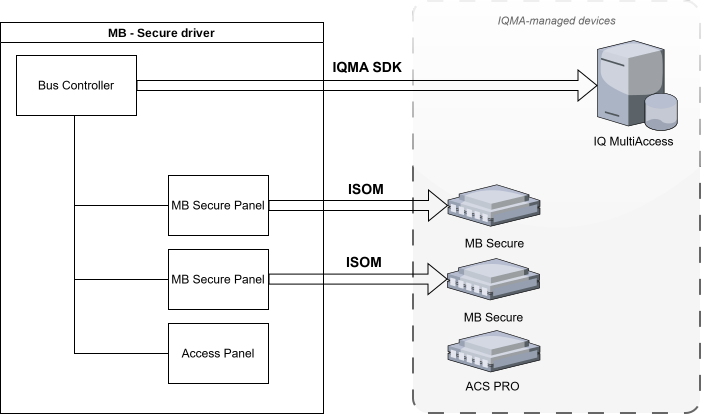
The two channels are configured independently. The IQMA SDK channel manages identities and credentials; the ISOM channel manages intrusion-panel state, commands and real-time events. Loss of one channel does not necessarily interrupt the other channel.
Device Category
✓ |
ACS |
DVR |
|
|---|---|---|---|
✓ |
IAS |
Perimetry |
|
FPS |
Building |
||
CCTV |
Other |
Supported Functionality
✓ |
Import From File |
Fire Panel Networking Mode |
|
|---|---|---|---|
Combined Credentials |
Card Learning |
||
Lift |
✓ |
Dynamic Upload |
|
✓ |
Encrypted Communication |
✓ |
Access Time Restrictions |
Load Configuration |
Holidays Support |
||
Time Synchronization |
✓ |
PIN Management |
|
Time Zone Support |
✓ |
Card Management |
|
Live Video Streaming |
Fingerprint Management |
||
Recorded Video Streaming |
Reserved Memory Zones |
||
Video Records Downloading |
Antipassback Forgiveness |
||
Voice Transmitting |
✓ |
Handicapped Flag |
|
Audio Streaming |
Alarm Suppression |
||
PTZ |
Fire Alarm Counter |
||
Presets |
✓ |
Device Audit Log Retrieval |
|
Motion Detection |
✓ |
Remote Device Control |
|
Live Stream Snapshot |
Wiegand Biometric Support |
||
Record Stream Snapshot |
Discovery |
||
Multiple Stream Types |
Sending Configuration |
||
Person Data Read |
✓ |
Migration to C4 Transformers |
Compatibility, Dependencies and Licensed Devices
Supported and validated combinations
Area |
Source-derived requirement |
Evidence / limit |
|---|---|---|
C4 framework |
C4 FWK4 |
Document scope and title. |
Manufacturer software |
IQ Multi Access 27.10.x.x development baseline |
DotNetConCtr.dll must match the installed IQ Multi Access version. |
Panel firmware |
MB-Secure firmware V04 or later |
Required for the ISOM channel. |
ISOM transport |
Secure WebSocket on TCP 443; TLS 1.2 or higher |
Remote MANAGEMENT-SOFTWARE client required. |
IQMA transport |
TCP 23757 to the IQ Multi Access server |
IQ Server service, DotNetConCtr.dll and cacert.pem required. |
Panel entitlement |
Minimum OEM Level 2; OEM Level 3 for event-log access |
Intrusion/access control and audit-log scope. |
Prerequisites and dependencies
• IQ Net Edit and IQ Multi Access are installed and configured.
• The IQ Server service is running and reachable on TCP port 23757.
• The matching DotNetConCtr.dll and cacert.pem files are present in the driver installation directory.
• A dedicated active MANAGEMENT-SOFTWARE remote client is configured in IQ Panel Control for the ISOM connection.
• TCP port 443 is open between the C4 server and the MB-Secure panel.
• IQ Multi Access full access is enabled and an up-to-date OPIF export is available for the panel.
Licensed Devices
MB Secure Panel
Access Panel (ACS PRO)
The licensed-device integration test verifies that one configured licensed node consumes one C4 driver licence. The licence calculation is performed when the driver starts.
Restrictions and Important Notes
Capacity, credential and schedule restrictions
Each person can have one PIN and one card in a single device-memory position. Assigning more than one card to the same person consumes an additional device-memory position.
For more details, see the Credentials Synchronization section.
Access is denied at doors connected to an armed partition or area.
When calendars are uploaded, IQMA supports at most four time ranges with distinct start and end times and weekday definitions. A schedule from 08:00 to 16:00 for the entire week consumes one time range.
A schedule with two windows on one day, for example 08:00–11:00 and 12:00–16:00 on Monday, consumes one time frame with two time windows. Each time frame supports at most two windows; additional windows require another time frame. IQMA supports at most four time frames.
After an upload is invoked, changes can require time to become effective. During that interval, PIN or card access attempts can be denied.
The Bus Controller property User Record Max Number controls how many users are uploaded to IQMA. Each panel can have different memory settings and a different maximum number of users.
This limit is shown in IQ Panel Control under Panel properties → License.
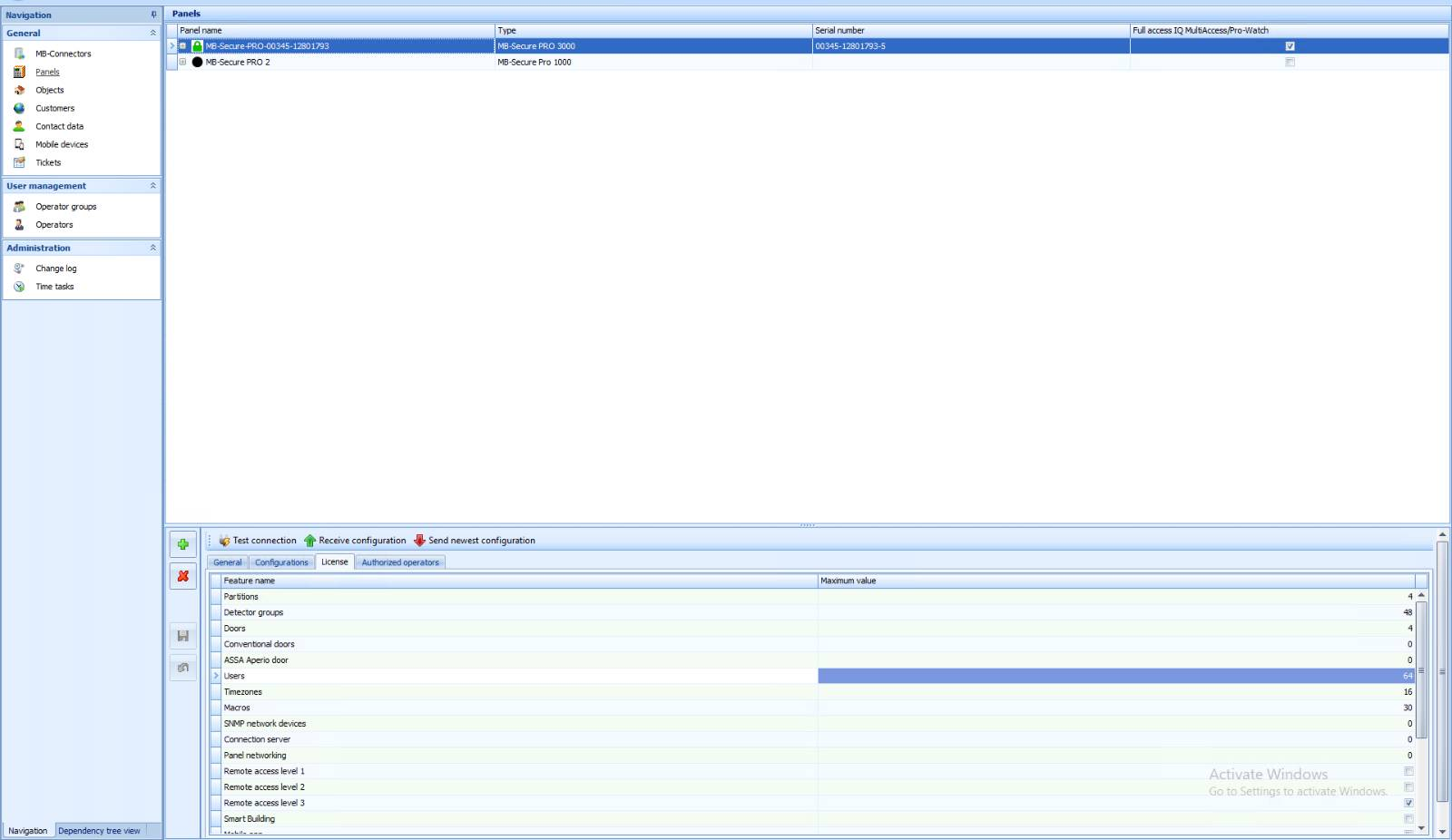
During an upload, time restrictions are applied only to doors, not to partitions. IQMA maps partitions to persons, while time restrictions are mapped to doors; therefore, partition access is not time-restricted by this integration.
Granting arming/disarming rights
In IQ Panel Control, a person can receive Operating Unit Rights and/or door-side arming/disarming rights. Door-side rights are controlled through the extended properties.
Granting operating-unit rights
To grant operating-unit rights, select the partition configured in IQ Panel Control for the applicable operating unit.
The Arm and Disarm check boxes do not apply to partitions because operating-unit rights are configured entirely in IQ Panel Control.
Security and operational boundaries
• The ISOM channel uses WSS with TLS 1.2 or higher. The remote-client account must be dedicated to the C4 driver and stored as a protected C4 credential.
• The first ISOM authorization request uses the configured user name and an MD5-hashed password inside the documented Basic authorization construction. Authorization is not repeated after the session is established.
• The panel processes ISOM requests sequentially. The driver waits for the keep-alive response and acknowledges each received event before sending another command.
• Configuration changes in IQ Panel Control can invalidate the current OPIF mapping. Export and import a fresh OPIF file whenever relevant panel entities are added, removed or changed.
How to Connect Device to C4
Topology and communication flows
Configure both communication channels according to the applicable operating scope. The Bus Controller connects to IQ Multi Access for credential and person management. Each MB Secure Panel node connects directly to its physical panel over ISOM for intrusion, door-control and real-time event operations.
Channel 1: Bus Controller – IQ Multi Access (IQMA SDK)
The Bus Controller device connects to the IQ Multi Access (IQMA) server using the IQMA SDK provided as the native .NET library DotNetConCtr.dll. This channel is responsible for all credential and identity management operations. Through this connection the driver manages persons, cards and PINs in the MB-Secure system.
Prerequisites for this channel:
The IQMA server must be reachable over TCP port 23757.
The IQ Server service must be running.
The DotNetConCtr.dll library must be present in the driver installation directory.
The cacert.pem file must be present in the driver installation directory.
Configure the IP address, port and FreeDrivenId (the login identifier assigned to the IQ Multi Access node in IQ Net Edit Hardware View) on the Bus Controller node in the C4 device tree.
Windows Applications
The following applications are required for communication with the IQ Multi Access SDK:
IQ Net Edit
IQ Multi Access
Communication
Use the third-party application channel for integration platforms; do not use the Multi Access channel.
Configure the channel as follows:
Search for IQ Net Edit from Start and select Open file location.
Right-click on the application and select Properties
Append " -g" to the Target path to activate the development environment.
Run IQ Net Edit.
Right-click on Location → Add → Software → IQ Generic Application
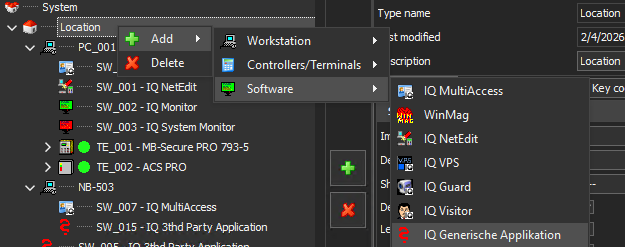
Configure the login identifier and use the same value for the C4 Bus Controller FreeDrivenId; this value identifies the IQMA SDK connection.
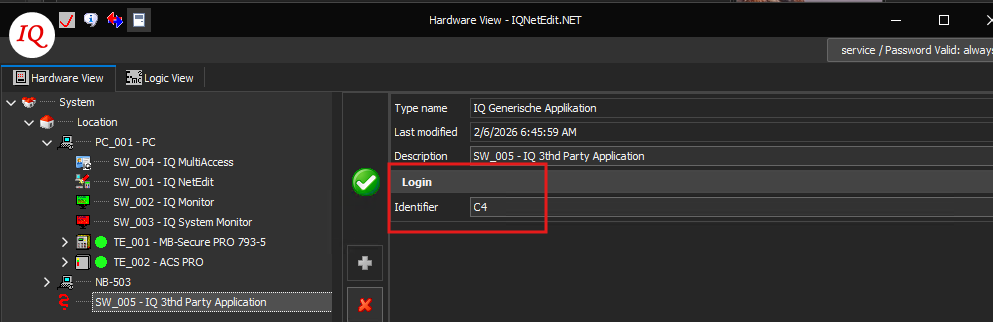
Note: DotNetConCtr.dll varies by IQ Multi Access version. Use the library that matches the installed software. The driver was developed against version 27.10.x.x.
Channel 2: MB Secure Panel – ISOM Protocol
The MB Secure Panel device (placed under the Bus Controller in the C4 device tree) connects directly to the physical MB-Secure control panel using the ISOM protocol. ISOM transports standard HTTP requests inside WebSocket binary frames over a secure WSS connection on TCP port 443, using TLS 1.2 or higher. All data is exchanged in JSON format. This channel handles intrusion detection and alarm panel operations: partition arm/disarm, door lock/unlock, and real-time event monitoring.
Prerequisites for this channel:
TCP port 443 is open between the C4 server and the MB-Secure panel.
MB-Secure panel firmware V04 or later is installed.
The panel is licensed with minimum OEM Level 2 for intrusion and access control. OEM Level 3 is required for event log access.
Remote Clients Configuration
Remote-client configuration is required for direct ISOM communication between the C4 driver and the MB Secure Panel. Create and activate a remote client of type MANAGEMENT-SOFTWARE; the example below uses the name C4.
Open IQ Panel Control Shell. After Test connection succeeds, right-click the MB-Secure Pro panel and select Receive configuration. Save the configuration and open IQ Panel Control. Navigate to System → Remote Clients, select the MANAGEMENT-SOFTWARE client type, configure the user name and password for MB-Secure Panel access, and ensure that the client is active.
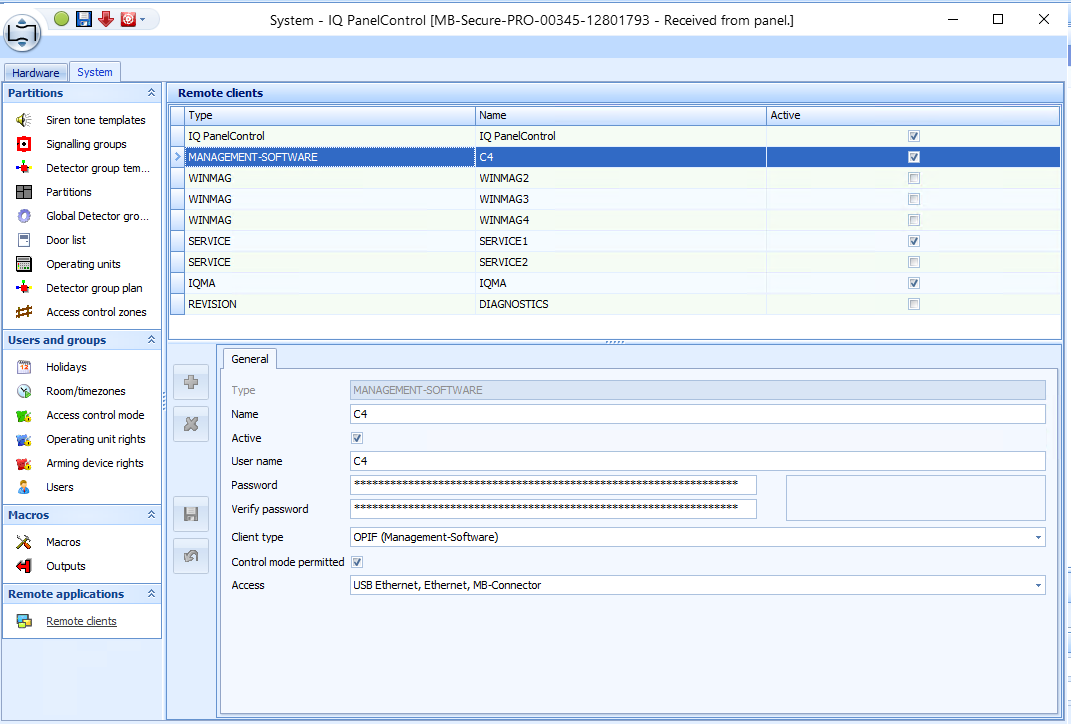
IQ Multi Access – Full Access configuration
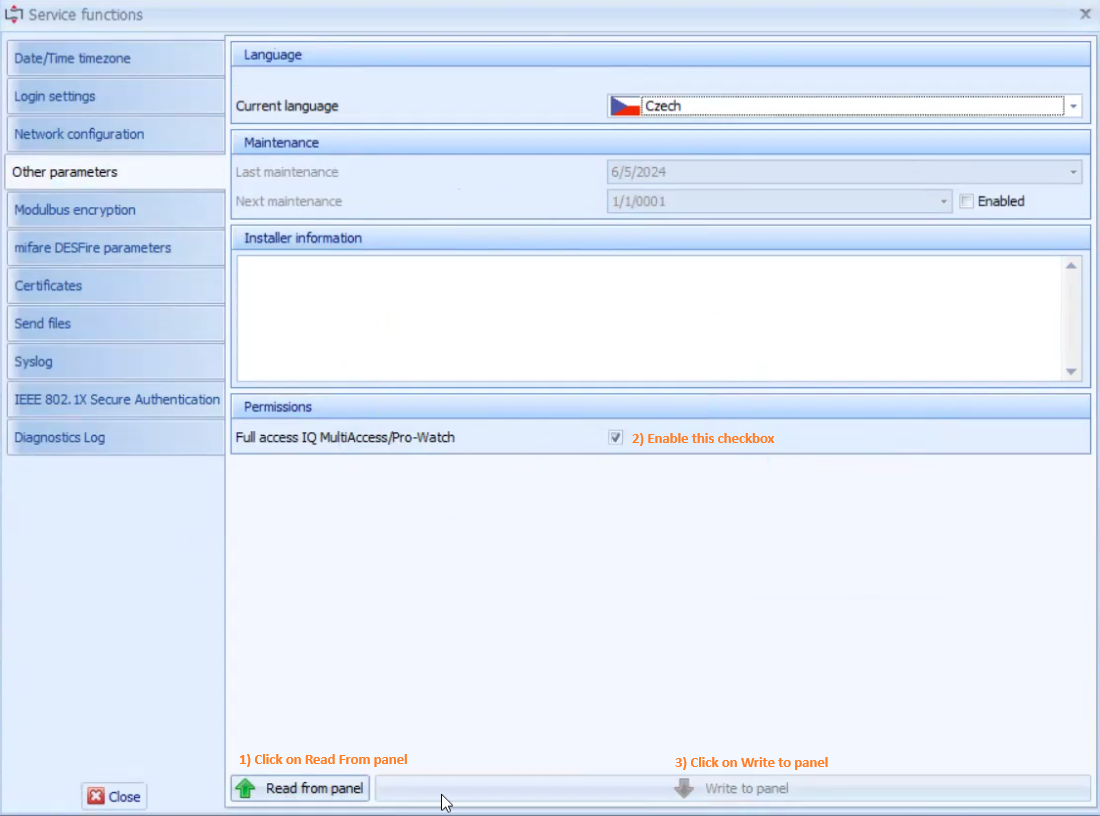
In IQ Panel Control Shell, navigate to Panels → Service Functions → Other. Select Read from panel, enable IQ-Multi Access full access, and then select Write to panel.
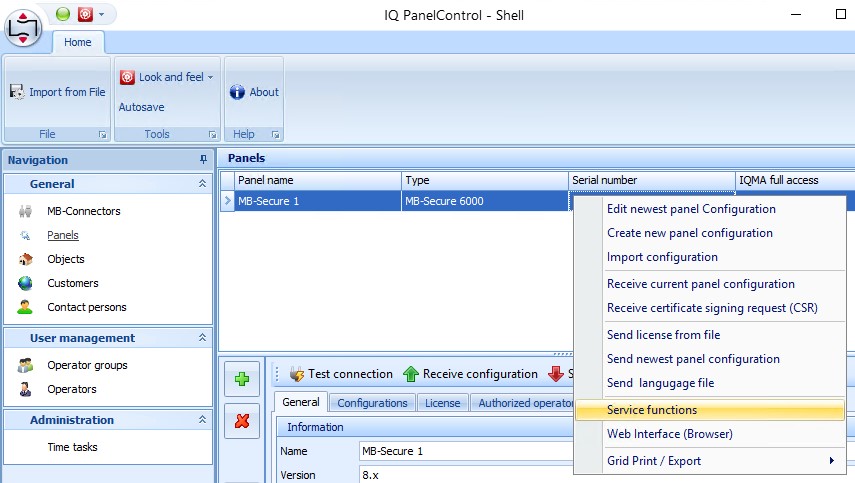
Connection and Initial Commissioning Checklist
1. Verify the compatible IQ Multi Access version, MB-Secure firmware, OEM licence level and required network routes.
2. Create and activate the IQMA generic application and use the same login identifier as the C4 Bus Controller FreeDrivenId.
3. Create and activate a dedicated MANAGEMENT-SOFTWARE remote client for the MB Secure Panel connection.
4. Enable IQ Multi Access full access on the panel.
5. Configure the C4 device tree properties, validate the original device names and import the current OPIF file.
6. Start the two communication channels and confirm that C4 reports the real device states without configuration failures.
Device Configuration
Device tree and property records
The Bus Controller is the root node. Access Panel and MB Secure Panel nodes are added below the Bus Controller. The MB Secure Panel branch contains panel entities imported or configured from the OPIF model; the Access Panel branch contains the IQMA-managed access-control entities. Exact parent-child rules and property definitions follow.
Bus Controller
This is the root device.
Property |
Definition |
Default Value |
Range |
|---|---|---|---|
Enabled |
Defines whether circuit usage is enabled |
Yes |
|
Time Zone |
Device location time zone |
System Time |
|
IP Address |
IP Address of the computer where IQ Multi Access is installed. |
||
Port |
Communication port used by IQ Multi Access. |
23757 |
0 - 65535 |
Username |
System operator account defined in IQ Net Edit. |
||
Password |
Password of the System operator account defined in IQ Net Edit. |
||
FreeDrivenId |
Login identifier of the IQ Multi Access node in IQ Net Edit (Hardware View). |
||
Credential Upload enabled |
Enables user synchronization for this panel. |
Yes |
Yes/No |
Night Full Upload |
Night Upload |
||
Night Incremental Upload |
None |
||
Schedule Max Number |
Maximum number of rooms/time zones the device can store; for example, 256 for MB-Secure 6000. |
10000 |
0 - 65535 |
UserRecord Max Number |
Maximum number of persons the device can store; for example, 1,024 for MB-Secure 6000. |
10000 |
32-bit unsigned integer |
Timeout |
00:00:30 |
Access Panel
This device can be added under the Bus Controller
Property |
Definition |
Default Value |
Range |
|---|---|---|---|
Original Device Name |
Description parameter of the Controller/Terminal in IQ Net Edit. This is mandatory. |
MB Secure Panel
This device can be added under the Bus Controller
Property |
Definition |
Default Value |
Range |
|---|---|---|---|
IP Address |
IP address of the MB-Secure panel. |
||
Port |
MB Secure WebSocket communication port |
443 |
0 - 65535 |
Username |
Remote client account name |
||
Password |
Remote client password |
||
Time Zone |
Device location time zone |
System Time |
Time Zone |
Timeout |
WebSocket communication timeout |
||
Time Synchronization Interval |
Interval for periodic time synchronization between C4 and MB Secure Panel |
||
Original Device Name |
Description parameter of the Controller/Terminal in IQ Net Edit. |
Expander
This device can be added under the MB Secure Panel
Property |
Definition |
Default Value |
Range |
|---|---|---|---|
Address |
OPIF ID of VirtualPeripheral |
0 - 65535 |
Partition
This device can be added under the MB Secure Panel
Property |
Definition |
Default Value |
Range |
|---|---|---|---|
Address |
OPIF ID of Partition |
0 - 65535 |
|
Original Device Name |
Door
This device can be added under the MB Secure Panel
This device can be added under the Access Panel
Property |
Definition |
Default Value |
Range |
|---|---|---|---|
Address |
OPIF ID of VirtualDoor |
0 - 65535 |
|
Original Device Name |
Name parameter in IQ Multi Access. This is mandatory. |
Card Reader
This device can be added under the Door
Property |
Definition |
Default Value |
Range |
|---|---|---|---|
Address |
OPIF ID of AccessPoint. This is mandatory only for card readers under MB Secure Panel. |
0 - 65535 |
|
Access Direction |
Reader movement direction |
None |
In Out None |
Supported Credential Types |
Credential types that this reader can enroll |
Detector Group
This device can be added under the Partition
Property |
Definition |
Default Value |
Range |
|---|---|---|---|
Address |
OPIF ID of DetectorGroup |
0 - 65535 |
Co Detector
This device can be added under the Expander
This device can be added under the Detector Group
Property |
Definition |
Default Value |
Range |
|---|---|---|---|
Address |
OPIF ID of VirtualSmokeDetector |
0 - 65535 |
Detector
This device can be added under the Expander
This device can be added under the Detector Group
Property |
Definition |
Default Value |
Range |
|---|---|---|---|
Address |
OPIF ID of VirtualPIR |
0 - 65535 |
Input
This device can be added under the Expander
This device can be added under the Detector Group
Property |
Definition |
Default Value |
Range |
|---|---|---|---|
Address |
OPIF ID of VirtualInput |
0 - 65535 |
|
Event Level |
Processing level for the Input Activated status |
Info |
Silent Info Warning Alarm |
Output
This device can be added under the Expander
This device can be added under the Detector Group
Property |
Definition |
Default Value |
Range |
|---|---|---|---|
Address |
OPIF ID of VirtualOutput |
0 - 65535 |
Configuration validation principles
• Use the exact case-sensitive Original Device Name values from IQ Multi Access or IQ Panel Control where required.
• Keep address values unique within the applicable device type and map OPIF entities using the documented base offsets.
• Treat credentials, remote-client passwords and system-operator passwords as protected configuration values.
• Restart or reinitialize communication after changes that require a fresh device-tree or OPIF mapping.
Configuration Transfer and Device Discovery
OPIF file import
The MB Secure driver requires knowledge of the physical panel entity structure — partitions, doors, inputs, and outputs — in order to map C4 device tree nodes to their corresponding ISOM identifiers. This mapping is obtained by exporting an OPIF file from the IQ Panel Control (IQPC) software and importing it into the driver configuration.
Exporting OPIF from IQ Panel Control
Open IQ Panel Control Shell. After Test connection succeeds, right-click the MB-Secure Pro panel and select Receive configuration. Save the configuration and open IQ Panel Control.
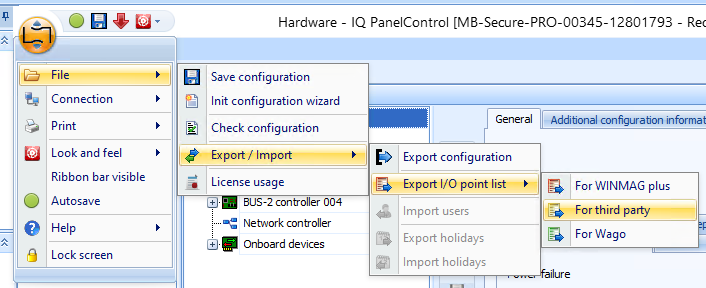
Open the application menu, select File → Export / Import → Export I/O point list → For third party, choose the OPIF export destination, and confirm.
Note: The exported file contains entries for all configured objects on the panel at the time of export. If the panel configuration changes (e.g., new zones or doors are added), a fresh OPIF export and re-import is required to keep the driver in sync.
Load devices from OPIF file into C4
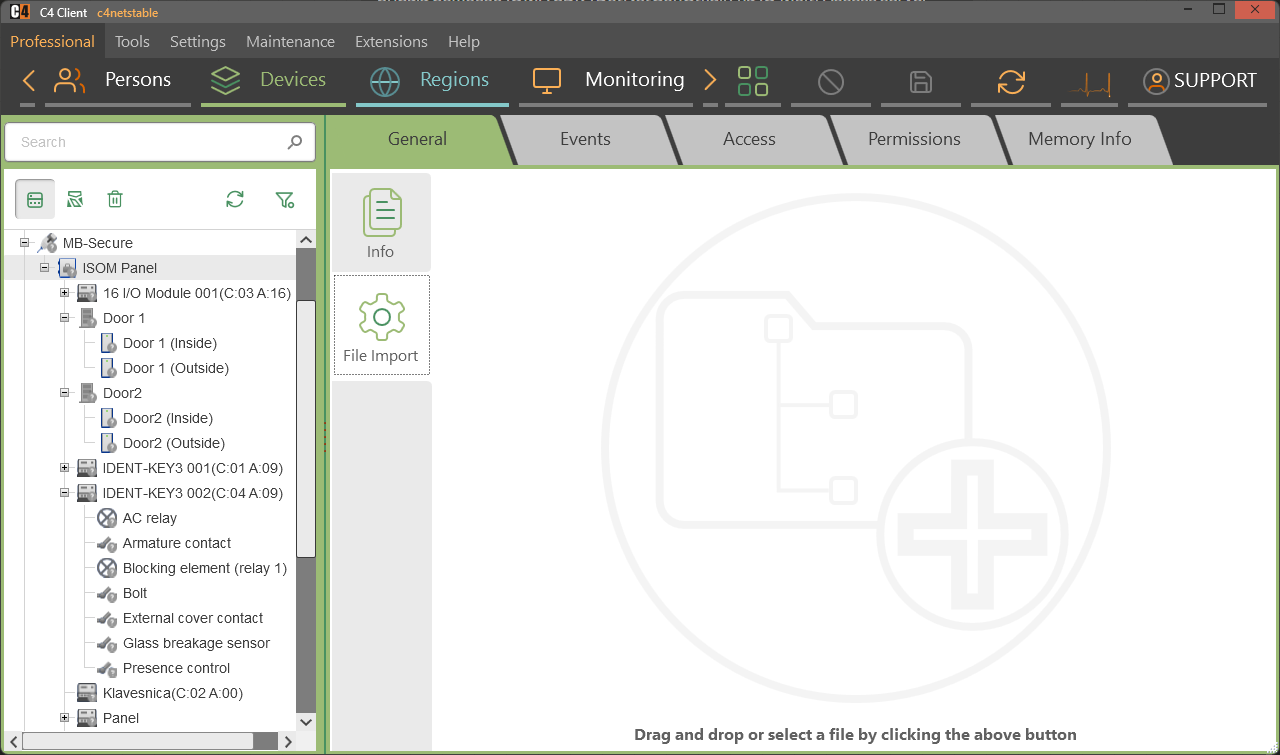
Select the target MB Secure Panel in the C4 device tree. Open the File Import tab, then drag the OPIF file to the import area or select it through the file picker. When the import finishes, restart communication with the MB Secure Panel to apply the imported changes.
Transfer acceptance checks
• Only the supported OPIF file format is accepted.
• Imported entities are created with the expected C4 device types and address mapping.
• After import, restart communication with the MB Secure Panel so the imported changes take effect.
• If the panel configuration changes, export and import a fresh OPIF file before validating states and commands.
Supported Identifiers
Supported Cards
During driver development, the HID 26 card type was tested.
IQMA uploads card numbers up to 32 bits correctly. When a card number exceeds this limit, the uploaded value is set to 0.
Fetch Original Device Name
For a successful connection, obtain the panel, door and partition names from IQMA and IQ Panel Control as described below.
Panel Name
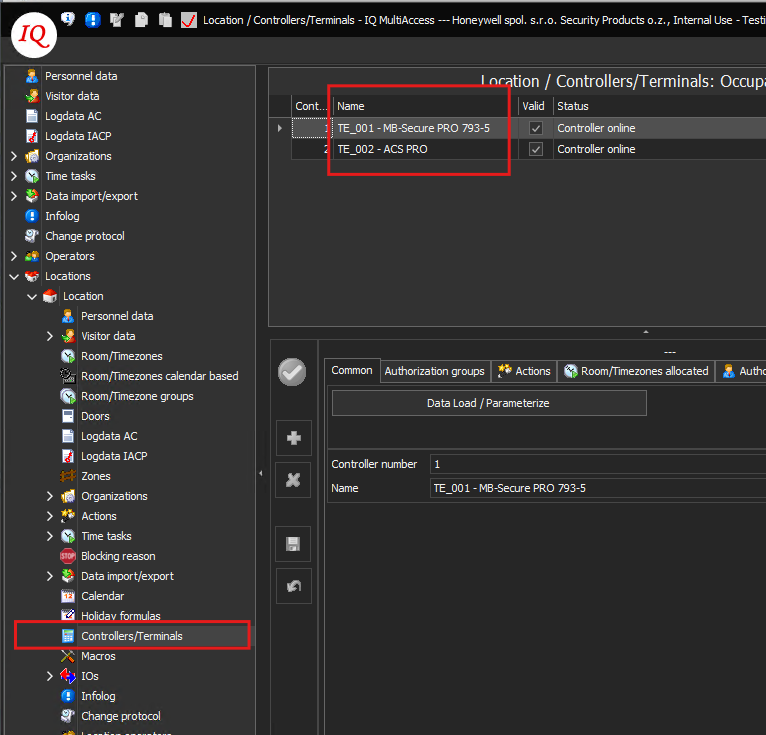
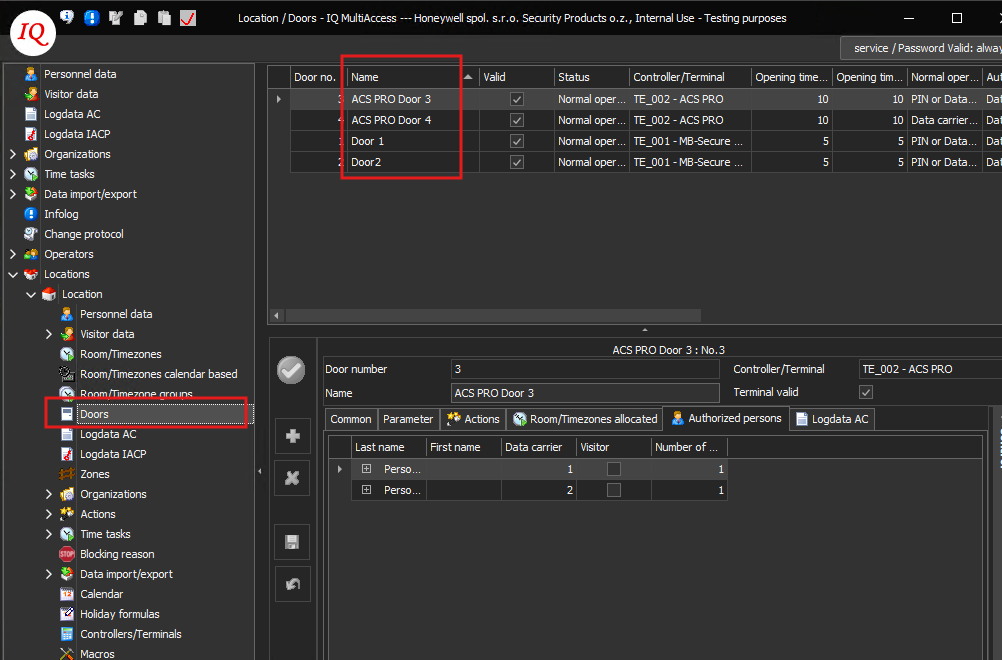
Refer to the image below to obtain the names of the Access Panel and MB Secure Panel from IQ Multi Access. Enter this value in the Original Device Name property in C4. The name is case-sensitive and must be copied exactly, including all whitespace.
Door Name
Refer to the image below to obtain door names from IQ Multi Access. Enter this value in the Original Device Name property for the corresponding door in C4. The name is case-sensitive and must be copied exactly, including all whitespace.
Partition Name
Follow the steps below to obtain partition names from IQ Panel Control. Enter each value in the Original Device Name property for the corresponding partition in C4. The name is case-sensitive and must be copied exactly, including all whitespace.
Open Shell application
Click on Receive configuration for the respective MB-Secure panel
Save and Start IQ control panel
Go to the System tab
Go to the Operating unit rights section
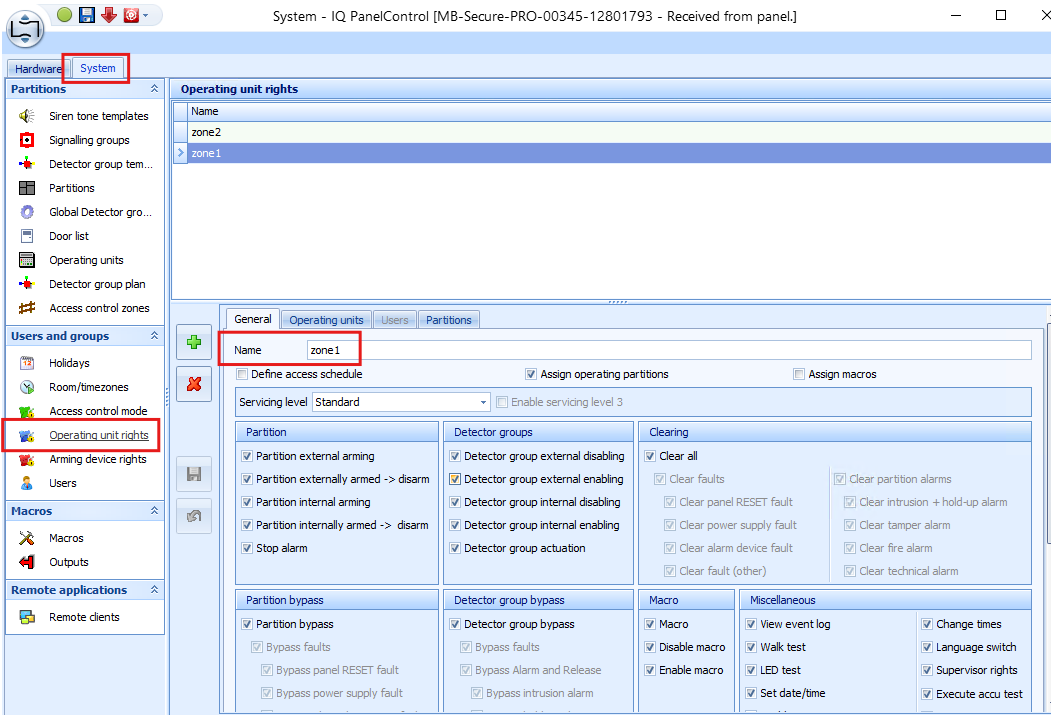
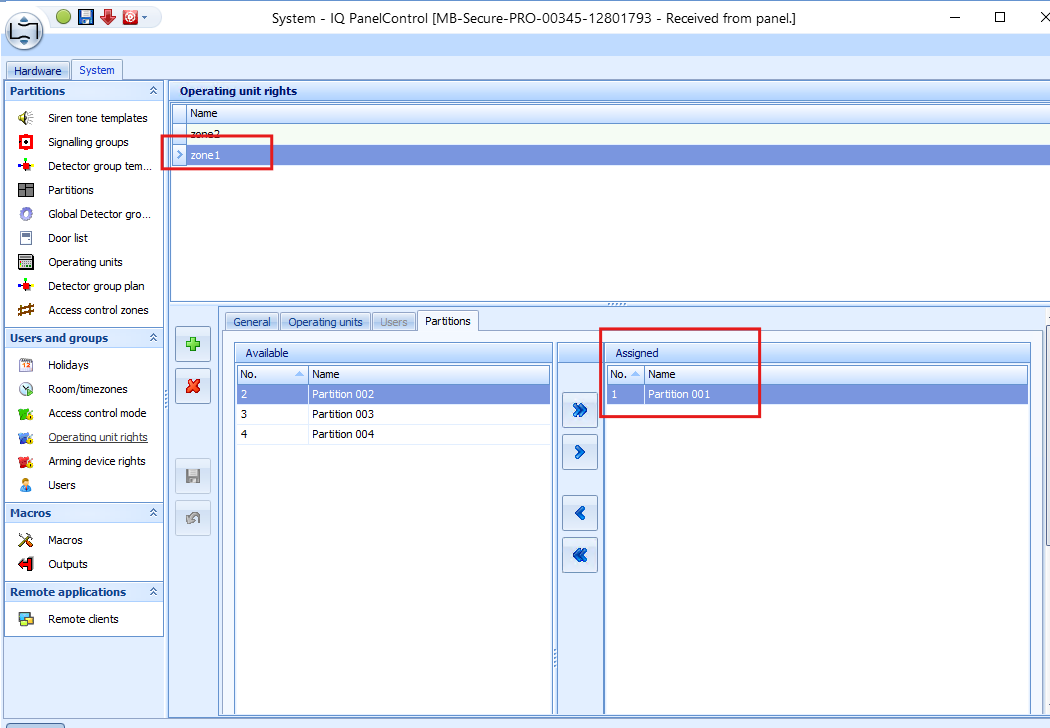
Select the highlighted partition name shown in the image above.
Enter this value in the Original Device Name property for the partition in C4. The name is case-sensitive and must be copied exactly, including all whitespace.
Ensure that the partitions exist in IQ Panel Control; otherwise, the upload fails.
Addressing OPIF Entities in C4 device tree
The OPIF export is a semicolon-delimited text file generated by IQ Panel Control. Each line represents one entity configured on the MB Secure Panel. For export instructions, see Exporting OPIF from IQ Panel Control.
For the MB Secure ISOM channel, the driver pairs each C4 device with an OPIF entity. This mapping allows the driver to control and monitor the correct physical element. Set the C4 Address property to the OPIF entity ID according to the rules below.
Each entity in the file is identified by a unique numeric ID. The ID encodes the entity type: each type occupies its own numeric range starting at a fixed base offset. The entity's sequential index (1, 2, 3...) is the difference between its ID and that base offset. The following entity types are consumed by the MB Secure driver:
C4 Device Type |
OPIF Entity Class |
Base Offset (hex) |
ID range starts at |
|---|---|---|---|
Partition |
Partition |
0x00100000 |
1048576 |
Detector Group |
DetectorGroup |
0x00300000 |
3145728 |
Card Reader |
AccessPoint |
0x00400000 |
4194304 |
Door |
VirtualDoor |
0x00120000 |
1179648 |
Input |
VirtualInput |
0x00140000 |
1310720 |
Output |
VirtualOutput |
0x00170000 |
1507328 |
Expander |
VirtualPeripheral |
0x00180000 |
1572864 |
Detector |
VirtualPIR |
0x00190000 |
1638400 |
Co Detector |
VirtualSmokeDetector |
0x001C0000 |
1835008 |
The remaining OPIF types—RemoteClient, UI, User and Macro—are not used for ISOM addressing by the driver.
OPIF export Example for partitions and doors
1048577 ; Partition 001 ; Partition ; MBEMEA_Partition ; ...
1048578 ; Partition 002 ; Partition ; MBEMEA_Partition ; ...
...
18874369 ; Door 1 ; VirtualDoor ; VirtualBusDoor ; ...
18874370 ; Door 2 ; VirtualDoor ; VirtualBusDoor ; ...
Partition IDs begin at 1048576, so Partition 001 (ID 1048577) in C4 device tree will be a Partition with Address 1 and Partition 002 (ID 1048578) will have Address 2.
VirtualDoor IDs begin at 18874368, so Door 1 (ID 18874369) will be a Door with Address 1 and Door 2 (ID 18874370) will have Address 2 in C4 device tree.
Tip: See Configuration Transfer and Device Discovery for automated import of an OPIF file into the C4 device tree.
Validation note: The technical source contains a conflicting VirtualDoor base offset: the mapping table lists 0x00120000 / 1,179,648, while the worked example uses 18,874,368. Confirm the actual OPIF range produced by the deployed panel before configuring door addresses.
Identifier handling rules
• Original Device Name matching is case-sensitive and includes whitespace.
• OPIF entity identifiers are converted to C4 addresses by subtracting the documented base offset for the entity class.
• The tested card format is HID 26. IQMA uploads card numbers correctly up to the documented 32-bit limit; larger values may be set to 0.
Credentials Synchronization
Credential synchronization is performed through the Bus Controller IQMA SDK channel. Device memory, IQ Multi Access licence limits, person-record allocation and time-zone allocation jointly determine the usable capacity.
Each central unit (MB-Secure device) has limited memory for time zones and persons.
For example, the MB-Secure 6000 supports 256 time zones and 1,024 persons. The IQ Multi Access licence also imposes limits; therefore, the usable number of persons and time zones depends on both the licence and device memory.
Persons with standard access rights
When persons are created in C4, each credential assigned to a person consumes device memory.
Example 1
A person can have one PIN and one card. Whether one or both are assigned, the person consumes one device-memory position.
Example 2
A person with two cards or two PINs consumes two device-memory positions.
Access / Calendars
Access schedules are allocated per door.
Example 1
If Person 1 and Person 2 both have access to Door 1 and Door 2 under the same calendar, the configuration consumes two time-zone memory positions—one per door.
Example 2
If Person 1 has access only to Door 1 and Person 2 has access only to Door 2 under the same calendar, the configuration consumes two time-zone memory positions—one per door.
Example 3
If Person 1 uses Calendar 1 and Person 2 uses Calendar 2 for both Door 1 and Door 2, the different calendar definitions double the allocation to four time-zone memory positions.
Upload modes and verification
Mode |
Purpose |
Verification |
|---|---|---|
Full Upload |
Cleans device memory and synchronizes the complete current access-right set. |
Confirm completion, memory information and access with representative credentials. |
Incremental Upload |
Sends changes since the previous completed synchronization. |
Confirm changed persons, credentials, schedules and access outcomes. |
Selective Upload |
Sends the selected person to the device. |
Confirm that existing persons remain valid and the selected person receives the expected access. |
Night upload |
Runs the configured scheduled full or incremental upload. |
Confirm configured schedule and the corresponding audit-log completion event. |
Profiles (Extended Properties)
Device profiles expose driver-specific person properties. The MB Secure driver supports the following extended properties and applies them during credential synchronization.
Extended Properties
Property |
Definition |
Default Value |
Range |
|---|---|---|---|
Arm |
Grants door-side arming rights |
No |
Yes/No |
Disarm |
Grants door-side disarming rights |
No |
Yes/No |
Handicapped |
Indicates whether the Handicapped flag is assigned to the person |
No |
Yes/No |
Language |
The language setting for this person |
Default |
Note: The Arm and Disarm properties apply only to door-side arming and disarming. They do not control partition arming or disarming, which is configured in IQ Panel Control under Operating Units.
The Handicapped property is transmitted to IQMA; its physical effect depends on the configured device behavior.
Time Management
The MB Secure Panel integration supports C4 unified time management. Time handling is configured through the device Time Zone property and, for periodic synchronization, the Time Synchronization Interval property.
Area |
Configuration / behavior |
Test coverage |
|---|---|---|
Bus Controller |
Time Zone; default is System Time. |
Time-zone consistency for IQMA-managed operations. |
MB Secure Panel |
Time Zone; default is System Time. |
Unified Time Management - Time Zone Support. |
Startup synchronization |
The driver synchronizes the panel after communication is established when required. |
Unified Time Management - Time Synchronization on Driver Startup. |
Periodic synchronization |
The configured Time Synchronization Interval controls recurring synchronization. |
Unified Time Management - Periodical Synchronization. |
Audit timestamps |
Events are stored and displayed according to C4 time-zone handling. |
Time-zone and audit-log integration tests. |
When validating time behavior, account for daylight-saving-time changes. The source test procedure records a time-set audit event only when the time difference is greater than five minutes and treats the test as applicable to MB Secure Panel nodes.
Technology-Specific Functionality
Communication Protocol Implementation Basics
This section summarizes the ISOM communication principles implemented by the driver. It covers the core mechanisms, not the full feature set.
Connection Establishment
The driver establishes the ISOM connection using the following sequence:
Open a secure WebSocket to wss://<Panel IP>:443 with sub-protocol honeywell.isom.http declared during the WebSocket handshake.
Send the first HTTP GET to /ISOM/System/time with header Authorization: Basic base64(username:md5(password)). The password must be MD5-hashed (lowercase hex) before Base64 encoding.
On 200 OK, store the returned cookies SESSION_UID and the session token. Use them as Cookie headers in all subsequent requests. The Authorization header must not be sent again – the panel returns AlreadyLoggedIn if it is included.
Register event subscriptions via HTTP POST to /ISOM/EventMgmt/EventStreams/filters for all required event types (partition states, door states, alarms, etc.).
Perform an initial state query for all entities (partitions, doors, inputs, outputs). After this synchronization, rely exclusively on push events for state updates – do not repeat state queries on each event.
Start the keep-alive timer (see Keep-Alive section below).
Keep-Alive (Heartbeat)
The MB-Secure panel enforces a 25-second session timeout. The timeout counter is reset only by sending GET /ISOM/System/time. Control commands (PUT/POST), received events and other traffic do not reset it. The driver must always wait for the keep-alive response before issuing the next command – the panel processes requests sequentially on a single WebSocket connection.
Event Handling
After event subscriptions are registered, the panel pushes state-change events to the driver over the same WebSocket connection. Each event must be acknowledged immediately by responding with HTTP/1.1 200 OK before any further command is sent. Failure to acknowledge blocks subsequent event delivery. The driver evaluates the state information contained in the event payload directly and does not invoke additional state-query requests in response to events.
Reset Command on Partition
The Reset command clears all active alarms and troubles on a partition. Since ISOM does not provide a single "reset all" command, the driver sends a series of individual clear requests:
PUT ISOM/AC/Partitions/{partitionId}/releaseState/clear clears releases on sensors within all zones associated with specified partition. A clear is not required for all sensors; it depends on the sensor type and make.
PUT ISOM/AC/Partitions/{partitionId}/troubleState/clear clears troubles in specified partition.
PUT ISOM/AC/Partitions/{partitionId}/alarmState/always/clear clears alarms of type '24*7' or 'always' in specified partition.
PUT ISOM/AC/Partitions/{partitionId}/alarmState/fire/clear clears alarms of type 'fire' in specified partition.
PUT ISOM/AC/Partitions/{partitionId}/alarmState/intruder/clear clears alarms of type 'intruder' in specified partition.
PUT ISOM/AC/Partitions/{partitionId}/alarmState/tamper/clear clears alarms of type 'tamper' in specified partition.
PUT ISOM/AC/Partitions/{partitionId}/alarmState/panic/clear clears alarms of type 'panic' in specified partition.
PUT ISOM/AC/Partitions/{partitionId}/alarmState/technical/clear clears alarms of type 'technical' in specified partition.
PUT ISOM/AC/Partitions/{partitionId}/alarmState/clear clears any remaining alarms (final sweep) in specified partition.
The panel returns HTTP 500 when attempting to clear an alarm or trouble type that is not currently active. This is normal ISOM behavior. Because the driver always sends all requests regardless of current partition state, HTTP 500 on individual requests is treated as non-critical and does not fail the overall Reset operation.
Disconnection
Before closing the connection, the driver must send DELETE /ISOM/System/session and wait for the response before closing the WebSocket. Closing the socket before the logout response is received leaves the session active on the panel, which may prevent immediate reconnection.
PIN and Duress Settings
IQMA supports PIN lengths from four to eight digits. Configure the required length in IQ Panel Control.
Review the PIN and duress settings as follows:
Open IQ Panel Control Shell. After Test connection succeeds, right-click the MB-Secure Pro panel and select Receive configuration. Save the configuration and open IQ Panel Control.
Navigate to Hardware → Panel → General → Global user settings.
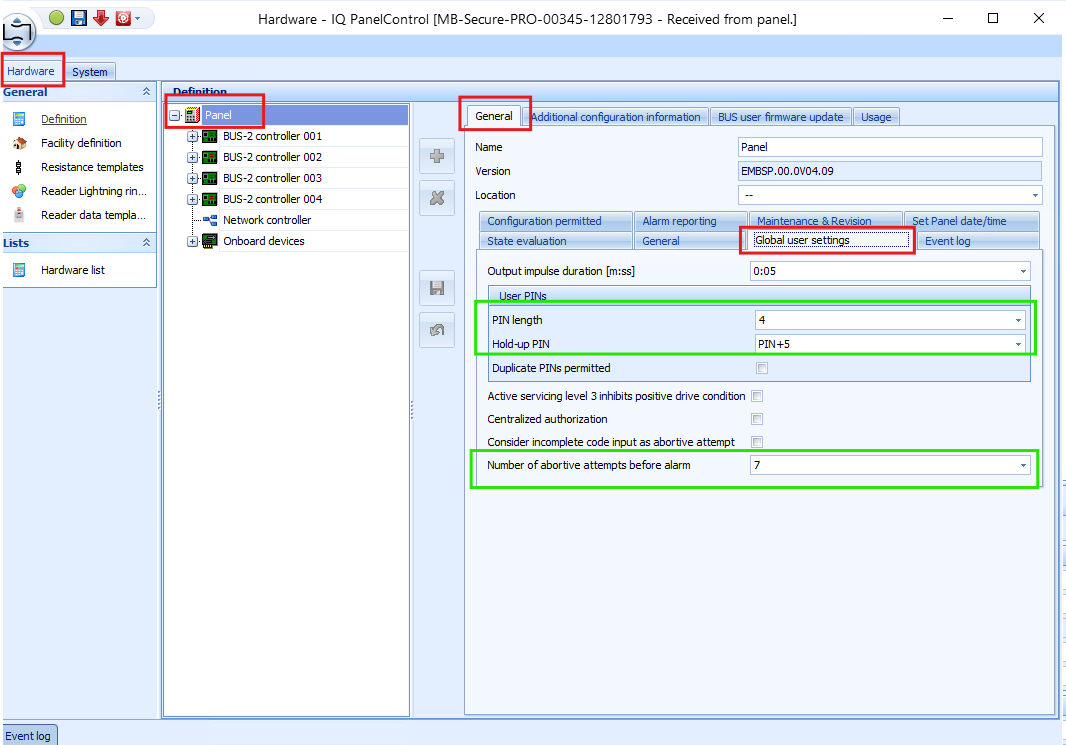
The following properties affect credential operation:
PIN Length: determines the required PIN length.
Hold-up PIN: defines the duress PIN as the user PIN plus N, where N is a value from 1 to 9. Disable this setting when duress PIN operation is not required.
Number of abortive attempts before alarm: defines how many incorrect PIN attempts are allowed before the reader is blocked for the configured interval. This setting can be disabled. During the blocking interval, the reader does not accept PIN entry.
After configuring the required values, save the changes and send the configuration to the MB-Secure panel.
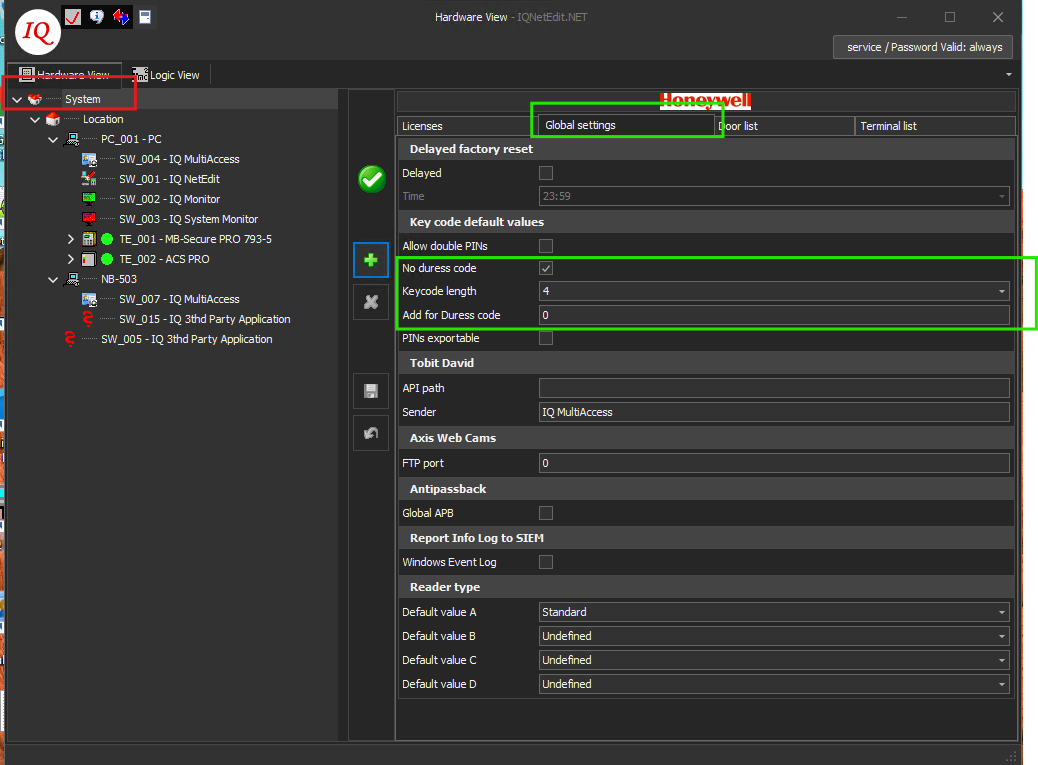
Configure the corresponding values consistently in IQ Net Edit.
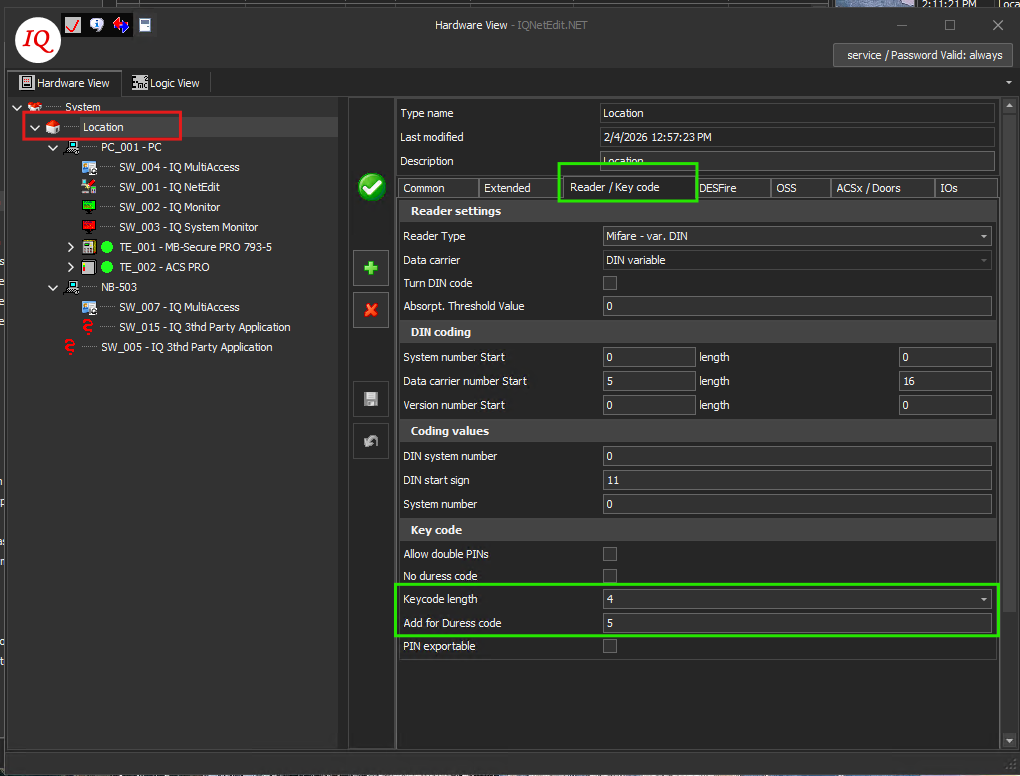
Ensure that the setting is consistent on both the System and Location nodes; otherwise, the upload can fail.
NOTE: The upload can complete even when the C4 PIN is shorter than the configured PIN length, but access can still be denied. Ensure that each PIN entered in C4 has the same length configured in IQ Net Edit and IQ Panel Control.
Remote Device Control
C4 exposes remote operations only for the device types and states listed below. Command delivery, resulting state and audit-log behavior are verified by the corresponding integration tests.
The C4 system supports the following operations on individual elements:
Element |
Operation |
Meaning |
|---|---|---|
Bus Controller |
Start |
Starts a stopped circuit |
Stop |
Stops a started circuit |
|
Restart |
Restarts a circuit |
|
Incremental Upload |
Sends differences of access rights to the device |
|
Full Upload |
Cleans device memory and synchronizes all access rights |
|
Selective Upload |
Sends selected person to the device |
|
Door |
Door Lock |
Locks a door latch |
Door Unlock |
Unlocks a door latch for defined time |
|
Door Manual Override On |
Disables the door latch |
|
Door Manual Override Off |
Enables the door latch |
|
Door Unlock Permanently |
Unlocks a door latch for undefined time |
|
Partition |
Arm |
Set partition to Full Set (Away) mode |
Disarm |
Unset Partition |
|
Force Arm |
Temporary bypass all zones that are not in normal state, then set partition to Full Set mode |
|
Mute |
Silence sirens within zones of all types in specified partition |
|
Test |
Start walk test (tests all sensors if it is functioning normally) on specified partition |
|
Finish Test |
Stop walk test on specified partition |
|
Reset alarm |
Perform multiple clear alarm commands on partition |
Partition Reset is implemented as a controlled sequence of ISOM clear operations. HTTP 500 responses for alarm or trouble types that are not active are treated as normal non-critical ISOM behavior and do not fail the overall reset operation.
Status Information Display
The following status records define the C4 presentation for each exposed device type. Status values are derived from the applicable IQMA or ISOM communication channel and from the mapped device entity.
The device status information is displayed on the following components:
Bus Controller
Status |
Description |
|---|---|
Connecting in Progress |
This state is used when a communicator is connecting to a device or external system. This may also occur after a communicator has been disconnected and is trying to reconnect. |
Initialized |
The plugin has started, preparing background data in order to start running. Plugin properties have been validated. |
Starting |
Upon sending start command to communicators, the system is starting up |
Configuration Failure |
The device has issues due to mistakes or wrong data in configuration parameters. |
Disconnected |
The communicator or device was in a connected state and has been disconnected. Communication has been lost due to any reason. |
Downloading History |
Upon reconnecting to a device or external system, the C4 system downloads history that has occurred during the disconnection. |
Upload Credentials |
Access permissions are currently being uploaded to the device. |
Idle |
Normal functioning state of a device |
Unknown |
The driver is unable to identify the device status. |
Access Panel
Status |
Description |
|---|---|
Configuration Failure |
The device has issues due to mistakes or wrong data in configuration parameters. |
Disconnected |
The communicator or device was in a connected state and has been disconnected. Communication has been lost due to any reason. |
Failure |
General technical failure on a device |
Idle |
Normal functioning state of a device |
Unknown |
The driver is unable to identify the device status. |
MB Secure Panel
Status |
Description |
|---|---|
Configuration Failure |
The device has issues due to mistakes or wrong data in configuration parameters. |
Disconnected |
The communicator or device was in a connected state and has been disconnected. Communication has been lost due to any reason. |
Failure |
General technical failure on a device |
Idle |
Normal functioning state of a device |
Unknown |
The driver is unable to identify the device status. |
Expander
Status |
Description |
|---|---|
Configuration Failure |
The device has issues due to mistakes or wrong data in configuration parameters. |
Disconnected |
The communicator or device was in a connected state and has been disconnected. Communication has been lost due to any reason. |
Failure |
General technical failure on a device |
Tamper |
Sabotage alarm on device |
Bypass |
Device is disabled |
Idle |
Normal functioning state of a device |
Unknown |
The driver is unable to identify the device status. |
Partition
Status |
Description |
|---|---|
Configuration Failure |
The device has issues due to mistakes or wrong data in configuration parameters. |
Disconnected |
The communicator or device was in a connected state and has been disconnected. Communication has been lost due to any reason. |
Alarm |
Indicating an alarm situation (activation of detector) |
Failure |
General technical failure on a device |
Tamper |
Sabotage alarm on device |
Testing |
The device is in walking test mode |
Armed |
The system is in a fully secured mode (activation of detector will trigger an alarm) |
Disarmed |
Normal functioning state of a device |
Unknown |
The driver is unable to identify the device status. |
Door
Status |
Description |
|---|---|
Configuration Failure |
The device has issues due to mistakes or wrong data in configuration parameters. |
Door Forcibly Opened |
The door has been forcefully physically opened by an unauthorized access |
Door Manual Override |
The door is physically closed, locked and cannot be opened. |
Door Normal |
The door is physically closed. The lock is locked. Entry is only possible for authorized persons. |
Door Opened |
The door is physically opened. |
Door Opened Too Long |
The door is physically open longer than the maximum duration configured on the device. |
Door Unlocked Permanently |
The door is physically closed, but can be opened at any point without any required access authorization, until it is locked again. |
Door Unlocked |
The door is physically closed, but can now be opened. This occurs after valid access authorization or sending a command to unlock the door. This occurs for a certain preconfigured time. This time is defined per device. |
Unknown |
The driver is unable to identify the device status. |
Card Reader
Status |
Description |
|---|---|
Configuration Failure |
The device has issues due to mistakes or wrong data in configuration parameters. |
Disconnected |
The communicator or device was in a connected state and has been disconnected. Communication has been lost due to any reason. |
Idle |
Normal functioning state of a device |
Unknown |
The driver is unable to identify the device status. |
Co Detector
Status |
Description |
|---|---|
Configuration Failure |
The device has issues due to mistakes or wrong data in configuration parameters. |
Disconnected |
The communicator or device was in a connected state and has been disconnected. Communication has been lost due to any reason. |
Fire Alarm |
Indicating fire alarm situation |
Failure |
General technical failure on a device |
Alarm Precondition |
Indicating alarm precondition situation |
Testing |
The device is in walking test mode |
Idle |
Detector is in normal state |
Bypass |
Detector is disabled |
Unknown |
The driver is unable to identify the device status. |
Detector
Status |
Description |
|---|---|
Configuration Failure |
The device has issues due to mistakes or wrong data in configuration parameters. |
Disconnected |
The communicator or device was in a connected state and has been disconnected. Communication has been lost due to any reason. |
Alarm |
Indicating fire alarm situation |
Failure |
General technical failure on a device |
Tamper |
Sabotage alarm on device |
Activated |
Detector is activated but Partition is disarmed |
Idle |
Detector is in normal state |
Bypass |
Detector is disabled |
Unknown |
The driver is unable to identify the device status. |
Input
Status |
Description |
|---|---|
Configuration Failure |
The device has issues due to mistakes or wrong data in configuration parameters. |
Disconnected |
The communicator or device was in a connected state and has been disconnected. Communication has been lost due to any reason. |
Alarm |
Indicating alarm situation |
Failure |
General technical failure on a device |
Tamper |
Sabotage alarm on device |
Activated |
Input is activated but Partition is disarmed |
Idle |
Input is in normal state |
Bypass |
Input is disabled |
Unknown |
The driver is unable to identify the device status. |
Relay
Status |
Description |
|---|---|
Configuration Failure |
The device has issues due to mistakes or wrong data in configuration parameters. |
Disconnected |
The communicator or device was in a connected state and has been disconnected. Communication has been lost due to any reason. |
Unknown |
Device status is unknown |
Bypass |
Relay is disabled |
Activated |
Relay is activated |
Idle |
Relay is deactivated |
Events and Audit Log
The driver records connection lifecycle, command delivery, device-state changes, alarms, access decisions, credential uploads and device audit-log retrieval in the C4 audit log. Exact event wording and placeholders are specified in the integration test cases.
Event family |
Source behavior |
Representative test coverage |
|---|---|---|
Connection and lifecycle |
Start, successful connection, interruption, restoration, authentication failure and internal communication failure. |
DNS Name Resolving; Network Connection Lost; Internal Communication Failure; Invalid Connection Credentials. |
Commands and state |
Command sent/delivered records followed by the resulting panel, partition or door state. |
Door and partition remote-control tests. |
Alarm and tamper |
Alarm, restore, tamper, duress and related state transitions. |
Intrusion Alarm; Tamper; Duress Alarm. |
Access decisions |
Granted, denied and unknown-credential records with person, device, reader and reason where available. |
Personal Management access-granted and access-denied tests. |
Credential upload |
Upload start, completion, failure, duration and affected upload type. |
PIN, Card, Selective Upload, Access Time Restriction and disconnection tests. |
Device history |
Events generated during disconnection are retrieved with the original device time when supported. |
Device Audit Log Retrieval. |
The source manual notes that credential type and credential name are not always supplied by the device; in those cases the driver reports the documented generic or Unknown values.
Operation, Recovery and Maintenance
Normal operation and health checks
• Confirm that the Bus Controller and each MB Secure Panel channel reach their expected normal state independently.
• Monitor credential upload completion before validating physical access; changes can require propagation time in IQMA and the panel.
• Use Memory Info and the configured UserRecord Max Number and Schedule Max Number values to prevent capacity overruns.
• Keep the OPIF file aligned with the physical panel configuration and retain the IQMA software version that matches the deployed DotNetConCtr.dll.
Recovery behavior
Condition |
Observable impact |
Recovery / verification |
|---|---|---|
IQMA network interruption |
Bus Controller and IQMA-managed nodes can become Disconnected; the independent ISOM stream can remain operational. |
Restore network access and verify reconnection, current states and audit events. |
ISOM interruption |
MB Secure Panel branch loses real-time intrusion/control communication; IQMA can remain operational. |
Restore TCP 443 reachability and the remote-client session, then verify event subscriptions and current state. |
Panel configuration change |
OPIF entity mapping can become stale or incomplete. |
Export and import a fresh OPIF file and restart panel communication. |
Credential upload interruption |
The upload fails and credentials may be only partially applied. |
Restore communication, reconcile device state and repeat the required upload. |
Session shutdown |
Closing the WebSocket before logout can leave a panel session active and delay reconnection. |
Send DELETE /ISOM/System/session and wait for the response before closing the WebSocket. |
Upgrade and Migration
Migration to C4 Transformers
This driver supports migration to C4 Transformers from:
Driver name |
Version |
|---|---|
MB Secure |
16.3.0.5 |
Before migration, back up the C4 configuration and record the current driver version, device tree, credentials, schedules and OPIF source. After migration, validate both communication channels, device addresses, credential synchronization, remote commands, state mapping and the applicable integration-test set.
Troubleshooting, Support and References
Troubleshooting matrix
Symptom |
Checks |
Corrective action |
|---|---|---|
Bus Controller cannot connect to IQMA |
TCP 23757, IQ Server service, IP/port, FreeDrivenId, matching DotNetConCtr.dll and cacert.pem. |
Restore service/network reachability and use the DLL matching the installed IQ Multi Access version. |
MB Secure Panel authentication fails |
Active MANAGEMENT-SOFTWARE remote client, user name/password, TCP 443, firmware and OEM licence. |
Correct the dedicated account and required panel settings; retry after the previous session is closed. |
Upload fails for a panel or partition |
Exact case-sensitive Original Device Name, existing partition in IQ Panel Control, aligned PIN-length settings. |
Correct the source names/settings and repeat the required upload. |
Imported entity has wrong or missing state |
Current OPIF export, entity class, base offset and C4 Address. |
Re-export OPIF, re-import the device tree and restart communication. |
Card uploads as 0 |
Card number size. |
Use a supported card number within the documented maximum 32-bit IQMA limit. |
Immediate reconnect is blocked |
Previous ISOM session logout sequence. |
Ensure DELETE /ISOM/System/session completed before the WebSocket was closed; wait for the stale session to expire if necessary. |
Reference material
• IQ Net Edit and IQ Multi Access administration documentation for the installed version.
• IQ Panel Control documentation for MB-Secure firmware and OEM licence configuration.
• The C4 device configuration, credential synchronization, audit log and integration test procedures included in this manual.
The source manual does not identify a named support contact or external document revision. Use the approved Gamanet support channel and the manufacturer documentation that matches the deployed software and firmware versions.
Integration Tests
Execute the applicable tests in a controlled environment using the documented C4 FWK4 integration, supported MB-Secure/IQMA combination, representative device tree and sanitized test credentials. Record the actual result, evidence and deviations for each executed test. Each test starts on a new page for controlled execution and sign-off.
Field |
Required test record |
|---|---|
Test environment |
C4 build, driver package, IQ Multi Access version, MB-Secure model/firmware, licence level and network topology. |
Preconditions |
Configured device tree, current OPIF import, active accounts, representative credentials and safe test state. |
Evidence |
Audit-log entries, screenshots, device states, access outcomes and upload results. |
Result |
Pass / Fail / Not Applicable, tester, date and deviation reference. |
License attribute
This test verifies the correct implementation of the Licensed attribute in the driver.
Step |
Test Steps |
Expected Results |
|---|---|---|
1 |
Create device tree with one licensed device node. |
— |
2 |
Check License bus controller. |
When one licensed device node is present, one license is consumed for this driver. |
Notes
When the driver starts, C4 counts the instances marked with the Licensed attribute and requests the corresponding quantity from the installed licence.
Import the device tree for MB Secure Panel
This test verifies driver behavior when a device tree is imported from a supported file type for MB Secure Panel devices.
Step |
Test Steps |
Expected Results |
|---|---|---|
1 |
Open the File Import panel on MB Secure Panel. |
— |
2 |
Find the OPIF file you want to import. |
— |
3 |
Import the device tree from the file. |
The device tree is imported successfully. Only supported file formats are processed. |
DNS Name Resolving
This test verifies driver behavior when the IP address is configured as a DNS name.
Step |
Test Steps |
Expected Results |
|---|---|---|
1 |
Enter the device DNS name in the IP Address field. |
— |
2 |
Start the endpoint. |
The endpoint connects to the device successfully. All device nodes under the endpoint are set to their real state. |
Following events are stored in audit log:
'DEVICE' started.
'DEVICE' successfully connected to the device.
Where
DEVICE represents the driver name.
Unified Time Management - Time Synchronization on Driver Startup
This test verifies the correct implementation of unified time management. The driver must set the device time after communication is established.
Step |
Test Steps |
Expected Results |
|---|---|---|
1 |
Set the device time 60 minutes behind the C4 server time. |
— |
2 |
Start the endpoint |
— |
3 |
Wait until the driver is fully started. |
— |
4 |
Check the device time. |
The device time is synchronized with the current C4 server time. |
Following events are stored in audit log:
Time set to 'DEVICE'. Offset with real time was 'OFFSET' minutes
Where
DEVICE represents the name of the device
OFFSET is the absolute time difference in minutes. The expected value is 59–61, depending on timing and measurement precision.
Notes
The event is stored only when the time difference exceeds five minutes.
When the device uses its own NTP server or a similar facility and the driver does not set the device time, this test is not supported. Document the NTP-based synchronization method in this manual.
The test is considered passed when the event is not logged because the device time cannot be retrieved.
This test applies only to MB Secure Panel nodes.
Unified Time Management - Periodical Synchronization
This test verifies the correct implementation of unified time management. The driver must keep the device time synchronized with the C4 server time.
Execute this test only on devices that do not support time-change notifications, because that feature conflicts with the test procedure.
Step |
Test Steps |
Expected Results |
|---|---|---|
1 |
Set the value of property Time Synchronization Interval to 5 minutes. |
— |
2 |
Start the endpoint |
— |
3 |
Set the device time 60 minutes behind the C4 server time. |
— |
4 |
Wait 5 minutes |
— |
5 |
Check the device time. |
The device time is synchronized with the current C4 server time. |
Following events are stored in audit log:
Time set to 'DEVICE'. Offset with real time was 'OFFSET' minutes
Where
DEVICE represents the name of the device
OFFSET is the absolute time difference in minutes. The expected value is 59–61, depending on timing and measurement precision.
Notes
The event is stored only when the time difference exceeds five minutes.
The test is considered passed when the event is not logged because the device time cannot be retrieved.
This test applies only to MB Secure Panel nodes.
Unified Time Management - Time Zone Support
This test verifies correct time-zone support. C4 handles time zones automatically when the driver follows C4 standards.
Step |
Test Steps |
Expected Results |
|---|---|---|
1 |
Set the driver time zone to UTC+10 (Brisbane Time). |
— |
2 |
Start the endpoint. |
— |
3 |
Check that the device time corresponds to UTC+10 (Brisbane Time). |
The panel time zone option is set to UTC+10 and time is synchronized if needed. |
4 |
Make several operations that are audited to C4 audit log. |
Events are stored in the audit log and displayed in the user’s time zone. |
Notes
When checking the result, account for daylight-saving-time effects.
Missing HW Item
This test verifies driver behavior when the device configuration tree is incomplete. When an event is received from a missing device, the driver must log the missing-device event on the nearest configured parent node or on the driver node.
Step |
Test Steps |
Expected Results |
|---|---|---|
1 |
Stop the endpoint |
— |
2 |
Create an incomplete configuration tree with missing device. |
— |
3 |
Start the endpoint. |
— |
4 |
Generate some activity on the missing device. |
Endpoint continues to work. |
Following events are stored in audit log:
Configuration failure 'PARENTDEVICE': Missing device 'DEVICETYPE' with address: 'ADDRESS'. Detail: 'EVENT_DESCRIPTION'
Where
PARENTDEVICE represents the expected nearest parent device or the highest driver node.
DEVICETYPE represents the probable type of missing device.
ADDRESS represents the address/identifier of the missing device.
EVENT_DESCRIPTION represents untranslated driver text describing the event that would appear in the audit log for a correct device-tree configuration, for example "AC - AreaAccessedEvent".
Notes
Test must be repeatable on each node type that can be created in a tree and that can be removed from device tree configuration without harming the core functionality (e.g. it doesn’t make sense to remove the driver node itself or panel node when only one panel is allowed in configuration, but it’s perfectly valid for detectors, contacts, etc.).
Property Value Validation
This test verifies driver behavior when a configuration value is outside its defined range and confirms that the driver detects the error during startup. Device addresses and communication timing settings require particular attention.
Step |
Test Steps |
Expected Results |
|---|---|---|
1 |
Set the property outside its allowed range or use an invalid format. |
— |
2 |
Start the endpoint. |
When the driver implements regular-expression validation, the property with an invalid value is shown with a red frame. |
Notes
Repeat the test for every configurable property of each device type, except account and password properties that are not included in value validation.
Repeat the test with out-of-range and otherwise invalid values.
For newly created devices, also test an unset value.
Duplicated Addresses
This test verifies duplicate-address detection for applicable device types and ensures that the device tree cannot contain multiple nodes representing the same physical object.
Step |
Test Steps |
Expected Results |
|---|---|---|
1 |
Stop the endpoint |
— |
2 |
Create two addressable devices of the same type in the device configuration tree. |
— |
3 |
Set the same address value for both devices. |
— |
4 |
Start the endpoint. |
Both items with the same address value have their status set to “ConfigurationFailure”. The endpoint does not complete initialization and stops. |
Following events are stored in audit log:
Duplicated address 'NUMBER' detected between 'DEVICE1' and 'DEVICE2'.
Where
DEVICE1 and DEVICE2 represent the devices that share the address value.
NUMBER represents the duplicated address value.
Notes
Test must be repeatable on each addressable node that can be created in a device tree.
When a device address consists of multiple parts, configure those parts to create a duplicate address.
Files in Driver Package
This test verifies that the plugin package contains only files required to run the driver.
Step |
Test Steps |
Expected Results |
|---|---|---|
1 |
Download the plugin package (*.c4plugin). |
— |
2 |
— |
|
3 |
Under normal conditions, the driver package contains only required driver files, such as DLL, PDB and package files. Unnecessary files must not be distributed; any non-standard file requires a documented justification. |
— |
4 |
The developer must justify every non-standard file included in the driver package. |
The plugin contains only the required files. |
Network Connection Lost
This test verifies driver behavior when the connection between the C4 server and the nearest IP endpoint is interrupted.
Step |
Test Steps |
Expected Results |
|---|---|---|
1 |
Start the endpoint |
— |
2 |
Wait for connection establishment. |
— |
3 |
Drop the connection on the switch or router, in such a way that the Windows system still detects the Ethernet connection. |
— |
4 |
Wait until the disconnection is signaled. |
During a disconnection, all device nodes under the endpoint are set to "Disconnected" state. |
5 |
After approximately 30 seconds, the driver attempts to reconnect. Wait for the attempt to finish. |
— |
6 |
Recover the connection. |
— |
7 |
Wait for connection reestablishment. |
After the connection is recovered, all device nodes under the endpoint are set to their real state. |
Following events are stored in audit log:
Network connection to 'DEVICE' interrupted.
Network connection with 'DEVICE' restored. Number of attempts: RETRYCOUNT.
Where
DEVICE represents the driver name.
RETRYCOUNT represents the number of retries before the connection was re-established.
Notes
Nodes under the MB Secure Panel can retain a correct state because the panel uses the independent ISOM channel while the Bus Controller uses IQMA. In that case, the test is considered passed.
Internal Communication Failure
This test verifies driver behavior when communication between dependent devices is lost. The devices must communicate with each other for normal operation.
Step |
Test Steps |
Expected Results |
|---|---|---|
1 |
Start the endpoint. |
— |
2 |
Interrupt the connection between devices |
— |
3 |
Wait until the disconnection is signaled |
During a disconnection, all device nodes under the endpoint are set to "Disconnected" state. |
4 |
Recover the communication and wait until the driver states are recovered. |
After the connection is recovered, all device nodes under the endpoint are set to their real state. |
Following events are stored in audit log:
Internal communication error 'DEVICE'. Description: 'DESC'
Restored 'DEVICE' after an internal communication error. Description: 'DESC'
Where
DEVICE represents the driver name.
DESC represents untranslated driver text describing the event that would appear in the DEVICE audit log.
Door Unlocked Permanently
This test verifies the driver implementation for remote door control.
This test focuses on events and states when a door is unlocked permanently.
Step |
Test Steps |
Expected Results |
|---|---|---|
1 |
Execute the Door Unlock Permanently command on the door. |
After the Door Unlock Permanently command is issued, the door status is set to Unlocked Permanently. |
2 |
When a door contact is present, simulate physical door opening. |
During real door opening, the door contact is activated and the door status is set to Opened. |
3 |
Execute the Door Lock command on the door. |
After the Door Lock command is issued while the door contact remains open, the door status remains Opened. |
4 |
When a door contact is present, simulate physical door closing. |
After the door is physically closed and the contact deactivates, or after the door-relay timer expires, the status returns to Locked (normal). |
Following events are stored in audit log:
'PERSON' sent command 'Door Unlock Permanently' to 'DEVICE'.
Command 'Door Unlock Permanently' from 'PERSON' was delivered to 'DEVICE'.
'DEVICE' unlocked permanently.
'PERSON' sent command 'Door Lock' to 'DEVICE'.
Command 'Door Lock' from 'PERSON' was delivered to 'DEVICE'.
'DEVICE' locked.
Where
DEVICE represents the door name
PERSON represents the name of person who executed the command
MB Secure Panel doors store the following additional door-latch events:
'DEVICE' unlocked.
'DEVICE' locked.
Where
DEVICE represents the door name
Door Forced Open
This test verifies the driver implementation for remote door control.
This test focuses on events and status changes caused by unauthorized door opening.
Step |
Test Steps |
Expected Results |
|---|---|---|
1 |
Activate the door contact while the door is locked. |
The door status is set to Door Forcibly Opened. |
Following events are stored in audit log:
Door 'DEVICE' forced open.
Where
DEVICE represents the door name
Door Open Too Long
This test verifies the driver implementation for remote door control.
This test focuses on events and states during a door-held-open alarm.
Step |
Test Steps |
Expected Results |
|---|---|---|
1 |
Use the credential at the access point. |
After successful credential authorization, the door status is set to Unlocked. |
2 |
Activate the door contact. |
Door status is set to Open when the door contact is activated. |
3 |
Keep the contact active longer than the configured open-time limit. |
After the configured open-time limit expires, the door status is set to Open Too Long. |
Following events are stored in audit log:
'DEVICE' unlocked.
'DEVICE' opened.
Door 'DEVICE' open too long.
Where
DEVICE represents the door name
Door Remote Unlock
This test verifies the driver implementation for remote door control.
Step |
Test Steps |
Expected Results |
|---|---|---|
1 |
Execute the Unlock command on the door. |
After issuing the command "Unlock", the door status is set to Unlocked. |
2 |
When a door contact is present, simulate physical door opening. |
During real door opening, the door contact is activated and the door status is set to Opened. |
3 |
When a door contact is present, simulate physical door closing. |
After real door closing, the door contact is deactivated and the door status is set to Unlocked. If the door relay timer also expires, the door status returns to Locked (normal) state. |
Following events are stored in audit log:
'PERSON' sent command 'Unlock' to 'DEVICE'.
Command 'Unlock' from 'PERSON' was delivered to 'DEVICE'
'DEVICE' unlocked.
'DEVICE' opened.
'DEVICE' closed.
'DEVICE' locked.
Where
DEVICE represents the door name
PERSON represents the name of person who executed the command
MB Secure Panel doors store the following additional door-latch events:
'DEVICE' unlocked.
'DEVICE' locked.
Where
DEVICE represents the door name
Door Manual override on/off
This test verifies driver behavior for doors in manual-override mode.
A door in manual-override mode does not grant entry, even when a person presents a valid credential with appropriate access rights.
Step |
Test Steps |
Expected Results |
|---|---|---|
1 |
Execute the Door Manual Override command on the door. |
While the override is active, the door status is DoorManualOverrideOn. |
2 |
Attempt to open the door using a valid credential. |
During door lockout, the door ignores attempts to open it with valid credentials. |
3 |
Execute the Door Manual Override Off command on the door. |
— |
Following events are stored in audit log:
'PERSON' sent command 'Door Manual Override Off' to 'DEVICE'.
Command 'Door Manual Override Off' from 'PERSON' was delivered to 'DEVICE'.
'DEVICE' manual override finished.
'PERSON' sent command 'Door Manual Override' to 'DEVICE'.
Command 'Door Manual Override' from 'Support' was delivered to 'Door 1'.
‘DEVICE' manual override started.
Where
DEVICE represents the door name
PERSON represents the name of person who executed the command
Notes:
When an MB Secure Panel door is in Manual Override mode, an Access Granted event can be stored even though the door is not physically unlocked.
Door Manual Override commands are not supported for ACS PRO panels.
Tamper
This test verifies driver handling of device-tamper events from access-control systems, alarm systems and devices with similar functionality.
Step |
Test Steps |
Expected Results |
|---|---|---|
1 |
Trigger a tamper condition on the detector while its partition is disarmed. |
— |
2 |
Restore the tamper |
The detector remains in Tamper status until the alarm is confirmed. |
3 |
Confirm the alarm from C4 UI. |
— |
Following events are stored in audit log:
Tamper on 'DEVICE'.
Tamper completed on 'DEVICE'.
Where
DEVICE represents the device on which the tamper occurred.
Notes:
As a variation, confirm the tamper alarm from the device keypad.
Repeat the test for every device type capable of generating a tamper alarm.
When the device clears the tamper state automatically, confirmation from the C4 UI is not required and the test is considered passed.
Device Tree Configuration Validation
This test verifies driver behavior when the configuration tree contains additional nodes that are not present on the device.
Step |
Test Steps |
Expected Results |
|---|---|---|
1 |
Stop the endpoint |
— |
2 |
Create a complete device tree and add one fictitious node of each applicable type. |
— |
3 |
Assign a fictitious address to each additional node. |
— |
4 |
Start the endpoint. |
Driver starts. |
5 |
Check the status of all nodes in device tree. |
Nodes that are present on the device show their actual device status. Nodes that are not present on the device show Unknown status (black). |
Attempt to Connect with Invalid Connection Credentials
This test verifies driver behavior during connection establishment when the device-tree configuration contains an invalid password, user name, encryption key or equivalent connection property.
Step |
Test Steps |
Expected Results |
|---|---|---|
1 |
Stop the endpoint |
— |
2 |
Configure an incorrect password, user name, encryption key or other connection-establishment property. |
— |
3 |
Start the endpoint. |
The endpoint does not connect to the device. All devices below the endpoint are set to Disconnected. |
Following events are stored in audit log:
Authentication to 'DEVICE' failed.
'DEVICE' failed to start.
Where
DEVICE represents the name of the device.
Notes
Nodes under the MB Secure Panel can retain a correct state because the panel uses the independent ISOM channel while the Bus Controller uses IQMA. In that case, the test is considered passed.
Intrusion Alarm
This test verifies driver handling of alarm events and the actions associated with the current alarm state. It applies to alarm systems and systems with similar functionality.
Step |
Test Steps |
Expected Results |
|---|---|---|
1 |
Arm the detector by arming its corresponding partition or area. |
— |
2 |
Trigger an alarm on the detector. |
The detector status is set to Alarm. The corresponding partition or area status is set to Alarm. |
3 |
Restore the detector alarm condition. |
— |
4 |
Confirm the alarm from C4 UI |
After alarm confirmation, the Alarm state is cleared. |
Following events are stored in audit log:
Alarm on 'DEVICE'.
Alarm restored on 'DEVICE'.
Where
DEVICE represents the detector on which the alarm was generated.
Notes:
Confirm alarms through the Alarm Handling Window in the monitor panel whenever the Alarm module is available. Otherwise, use the Reset command on the detector in alarm. When the device requires a different confirmation sequence, such as disarming the area, execute the equivalent sequence from the C4 UI. The test is considered passed when the C4 sequence corresponds to the device-keypad procedure.
C4 stores an alarm event on the device node nearest to the physical alarm source, typically the detector. When the device or protocol reports only a less precise source, such as the alarmed area, record the limitation in the test notes; the test can still be considered passed.
Group Arm and Disarm Remotely from C4
This test verifies the driver implementation for partition/group arming. It applies to alarm systems and systems with similar functionality.
Step |
Test Steps |
Expected Results |
|---|---|---|
1 |
Execute the Arm command on the group. |
The group status is Armed after the Arm command is issued. |
2 |
Execute the Disarm command on the group. |
The group status is Idle after the Disarm command is issued. |
Following events are stored in audit log:
'PERSON' sent command 'Arm' to 'DEVICE'.
Command 'Arm' from 'PERSON' was delivered to 'DEVICE'.
'DEVICE' was armed by 'PERSON'.
'PERSON' sent command 'Disarm' to 'DEVICE'.
Command 'Disarm' from 'PERSON' was delivered to 'DEVICE'.
'DEVICE' was disarmed by 'PERSON'.
Where
DEVICE represents the group name
PERSON represents the name of person who executed the command from C4
Group Arm and Disarm from Device
This test verifies the driver implementation for partition/group arming. It applies to alarm systems and systems with similar functionality.
Step |
Test Steps |
Expected Results |
|---|---|---|
1 |
Arm the group using the keypad or device panel. |
— |
2 |
Disarm the group using the keypad or device panel. |
The group status is Idle when disarmed and Armed when armed. |
Following events are stored in audit log:
'DEVICE' was armed by user 'PERSON'.
'DEVICE' was disarmed by user 'PERSON'.
Where
DEVICE represents the group name
PERSON represents the name of person who executed the command from device
Duress Alarm
This test verifies driver behavior when a duress alarm is reported by an alarm system, access-control system or device with similar functionality.
Prerequisite
Step |
Test Steps |
Expected Results |
|---|---|---|
1 |
Issue a duress alarm |
The device and person associated with the duress alarm are logged. |
Following events are stored in audit log:
Duress signal from 'DEVICE' by person 'PERSON'
Where
DEVICE represents the name of device where the duress alarm occurred.
PERSON represents the name of person issuing the duress alarm
Notes
The driver retrieves the duress record from the IQMA log. Because IQMA does not provide a duress-clear event, the driver records the event but does not display a persistent duress status.
Device Audit Log Retrieval
This test verifies retrieval of device audit-log events after communication is established, including events generated while the driver was disconnected.
Step |
Test Steps |
Expected Results |
|---|---|---|
1 |
Stop the endpoint |
— |
2 |
Wait for 1 minute |
— |
3 |
Perform an operation on the device that creates an audit-log entry. |
— |
4 |
Wait for 1 minute |
— |
5 |
Start the endpoint. |
Events generated during the disconnection are stored in the C4 audit log with their original device timestamps, not the retrieval time. |
Following events are stored in audit log:
'DEVICE' started.
Where
DEVICE represents the driver that was started.
Contact Monitoring from Device
This test verifies the driver implementation for input-contact monitoring.
Step |
Test Steps |
Expected Results |
|---|---|---|
1 |
Set the input Event Level property to Alarm. |
— |
2 |
Start the endpoint |
— |
3 |
Activate the input contact on the device. |
When the contact is activated and Event Level is Alarm, its status is Alarm. |
4 |
Deactivate the input contact on the device. |
When the contact is deactivated and Event Level is Alarm, its status is Normal. |
5 |
Set the input Event Level property to Information. |
— |
6 |
Start the endpoint. |
— |
7 |
Activate the input contact on the device. |
When the contact is activated and Event Level is Information, its status is Open. |
8 |
Deactivate the input contact on the device. |
When the contact is deactivated and Event Level is Information, its status is Normal. |
9 |
Set the input Event Level property to Silent. |
— |
10 |
Start the endpoint |
— |
11 |
Activate the input contact on the device. |
When the contact is activated and Event Level is Silent, its status is Open. |
12 |
Deactivate the input contact on the device. |
When the contact is deactivated and Event Level is Silent, its status is Normal. |
13 |
Set the input Event Level property to Warning. |
— |
14 |
Start the endpoint |
— |
15 |
Activate the input contact on the device. |
When the contact is activated and Event Level is Warning, its status is Failure. |
16 |
Deactivate the input contact on the device. |
When the contact is deactivated and Event Level is Warning, its status is Normal. |
Following events are stored in the audit log:
Alarm on 'DEVICE1'.
Alarm restored on 'DEVICE1'.
'DEVICE1' opened.
'DEVICE1' closed.
'DEVICE1' warning.
Where
DEVICE represents the driver name.
DEVICE1 represents the contact name
Personal Management - PIN Management
This test verifies transfer of PIN credentials to device memory and the resulting access permissions.
Step |
Test Steps |
Expected Results |
|---|---|---|
1 |
Create new person. |
— |
2 |
Grant the person access to the access point |
— |
3 |
Assign a valid PIN to the person. |
— |
4 |
Send credentials to the device |
— |
5 |
Verify that the definitions were transferred correctly by reading device memory or validating operation at the device. |
The person has the correct permissions on the device. |
Following events are stored in audit log:
'UPLOAD_TYPE' upload to 'DEVICE' successfully completed (duration: 'TIME').
Access granted to 'PERSON' at 'DEVICE1' using 'CREDENTIAL_TYPE' 'CREDENTIALS' at reader 'READER'.
Where
UPLOAD_TYPE type of issued upload
DEVICE represents the device where the credentials are sent into
PERSON represents a name of person who used credentials on access point
DEVICE1 represents a name of access point
CREDENTIAL_TYPE represents credential type used to get access
CREDENTIALS represent credential name used to get access
READER represents reader where credentials were read.
Notes
Some devices might have some limitations in PIN length or some rules to define valid PIN.
We do not get the credential type information from device so CREDENTIAL_TYPE is always 'CredentialTypeRoot' and 'CREDENTIALS' is always Unknown.
Personal Management - Card Management
This test verifies transfer of card credentials to device memory and the resulting access permissions.
Step |
Test Steps |
Expected Results |
|---|---|---|
1 |
Create new person |
— |
2 |
Grant the person access to the access point |
— |
3 |
Assign a valid card to the person. |
— |
4 |
Send credentials to the device |
— |
5 |
Use the credential at the access point. |
The person has the correct permissions on the device. |
Following events are stored in audit log:
'UPLOAD_TYPE' upload to 'DEVICE' successfully completed (duration: 'TIME').
Access granted to 'PERSON' at 'DEVICE1' using 'CREDENTIAL_TYPE' 'CREDENTIALS' at reader 'READER'.
Where
UPLOAD_TYPE type of issued upload
DEVICE represents the device where the credentials are sent into
PERSON represents a name of person who used credentials on access point
DEVICE1 represents a name of access point
CREDENTIAL_TYPE represents credential type used to get access
CREDENTIALS represent credential name used to get access
READER represents reader where credentials were read.
Notes
We do not get the credential type information from device so CREDENTIAL_TYPE is always 'CredentialTypeRoot' and 'CREDENTIALS' is always Unknown.
Personal Management - Selective Upload
This test verifies credential transfer through the Selective Upload command on a person and confirms the resulting access permissions.
Step |
Test Steps |
Expected Results |
|---|---|---|
1 |
Create Persons A, B and C, each with a valid credential. |
— |
2 |
Add access to the device for person A. |
— |
3 |
Issue Full Upload. |
— |
4 |
Verify that Person A has access and Persons B and C do not. |
— |
5 |
Add access to the device for person B. |
— |
6 |
Execute Selective Upload for Person B. |
— |
7 |
Verify that Persons A and B have access and Person C does not. |
— |
8 |
Add access to the device for person C. |
— |
9 |
Execute Incremental Upload. |
— |
10 |
Verify that all persons A, B and C have access to the device. |
All three persons have the correct permissions on the device. |
Following events are stored in audit log:
'UPLOAD_TYPE' upload to 'DEVICE3' successfully completed (duration: 'TIME'). Access granted to 'PERSON1' at 'DEVICE1'.
Where
UPLOAD_TYPE type of issued upload
DEVICE represents the device where the credentials are sent into
PERSON1 represents a name of person who used credentials on access point
DEVICE1 represents a name of access point
Note: If the device does not support calendars, set credential validity to unlimited or, when that is not possible, to five years.
Notes
We do not get the credential type information from device so CREDENTIAL_TYPE is always 'CredentialTypeRoot' and 'CREDENTIALS' is always Unknown.
Personal Management - Profile Upload
This test verifies credential transfer when device profiles are assigned to a person.
Assigning profile in incremental upload scenario:
Step |
Test Steps |
Expected Results |
|---|---|---|
1 |
Create Persons A and B, each with a valid credential. |
— |
2 |
Grant access to Persons A and B at the applicable door or area. |
— |
3 |
Issue Full Upload. |
— |
4 |
Assign Profile P to Person A. |
— |
5 |
Issue Incremental Upload. |
Verify that upload finishes without errors. Verify that Person A and Person B have access to the device. Verify that Person A receives the functions defined by Profile P. |
Unassigning profile in incremental upload scenario:
Step |
Test Steps |
Expected Results |
|---|---|---|
1 |
Create 2 Persons A and B with valid credential each. |
— |
2 |
Assign Profile P to Person A . |
— |
3 |
Grant access to Persons A and B at the applicable door or area. |
— |
4 |
Issue Full Upload. |
Verify that Persons A and B have access and that Person A receives the functions defined by Profile P. |
5 |
Unassign Profile P from Person A. |
— |
6 |
Issue Incremental Upload. |
Verify that upload finishes without errors. Verify that Person A and Person B have access to the device. Verify that Person A no longer receives the functions defined by Profile P. |
Change profile option in incremental upload scenario:
Step |
Test Steps |
Expected Results |
|---|---|---|
1 |
Create Persons A and B, each with a valid credential. |
— |
2 |
Assign Profile P to Person A . |
— |
3 |
Grant access to Persons A and B at the applicable door or area. |
— |
4 |
Issue Full Upload. |
Verify that Persons A and B have access and that Person A receives the functions defined by Profile P. |
5 |
Change an option in Profile P. |
— |
6 |
Execute Incremental Upload. |
Verify that upload finishes without errors. Verify that Person A and Person B have access to the device. Verify that the changed profile option is applied to Person A. |
Change profile option in combination with time restriction in incremental upload scenario:
Step |
Test Steps |
Expected Results |
|---|---|---|
1 |
Create Person A with valid credential. |
— |
2 |
Assign Profile P to Person A . |
— |
3 |
Grant time-restricted access at the applicable door or area and configure the restriction so that access is currently valid. |
— |
4 |
Issue Full Upload. |
— |
5 |
Change some option in profile P. |
— |
6 |
Issue Execute Incremental Upload. |
Verify that upload finishes without errors. Verify that Person A has access to the device. Verify that the changed Profile P option is applied to Person A. |
Personal Management - Handicapped Flag
This test verifies behavior when the Handicapped flag is assigned to a person. The flag can enable device-specific accommodations, such as extended door-opening time.
Step |
Test Steps |
Expected Results |
|---|---|---|
1 |
Create new person |
— |
2 |
Grant the person access to the access point |
— |
3 |
Assign the person a valid credential |
— |
4 |
Create device profile with ‘Handicapped’ property |
— |
5 |
Configure the device profile to apply to the required entry point or device type. |
— |
6 |
Assign the device profile to the person. |
— |
7 |
Issue upload command |
— |
8 |
Verify that the definitions were transferred correctly and that the device responds to the Handicapped setting as configured. |
Person has correctly defined permissions The Handicapped flag is set for the person and the device responds accordingly. |
Following events are stored in audit log:
'UPLOAD_TYPE' upload to 'DEVICE' successfully completed (duration: 'TIME').
Access granted to 'PERSON' at 'DEVICE' using ‘CREDENTIALS’ at ‘READER’
Where
UPLOAD_TYPE means type of issued upload
PERSON represents the name of person who executed the command
DEVICE represents the device where the credentials are uploaded into
CREDENTIALS represent credentials used to get access
READER represents reader where credentials were read
Notes
We do not get the credential type information from device so CREDENTIAL_TYPE is always 'CredentialTypeRoot' and 'CREDENTIALS' is always Unknown.
IQMA receives the Handicapped flag, but the tested configuration did not show a door-opening time different from the default. Record the observed device behavior as test evidence.
Personal Management - Invalid Credential
This test verifies driver behavior when an invalid credential is submitted to device memory.
Step |
Test Steps |
Expected Results |
|---|---|---|
1 |
Create new person |
— |
2 |
Grant the person access to the access point |
— |
3 |
Assign an invalid credential, for example a card number that exceeds the supported length. |
— |
4 |
Send credentials to the device |
The upload fails and reports the invalid credential. |
Following events are stored in audit log:
'UPLOAD_TYPE' upload to 'DEVICE' failed to upload (duration: 'TIME').
Where
UPLOAD_TYPE type of issued upload
DEVICE represents the device where the credentials are sent into
PERSON1 represents a name of person who used credentials on access point
DEVICE1 represents a name of access point
Personal Management - Memory Info
This test verifies that Memory Info displays uploaded persons, credentials and device-memory positions.
Step |
Test Steps |
Expected Results |
|---|---|---|
1 |
Create Persons A and B. |
— |
2 |
Grant both persons access to the access point |
— |
3 |
Assign all supported credential types to the persons. |
— |
4 |
Issue Full Upload command. |
— |
5 |
Issue upload command. |
— |
6 |
On the upload point in the device tree, open Memory Info and verify that all uploaded persons and credentials are shown with their device-memory positions. |
Uploaded persons are correctly shown in Memory Info table. Uploaded credentials of uploaded persons are shown in the Memory Info table. The positions of uploaded persons are shown in the Memory Info table. |
Personal Management - Handling Access Granted Event
This test verifies behavior of the driver when receiving the access granted event from the device.
Step |
Test Steps |
Expected Results |
|---|---|---|
1 |
Create new person |
— |
2 |
Assign the person a valid credential |
— |
3 |
Grant the person access to the access point |
— |
4 |
Send credentials to the device |
— |
5 |
Use the credential at the access point. |
The person is granted access at the specified access point. The access point status is set to Unlocked. |
Following events are stored in audit log:
Access granted to 'PERSON' at 'DEVICE' using 'CREDENTIAL_TYPE' 'CREDENTIAL_NAME' at reader 'READER'.
Where
DEVICE represents the door name
PERSON represents the person who used the authorized credential.
CREDENTIAL_TYPE represents credential type used to get access
CREDENTIAL_NAME represents the credential used to request access.
READER represents reader where credentials were read
Notes
We do not get the credential type information from device so CREDENTIAL_TYPE is always 'CredentialTypeRoot' and 'CREDENTIALS' is always Unknown.
Personal Management - Handling Access Denied Event - No access
This test verifies behavior of the driver when receiving the access denied event from the device.
Step |
Test Steps |
Expected Results |
|---|---|---|
1 |
Create new person |
— |
2 |
Assign the person a valid credential |
— |
3 |
Grant the person access to the access point |
— |
4 |
Deny the person access to another access point |
— |
5 |
Send credentials to the device |
— |
6 |
Use the credential to access another access point |
The person is denied access at the specified access point. |
Following events are stored in audit log:
Access denied to 'PERSON' at 'DEVICE' using credential 'CREDENTIAL_NAME' on reader 'READER'. Reason: Door not allowed
Where
PERSON represents the person who was denied access.
DEVICE represents the device name.
CREDENTIAL_NAME represents the credential used to request access.
READER represents the reader at which the credential was presented.
Notes
We do not get the credential type information from device so CREDENTIAL_TYPE is always 'CredentialTypeRoot' and 'CREDENTIALS' is always Unknown.
Personal Management - Handling Access Denied Event: Unknown Credential
This test verifies behavior of the driver when receiving the access denied event from the device.
Step |
Test Steps |
Expected Results |
|---|---|---|
1 |
Revoke all person access rights. |
— |
2 |
Issue Full Upload command |
— |
3 |
Present a card at the applicable reader. |
The card is reported as an unknown credential. |
Following events are stored in audit log:
Access denied for unknown credential "CARD_NUMBER (CREDENTIAL_NAME)" at 'DEVICE'.
Where
CARD_NUMBER is unknown card number in raw format.
CREDENTIAL_NAME represents the credential type.
DEVICE represents the device name.
Notes
The driver populates CARD_NUMBER when the device event provides it; otherwise, CARD_NUMBER is an empty string.
We do not get the credential type information from device so CREDENTIAL_NAME is always 'CredentialTypeRoot'
Disconnection During Sending Credentials To Device
This test verifies driver behavior when communication is interrupted during credential upload.
Step |
Test Steps |
Expected Results |
|---|---|---|
1 |
Send credentials to the device |
— |
2 |
Interrupt the connection while credentials are being sent. |
Communication is interrupted and the upload does not complete. |
Following events are stored in audit log:
'Support' sent command 'UPLOAD_TYPE' to 'DEVICE'.
Command 'UPLOAD_TYPE' from 'PERSON' was delivered to 'DEVICE'.
'UPLOAD_TYPE' upload to 'DEVICE' started.
'DEVICE' network connection interrupted.
'UPLOAD_TYPE' upload to 'DEVICE' failed (duration: 'UPLOAD_DURATION').
Where
UPLOAD_TYPE type of upload which was issued
DEVICE represents the target upload device; for a network-interruption event, it can represent the Bus Controller.
PERSON represents a name of person who is executing the command.
UPLOAD_DURATION represents the elapsed time from upload start to interruption.
Personal Management - Access Time Restriction
This test verifies time-limited access and confirms that access can be restricted to specified hours and days of the week.
Step |
Test Steps |
Expected Results |
|---|---|---|
1 |
Create new person |
— |
2 |
Assign the person a valid credential |
— |
3 |
Grant the person access to the access point |
— |
4 |
Apply a time restriction to the access permission. |
— |
5 |
Send credentials to the device |
— |
6 |
Check whether the restriction is applied correctly |
The assigned time restriction is correctly applied When access is currently allowed, an Access Granted event is generated. When the time restriction denies access, an Access Denied event is generated. |
Following events are stored in audit log:
Access granted to 'PERSON' at 'DEVICE' using 'CREDENTIAL_TYPE' 'CREDENTIAL_NAME' at reader 'READER'.
Access denied to 'PERSON' at 'DEVICE' using credential 'CREDENTIAL_TYPE' on reader 'READER'. Reason: Active time restriction
Where
PERSON represents a name of person who used credentials on access point
DEVICE represents the access device at which the person requested access outside the permitted time.
CREDENTIAL_TYPE represents credential type used to get access
CREDENTIAL_NAME represents the credential used to request access.
READER represents the reader at which the credential was presented.
Notes
Some devices might impose limits on the complexity and/or amount of available time restrictions. These limits must be enumerated in test notes and validated during this test.
We do not get the credential type information from device so CREDENTIAL_TYPE is always 'CredentialTypeRoot' and 'CREDENTIALS' is always Unknown.
Personal Management - Holiday Support
This test verifies holiday-list synchronization and the application of holiday-specific access rules.
Step |
Test Steps |
Expected Results |
|---|---|---|
1 |
Create new person |
— |
2 |
Assign the person a valid credential |
— |
3 |
Create a holiday set containing today’s date. |
— |
4 |
Send credentials to the device |
— |
5 |
Check whether the restriction is applied correctly |
— |
6 |
Modify the holiday set so that it no longer contains today’s date. |
— |
7 |
Send credentials to the device |
— |
8 |
Check whether the restriction is applied correctly |
The assigned time restriction is correctly applied |
Notes
Some devices might impose limits on the complexity and/or amount of available time restrictions. These limits must be enumerated in test notes and validated during this test.
Upload Scenarios
These scenarios verify full and incremental credential-upload behavior.
In each diagram, the table on the left shows the initial upload and the table on the right shows the subsequent Incremental Upload state.
After each scenario, verify the permissions on the device and confirm that the C4 access event identifies the correct person.
During testing, also assign access to fictitious doors that are not present on the device. These assignments must not cause the driver upload to fail.
Create test persons at different hierarchy levels, such as root, company and department.
Test Steps
Example case 1:
Step |
Test Steps |
Expected Results |
|---|---|---|
1 |
Create 2 persons. Add valid credentials to both persons. |
— |
2 |
Add access to both persons on both doors. |
— |
3 |
Issue credential upload. |
— |
4 |
Change access so Person A has access only to Door 1 and Person B only to door 2. |
— |
5 |
Perform incremental credential upload. |
— |
6 |
Verify that each person has access only to the expected access point. |
Each person has the expected access at the expected access points with the expected credentials. |
7 |
Verify that each access event contains the correct person name. |
Access events identify the person who accessed the access point. |
Example case 6:
Step |
Test Steps |
Expected Results |
|---|---|---|
1 |
Create 2 persons. |
— |
2 |
Add Card 1 to person A. Add card 2 to person B. |
— |
3 |
Add access to access points. |
— |
4 |
Perform credential upload. |
— |
5 |
Change credentials, so Person A has Card 2 and Person B has Card 1. |
— |
6 |
Perform incremental credential upload. |
— |
7 |
Verify that each person has access only to the expected access points using the expected card. |
Each person has the expected access at the expected access points with the expected credentials. |
8 |
Verify that each access event contains the correct person name. |
Access events identify the person who accessed the access point. |
Expected Results
All upload scenarios complete successfully without an upload failure.
Each person has the expected access at the expected access points with the expected credentials.
Access events identify the person who accessed the access point.
Test Scenarios