Contract Web Partner Onboarding and Company Administration Guide
Company registration contract signing and employee access in Gamanet Portal Services
1. Introduction
Contract Web is the Gamanet Portal Services application used to register a company, prepare and sign partnership contracts, and administer company access after signing.
Purpose and scope
Gamanet Portal Services brings together online services that support work with System C4, including deployment, licensing, updates, development, training, and maintenance. Contract Web provides the company-level functions needed to establish and maintain a formal relationship with Gamanet.
This guide covers the complete workflow for Business Partner and Plugin Developer onboarding, followed by the main administrative tasks available to the company after the contract has been signed.
Information: Names of buttons, menu items, roles, and contract types are shown in bold.
Roles in Contract Web
The onboarding and administration workflow uses the following roles:
Role |
Primary responsibility |
|---|---|
Contract Manager |
Registers the company, creates contracts, completes required training, invites the Legal Representative, and administers company users and settings. |
Legal Representative |
Reviews and signs contracts on behalf of the company. The Legal Representative can also initiate a change of the Contract Manager. |
Employee |
Receives access to company-specific Portal Services according to the assigned employee role or roles. |
Gamanet |
Reviews and countersigns the contract after the company Legal Representative has signed it. |
Note: A company becomes a Gamanet partner only after the Legal Representative and Gamanet have both signed the selected contract.
Assign a Contract Manager
Before starting the contract workflow, designate one person to manage the relationship between the company and Gamanet. This person becomes the company Contract Manager in Contract Web.
Set up and maintain the company account.
Coordinate the complete contract creation and signing process.
Invite the Legal Representative to review and sign contracts.
Update the Legal Representative when the responsible person changes.
Invite employees and assign the roles required for Portal Services.
Request access to employee certificates where permitted.
Onboarding sequence
Create or sign in to the Contract Web user account.
Register the company and save its legal and payment details.
Create either a Business Partner or Plugin Developer contract.
Complete the required Edu training if it is not already valid.
Invite the company Legal Representative.
Complete the company signature and wait for the Gamanet countersignature.
Important: The Contract Manager role is assigned automatically after successful account verification and acceptance of the GDPR terms. No prior invitation is required.
2. Become a Gamanet Partner
Use the following procedure to register the company and complete a partnership contract in Contract Web.
Access Contract Web
Open Contract Web at my.c4portal.com/contract.
Select Login in the upper-right corner, or select Register on the landing page.
On the shared OAuth page, sign in to an existing Portal Services account or create a new account using an email address, a mobile number including the country code, and a password.
Complete email and mobile-number verification, then accept the GDPR terms.
Review the Contract Manager welcome information and select Continue to open the Contract Web user interface.

Figure 1. Contract Web landing page
Register your company
After selecting Continue, select Register in the upper-right corner.
Enter the required company information.
Profile: company or legal-entity name, street address, postal or ZIP code, and city or town.
Payment: Corporate ID, Tax ID, VAT ID, mandatory VAT-applicability selection, and the company bank account in IBAN format.
Select Save. Contract Web then enables the Contracts section for the company.
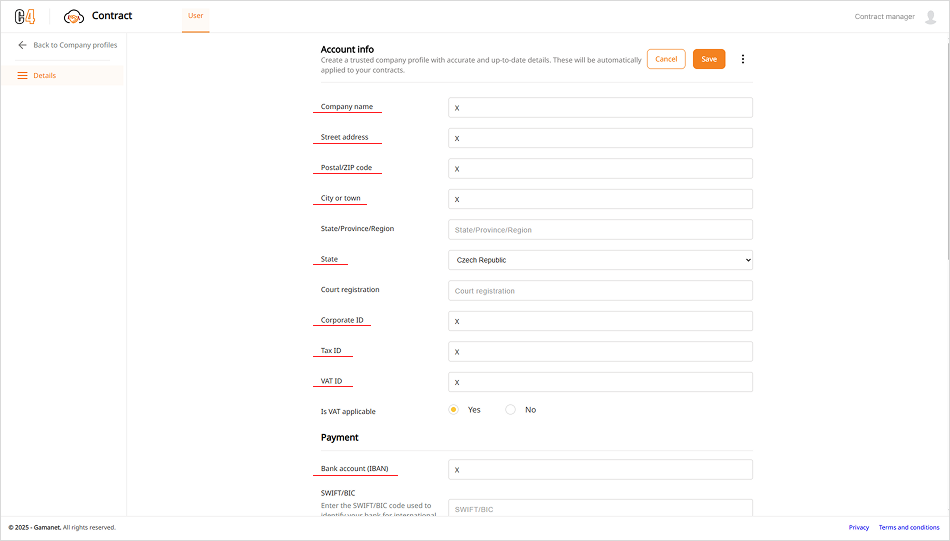
Figure 2. Company registration form
Outcome: The company profile is stored and the Contract Manager can create a contract.
Create a contract
Open Contracts in the left navigation column.
Select New Contract.
Choose the required template: Business Partner for selling and reselling System C4, or Plugin Developer for developing and distributing Plugins.
Preview the selected contract and verify that all displayed information is accurate and complete.
Select Next to submit the contract and continue the guided process.
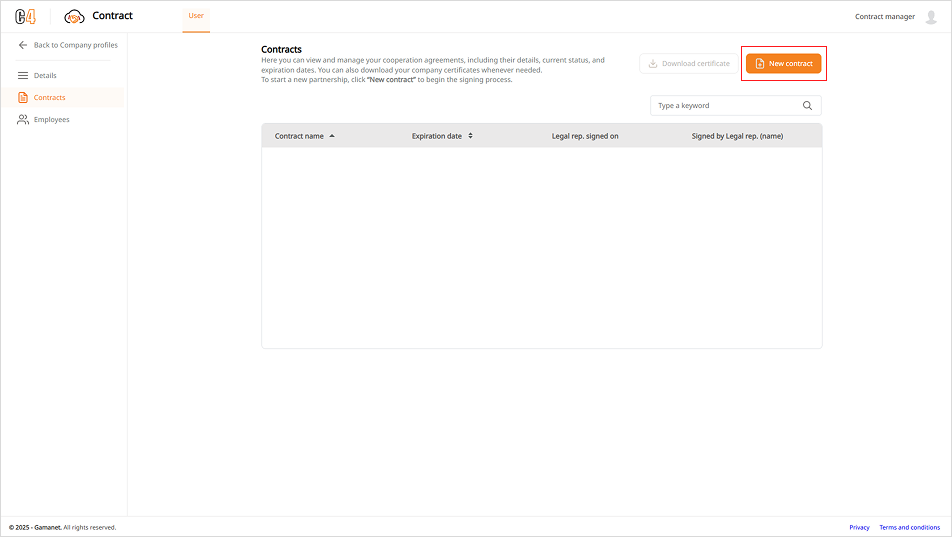
Figure 3. Creating a new contract
Warning: After the contract is submitted with Next, it can no longer be edited.
Complete the required Edu training
Before signing can continue, Contract Web checks whether the Contract Manager has the Edu training required for the selected contract:
Business Partner contract: Sales Basic.
Plugin Developer contract: Third Party Plugin Development.
When the course is missing or expired, Contract Web displays a reminder. Select Continue, complete the required course, and return to the workflow. If the training is already valid, the process continues automatically.
Note: Synchronization of a completed Edu course to the user account can take up to 5 minutes.
Invite the Legal Representative and sign
Enter the email address of the company Legal Representative and send the invitation.
The Legal Representative opens the invitation link within 14 days and signs in or registers through the Portal Services OAuth page.
After the role is assigned, which can take up to 5 minutes, the Legal Representative reviews the contract and selects Sign in the upper-right corner.
Contract Web sends the signed contract to Gamanet for countersignature.
After both parties have signed, the Contract Manager and Legal Representative receive the valid contract by email in PDF format.
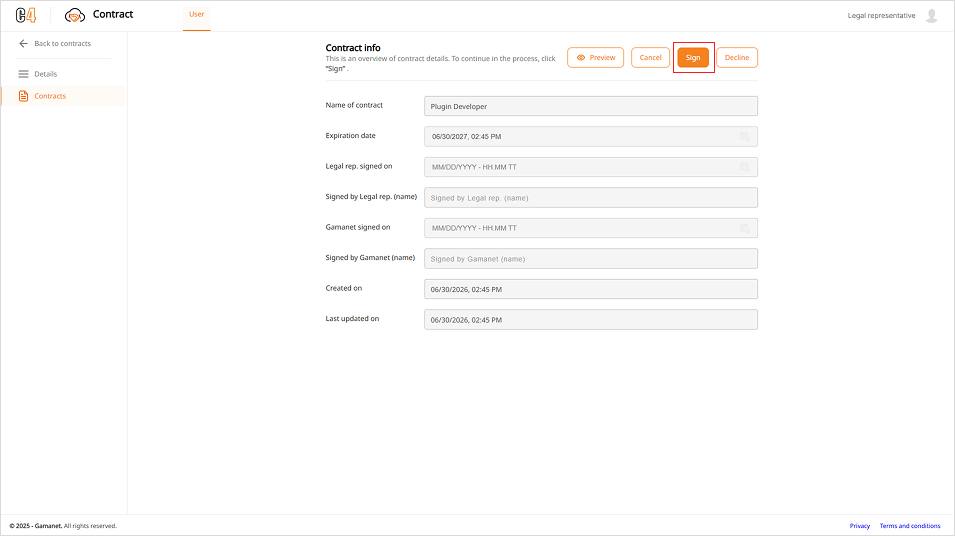
Figure 4. Contract signing screen for the Legal Representative
Outcome: The company is now a Gamanet partner.
3. Administer the company account
After the contract is valid, the Contract Manager can maintain key company roles, manage employees, and access permitted certificate information.
Change key role assignments
The Contract Manager and Legal Representative can each initiate a change of the person holding the other key role. In Company Information, select Change next to the relevant name.
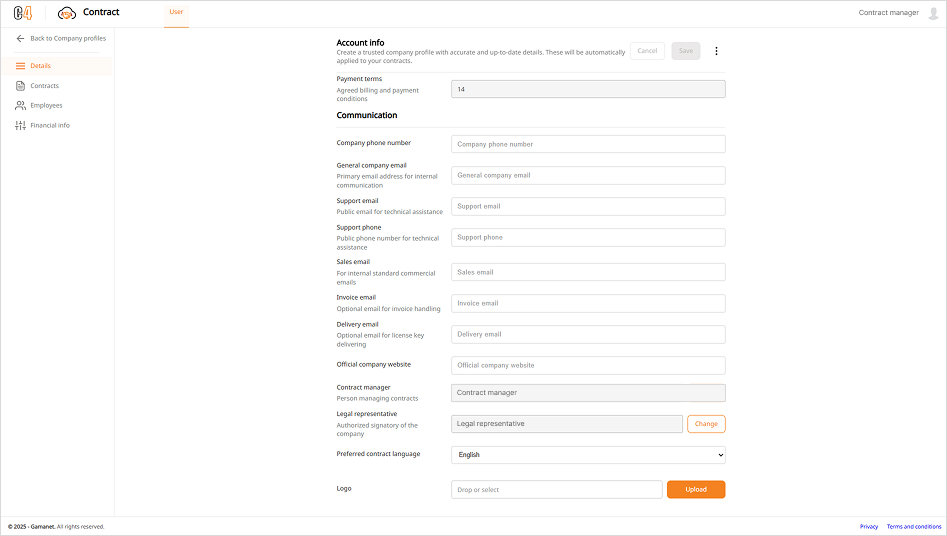
Figure 5. Changing the Contract Manager or Legal Representative
The previous role holder receives a notification email.
The newly selected person receives an invitation email with a confirmation link.
Important: The change becomes effective only after the invited person opens the link, confirms the invitation, and signs in to Contract Web.
Manage employees
Employee management is available when the company has an active and valid contract. The Contract Manager can invite employees, assign one or more roles, and remove roles or company access.
Invite an employee
Open Employee in the left navigation menu.
Select Add employee.
Enter the employee email address and assign the required role.
Send the invitation. The invitation link remains valid for 14 days.
The employee opens the link and signs in or registers in Contract Web. After authentication, the employee can access the relevant Portal Services, such as Sales Web, according to the assigned role.
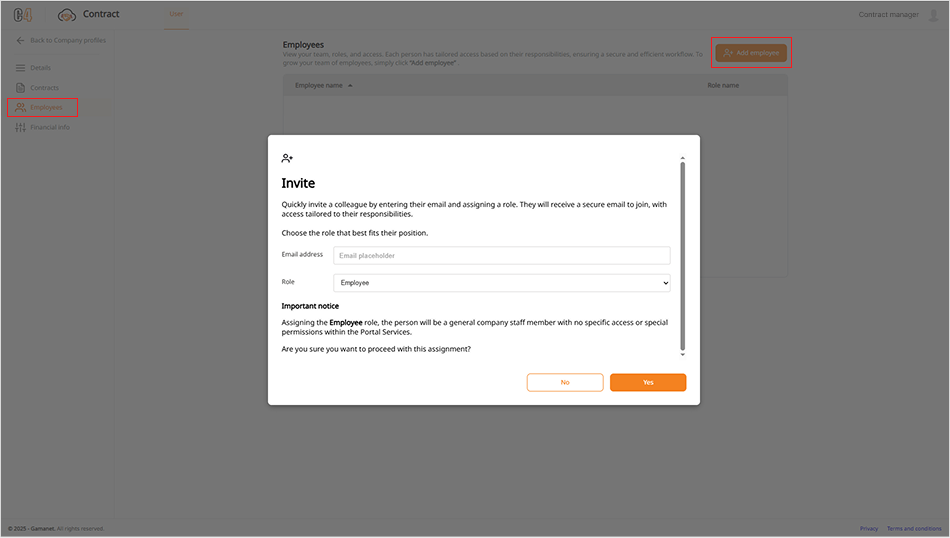
Figure 6. Inviting an employee and assigning a role
Information: One person can hold multiple employee roles.
Employee roles and access
Assign roles according to the information and functions the employee needs:
Role |
Access and responsibility |
|---|---|
Employee |
General company staff membership without specific privileged access in Portal Services. |
Engineer |
Technical information associated with the company in relevant Portal Services. |
Sales |
Sensitive economic and pricing information associated with the company. |
Development Manager |
Management of the company Plugins in Portal Services and the Plugin Store. |
Member of Board |
Access to all key areas of Portal Services available to the company. |
Note: After an invitation is accepted, automatic assignment of account competencies may take approximately 5 minutes. Access can be temporarily limited during this period.
Important: The Sales role is linked to the Business Partner contract, while the Development Manager role is linked to the Plugin Developer contract.
Remove roles or company access
Select the employee name to view the assigned roles.
Select the delete icon next to the role that must be removed.
Remove individual roles as required, or remove all roles to remove the person from the company account and revoke access to the company Portal Services.
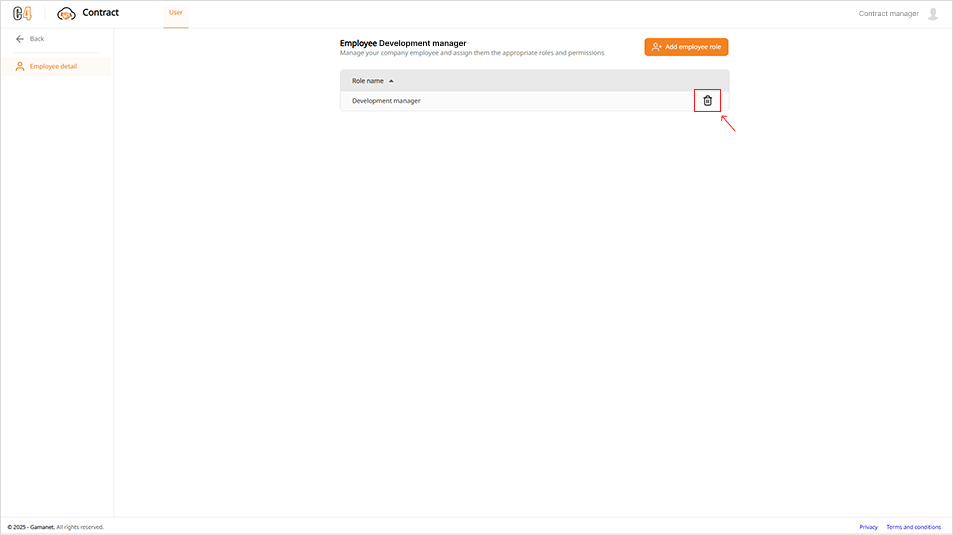
Figure 7. Removing an employee role
Outcome: The selected role is removed; removing all roles revokes the employee's company access.
Access employee certificates
Before requesting certificate access, confirm that the company has a signed Business Partner contract.
Ensure that the employee has been invited with the Engineer role.
Select the employee name and open Employee certificate(s) in the left navigation menu.
Select Request certificate. Contract Web emails the employee and asks for permission to share the certificate information with the Contract Manager.
After the employee grants permission, open the certificate list and select an individual certificate to download it.
Important: Certificate information is available only after the employee has granted access.
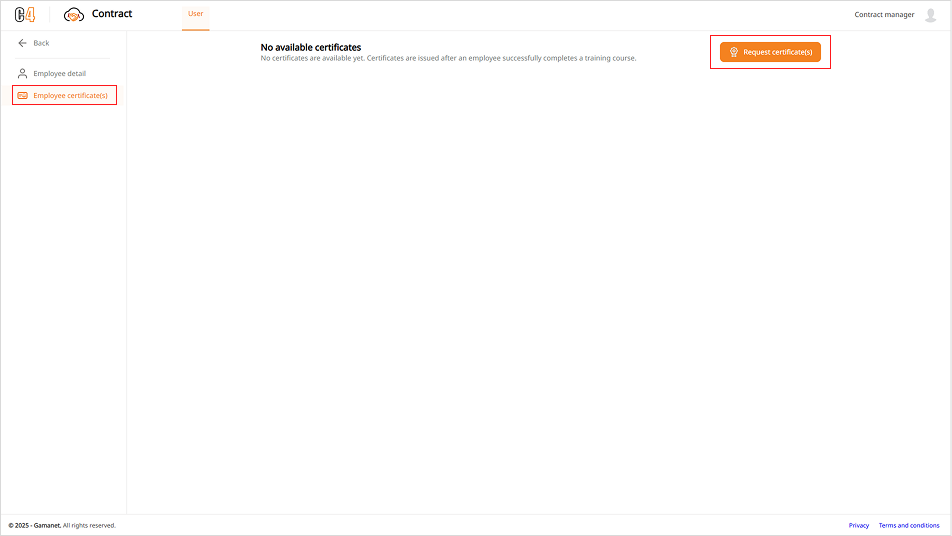
Figure 8. Requesting access to employee certificates
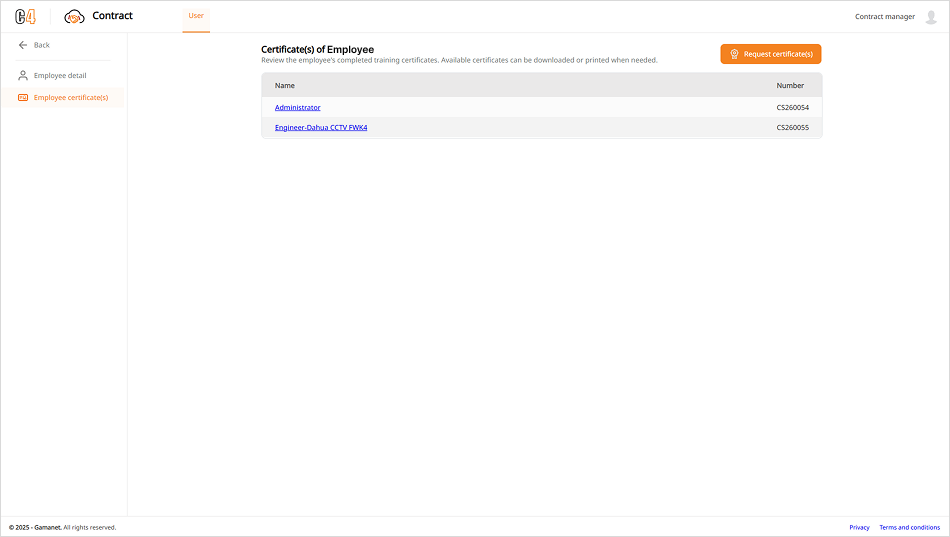
Figure 9. Employee certificates available for download